Preview or Simulate Exam
Written By Florian Barral
Last updated 11 months ago
Quick preview
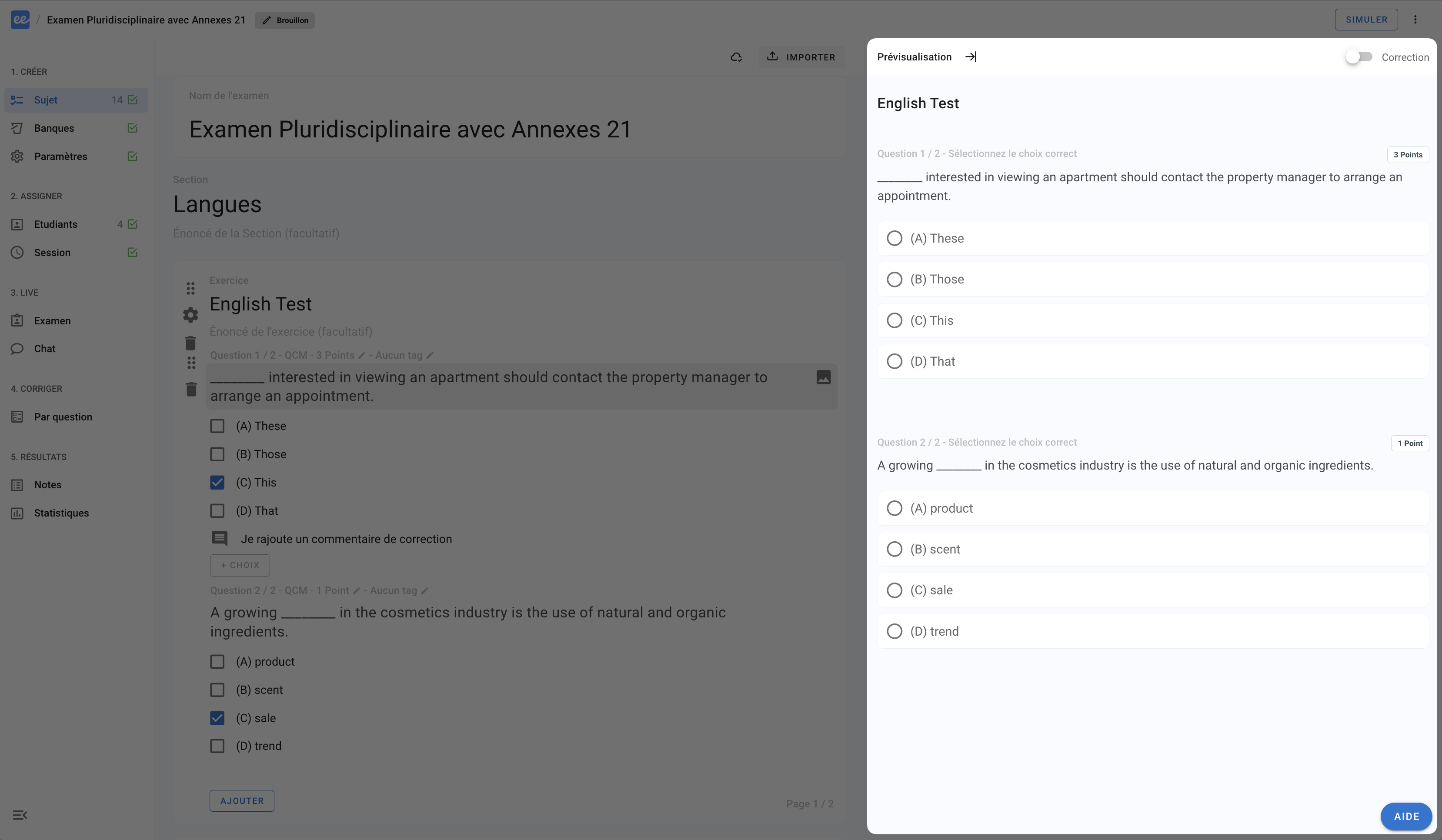
When you hover over a question or exercise page in the subject editor, you will see a preview of how the questions will appear on the examinee’s interface on the right-hand side.
Full simulation
Simulate the complete examinee experience:
Click on
SIMULATE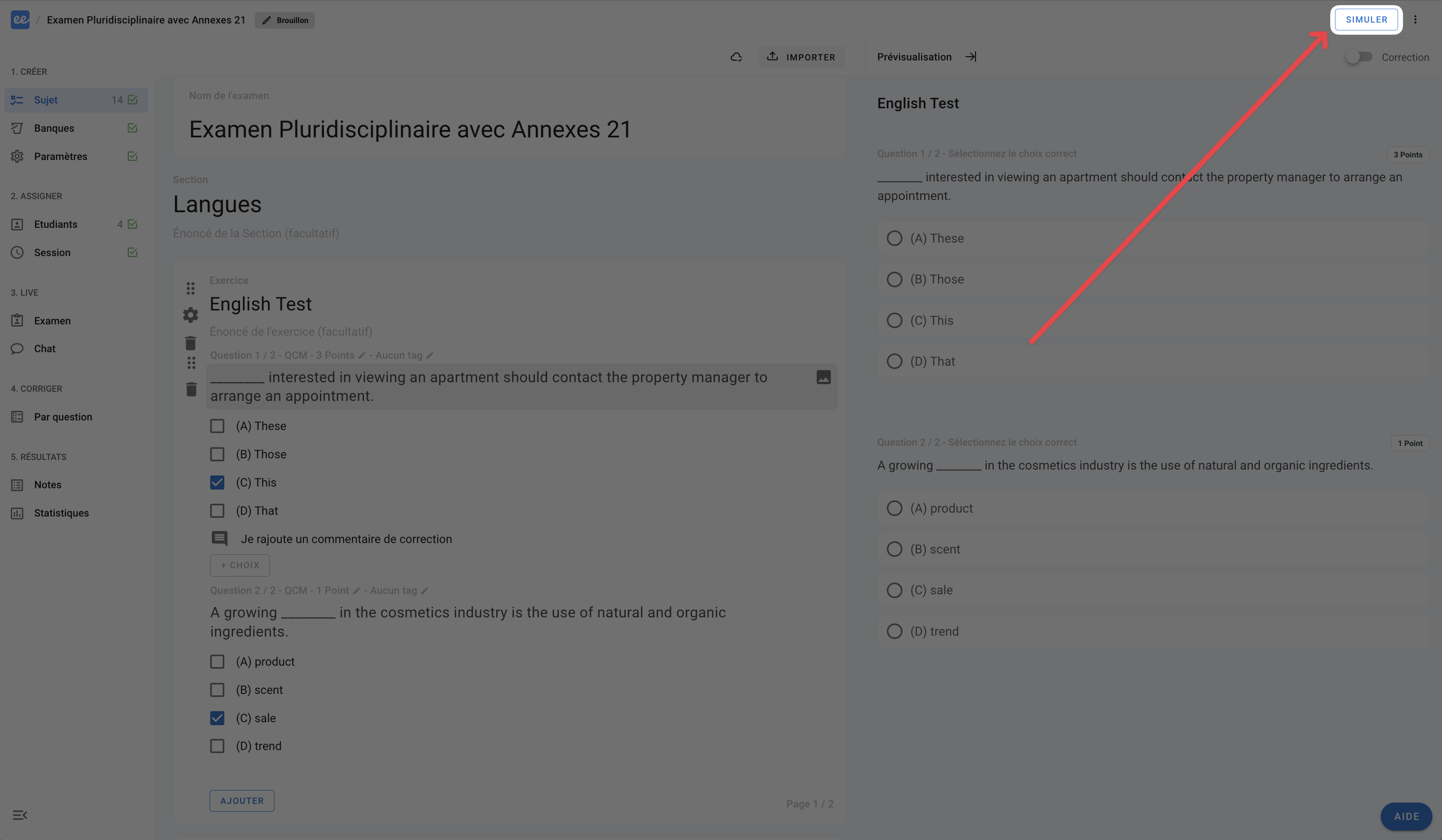
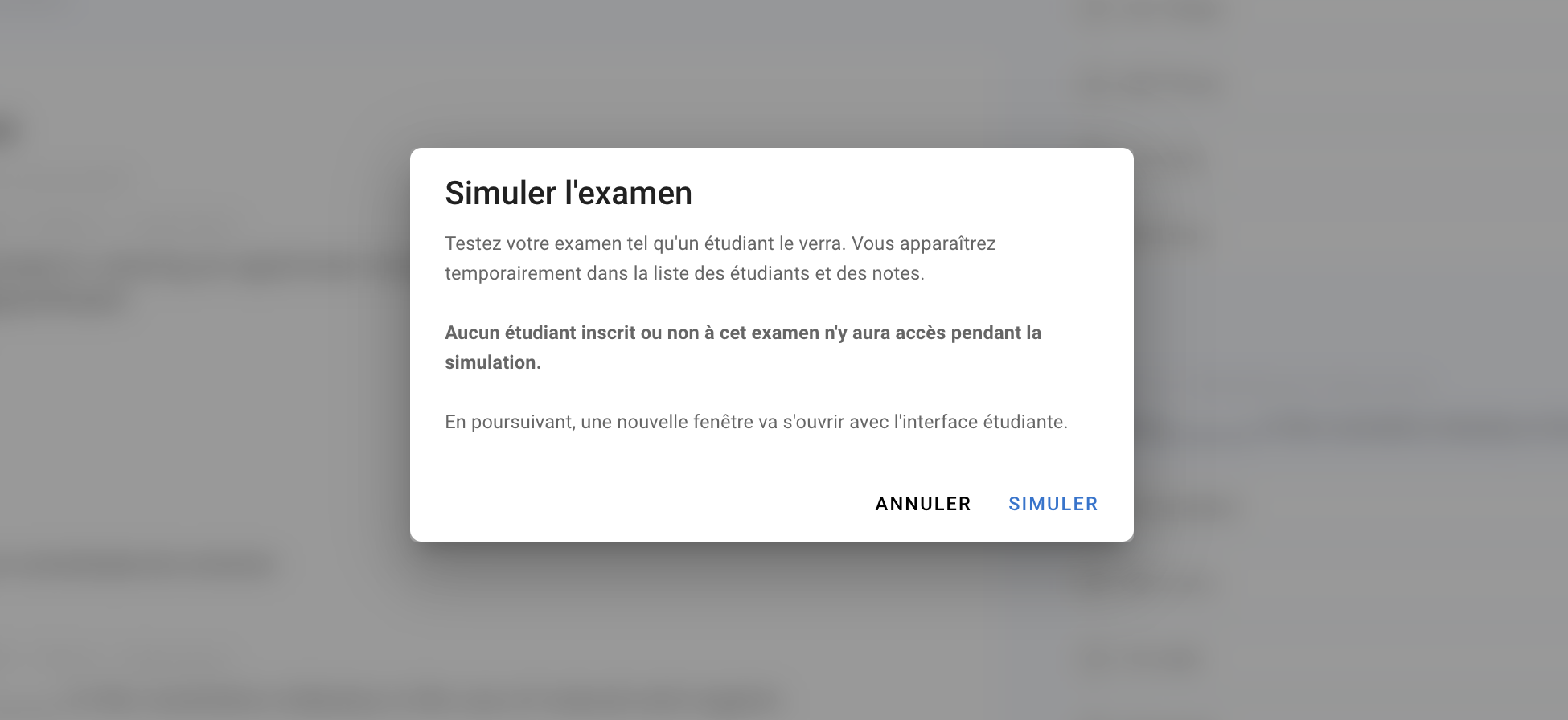
Click again on
SIMULATE. A new page will open in a new tab.❗ Please ensure that your browser accepts pop-ups on the Evalmee website, otherwise the page will not open and you will not be able to simulate the exam.
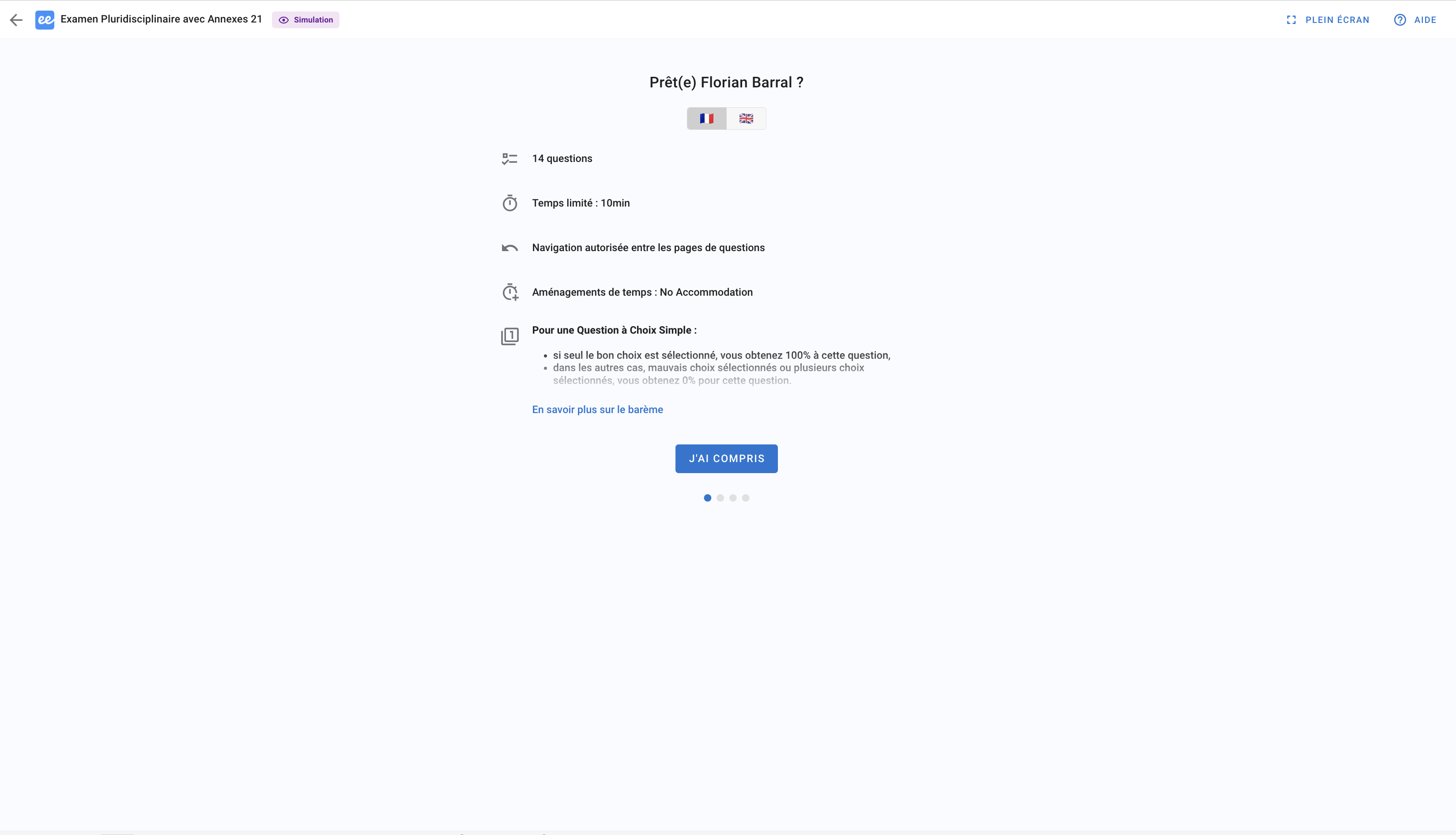
On the new page, you can then begin the full examinee experience as soon as they access the exam (from their home page, from the exam invitation link in their email, or from their LMS). Finalise the exam onboarding process and answer the questions.
💡 You can also track your progress as an examinee on the examiner's interface.