Import an exam subject from Excel
Written By Florian Barral
Last updated 21 minutes ago
Click IMPORT
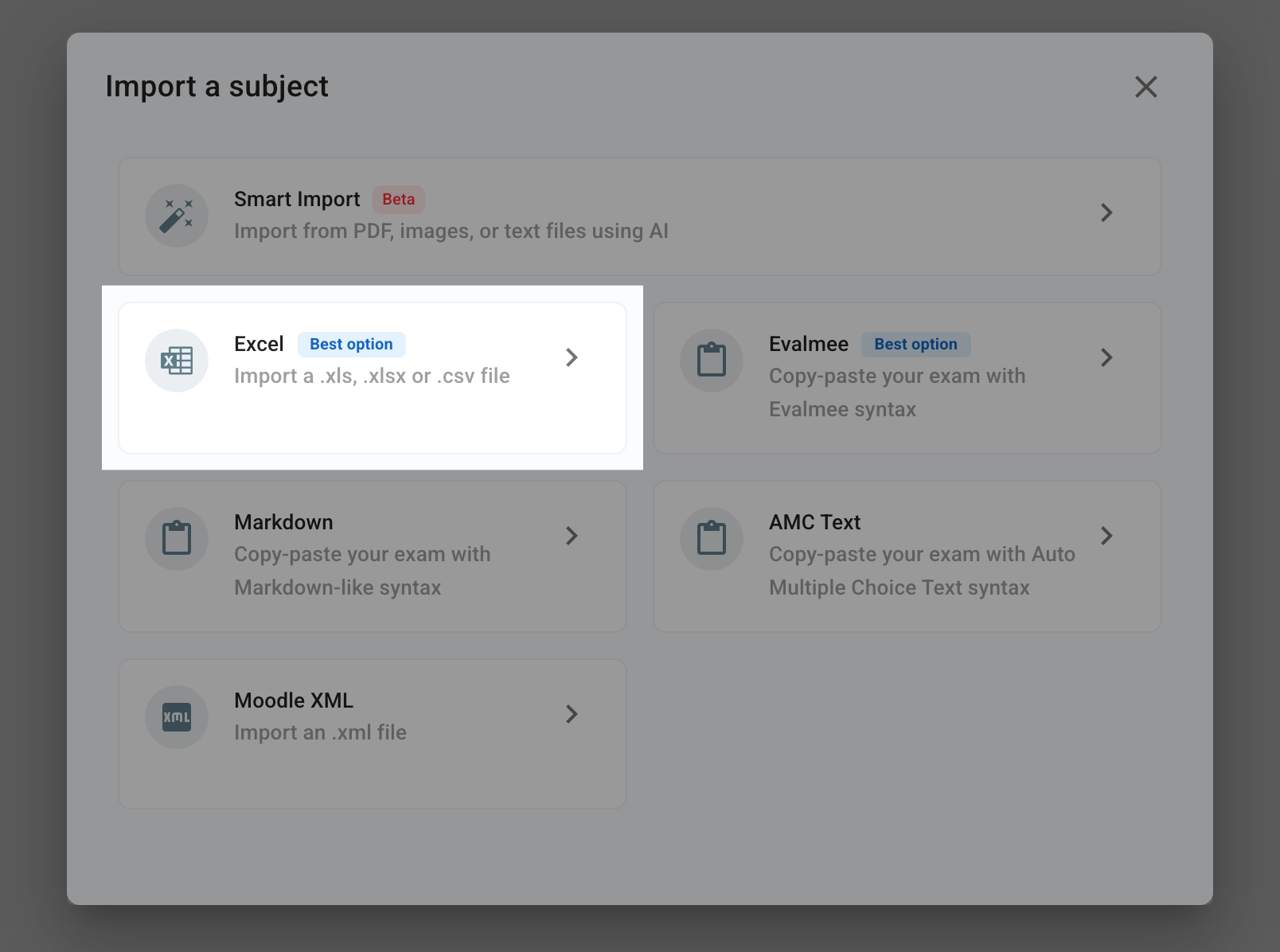

⚠️ Importing an exam subject replaces the sections, exercises, and questions already in the exam. If the file contains a Pools tab, the existing pools are also replaced.
Download the .xlsx template file and fill in the following columns:
Section (optional column if you don’t use sections)
Section statement (optional column if you don’t use sections)
Exercise (optional column if you don’t use exercises)
Exercise statement (optional column if you don’t use exercises)
Tag category 1 (optional column if you don’t use tags)
Tag 1 (optional column if you don’t use tags)
Tag category 2 (optional column if you don’t use tags)
Tag 2 (optional column if you don’t use tags)
Question type
Enter one of the following types, written exactly like this:QCM,QCU,True/False,Open,Code,Spreadsheet,Schema,File upload, orComplementary statement. For a True/False question, writeTrueorFalsein the Correct choices column. A QCU that declares several correct choices is imported as a QCM. The Matching question cannot be imported: add it afterward in the editor.Points
Enter a decimal numberSize limit (optional column)
For an Open question, the maximum length of the answer, for example200 wordsor1000 characters.Question.
Enter your question.Grading comment
Enter the grading comment shown on the graded submission.Correct choices
Define which choices are correct. Example:1if the 1st choice is correct2,4if the 2nd and 4th choices are correct
Choice 1
Enter one of the choices for the questionChoice 2
Enter one of the choices for the questionChoice 3
Enter one of the choices for the question, or leave it empty.Choice 4
Enter one of the choices for the question, or leave it empty.Choice 5
Enter one of the choices for the question, or leave it empty.Choice 6
Enter one of the choices for the question, or leave it empty.Choice 7
Enter one of the choices for the question, or leave it empty.Choice 8
Enter one of the choices for the question, or leave it empty.Choice 9
Enter one of the choices for the question, or leave it empty.Choice 10
Enter one of the choices for the question, or leave it empty.
Simplest import template
Simplest import template
For a simple QCM with 4 choices each time, your Excel file will contain only the following 8 columns:
Question type
Always enterQCMPoints
Enter a decimal numberQuestion.
Enter your question.Correct choices
Define which choices are correct. Example:1if the 1st choice is correct2,4if the 2nd and 4th choices are correct
Choice 1
Enter one of the choices for the questionChoice 2
Enter one of the choices for the questionChoice 3
Enter one of the choices for the question, or leave it empty.Choice 4
Enter one of the choices for the question, or leave it empty.
To learn more about Sections and Exercises, see Structure an exam subject.
Was this helpful?
Still need help? Ask the team