Oral question
Have participants answer on video, with a preparation time and a response time, then grade by watching the recording.
Last updated 4 days ago
The oral question asks the participant to answer on camera. They get a preparation time, then a response time recorded on video. You then grade by watching the video, criterion by criterion. No slots to schedule: everyone answers during their own exam session.
Available from the Pro plan, for online exams only.
Add an oral question
In the subject editor, go to an exercise. An oral question must always be inside an exercise.
Click Add, then choose Oral question.
Enter the question's title, then set up the blocks below.
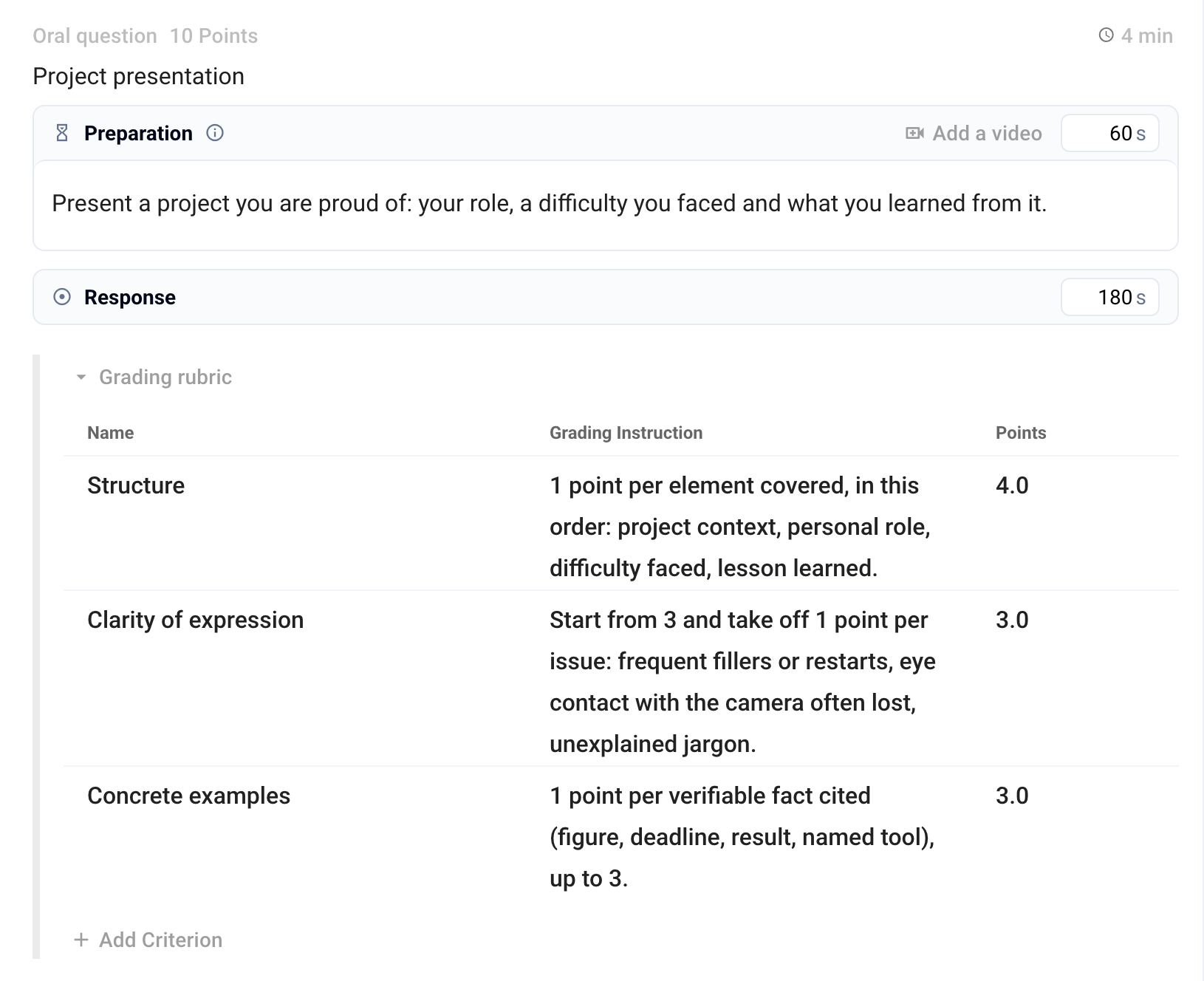
Intro video (optional)
Click Add a video to introduce the question on video. The participant watches it at the start of their preparation. Turn on Show the statement during the video to keep the statement visible while it plays; otherwise it appears when the video ends.
Preparation
Write the statement and set the preparation time (30 s by default). The intro video's length is added to it: with a 24 s video and 60 s of preparation, the participant gets 1 min 24 s.
Response
Set the maximum recording time (120 s by default).
Grading rubric
Add your criteria and their points (for example Fluency and pronunciation, Range of vocabulary, Structure). You use them to grade each video.
What the participant sees
When the exam starts, their camera and microphone are checked.
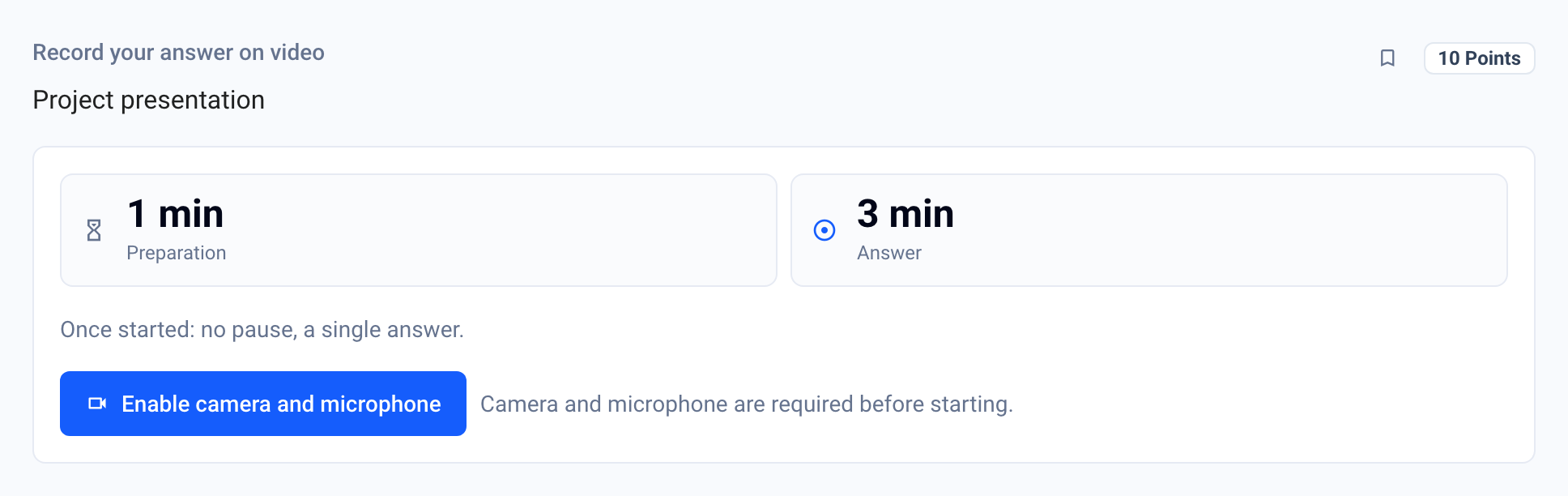
On the question, they see the preparation and response times, then click Enable camera and microphone and Start the question. Once started, the question can't be paused.
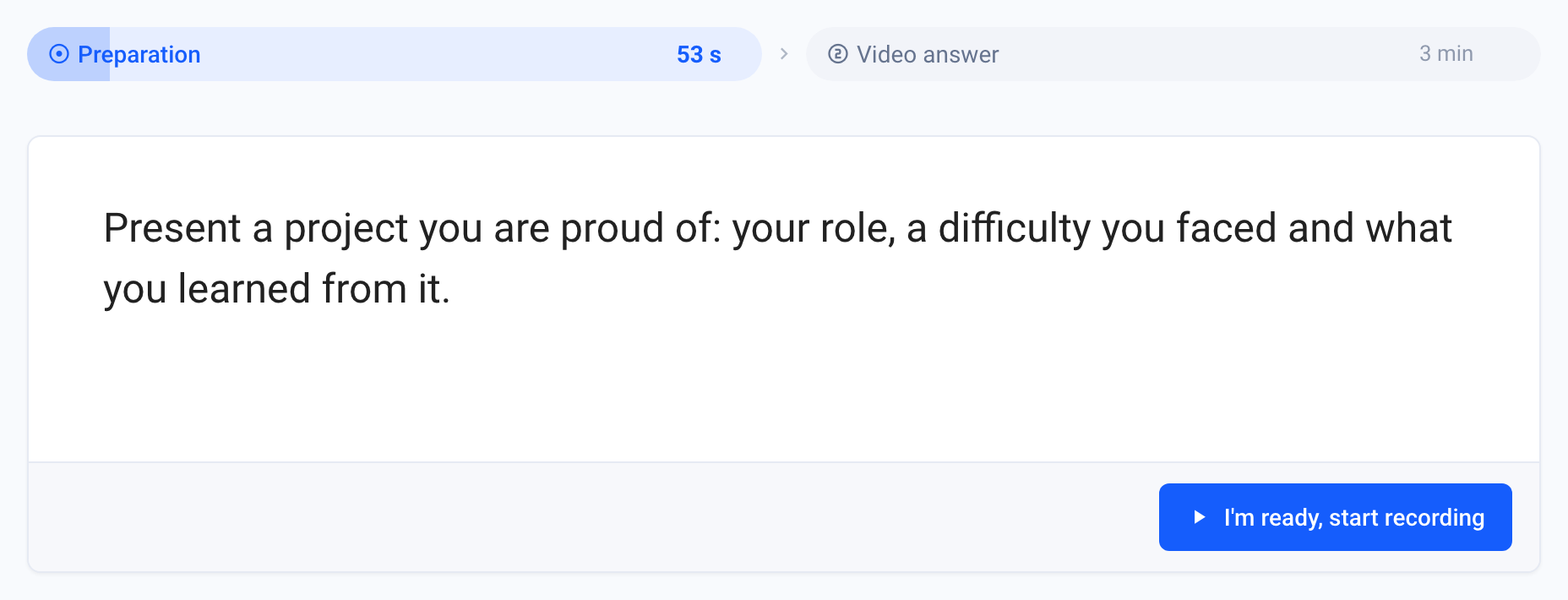
They watch the intro video, read the statement and prepare their answer. They can start recording before the countdown ends with I'm ready, start recording.
They answer on camera until the response time runs out, or click Finish my answer.
Use Preview from the editor to go through the same sequence as participants: nothing is recorded and you can replay it.
Time accommodations: they apply to both preparation and response.
Interruption: if the recording is cut off (network loss, page closed), the participant can resume once. Grading shows it with Recording interrupted and resumed, with both parts of the video.
Grade the answers
Open Grade › By question and select the oral question.
Click Lock criteria to freeze the grading rubric.
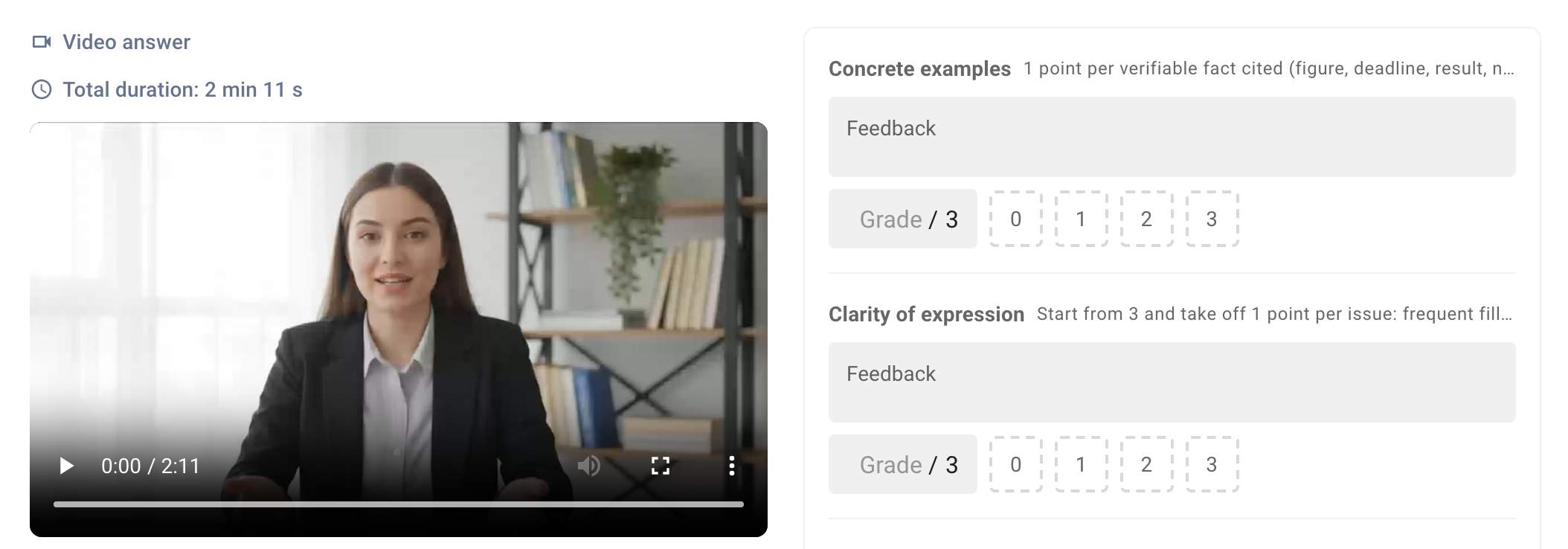
For each participant, watch the Video answer and score each criterion, with a comment if needed.
Once grades are published, participants find their video in their graded submission.
Limitations
Not compatible with time split per question: the oral question manages its own time.
The answer review page at the end of the exam isn't offered in an exam that contains an oral question.
Excel import and export of the subject don't support oral questions.
Online exams only, not on paper.
Was this helpful?
Still need help? Ask the team