Share self-enrollment link
Enable and share a self-enrollment link to allow participants to register themselves for an exam session — no need to import or invite them by email.
Written By Florian Barral
Last updated Over 1 year ago
When should you use it?
This feature is ideal when:
You’re conducting a classroom or lecture-hall session (in person)
You’re running a remote class (Zoom, Teams, etc.)
You want to offer a practice session open to everyone
You’re setting up a self-paced onboarding or trial session
You don’t have access to participants’ email addresses in advance
How to enable the self-enrollment link
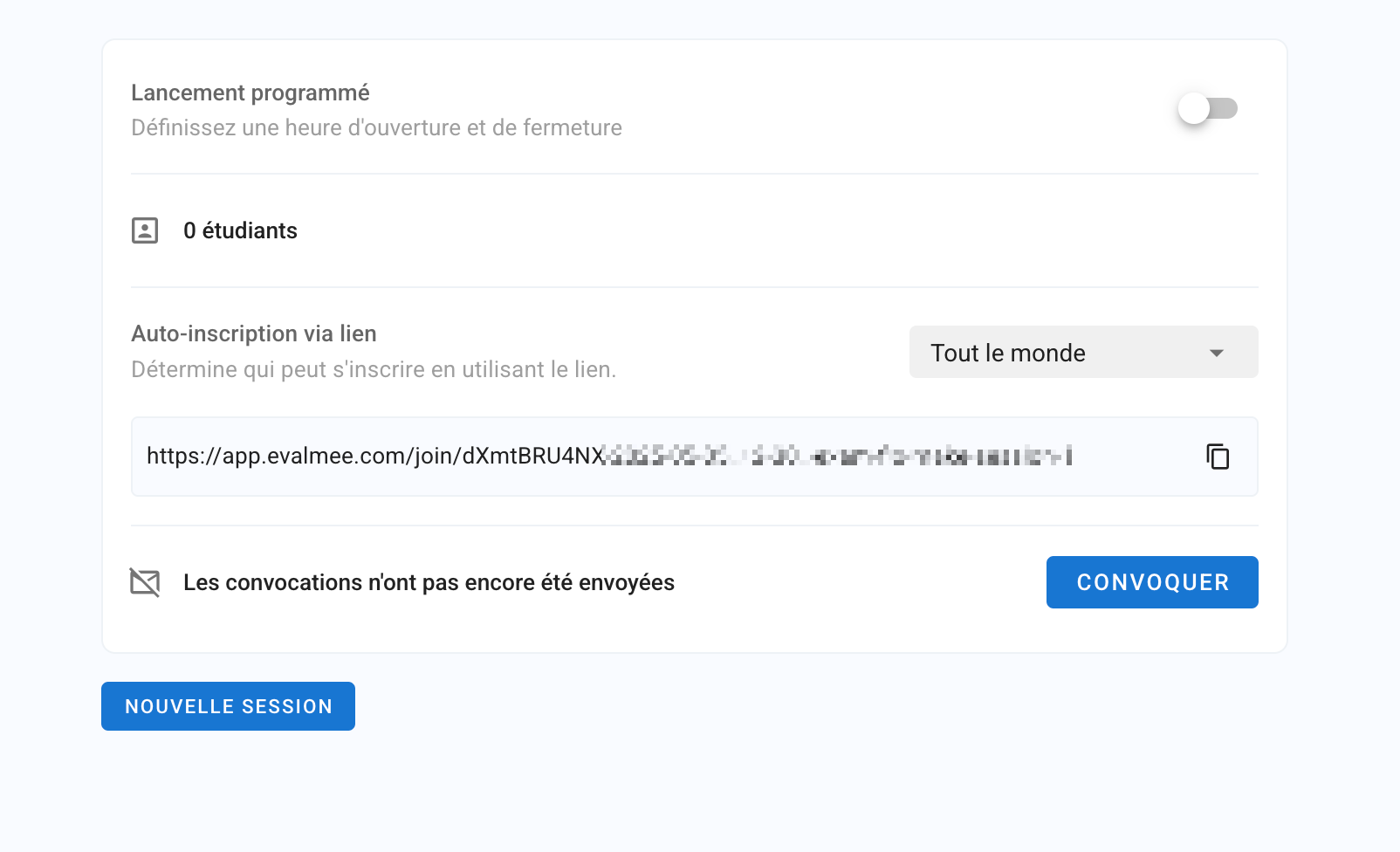
Go to your exam
Open the Session tab
Click on the session you want to configure
Find the Self-enrollment via link section
In the dropdown menu, choose who can enroll using the link:
Nobody (default): Only manually enrolled participants can access the session
Anyone (public link): Anyone with the link can self-enroll and access the session
Members of your organization: Only logged-in users from your organization can enroll via the link
Copy the link and share it with participants (chat, email, QR code, slide projection, etc.)
📸 Example of link format:
What participants see
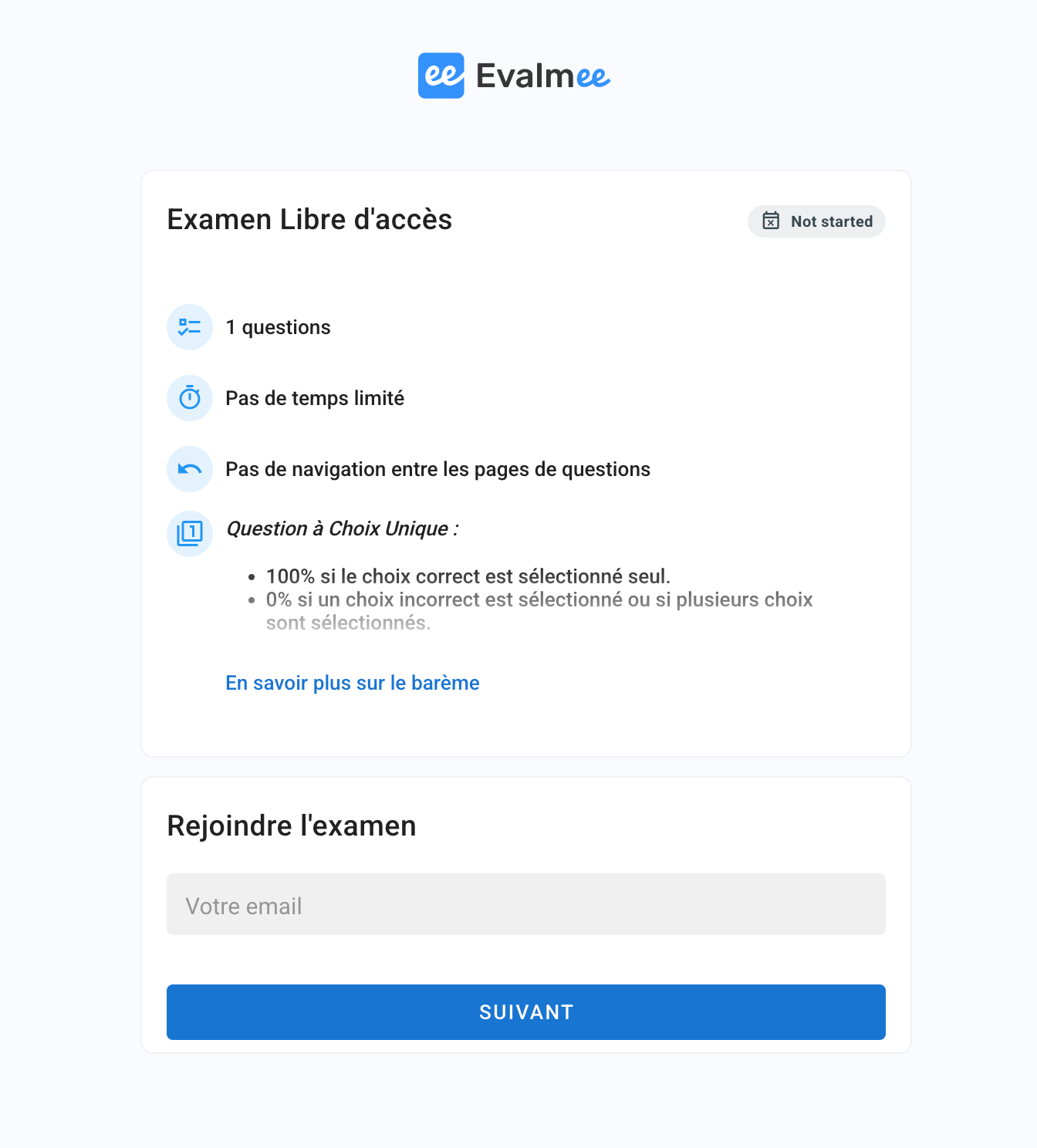
When a participant clicks the link:
They are taken to a simple registration form (first name, last name, email)
Once submitted, they are automatically enrolled in the session
They can start the exam at the defined time
Things to know
The link can be enabled or disabled at any time
You can see self-enrolled participants in the student list of the session
A participant who self-enrolls is treated like any other enrolled student
Best Practices
Share the link right before the exam if you want to control access
For open practice exams, you can display the link in your intranet or embed it on a public page
For more advanced needs (pre-registration forms, auto-generated sessions), consider using the Evalmee API