Export & share grades
Here is how to export grades and email the export file to someone
Written By Florian Barral
Last updated 8 days ago
In Results › Grades, click Export at the top right:
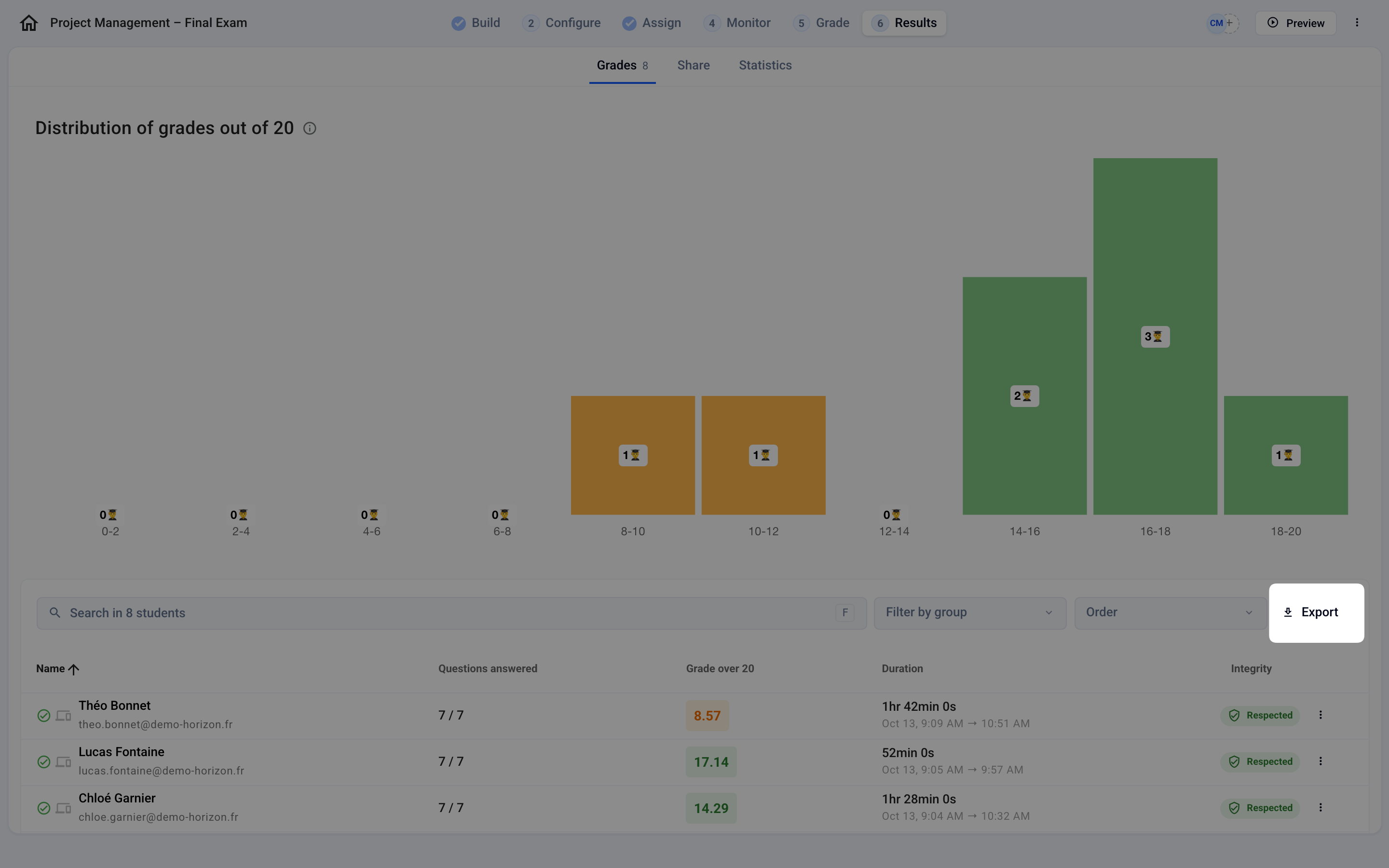
You can then export the grades to Excel in 2 formats:
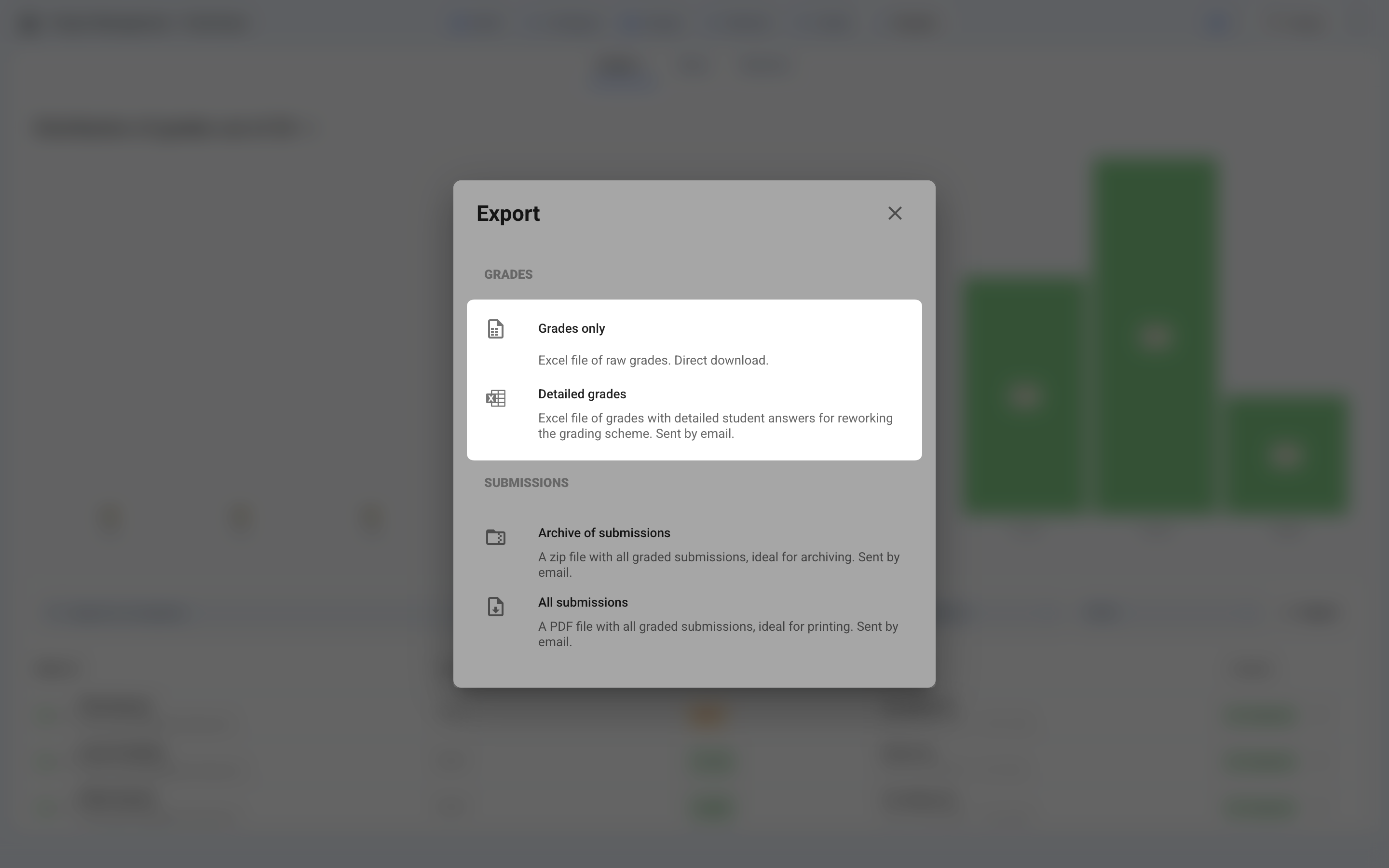
Grades only. An Excel
.xlsxfile you can download directly. It contains the grades and the main information about participantsDetailed grades. An Excel
.xlsxfile sent by email, containing much more information (question weighting details, raw results question by question, etc.) and Excel formulas to quickly reprocess the results on a computer💡 This file will be sent by email. You are asked to confirm the email address to send the file to, so you can enter a different address if you want to send it to a colleague or to the person who centralizes your participants’ grades.
Reading the “Detailed grades” file
The “Grades” tab gives each participant’s final grade.
Each question has its own tab (“Q1”, “Q2”…). Its “Non-weighted points” column shows the points before weighting, out of 1 point. A correct answer to a 5-point question is therefore worth 1 point there.
The “Weights” tab contains the points for each question. The final grade applies these weights: a 5-point question weighs 5 times more than a 1-point question.
FAQ
Why is the “Detailed grades” export grayed out?
Why is the “Detailed grades” export grayed out?
The Detailed grades and Detailed grades per tag exports are not available when the exam uses Discordance scoring (Configure tab, MCQ Grading section). Use the Grades only export, or switch back to Classic scoring if that works for your exam.
Was this helpful?
Still need help? Ask the team