Correct the exam subject & grades
If there is a typo in the exam subject, edit the original subject to recalculate the grades.
Written By Florian Barral
Last updated About 2 hours ago
In the app
Once your exam is open, you can no longer modify the questions generated for your participants, for fairness, so that all your participants get the same exam subject.
But you can partially edit the subject to fix errors or change the grading scheme.
Editing the subject
To do so, in the Questions tab:
Click the
Editbutton
Edit the subject as you see fit: check the correct choices, change question weights, the grading comment and the tags.
Then click
Update grades
All your grades will be recalculated accordingly
Editing the MCQ grading scheme
In the Settings tab:
Go to
MCQ GradingClick
Edit scoringEdit the grading scheme as you see fit
Then click
Save & recalculate gradesAll your grades will be recalculated accordingly
In the Excel export
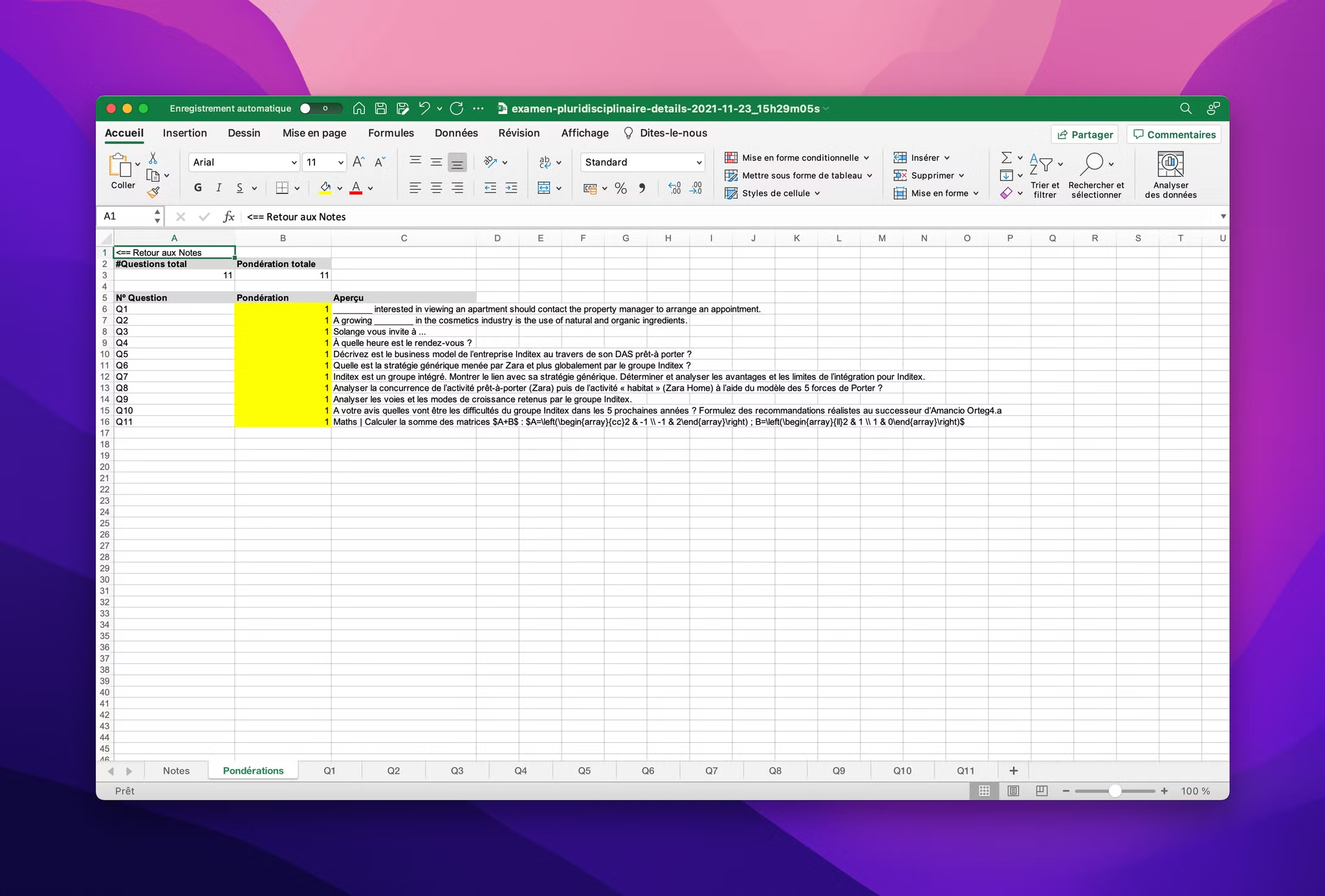
You can also edit part of the exam’s grading scheme from the detailed Grades Excel export once the exam is over.
You have a Weights sheet in the grades export, as shown below:
FAQ
Why can’t I add a question or delete a choice anymore?
Why can’t I add a question or delete a choice anymore?
As soon as a session is open or participants have received their exam subject, the structure of the subject is locked: you can no longer add or delete a question, exercise or choice. You can still edit a question’s points, check or uncheck the correct answers, the grading comment, the criteria and the tags. To neutralize a question, set its points to 0; to neutralize a choice, mark it as correct or incorrect as appropriate.
Was this helpful?
Still need help? Ask the team