A participant is stuck at the start of the exam
“Next” button missing, screen sharing denied, camera not detected, work computer, iPad, blocking extension: causes and solutions.
Written By Florian Barral
Last updated 7 minutes ago
Before starting, each participant goes through several setup screens. If one of them does not unlock, the participant cannot start. This article lists the most common blockers, what the participant should do, and what you can do on your end.
💡 A participant who has opened the exam without starting it shows “Opened the exam home page on …” in Monitor › Live. This is the best way to spot who is stuck. See Live tracking
Help a stuck participant
In Monitor › Live, click ⁝ at the end of the participant's row. Depending on your exam settings, you may find:
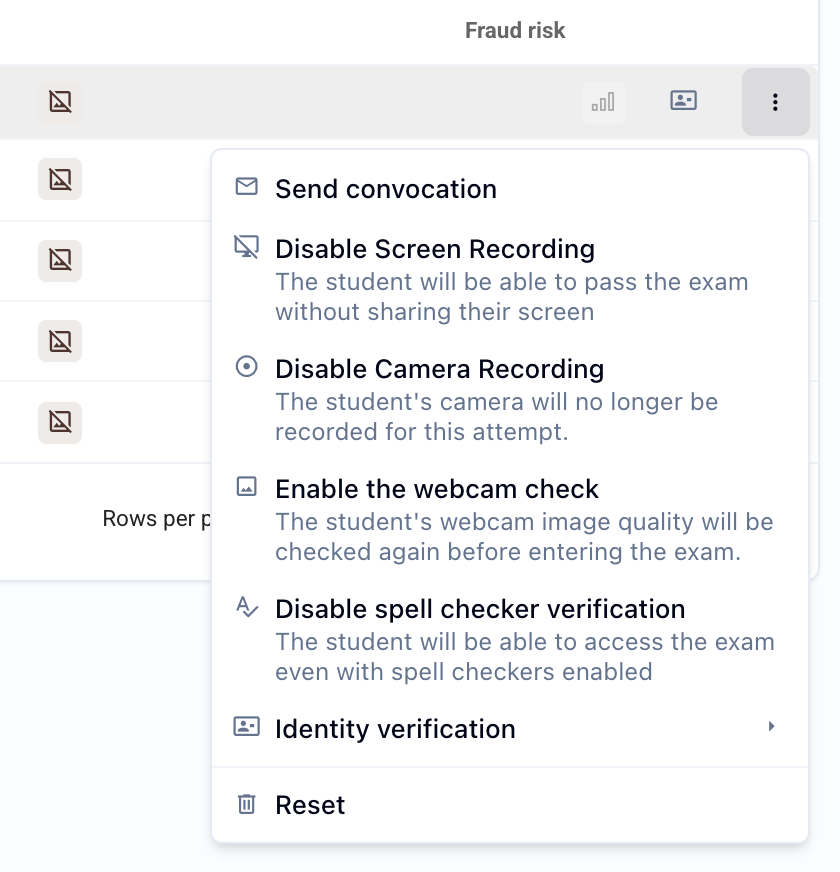
Disable Screen Recording: the participant can access the exam without sharing their screen.
Disable spell checker verification: the participant no longer has to disable their extensions.
Disable Evalmee app requirement: the Evalmee app is no longer required for this participant.
The action applies immediately; the participant does not need to reload the page.
The camera is an exception: you cannot exempt a single participant from camera proctoring. Disable Camera Recording only stops the recording, not the setup steps. The only solution is to disable camera proctoring for the whole exam. See “The camera is not detected” below.
The “Next” button does not appear or stays grayed out
The button waits for the current screen to be completed. Depending on the screen displayed:
That's it for now!: the exam is not yet accessible. The next steps open a few minutes before the opening time. Just wait and reload the page.
Exam conditions: Understood stays grayed out until the “I certify that I consent to the processing of my data by Evalmee…” checkbox is checked (exams with camera proctoring).
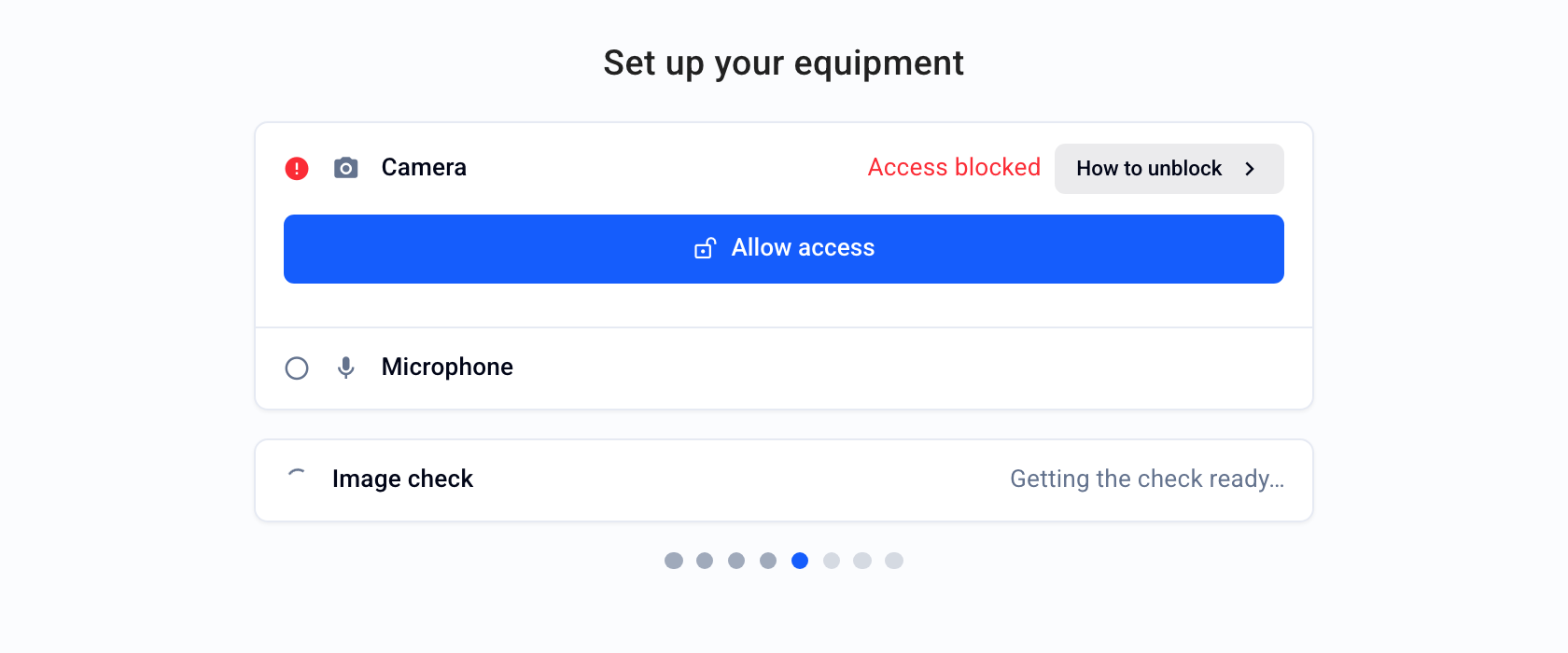
Set up your equipment: the My equipment is ready button only appears when the camera and microphone are working. See “The camera is not detected”.
Identity validation: Next appears after the photo of the ID document.
Your reference photos: Next appears once the three photos (facing forward, head turned left, head turned right) are saved with Take the photo then Confirm photo.
Screen sharing: Next only appears once the entire screen is shared. If there is an error, only the Update screen sharing button is displayed. See “Screen sharing is denied or not possible”.
Spell checker tools check: no button as long as a forbidden extension is active. See “An extension is blocking access”.
Honor code: Start stays grayed out until the “I commit to taking this exam on my own and not cheating.” checkbox is checked, or until the exam is open. The button turns blue when the exam opens.
Screen sharing is denied or not possible
What the participant sees: a red error message under Share my screen. The possible messages:
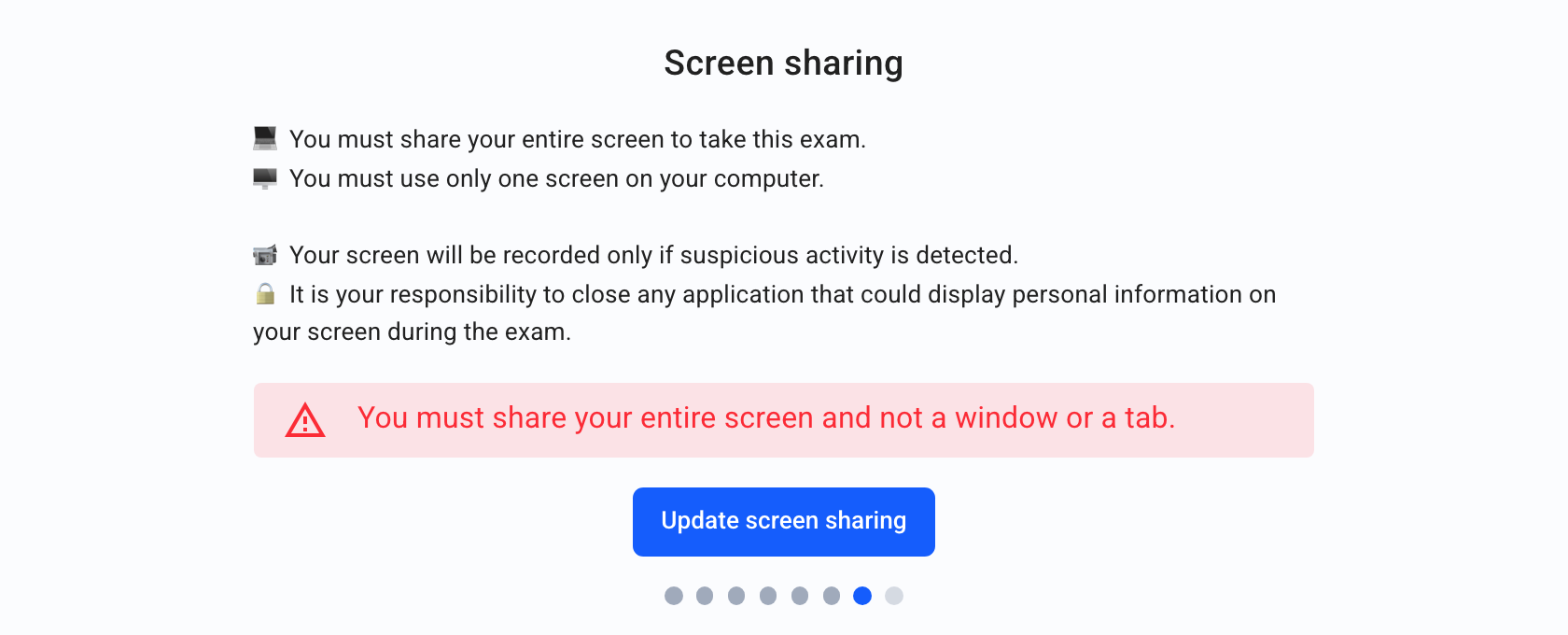
“You must share your entire screen, not a window or a tab.”: in the browser window, the participant must choose the entire screen, not a window or a tab. The Update screen sharing button restarts the selection.
“You must use a single screen to take the exam.”: the participant must unplug or disable any additional screens.
“Make sure you have accepted screen sharing.”: the participant declined or closed the sharing window. On Chrome, they must also allow the “Window management” permission requested by the browser.
“You must enable screen sharing in your computer settings.”: on a Mac, the browser does not have permission to record the screen. The participant opens System Settings › Privacy & Security › Screen & System Audio Recording, checks their browser, then restarts the browser if needed.
After several attempts, the “Can't share your screen?” link appears and opens a help page.
What you can do: Disable Screen Recording for this participant.
The camera is not detected
What the participant sees: at the Set up your equipment step, the Camera (or Microphone) row shows Access blocked, with the Allow access and How to unblock buttons. A message says, for example, “It looks like your webcam is blocked by your browser”.
What they need to do:
Click Allow access, then accept the browser's request.
If access stays blocked: on Chrome, click the crossed-out camera icon in the address bar, then “Always allow…”. On Firefox, remove the temporary block. On Safari, open Settings › Websites › Camera and choose Allow for Evalmee. Then click Retry.
Check that the camera is not covered by a physical cover and that no other application (video conferencing…) is using it.
What you can do: suggest another browser or another computer. The camera steps (equipment, reference photos) cannot be skipped for a single participant. Disable Camera Recording only stops the recording.
As a last resort, disable camera proctoring for the whole exam: Configure tab, Proctoring section, set Camera proctoring to Off. You can do this during the exam, but you will not be able to turn it back on while the exam is in progress, and it stops for all participants.
If you need help, contact support: Support: live chat, hotline, and on-call hours
The participant is using a work computer
Work or institution computers are often locked down by their administrator: mandatory extensions, blocked camera or screen sharing, network filtering. Evalmee cannot bypass these rules.
When the exam opens, a Device compatibility check card is displayed if the device fails any of these tests: Browser compatibility, Storage space, Graphics acceleration, Background processing. Each failing row explains the problem.
The simplest option is to take the exam on a personal computer, or to ask the IT department to allow Evalmee.
Have the computer tested in advance with Recommended hardware setup for participants
The participant is on an iPad, tablet, or smartphone
What the participant sees: “You must use a computer to take this exam.” at the Screen sharing step. Screen recording is not supported on tablets or smartphones.
What you can do: Disable Screen Recording for this participant, from Monitor › Live. They can then take the exam from their device. See Disable screen recording for a participant
An extension is blocking access
When the Disable spell checkers option is on, the participant sees the Spell checker tools check step. It blocks access if a spelling, grammar, or translation extension (Grammarly, DeepL…) is active.
What the participant sees: the Forbidden Extensions list and the message “Disable these extensions and reload the page to continue”.
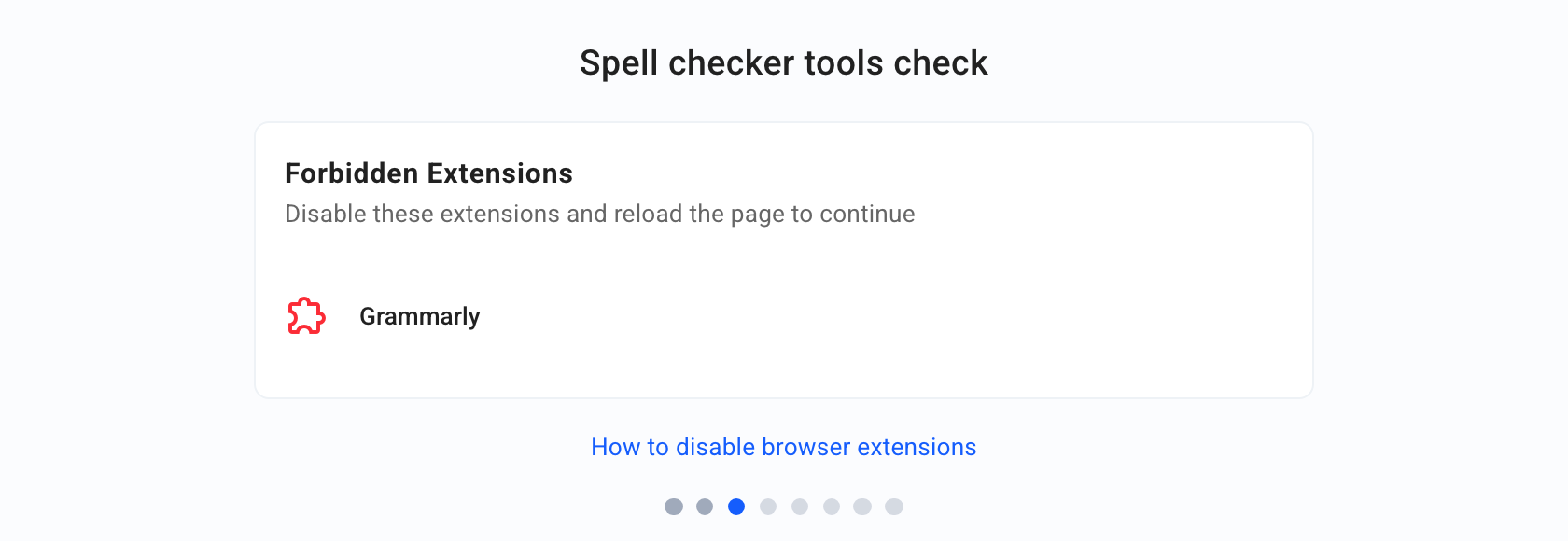
What they need to do: disable the listed extensions, then reload the page. The “How do I disable browser extensions?” link details the steps for Chrome, Firefox, and Edge. On Chrome, it is the ⋮ menu › More tools › Extensions.
What you can do: Disable spell checker verification for this participant.
The Evalmee app is required
If the exam requires the Evalmee app, the participant sees Evalmee app required. They must download the app, log in, and open the exam from the app. To exempt them, use Disable Evalmee app requirement in the ⁝ menu.
The browser is not compatible
The message “Evalmee is not compatible with your browser version” asks the participant to update the browser or use Chrome or Firefox. Recommend these two browsers to your participants.
FAQ
Can I take an exam on a smartphone or tablet?
Can I take an exam on a smartphone or tablet?
Yes, as long as you lift the computer-related blockers: screen recording is not supported on mobile (“You must use a computer to take this exam.”), and the Evalmee app, if required, cannot be used. For this participant, use Disable Screen Recording and, if needed, Disable Evalmee app requirement from Monitor › Live. The procedure is detailed in the “The participant is on an iPad, tablet, or smartphone” section above. The browser must also be up to date (Chrome or Firefox recommended) and pass the Device compatibility check.
Was this helpful?
Still need help? Ask the team