Assign graders
Split the grading of an exam between several graders, question by question.
Written By Florian Barral
Last updated 10 days ago
If you have invited colleagues to your exam with a role that allows grading (by default Full Access or Editor), you can share the grading between you. The checkboxes and the list of graders only appear once at least two people can grade the exam.
Haven’t invited a colleague to your exam yet? Go here: Share exams with colleagues
Question by question
Open your exam
Go to the
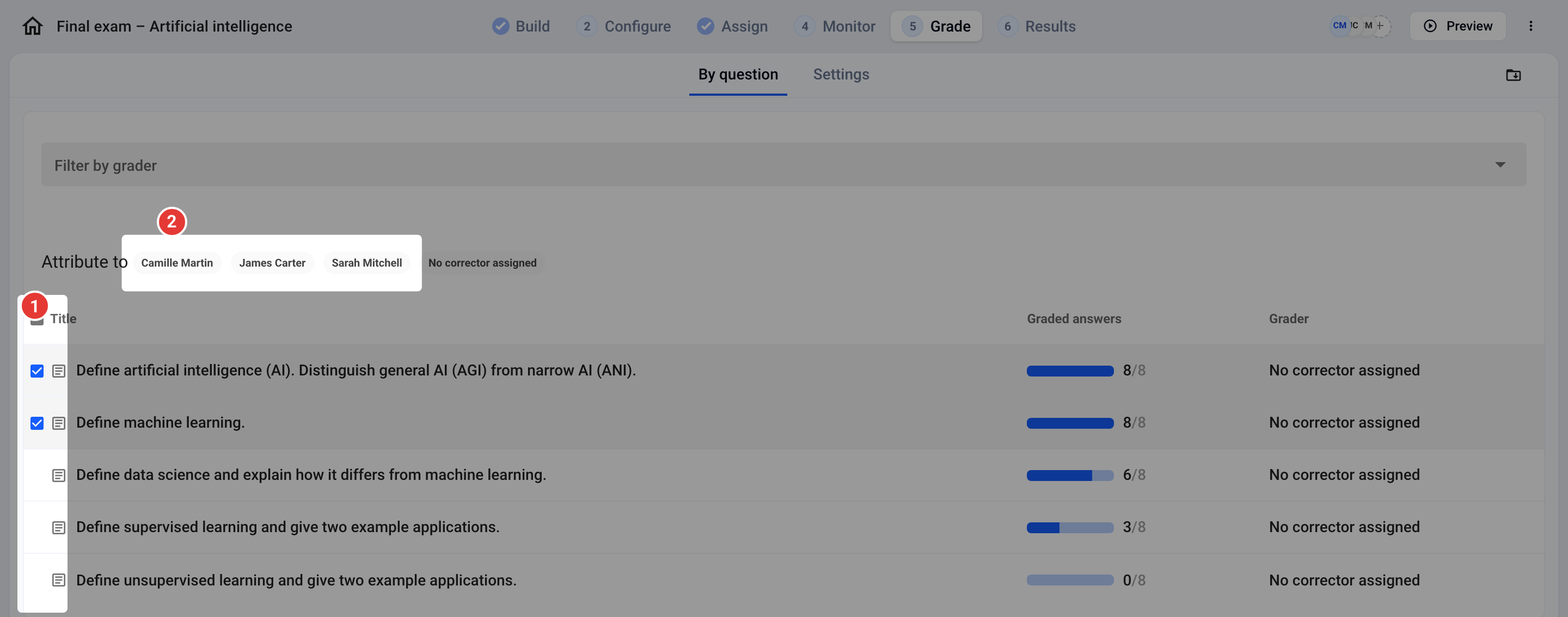
Grade/By questionpageSelect one or more questions by checking their boxes
Under Attribute to, click the name of the grader you want to assign the selected questions to. Assigning is only there to help you organize: it does not prevent other graders from grading these questions and does not send any notification.
FAQ
How do I replace a grader?
How do I replace a grader?
Each question has only one grader: assigning their questions to another grader replaces the previous one.
Invite the new grader to the exam if they are not already on it.
Go to the
Grade/By questionpage. The Filter by grader field lets you keep only the former grader’s questions.Check these questions.
Under Attribute to, click the new grader’s name.
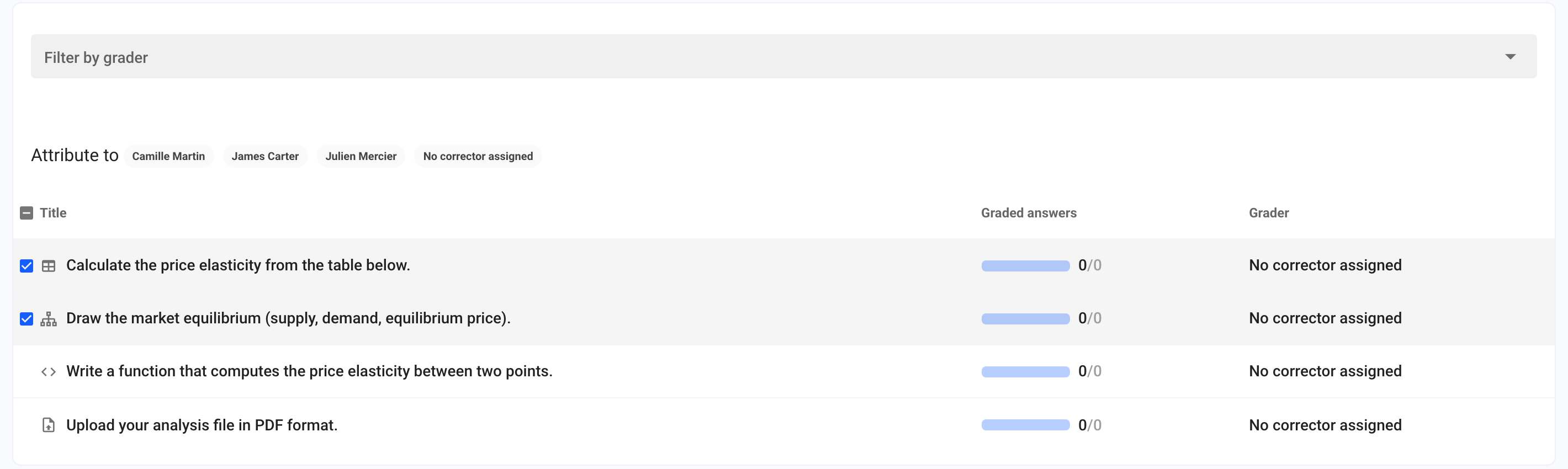
Questions without a grader show “No corrector assigned”. To remove a grader, check their questions and click No corrector assigned under Attribute to.
Was this helpful?
Still need help? Ask the team