Export graded submissions as PDF
Written By Florian Barral
Last updated About 1 hour ago
On the Grades tab, click Export at the top right
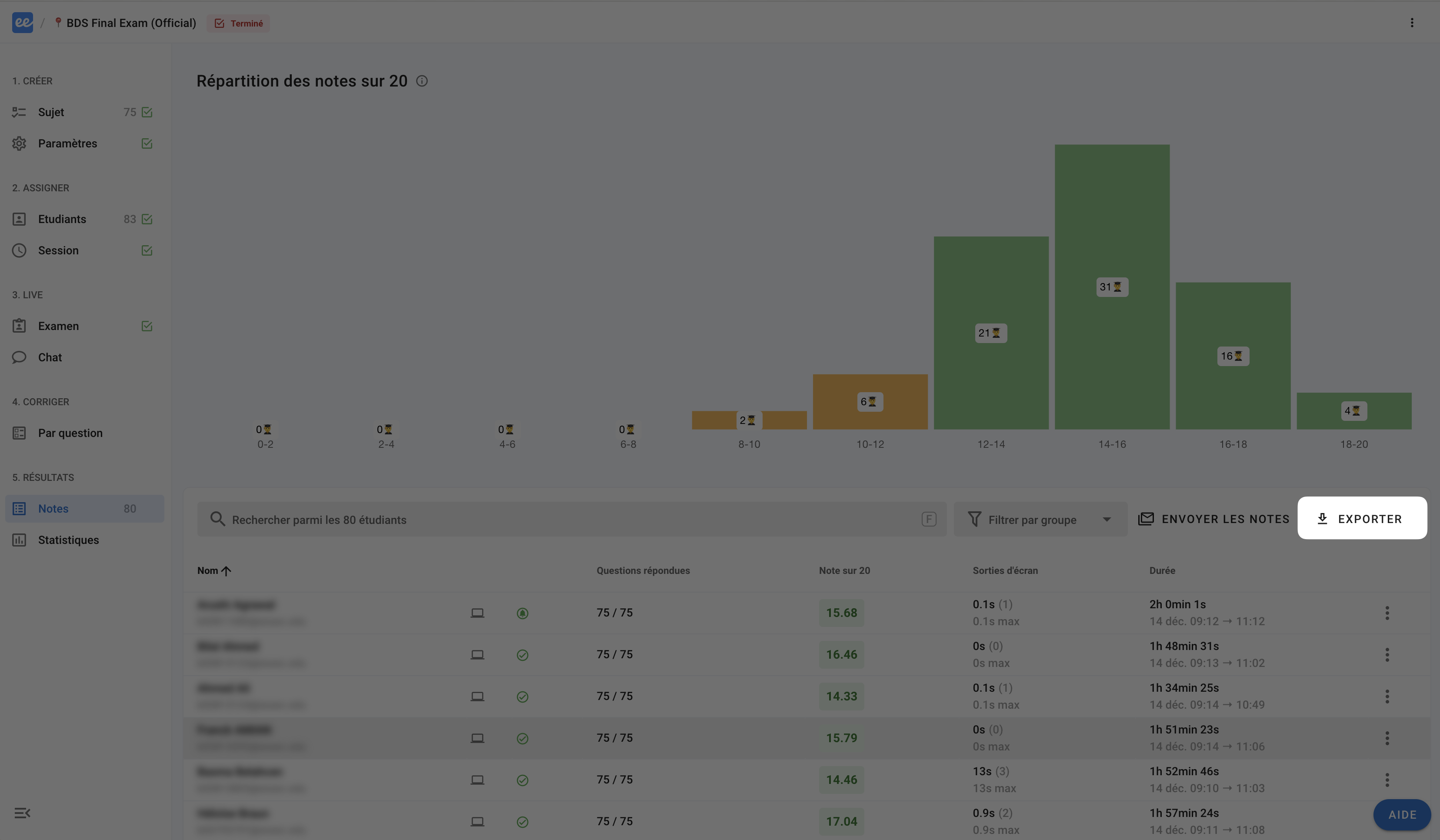
You can then export the grades to Excel in 2 formats:
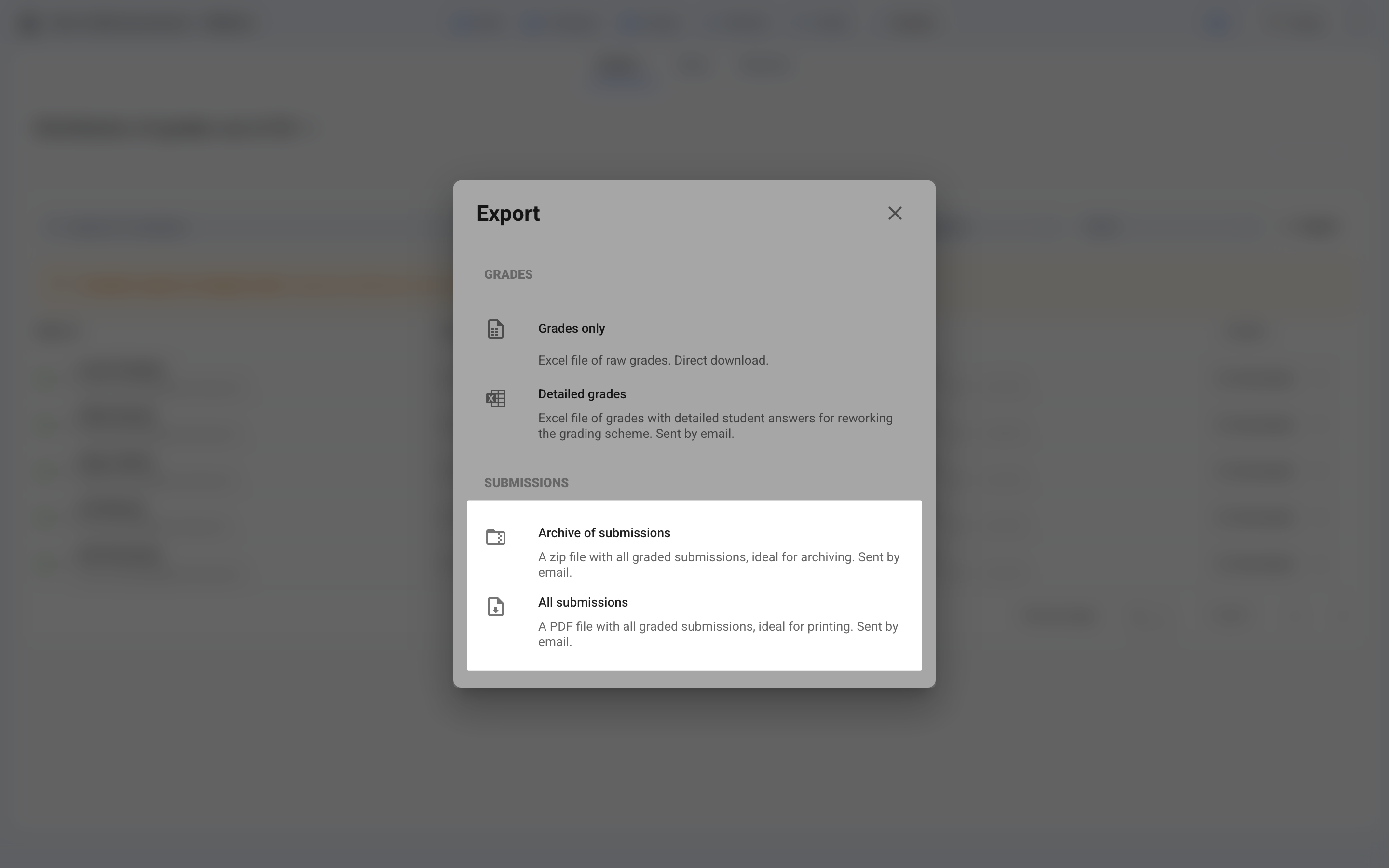
Archive of copies: A
.zipfile containing one.pdffile for each participant. Ideal for archiving and for quickly finding the graded submissions of a specific participant.All copies: A single
.pdffile containing all the graded submissions. Ideal for printing everything at once.
FAQ
I changed the grading scheme, but the exported PDF graded submissions still show the old total. Why?
I changed the grading scheme, but the exported PDF graded submissions still show the old total. Why?
Evalmee regenerates the PDF graded submissions on every export, from the grades saved at that moment. A PDF showing the old total therefore has one of these two causes:
The file predates the change: an export downloaded or received by email earlier is never updated. Run a new export to get up-to-date graded submissions.
The grades themselves have not been recalculated: check in the Grades tab that the participant's grade is the new one. If the exam has been opened and you changed the exam subject (points, correct answers), click Update grades in the subject editor to save the changes and update the grades, then run the export again.
Was this helpful?
Still need help? Ask the team