Share exams with colleagues
Give other people access to exams or exam folders.
Written By Dorian Becker
Last updated 11 days ago
1. Share an exam case by case
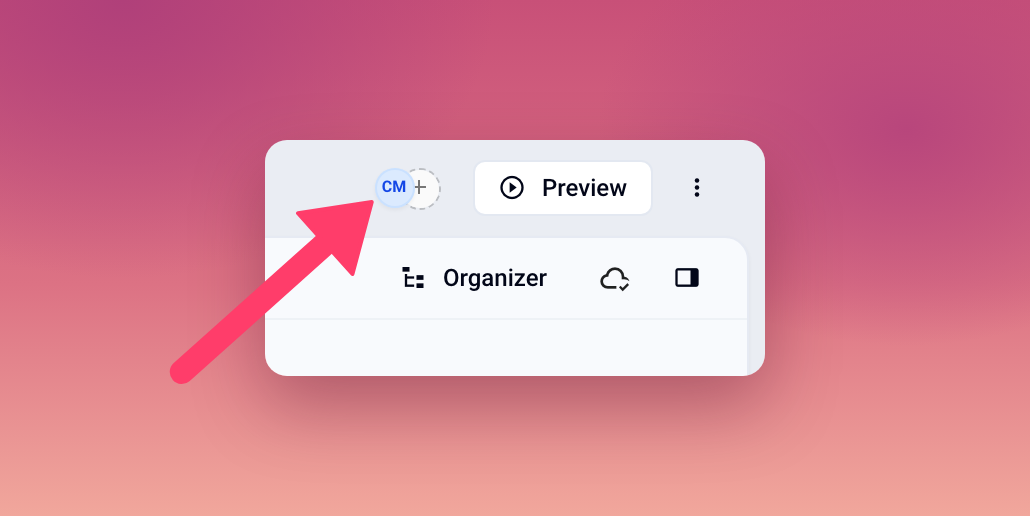
To give access to a specific exam, click ⋮ at the end of its row in the exam list, then click Share. From the open exam, you can also click the avatars at the top right. In Add people, type your colleague’s name or email, then select them in the list: the role choice and the Share button only appear after that. For a colleague who is not yet in your organization, type their full email, then click Invite by email. If the field is grayed out, your plan does not allow adding more colleagues: you need the Organization plan.
When sharing, you will assign that person a role on the exam.
Learn more about roles: help.evalmee.com/articles/6905422#dp4isksytfl
2. Share an exam folder
When several people need regular access to the same content, you can share an exam folder or invite them to a team space.
Folders in a Team Space can be shared.
Folders in your Private section cannot be shared.
If you share an exam or subfolder of a Team Space with a colleague, they will see the hierarchy of the parent folders of the content you shared. The rest of the content in the parent folders will remain inaccessible.
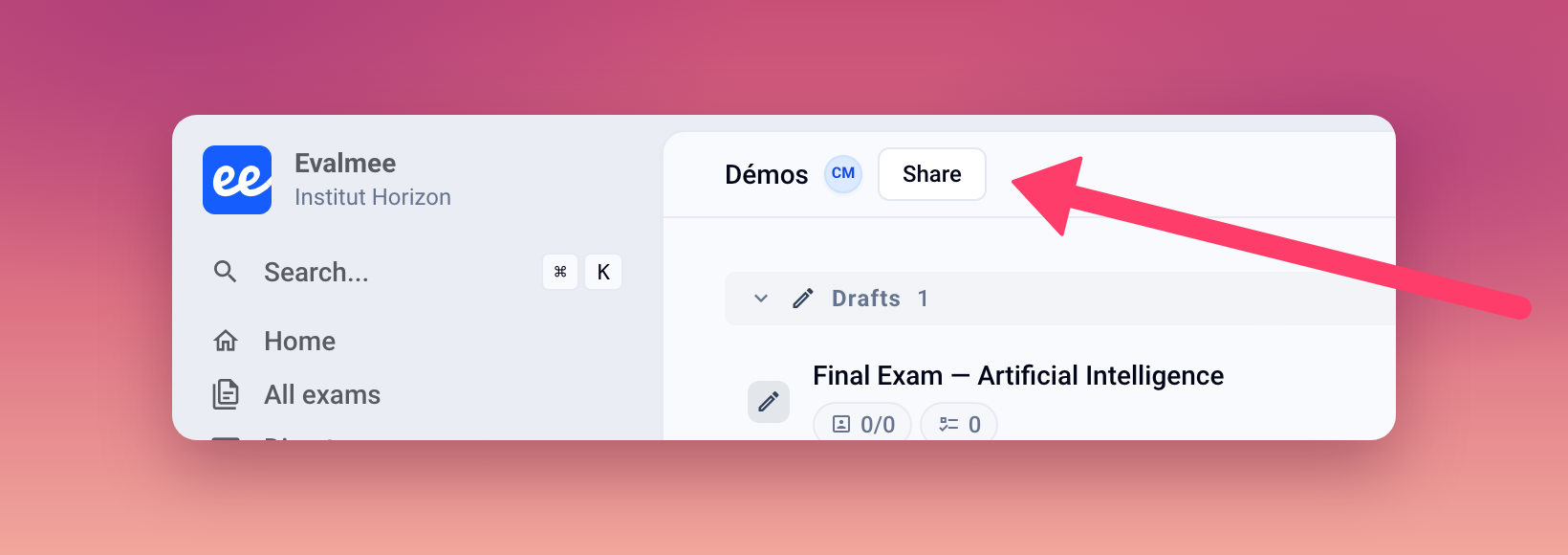
To invite a colleague to a Team Space or share one of its subfolders, open it, then click “Share”.
3. Share a Team Space
Create a Team Space and invite your colleagues to it to share a set of exams and exam folders in bulk.
A Team Space is especially useful when:
several people regularly work together on the same exams
you often share with the same people
you want to avoid everyone relying on their own private folders to organize shared work
you need a clear, common structure
Roles
You must assign a role to the person you share content with.
The current roles are:
Full Access
Editor
Viewer
Full Access grants all rights, including sharing, moving and deleting. Editor edits the exam subject and settings, enrolls participants, manages sessions, monitors and grades, but cannot share, move or delete. Viewer views the exam and its results without changing anything. On an exam, there is a fourth role: Proctor, which gives access to live monitoring, live video feeds and the chat, without the exam subject or grades. Roles granted on a folder apply to its subfolders and exams.
📁 Math 1A
∟ ☑️ Exam 1
∟ 📁 Statistics
  ∟ ☑️ Exam 2
Example:
Marie has the “Viewer” role on “Math 1A”
Amhed has the “Full Access” role on “Statistics”
→ Marie can view “Exam 1” and “Exam 2” but cannot make any changes to them.
→ Amhed can view “Exam 2” and edit it. But he cannot view “Exam 1”.
Frequently asked questions
Can I use sharing without a Team Space?
Can I use sharing without a Team Space?
Yes, you can currently share an exam without it being in a Team Space.
How do I avoid confusing coordination when several people share content?
How do I avoid confusing coordination when several people share content?
Was this helpful?
Still need help? Ask the team