View your exam sessions in the calendar
Display your exam sessions on a monthly or weekly calendar to spot openings, closings and overlaps.
Last updated 2 days ago
The calendar shows your organization's exam sessions over time: when they open, when they close, and which ones overlap. It replaces the exam list without changing anything in your exams.
It shows the sessions of the exams you are allowed to view, as soon as they have an opening date. A session to open manually only appears once it is open. It is available on the All exams page, in a folder and in Unsorted.
Switch to the calendar view
Open All exams, a folder or Unsorted.
In the top right corner, click the Calendar icon, after List and Columns.
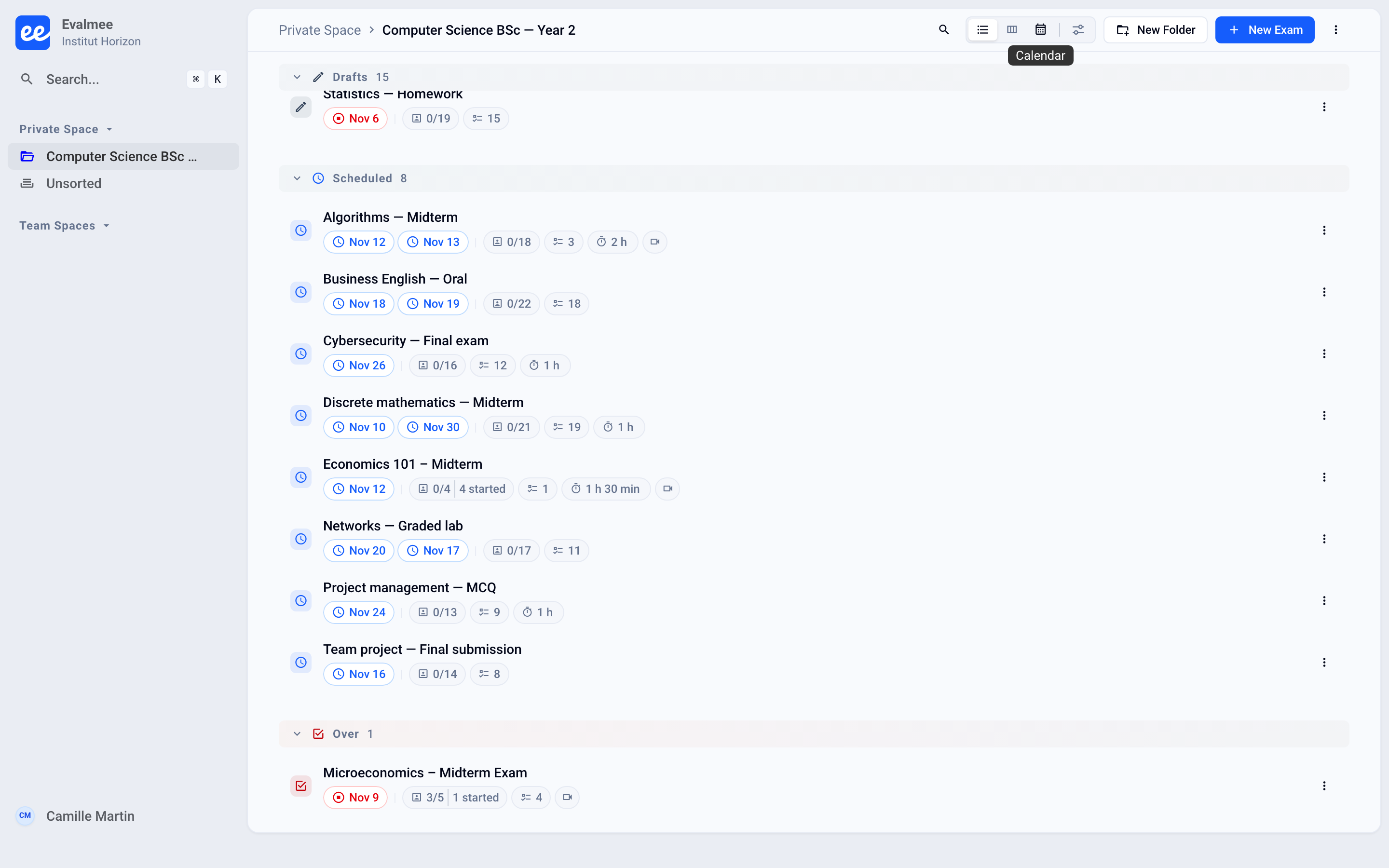
Your choice is saved to your account: the calendar is there on your next visit, on all your devices. In a folder, the calendar shows the sessions of the exams in the folder and its subfolders.
On All exams, the All, My exams and Shared with me tabs narrow down the sessions shown, just like in the list. Organization admins also have the All tab followed by the organization's name. The search bar filters on the exam name.
Read the calendar
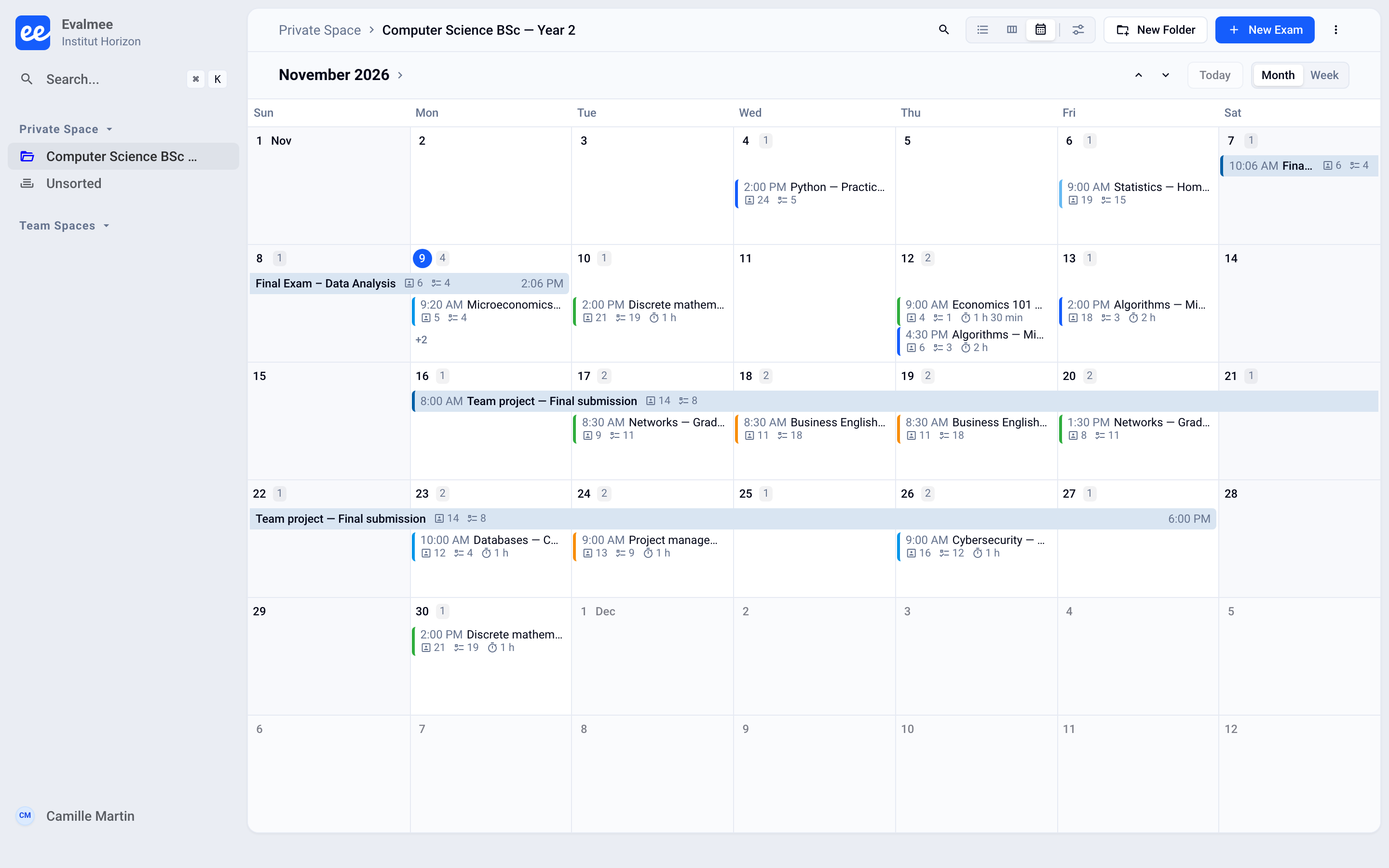
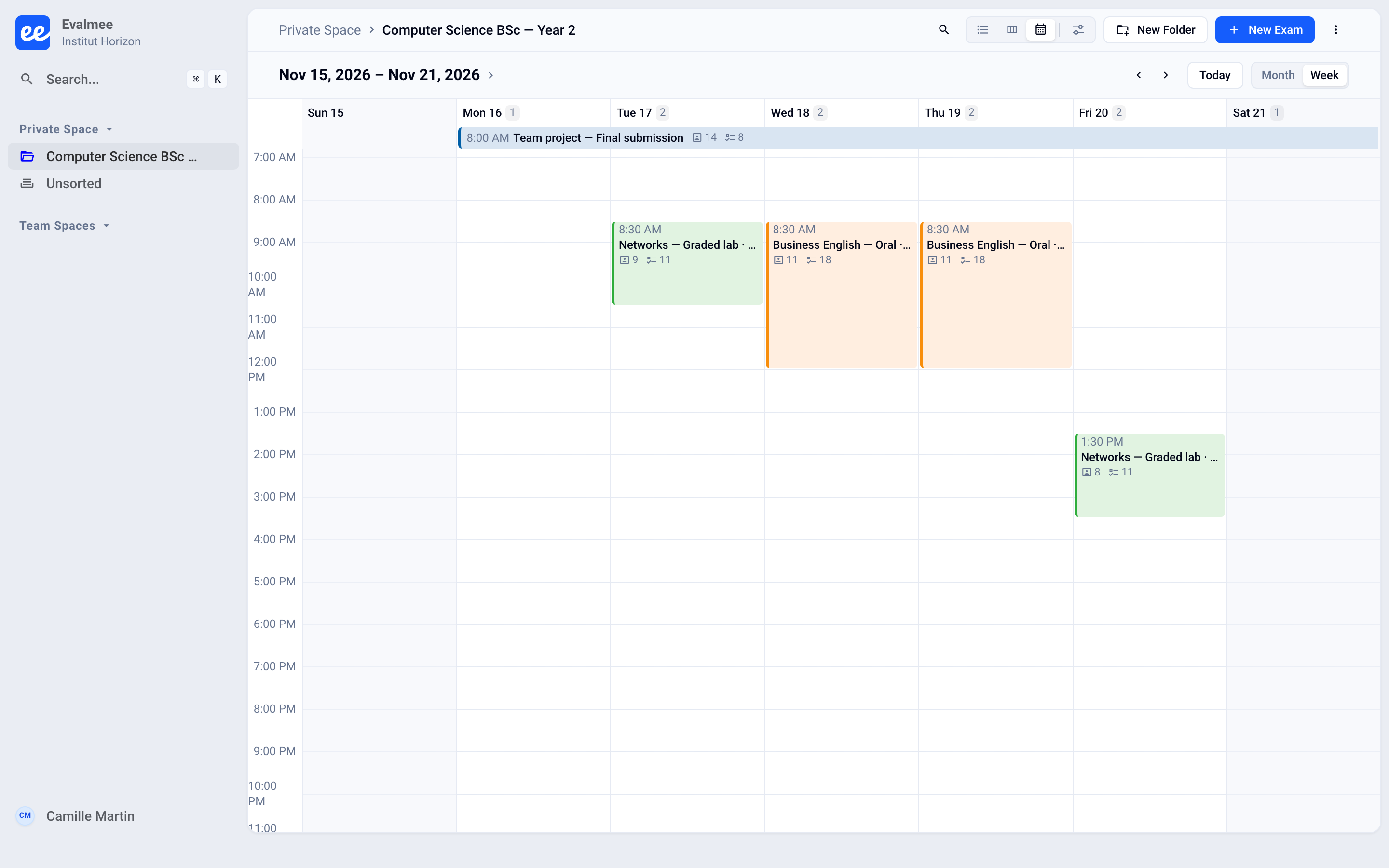
Each exam has its own color. A session lasting several days is a bar spanning those days; a session within a single day is a line in the month view and a time block in the week view. In the week view, an overnight session continues into the next day.
Month or week
In the top right corner, choose Month or Week. The month scrolls vertically, the week scrolls sideways.
Navigate
Use the Previous period and Next period arrows, or scroll the page.
Click Today to go back to today's date. The button is grayed out when today is already on screen.
Click the date shown at the top (Pick a date) to jump straight to another day.
The period, the date and the selected day are stored in the page address: reloading brings you back to the same place, and you can share it with a colleague.
View a session's details
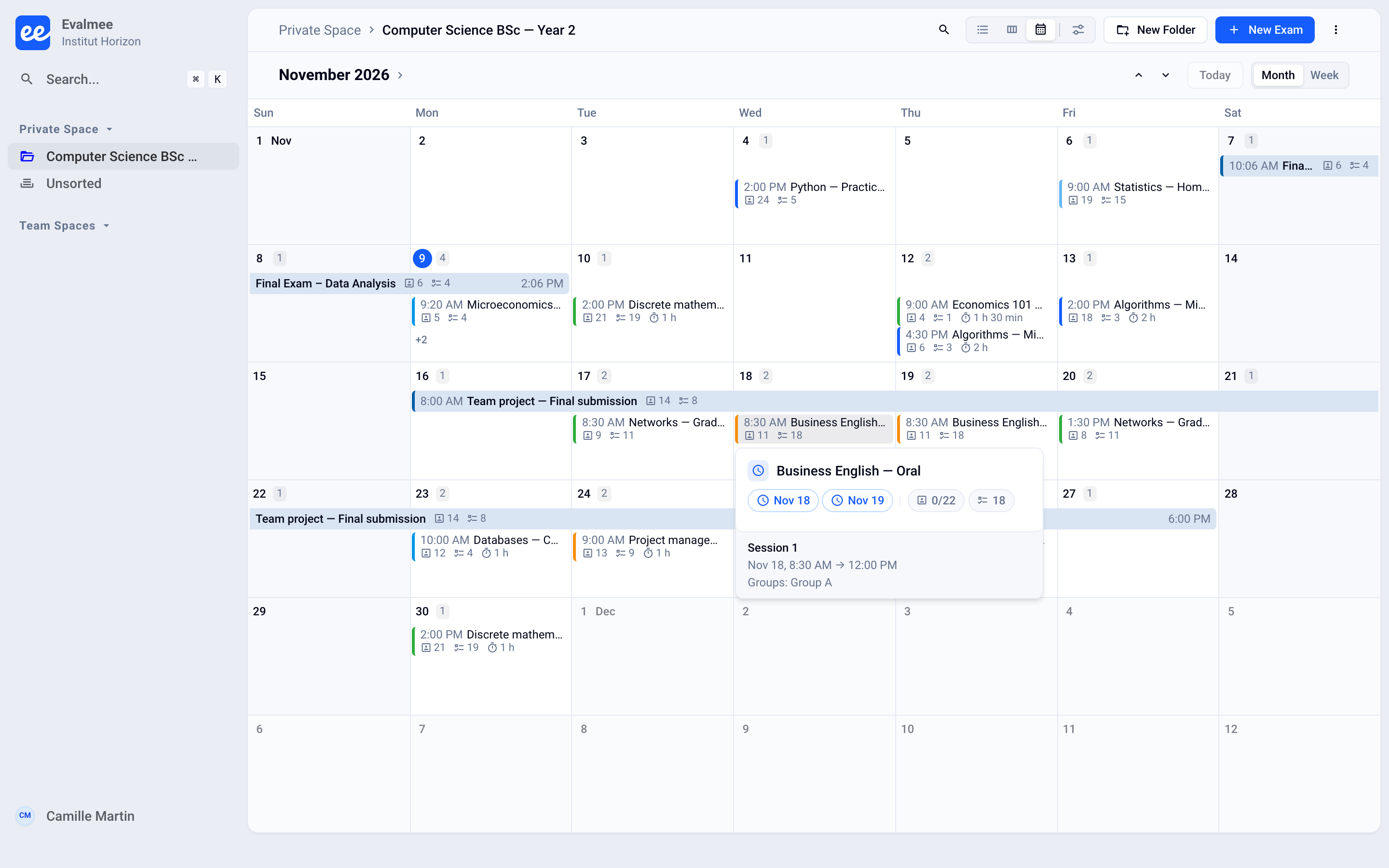
Hover over a session: a card opens with the exam, the session name when the exam has several, its opening and closing dates, and the Groups: concerned. Click the session to open the exam. Cmd-click or Ctrl-click opens it in a new tab.
Choose the information shown
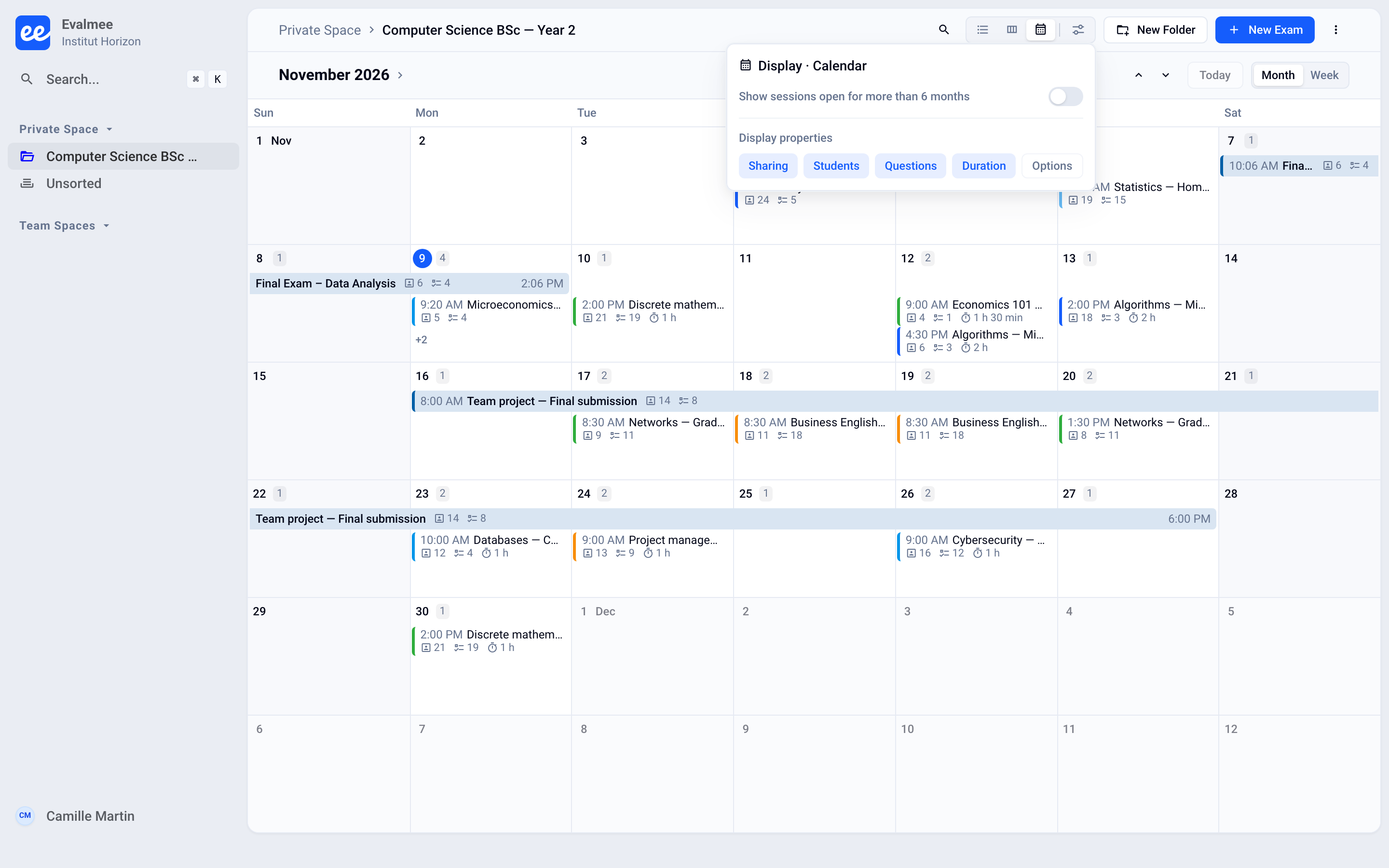
Click Display then, under Display properties, turn on what each session should show:
Sharing: the avatars of the colleagues who have access to the exam (shown by default).
Participants (or the term chosen by your organization, for example Learners): the number of enrolled participants.
Questions: the number of questions.
Duration: the exam's time limit.
Options: icons for camera proctoring and for exams managed by an LMS.
Open a day's details
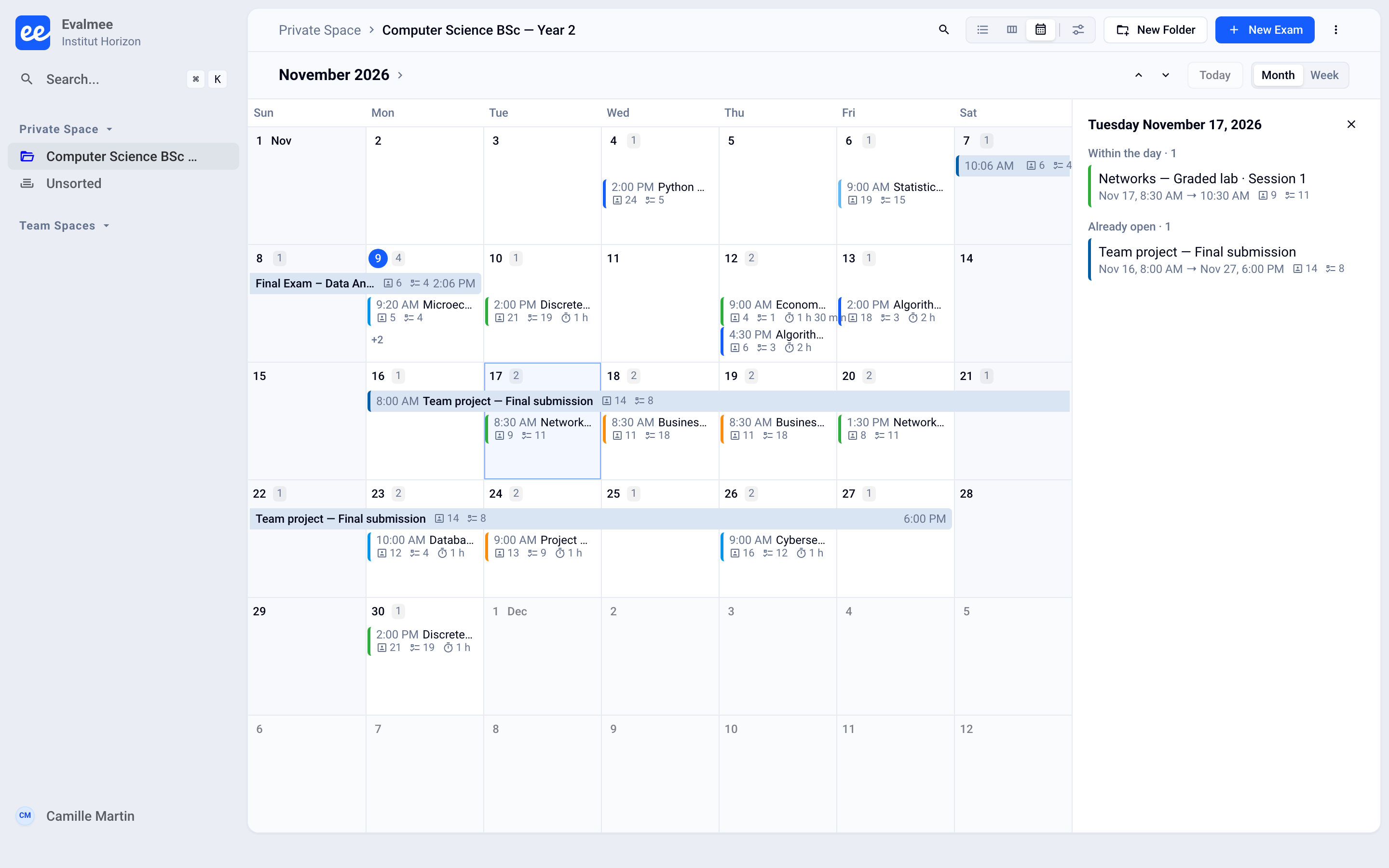
Click a day: a panel opens on the right with the date as its title and the sessions sorted by category. Only the categories that contain sessions appear, with their count.
 Category | Sessions included |
|---|---|
Within the day | Open and close on the selected day |
Opening | Open that day and continue afterward |
Closing | Opened earlier and close that day |
Already open | Opened earlier and stay open after that day |
To close manually | Sessions with no closing time, open on or before that day |
Click a session in the panel to open the exam. Close the panel with the cross.
Long sessions and sessions to close manually
To keep the calendar readable, the long sessions of a given week can be grouped into a single bar (for example 2 long) and the sessions with no closing time into a N to close manually bar. Click it: the Week of panel, followed by the date, lists them under Long sessions and To close manually. The Show the grouped sessions button expands them directly in the calendar.
Sessions to close manually that have been open for more than 6 months are probably forgotten, so they are hidden by default. To see them, click Display then turn on Show sessions open for more than 6 months. Even when hidden, they are still listed, collapsed, under Open for more than 6 months in the panel.
ℹ️ If the calendar shows "Only the first exam sessions of this period are shown", the period contains too many sessions: narrow it down or search for an exam by name.
Good to know
The calendar does not change sessions: to change an opening or closing, open the exam, Assign › Session tab.
The hover card only opens with a mouse.
Was this helpful?
Still need help? Ask the team