Spreadsheet Question
Written By Florian Barral
Last updated About 1 hour ago
The Spreadsheet question asks the participant to answer in an Excel-style spreadsheet, directly in the exam: entering values, formulas, tables.
Create a Spreadsheet question
In the Build tab, click Add at the bottom of the section and choose Spreadsheet.
Enter the instructions in place of Question name.
Click 1 Point to change the number of points.
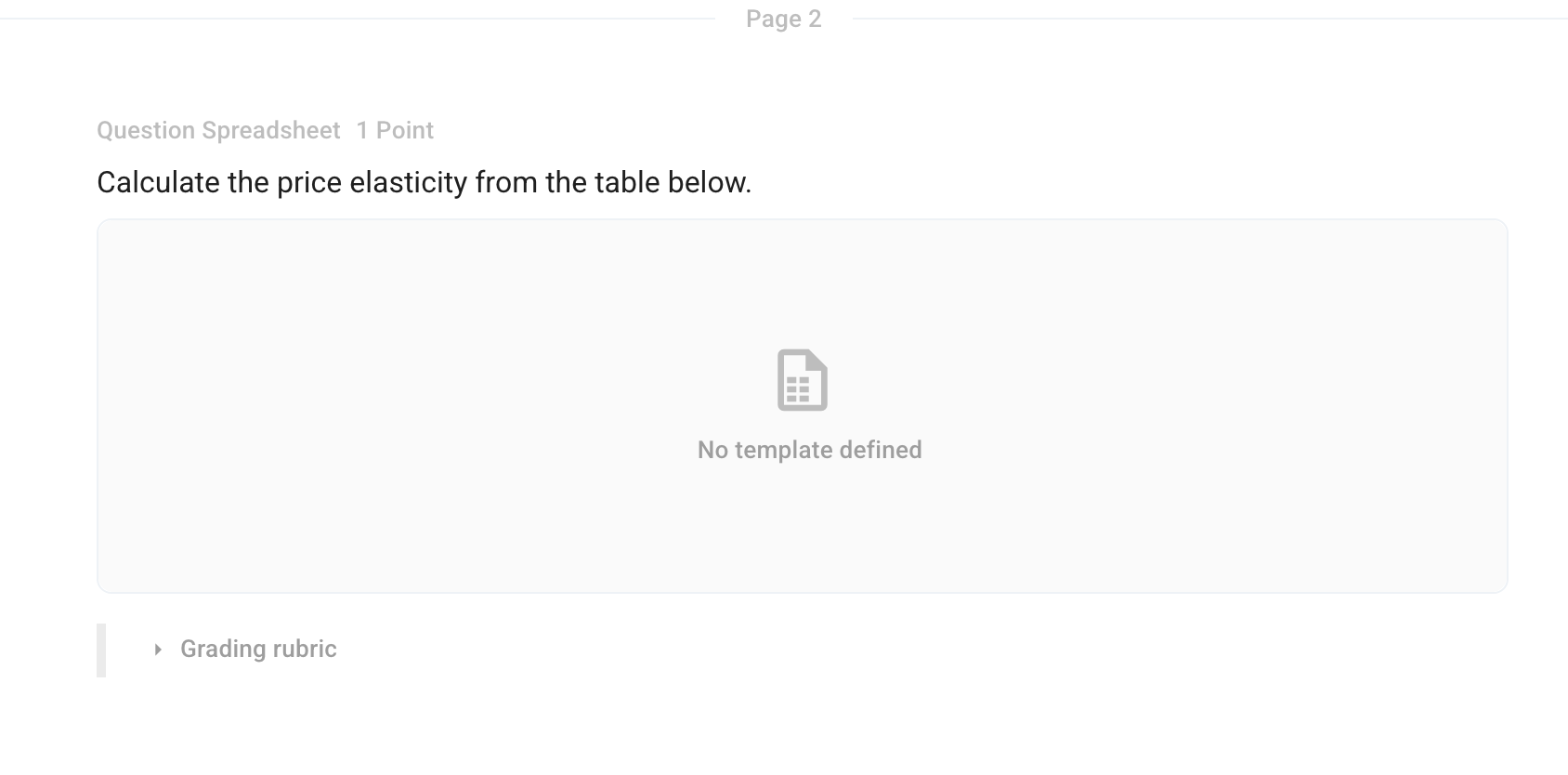
Prepare a template
The participant can start from a blank sheet or from a template you prepare (data, a table to complete).
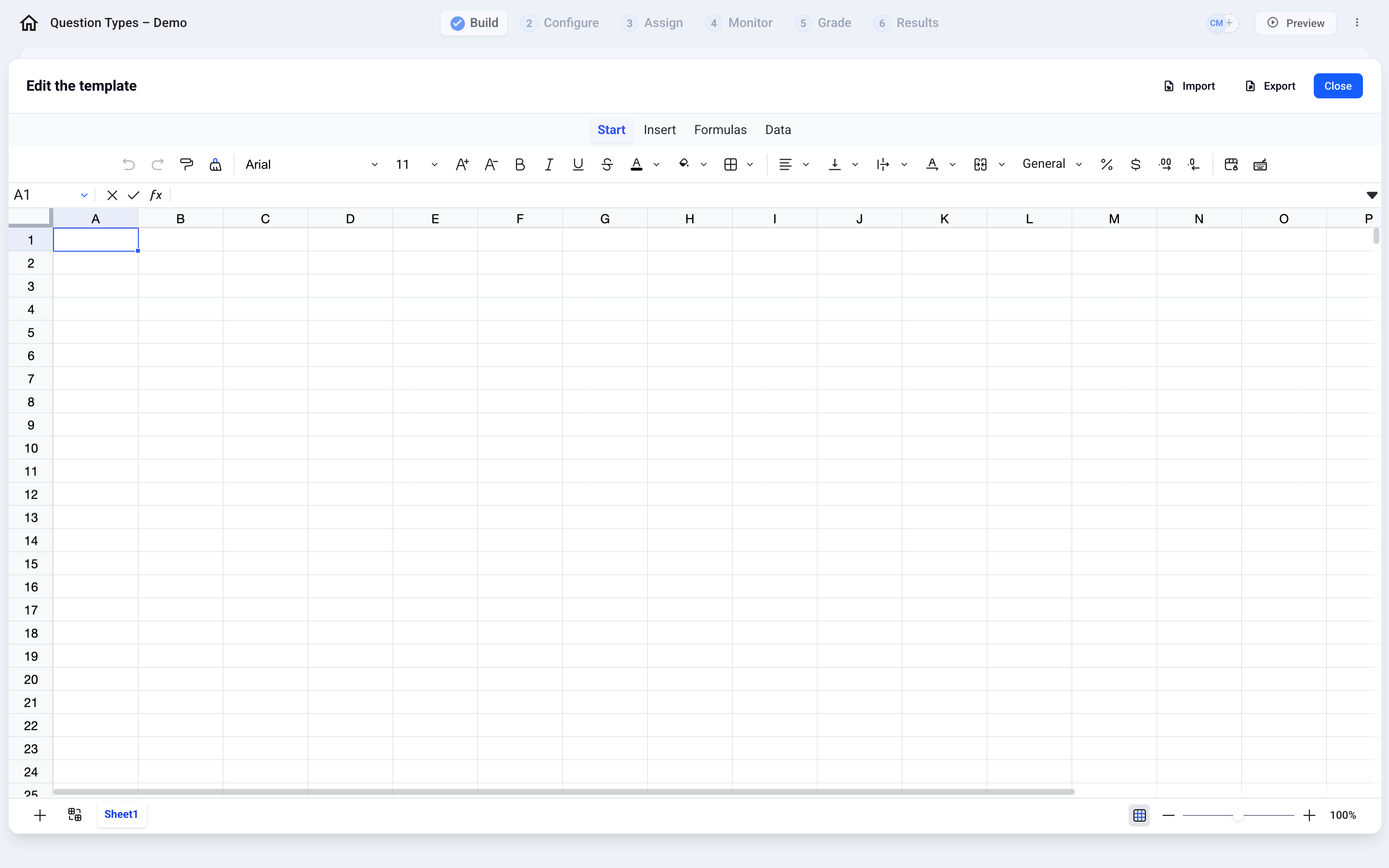
Click the No template defined area: the Edit the template window opens.
Enter your data, paste cells from Excel, or click Import to load a file.
Close the window: the template is saved. Export lets you download a copy.
During the exam, the participant clicks Open to fill in the sheet.

Good to know
Formulas are always available to the participant: they cannot be disabled. If you only want to allow calculations, use an Open question with the Embedded calculator instead (Configure tab, Displaying subjects section). See Configure the topic settings
The participant’s entire sheet is saved, not just an answer cell.
Grading is manual: you open each participant’s sheet in the Grade tab. See Grade the exams
The Spreadsheet question is included starting with the Pro plan.
To compare all types: What kind of question should you choose?
Was this helpful?
Still need help? Ask the team