Edit & Format Content
Customize the content of questions
Written By Florian Barral
Last updated About 7 hours ago
Change the text style
To enrich your text, select the text you want to style and a floating menu appears:
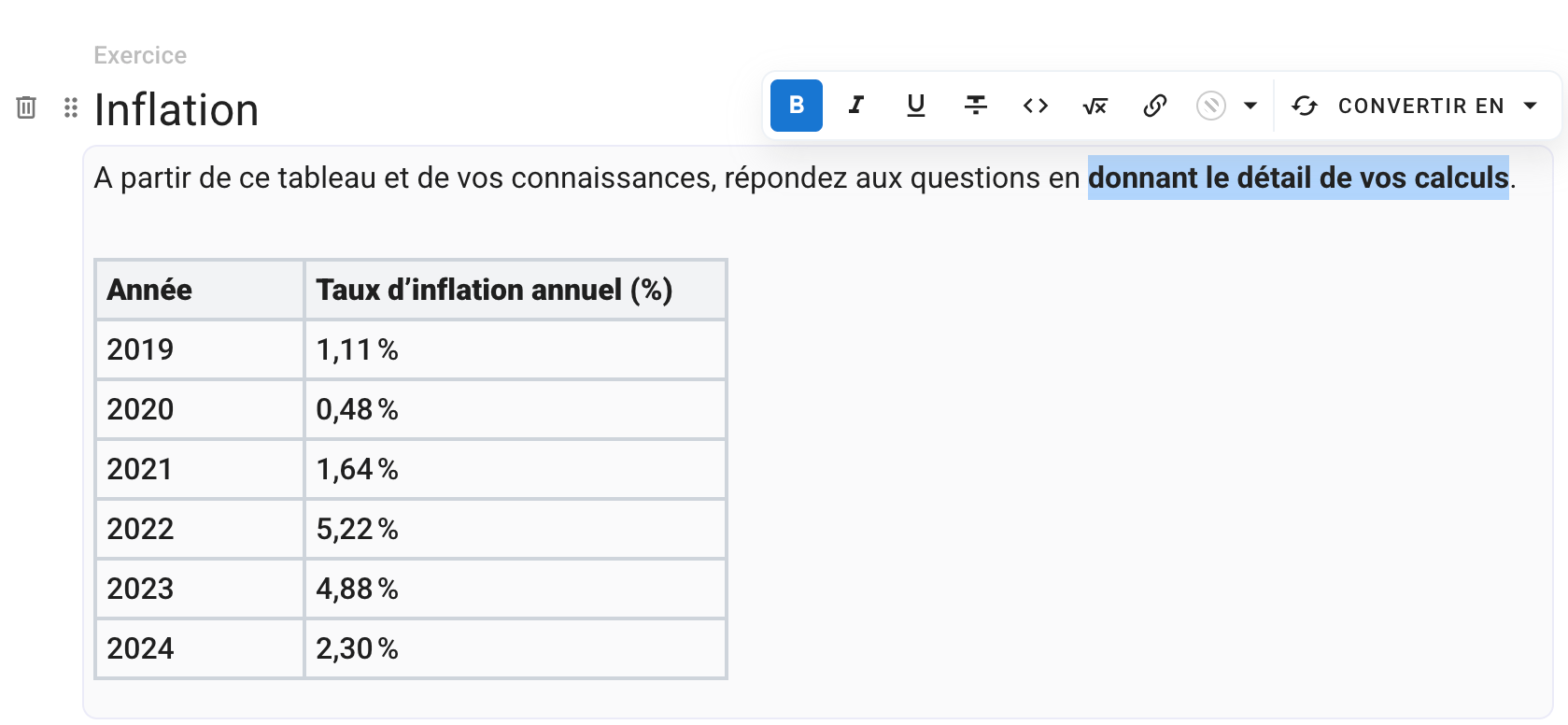
The editor now directly displays the formatting as it will appear to participants: bold text, colors, headings, math formulas, code blocks, everything is visible live.
Insert an element
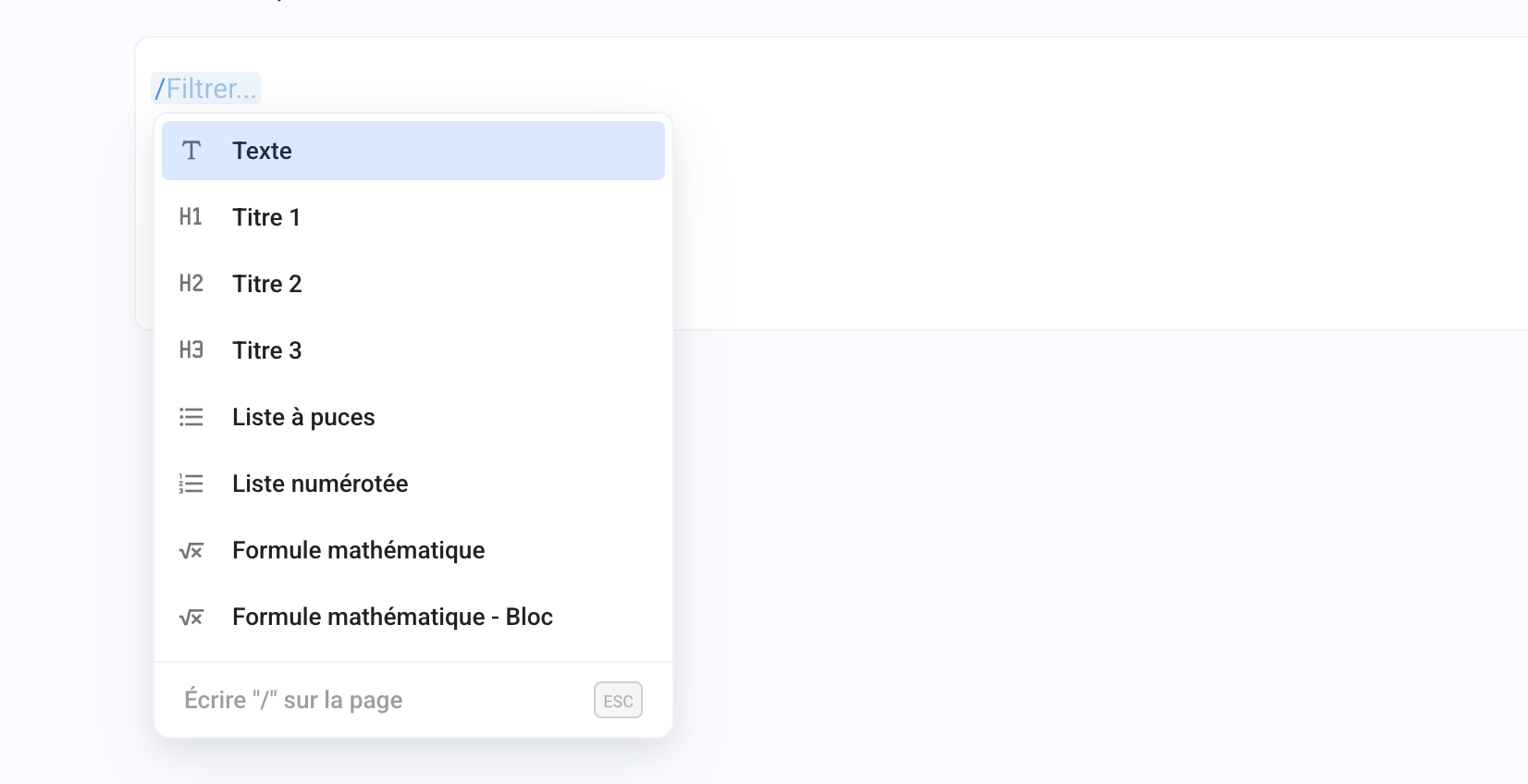
You can type / to display a list of elements to insert into your exam subject, such as images, math formulas, tables, or code blocks.
You can search for an element by typing the first letters of its name after the /, for example /im to insert an image.
Insert an image / photo
You can import one or more images into a question (or a choice of a multiple-choice question) in 3 ways, by clicking the image icon to upload an image directly into a question or a choice of a multiple-choice question
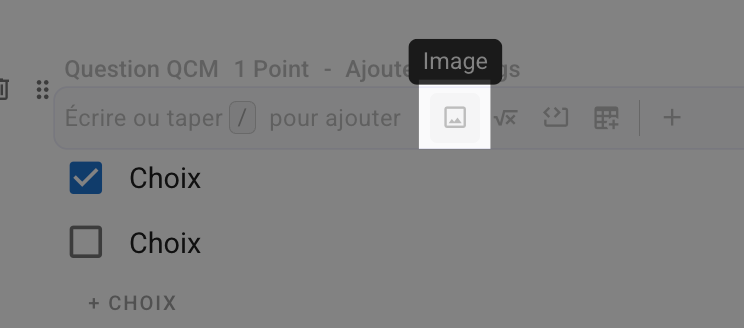
Note: if the text field already contains content, remember to add a new line (Enter) to display this image insertion option.

Resize an image
You can easily resize the images you added to your exam subject by selecting the image and dragging the bar on its sides.

Insert a video
It is not (yet) possible to add videos directly in Evalmee, but you can embed videos hosted on a web platform (YouTube, Vimeo, etc.) 👍
To embed a YouTube video:
Go to the YouTube page of the video
In the bar below the video, click
ShareClick
EmbedAt the bottom right of the window that just appeared, click
CopyPaste the code you just copied into Evalmee, in the relevant question
Your video is displayed 👌
Insert a math formula
You can insert math formulas:
Using the formula editor
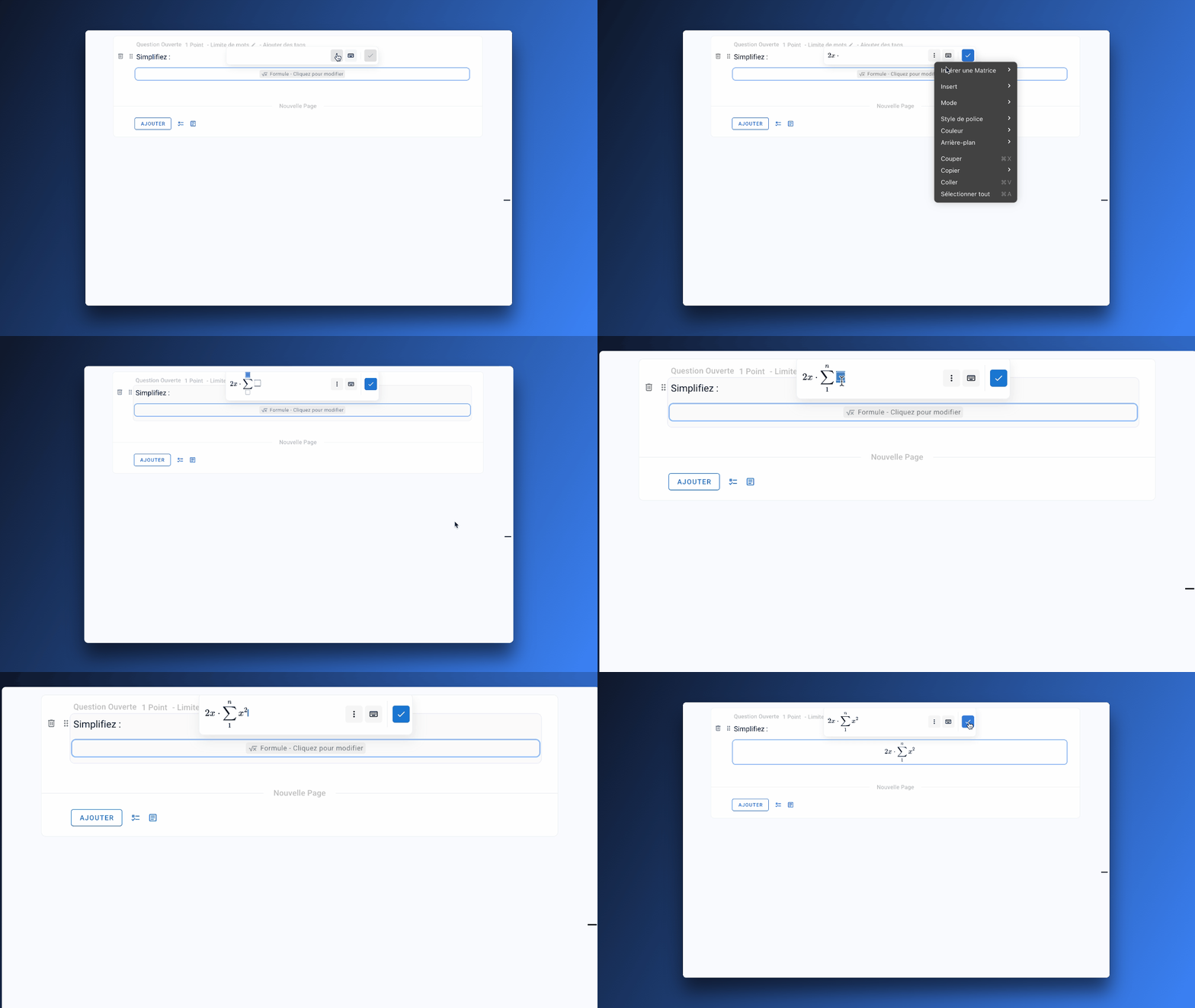
In LaTeX
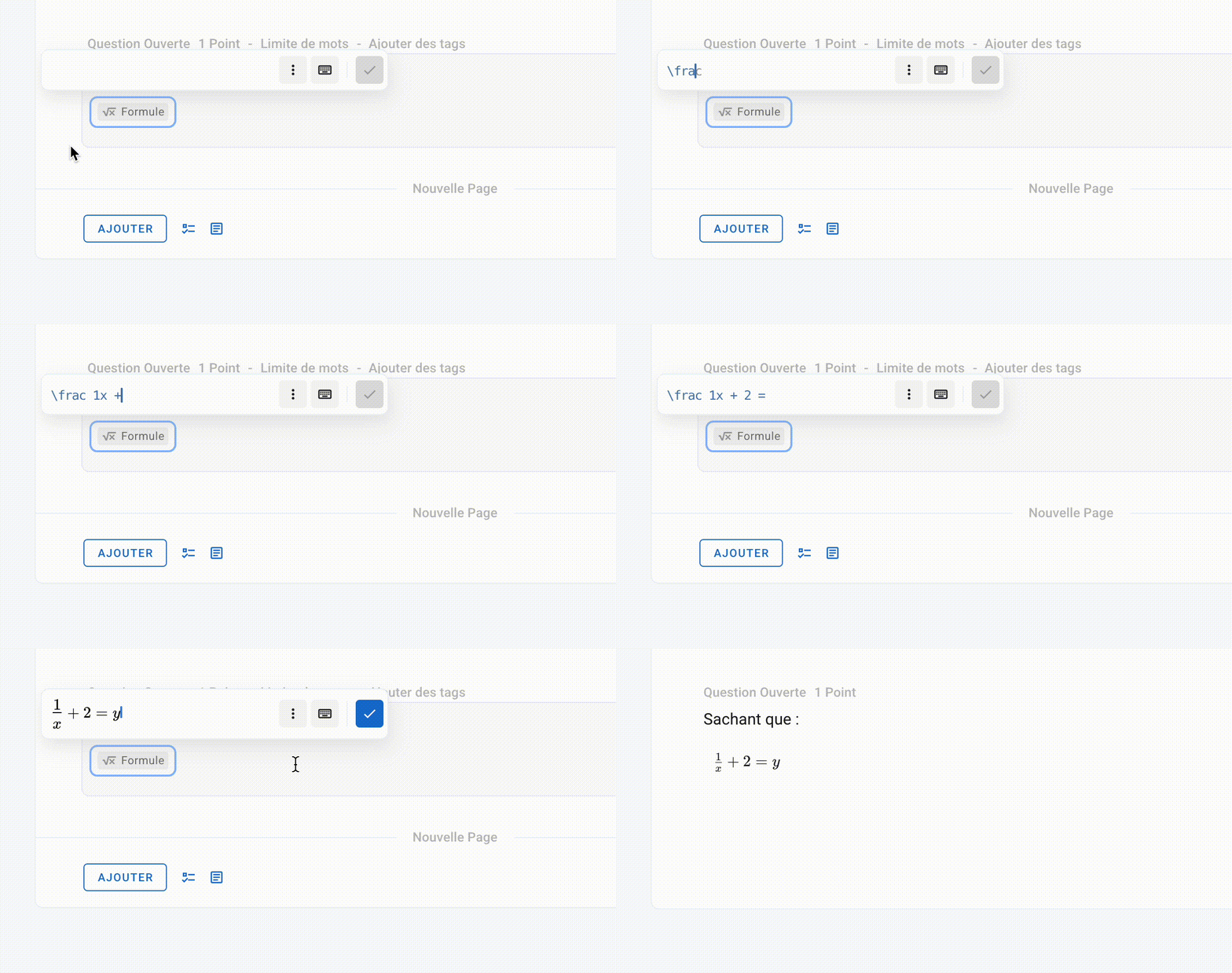
Write directly in LaTeX with auto-completion, or paste your existing formulas
👉 How do I write in LaTeX?By inserting images 👉 How do I insert images?
💡 Participants can insert math formulas:
using the same math formula editor
by uploading scans of their handwritten notes. See Open-Ended Question
Insert a table
You can import an Excel table:
From a table to insert
From the icon visible in the default text field
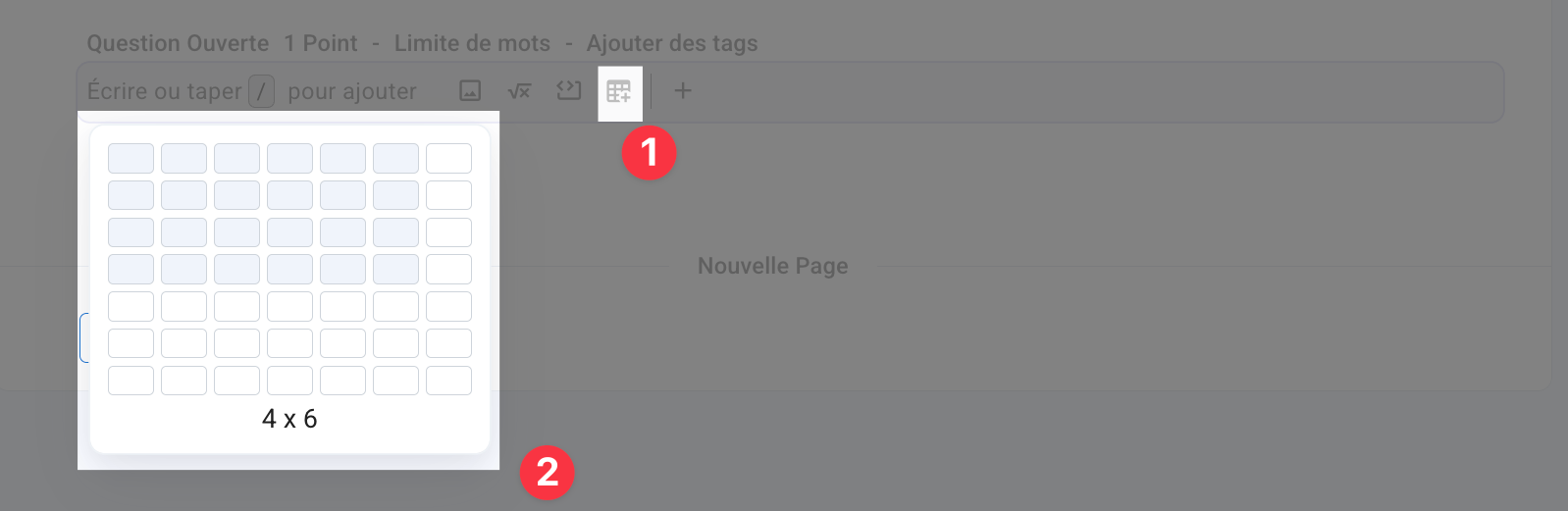
From the
/shortcut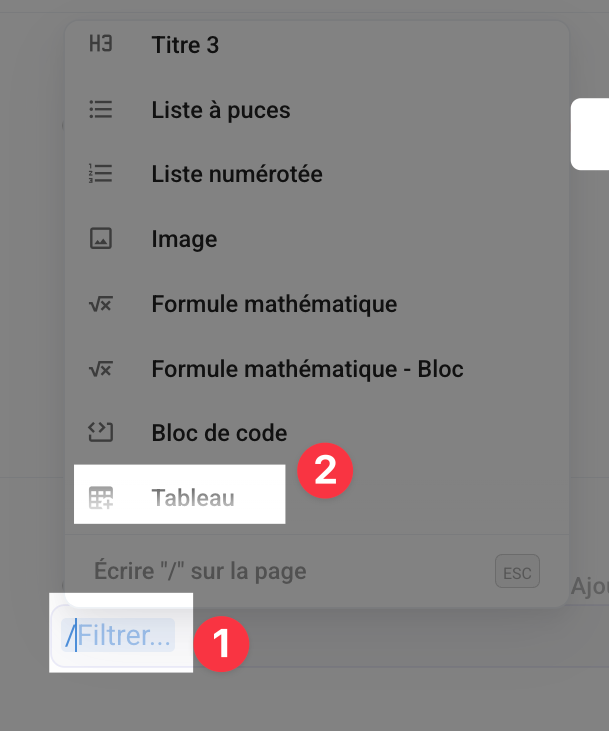
From an image 👉 How do I insert an image?
FAQ
Is my exam subject saved automatically?
Is my exam subject saved automatically?
Yes, every change is saved automatically. The editor displays “Auto-saving” and the date of the last save. If a save fails, it displays “Error while saving”: check your connection before leaving the page.
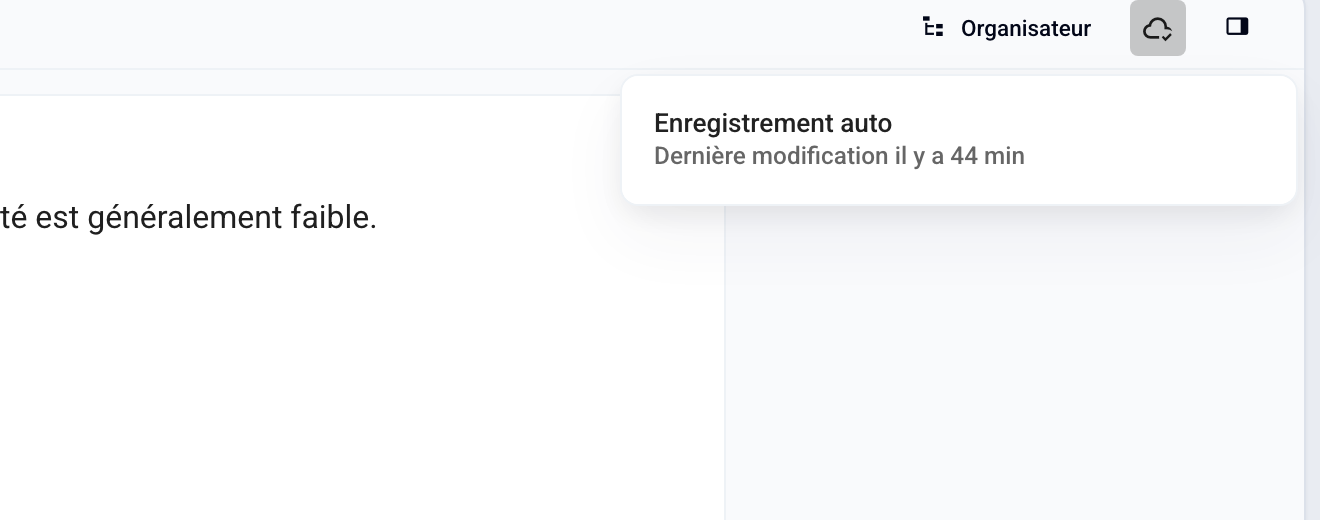
Once the exam is open, click Edit and then confirm to modify the exam subject. Only points, correct choices, tags, and grading comments remain editable, and your changes are always saved automatically. When you are done, click Update grades to update the participants’ grades.

Can I undo a deletion?
Can I undo a deletion?
No: deleting a question, a choice, or a section is immediate. Only deleting a section asks for confirmation, because all its content disappears with it. In a text you are typing, Ctrl+Z (⌘+Z on Mac) undoes your last keystrokes.
Can I offer the exam subject in two languages?
Can I offer the exam subject in two languages?
There is no bilingual subject setting: participants see the exam subject exactly as you wrote it. To offer two languages, write each statement in both languages, or duplicate the exam to create one version per language. Participants can change the interface language, but not the language of the exam subject.
Was this helpful?
Still need help? Ask the team