Long answer question
Ask a question that requires a written answer and grade it by hand, with a grading rubric and optional help from AI.
Written By Florian Barral
Last updated 10 days ago
The Long answer question (formerly Open question) requires a written answer. It is graded by hand, with optional help from criteria and AI.
Create a Long answer question
In the Build tab, click Add at the bottom of the section and choose Long answer.
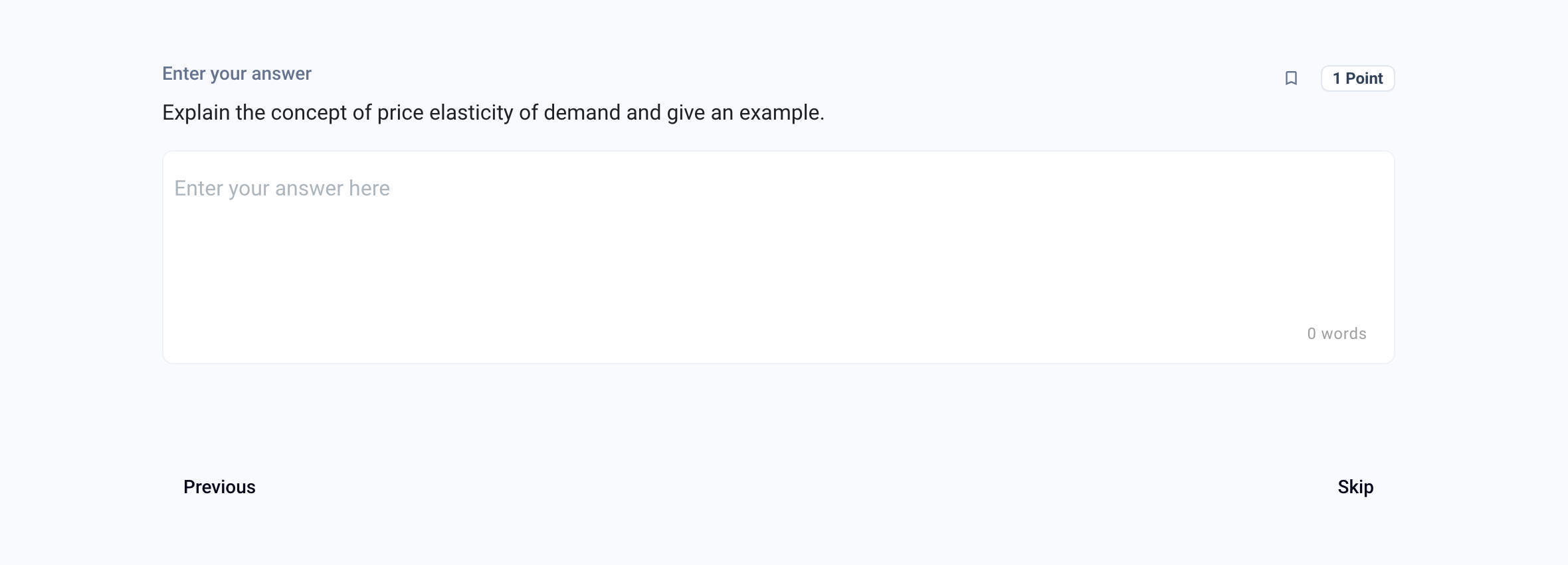
Enter the prompt in place of Question name.
Click 1 Point to change the number of points.
Optional: hover over the question and click Word limit, then turn on Limit answer size in words or characters.
Prepare the grading
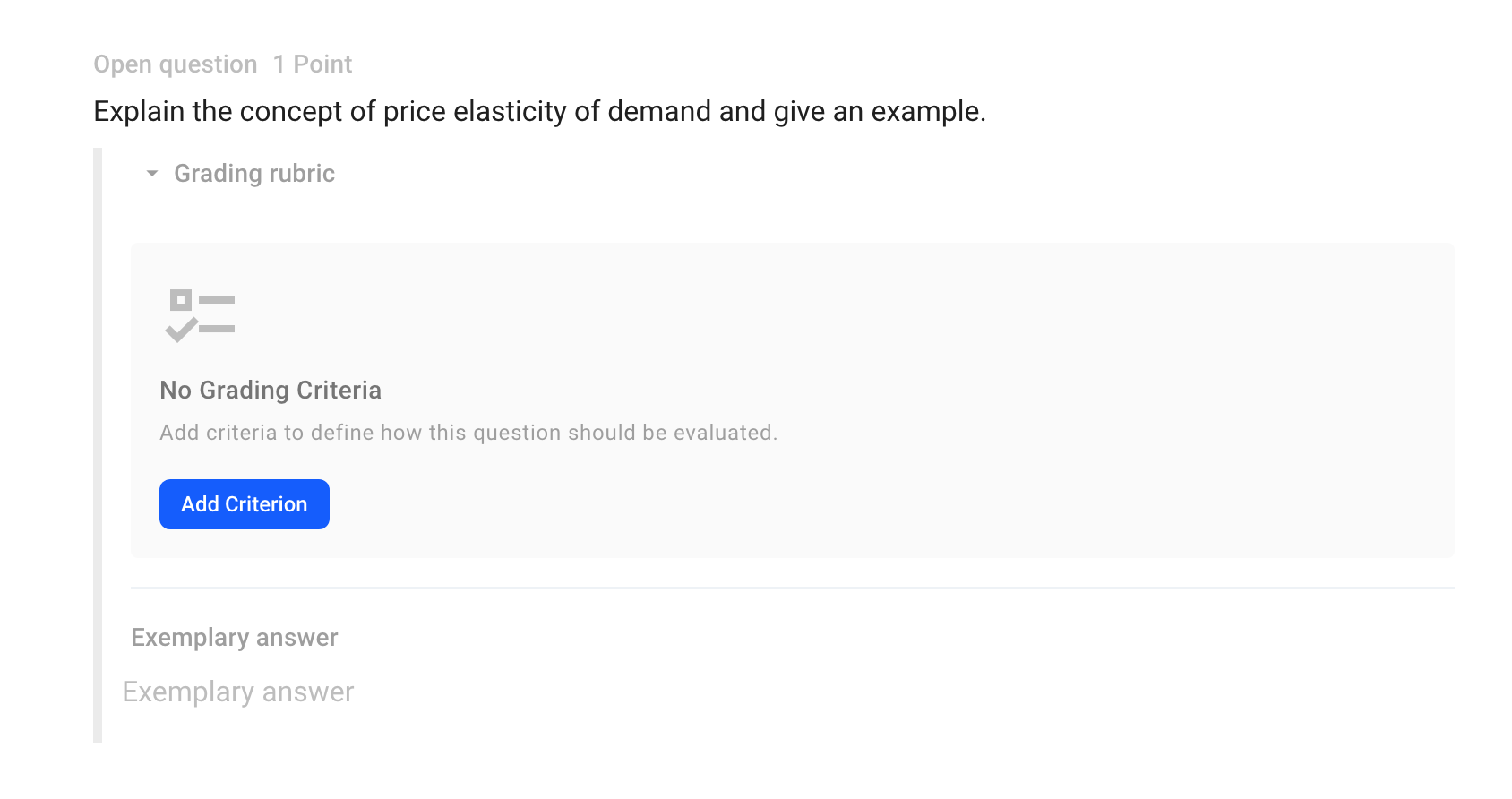
Expand Grading rubric below the prompt:
Add Criterion: describe what is expected and the associated points. Criteria are not visible to participants. They are used during grading, including for AI grade suggestions.
Exemplary answer: the expected answer, which serves as your reference during grading. It is not visible to participants, and the AI uses it to suggest grading comments.
To grade the entire exam by assessment criteria, see Set up criteria-based assessment mode
Options
Click the ⋮⋮ icon to the left of the question to open its menu:
Reply with a file: No, Yes (any file) or Photo. The participant attaches their file in addition to their written answer. For a file-only answer, see File upload question
Grading comment: a text shown on the graded submission, if you give access to the answer key.
Add a document: a PDF, a video or an audio file.
Grade
Answers are graded in the Grade tab. See Grade submissions
Was this helpful?
Still need help? Ask the team