Numeric answer question
Have participants enter a number, graded automatically with a margin.
Last updated 2 days ago
The Numeric answer question asks the participant to enter a number. You set the expected value and, if you wish, a margin: grading is automatic and all-or-nothing. It is only available for online exams.
Create a Numeric answer question
In the Build tab, click Add at the bottom of the section and choose Numeric answer (Questions category).
Enter the prompt in place of Question name.
Click 1 Point to change the number of points.
In Accepted answer, enter the expected Value, then choose the margin from the list on the right (Exact by default).
Optional: click Unit to add a unit (for example m/s²).
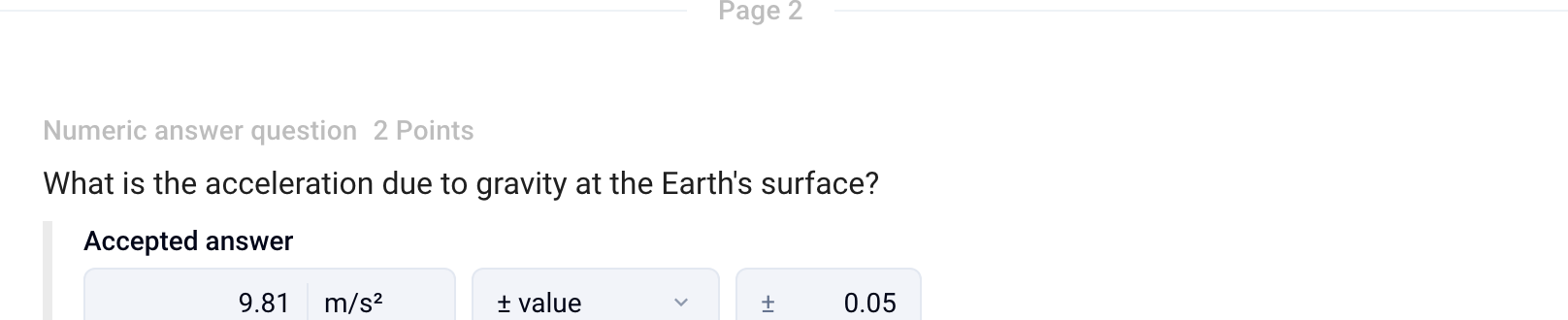
Choose the margin
Below the fields, a line sums up what is accepted, for example “→ accepts 9.76 to 9.86 m/s²”. It helps you check your setting before the exam.
About the unit
The unit is shown next to the participant’s answer field and in the answer key. It is never graded: the participant enters only the number, expressed in this unit. If they also type the unit, a message asks them to enter the number only.
What the participant sees
The participant sees the prompt and a field where they answer with a number. Both the comma and the period are read as a decimal separator, and spaces are ignored. Text that is not a number is flagged with This is not a valid number.

Grade
The question is graded as soon as the participant finishes. A number within the margin earns all the points; a number outside the margin or a missing answer earns zero: the MCQ malus and discordance settings do not apply.
In the Grade › By question tab, open the question: the Answers given list groups identical answers, each labeled Accepted or Refused, with its deviation as a percentage of the expected value. Answers that are not numbers are grouped at the bottom, under Not a number.
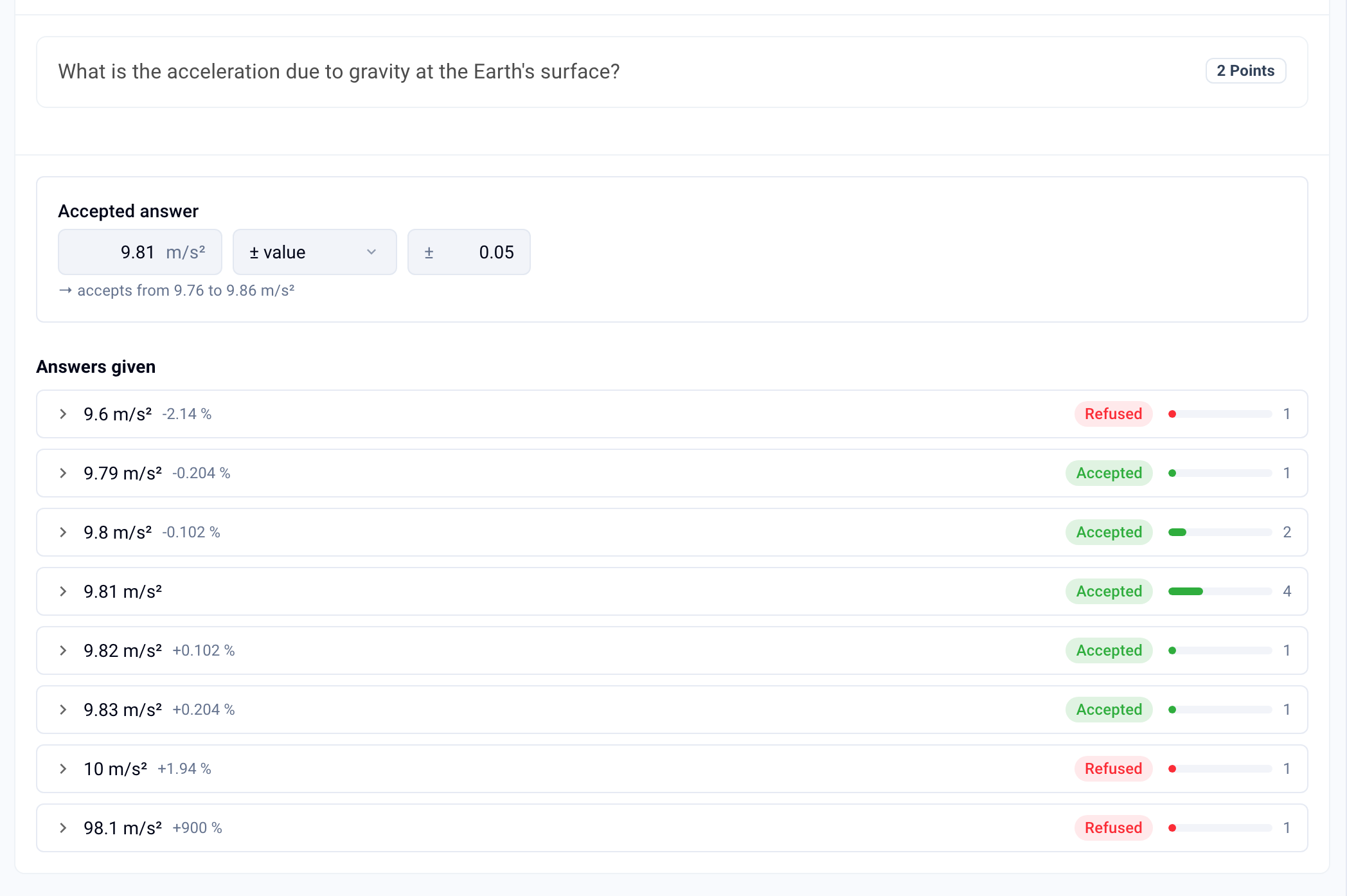
The margin can still be changed after the exam, from the Accepted answer block at the top of the page. Your changes are previewed on the answers: a line shows how many answers are becoming correct and how many are becoming incorrect. Grades are only recalculated when you click Apply and recalculate; Cancel discards your changes.
ℹ️ Grading is all-or-nothing: a number that is close but outside the margin earns no points. For an answer given as a word or phrase, see Short answer question
For all grading modes, see Grade submissions
Was this helpful?
Still need help? Ask the team