Random draw (questions and exercises)
Written By Florian Barral
Last updated 11 minutes ago
A random draw picks questions or exercises at random from a pool. Each participant gets their own draw: the exams differ from one participant to another, which limits answer sharing.
Pool and draw: two separate elements
The pool is a reserve of questions or exercises. You prepare it in the Pools tab of the editor, and it does not appear as such in the subject.
The random draw is a block placed in a section of the subject. It states how many items to pick, and from which pool.
A pool that contains only standalone questions is displayed as Questions pool; a pool that contains exercises (several questions displayed together on one page) is displayed as Exercises pool. In both cases, whole items are drawn: a draw never picks individual questions from inside an exercise.
1. Add a random draw to the subject
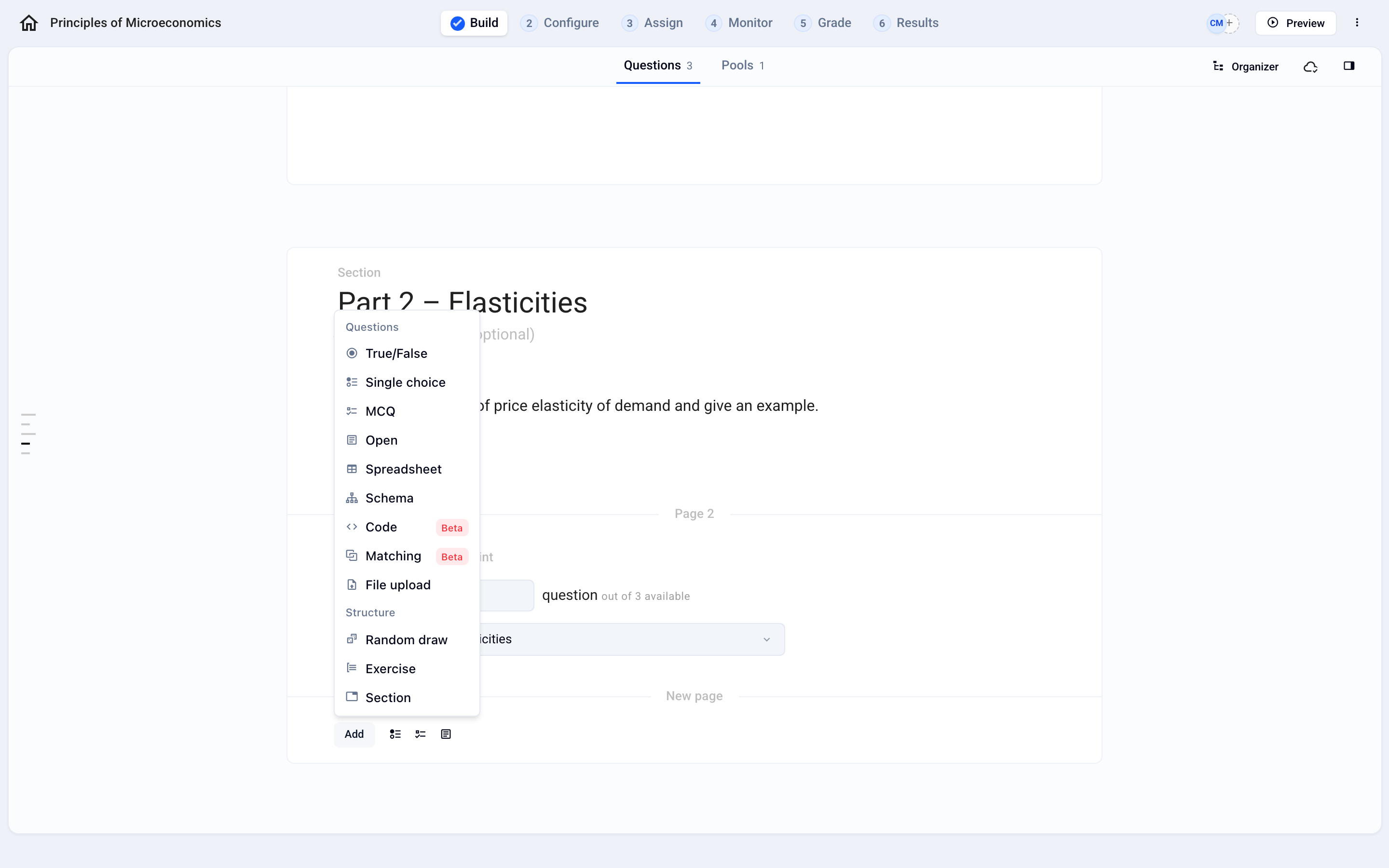
In the Build tab, at the bottom of the section you want, click Add, then Random draw (Structure category).
If the exam does not have a pool yet, the block offers Create a pool: click it to open the Pools tab.
2. Fill the pool
In the Pools tab, click the Pool name title to name it. A pool without a name is flagged as an error.
Click Add in the pool and choose a question type (QCU, QCM, Open…) or Exercise.
Repeat for each item. The counter under the name (for example 3 questions) shows the size of the pool.
For another pool, click Add a pool.

⚖️ To keep exams fair, all exercises in the same pool must have the same number of questions and the same number of points. Otherwise, the pool is flagged as an error.
3. Set up the draw
Go back to the Questions tab and, in the draw block, choose the pool from the From list.
In Randomly draw, enter the number of items to pick. The block shows how many are available (for example out of 3 available).

You can place several draws that pick from the same pool: a given participant never receives the same item twice. The total drawn from a pool therefore cannot exceed the number of items it contains.
To see a sample exam, click Preview at the top right.
Good to know
Pools belong to an exam: they are not shared between exams. To reuse them elsewhere, import them again into the other exam.
A draw has no name of its own in the editor: the name of the pool identifies it. Name your pools clearly (for example “Part 2 – Elasticities”).
Random draws are available for online exams, starting with the Pro plan.
Import pools
Already have your questions in a file? Import them all at once: Import pools in Excel format or Import pools in Moodle XML format
⚠️ When importing from Excel, if the file contains a Pools tab, all the pools already in the exam are replaced by those in the file. To add a pool without losing the others, put all your pools in the same file.
FAQ
I can’t enter a number to draw that is greater than the content of the pool. What should I do?
I can’t enter a number to draw that is greater than the content of the pool. What should I do?
This is by design: you can’t draw more items than the pool contains. If the number exceeds the size of the pool, the Randomly draw field displays “The number cannot exceed …” and the value is not accepted. The number must also be greater than 0.
Two solutions:
Add questions or exercises to the pool (Pools tab). The block’s out of … available counter updates.
Or reduce the number to draw.
If several draws pick from the same pool, their numbers add up: their total cannot exceed the size of the pool. In that case, the subject reports that the pool “does not contain enough exercises” (X drawn out of Y available). Reduce one of the draws or enlarge the pool.
Was this helpful?
Still need help? Ask the team