MCQ Question
Written By Florian Barral
Last updated About 1 hour ago
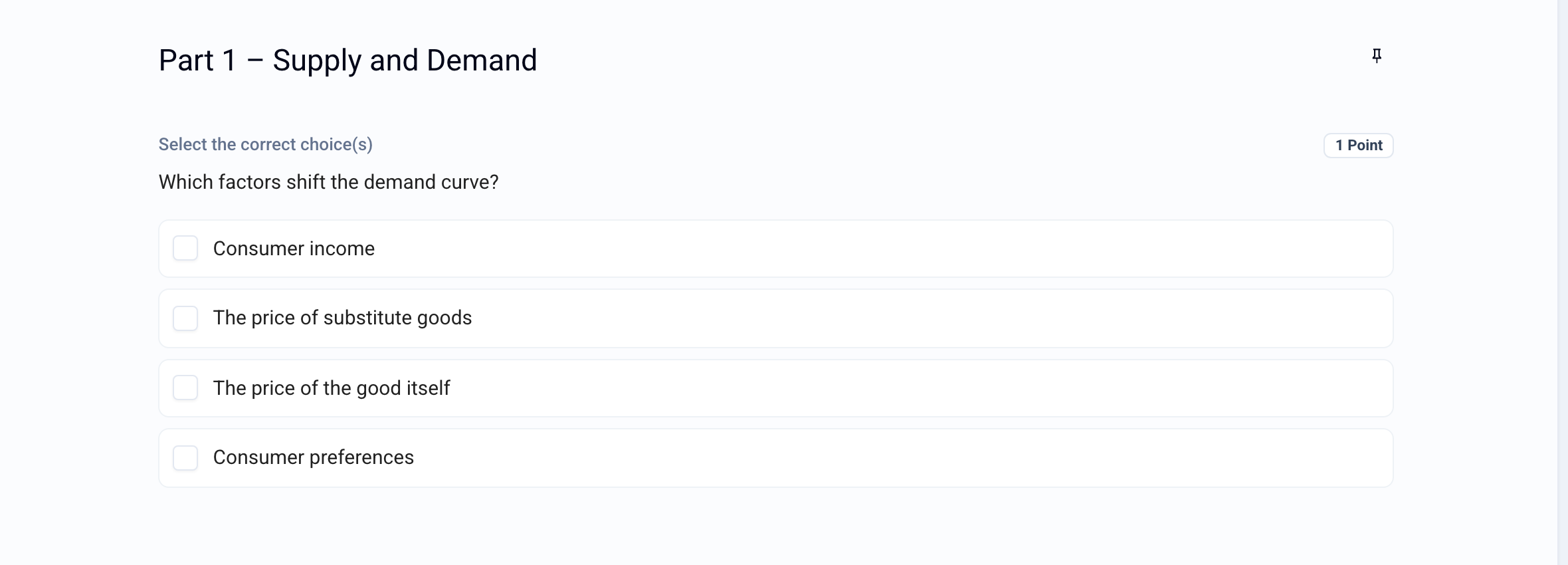
An MCQ (multiple-choice question) offers several choices, one or more of which are correct. The participant can check several choices. Grading is automatic.
Create an MCQ
In the Build tab, click Add at the bottom of the section and choose MCQ Question.
Enter the statement in place of Question name.
Enter the choices, then check all the correct choices.
Click 1 Point to change the number of points.
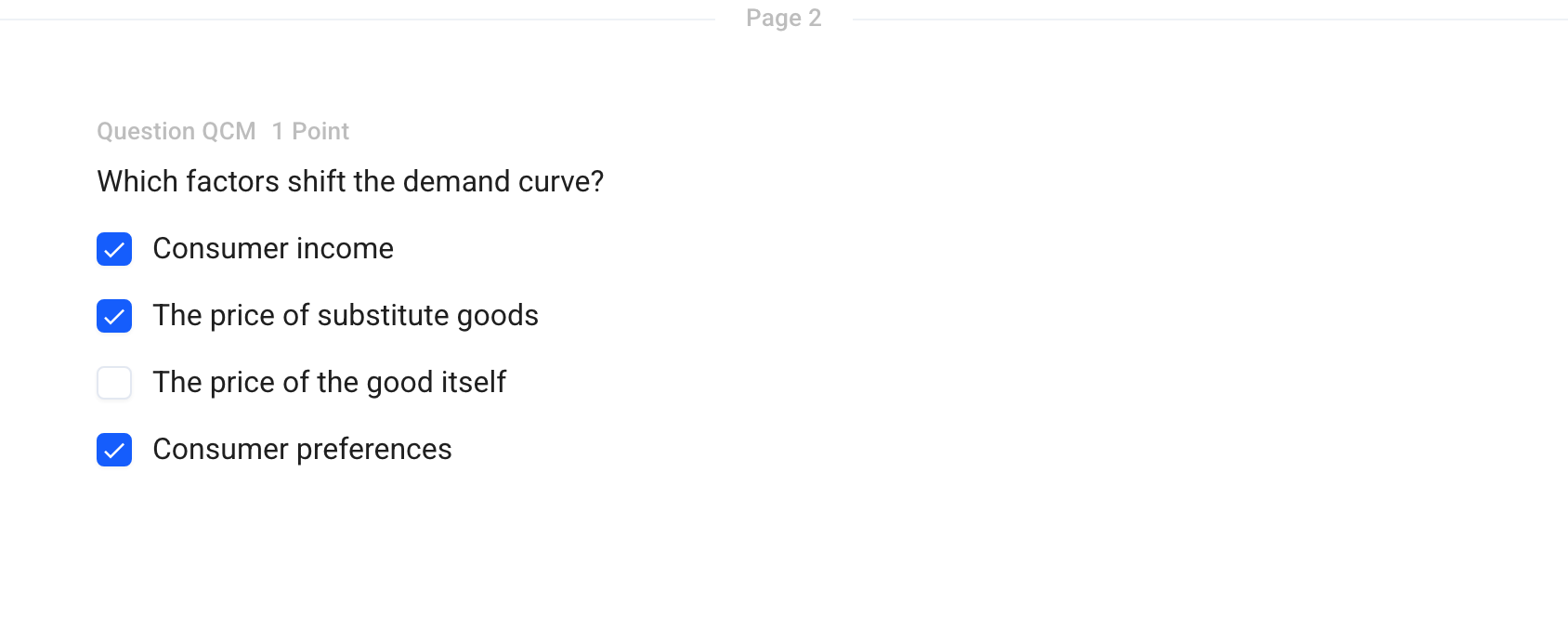
Options
Click the ⋮⋮ icon to the left of the question to open its menu:
Correction comment: a text shown on the graded submission, if you give access to the answer key.
Convert to SCQ: allows only one correct answer.
Add a document: a PDF, a video, or an audio file.
Convert to exercise: to display several questions on the same page. See Structure an exam subject
Grading
The points of an MCQ depend on the MCQ grading scheme chosen in Configure › MCQ Grading: classic scoring (reward, penalty, limit on selectable choices) or discordance scoring. See Standard MCQ grading scheme and Discordance-based MCQ grading scheme
Only one correct answer? Use a Single-choice question instead. To compare all the types: Which question type should you choose?
Was this helpful?
Still need help? Ask the team