Short answer question
Have participants enter a word or phrase, graded automatically.
Last updated 2 days ago
The Short answer question asks the participant to enter a word or phrase: a term, a date, a proper name… You list the accepted answers and grading is automatic and all-or-nothing. It is only available for online exams.
Create a Short answer question
In the Build tab, click Add at the bottom of the section and choose Short answer (Questions category).
Enter the prompt in place of Question name.
Click 1 Point to change the number of points.
In Accepted answers, enter an expected answer (click Add the expected answer if the field is not open), then press Enter. Add every wording you accept this way.
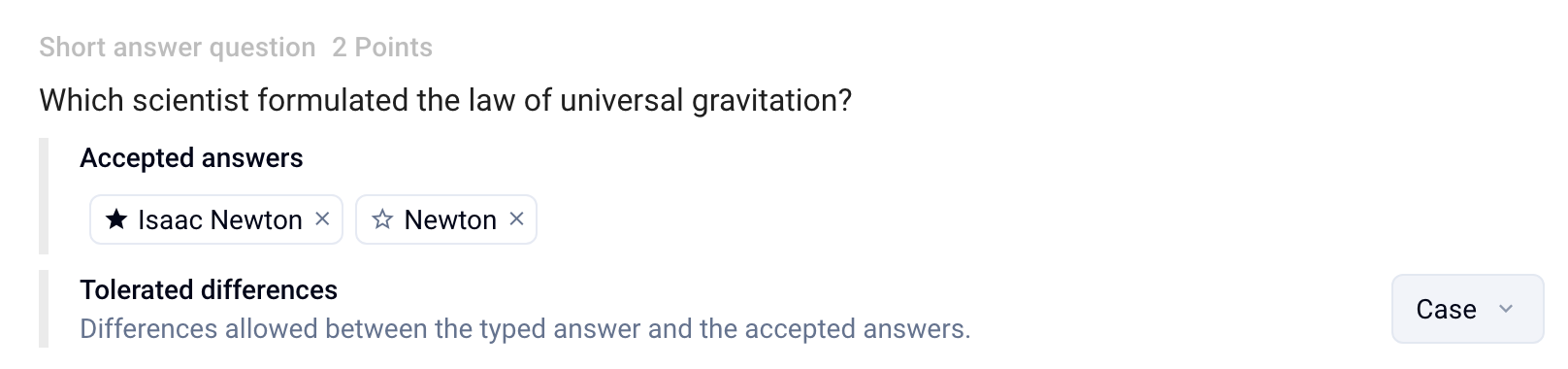
Accepted answers and answer key
A participant is correct if they enter one of the accepted answers.
A filled star in front of an answer means it is shown to participants in the answer key, if you give them access to it. All the answers you enter in the editor are shown by default.
To keep a variant to yourself, such as a tolerated misspelling, click its star (Remove from the answer key). Click it again to show it again (Show in the answer key). The answer key always shows at least one answer.
Set the tolerated differences
The Tolerated differences setting defines which differences are accepted between the answer entered and the accepted answers:
Case: “Paris” = “paris”.
Accents: “élève” = “eleve”.
By default, case differences are tolerated, but not accents. If nothing is checked, the setting shows None: the answer must be written exactly like an accepted answer.
Extra spaces and apostrophe variants are always ignored, since the participant cannot see them.
What the participant sees
The participant sees the prompt and a Your answer field.
Grade
The question is graded as soon as the participant finishes. A recognized answer earns all the points; an unrecognized or missing answer earns zero: the MCQ malus and discordance settings do not apply.
In the Grade › By question tab, open the question: the Answers given list groups identical answers, with the number of participants who entered them. Each group is labeled Reference (shown in the answer key), Accepted or Refused.
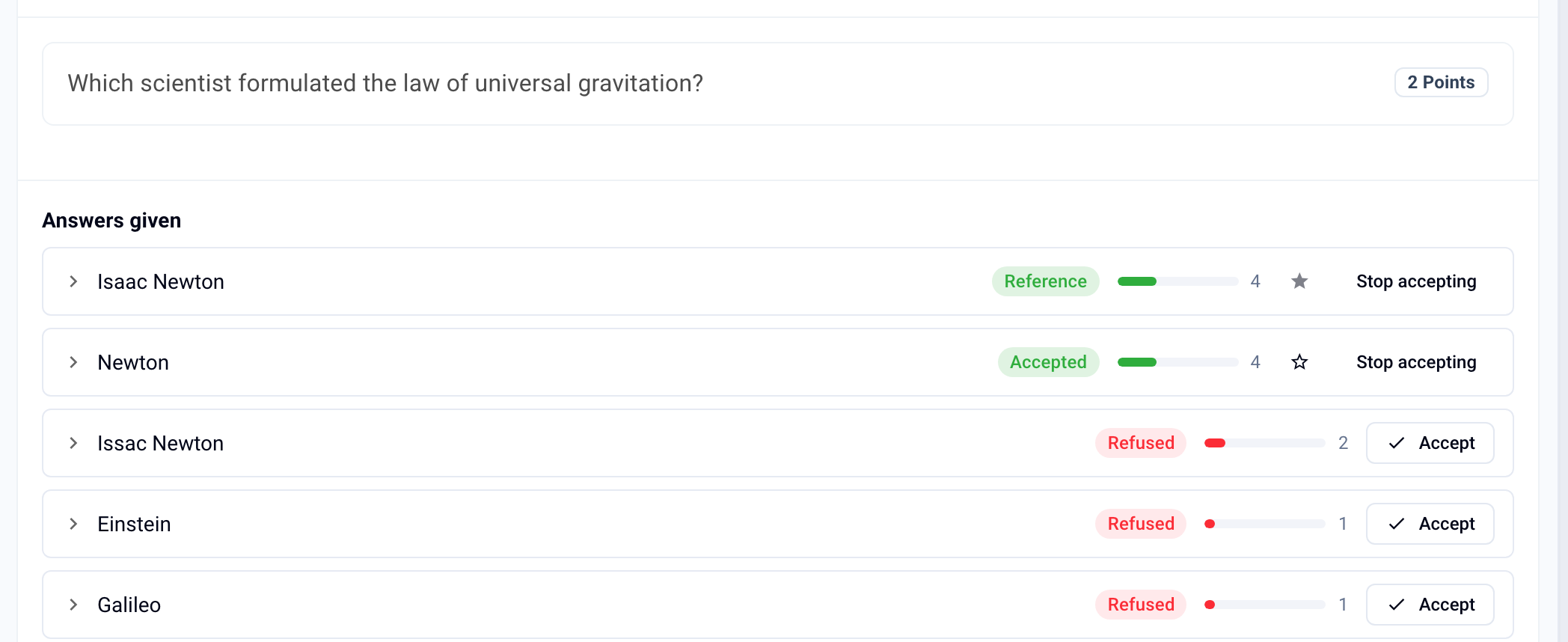
A variant you had not anticipated (a typo, another wording)? Click Accept: it joins the accepted answers and the grades of all participants who entered it are recalculated. It is not shown in the answer key: click its star (Show in the answer key) to add it.
To undo, click Stop accepting on an accepted answer. The last accepted answer cannot be removed.
ℹ️ Grading is all-or-nothing: a partially correct answer earns no points. For a written answer, see Long answer question
For all grading modes, see Grade submissions. For a numeric answer with a margin, see Numeric answer question
Was this helpful?
Still need help? Ask the team