Import an exam subject in Moodle XML format
Written By Florian Barral
Last updated About 7 hours ago
⚡ Save time by importing an entire exam subject you have already prepared in Moodle.
1. Export the questions from Moodle
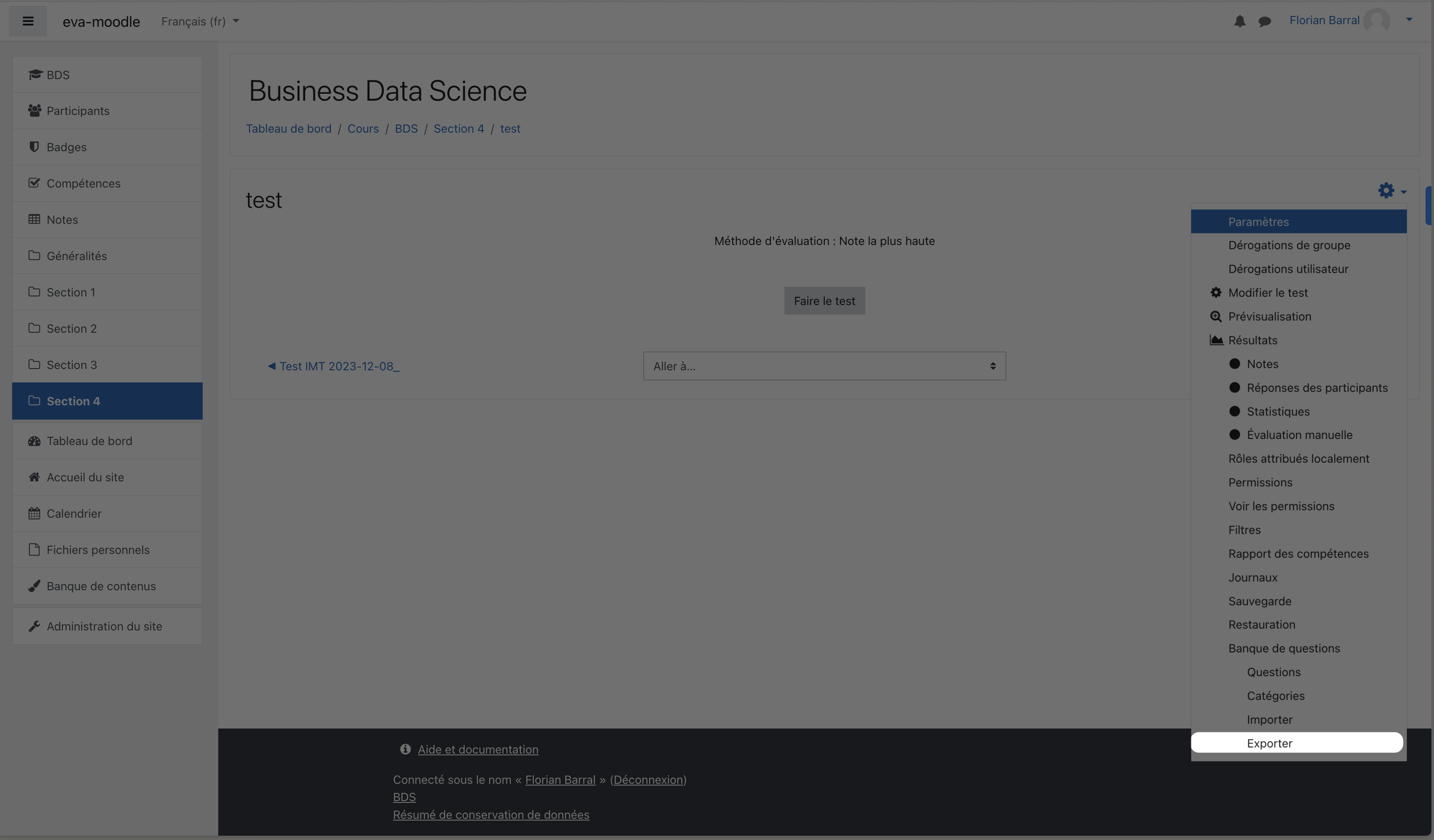
In Moodle:
Open your Quiz
Click the options ⚙️ at the top right, then
ExportExport the
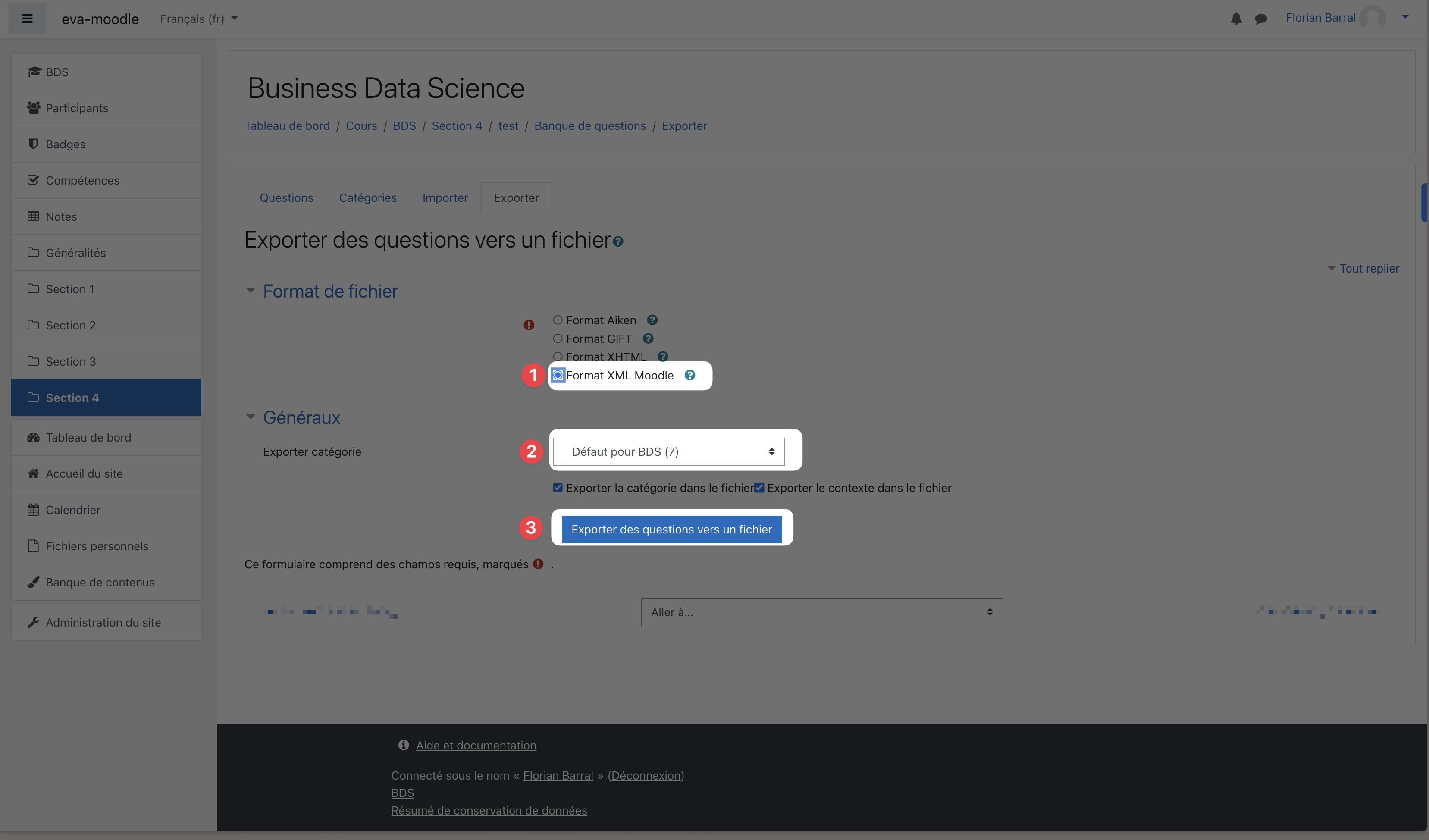
.xmlfileChoose the
Moodle XML formatCheck the question category you are importing
Click
Export questions to file
2. Import them into Evalmee
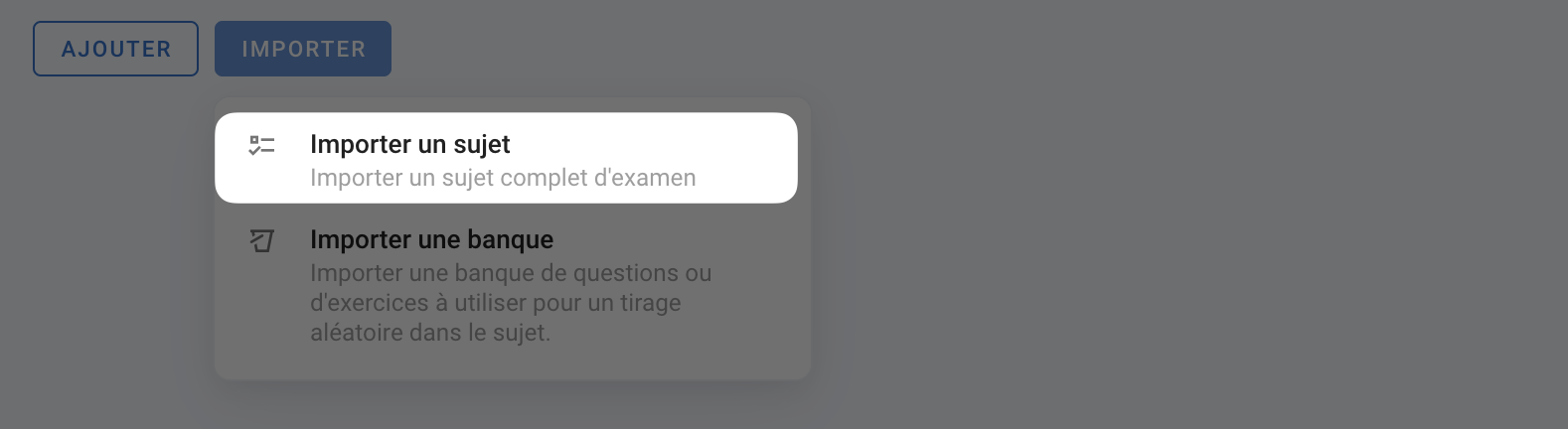
In your exam editor, click Import, then Subject. Choose Moodle XML and drag and drop the .xml file you just downloaded. The import replaces the exam's existing questions.
Supported question types
multichoice(multiple choice): imported as a single-choice or multiple-choice question, with the correct answers. Grade percentages per answer are not carried over.truefalse(true/false): imported as a True/False question, with the correct answer.essay: imported as an open question.description: imported as a complementary statement.shortanswer(short answer): imported as a multiple-choice question whose choices are the accepted answers. Rework these questions after the import, for example by turning them into open questions.
❗ matching questions are skipped. numerical and cloze questions are not supported: if the import fails, remove them from the file or export again without them.
Was this helpful?
Still need help? Ask the team