Invite participants via email
Written By Florian Barral
Last updated About 6 hours ago
The invitation is the email that sends each participant their personal link to the exam, along with the schedule and your instructions.
💡 Test it using a personal email address—one different from your account’s—to receive the exam invitation as a participant.
Send invitations to all participants
In the Assign › Session tab, under the Invitation tab, click Configure.
Choose a template: French Template or English Template. It will use your settings, such as the exam format and schedule.
Customize the email if needed: subject line, body text, and variables.
Click Preview to check the layout, then click Send Invitations.
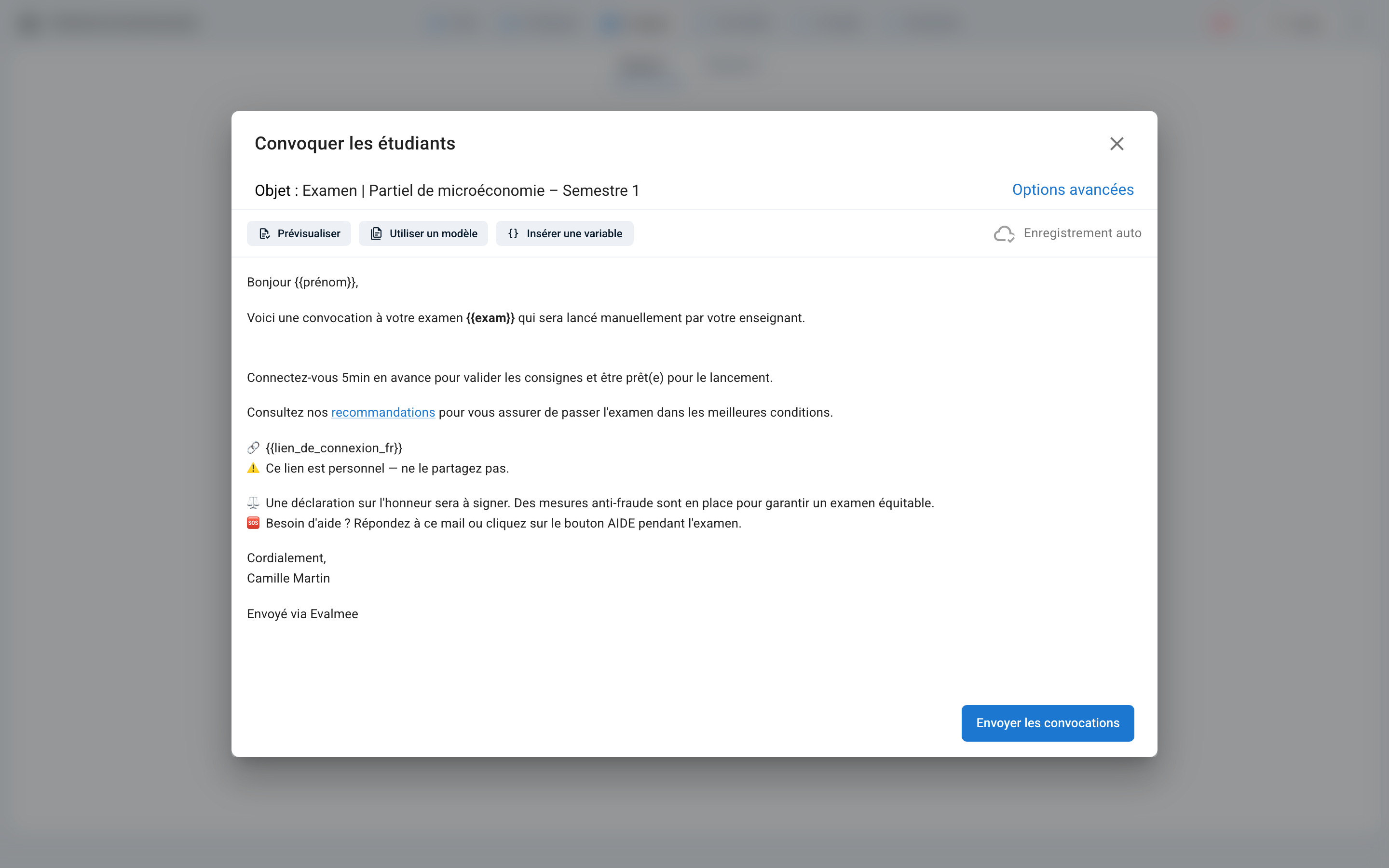
⚠️ Schedule the session before choosing the template. Otherwise, the email will indicate that registration must be opened manually. If you schedule the session afterward, click Use a Template to regenerate the email.
Customize the email
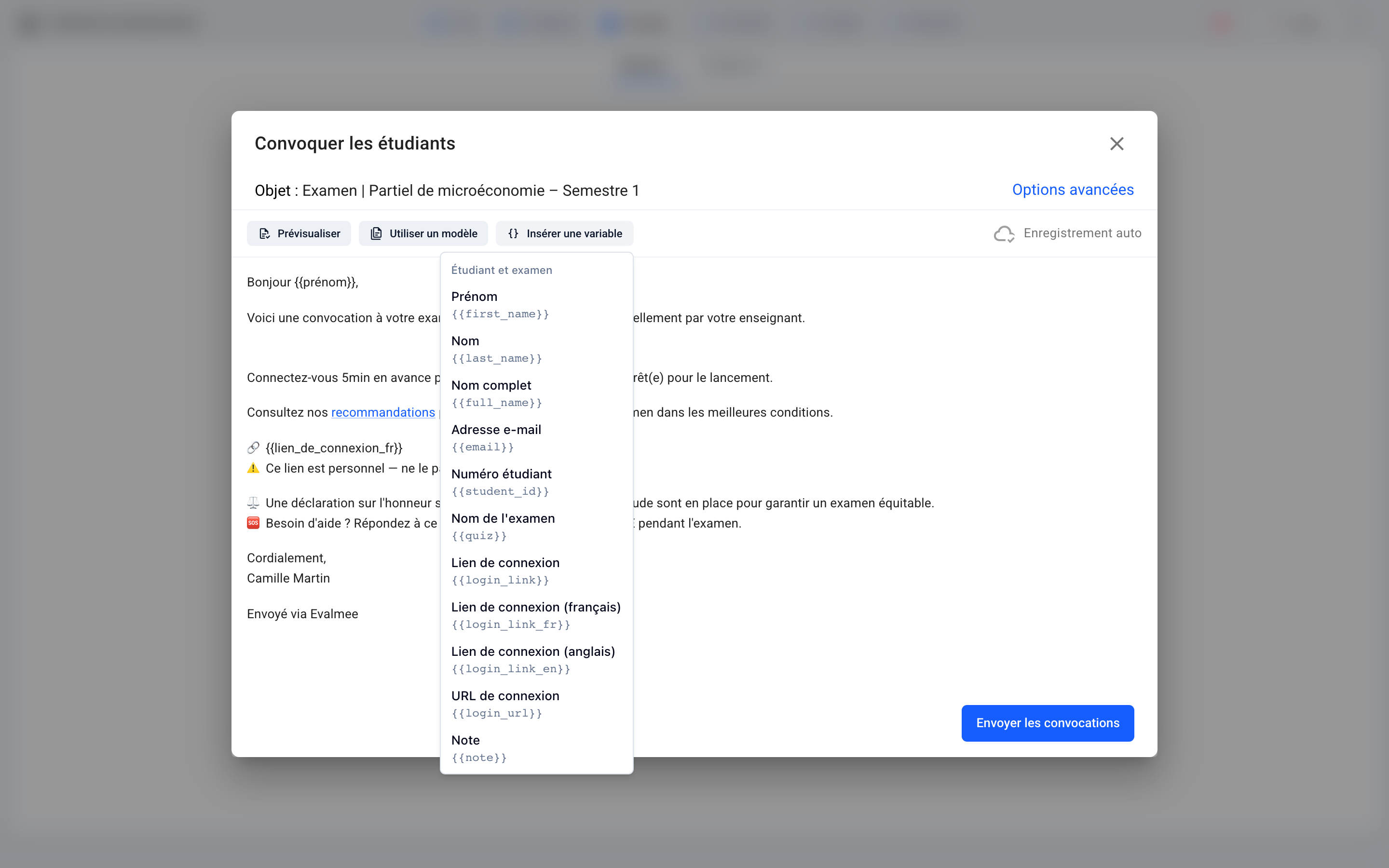
Insert a variable: Add placeholder fields for each participant in the email (first name, last name, email address, student ID, exam name, login link in French or English, grade), as well as the exam’s custom attributes.
Advanced options: Change the sender’s name, as well as the reply-to name and address. The sender’s email address cannot be changed.
The email is saved automatically: you can close the window and return later.
Send to one or more participants
To resend the email to specific participants, or to invite a participant added after the email was sent:
In the Assign › Students tab, check the boxes next to the relevant participants.
Click Send Invitation in the bar that appears at the bottom of the screen.

The Invitations column shows whether each participant has received their invitation.
FAQ
What should I do if an invitation is still marked as “not received” for a given email address?
What should I do if an invitation is still marked as “not received” for a given email address?
Our email system automatically stops sending emails to deactivated addresses. It’s possible that you or anotherEvalmee user tried to send an email to that address while it was deactivated.
If it has since been reactivated, you can contact us via live chat support to unblock it or email us at support@evalmee.com
What should I do if the exam isn’t visible on a participant’s dashboard even though they received an email invitation?
What should I do if the exam isn’t visible on a participant’s dashboard even though they received an email invitation?
If the exam is managed by an LMS via an LTI
integration: On the participants’ home page, exams managed by an LMS are never visible until they have been taken.
If the exam was created on Evalmee
If the exam was reset after the invitations were sent, it will no longer be visible on the participants’ home page. To make it visible again, you must resend the invitations.
What should you do if the exam times do not appear in the exam invitation email template?
What should you do if the exam times do not appear in the exam invitation email template?
If you configured the invitation email template before setting a scheduled start time for the exam or exam session, the email will indicate that the exam will be opened manually.
To update the email template, click “Use a Template” and then click the name of the template for the desired language.
Was this helpful?
Still need help? Ask the team