Customize the exam's welcome page
Write the instructions, grading scheme and honor code participants read before they start.
Written By Florian Barral
Last updated About 6 hours ago
Before starting the exam, every participant goes through a welcome page: instructions, grading scheme, exam conditions, then an honor code. You preview and customize it from the exam editor.
Open the welcome page
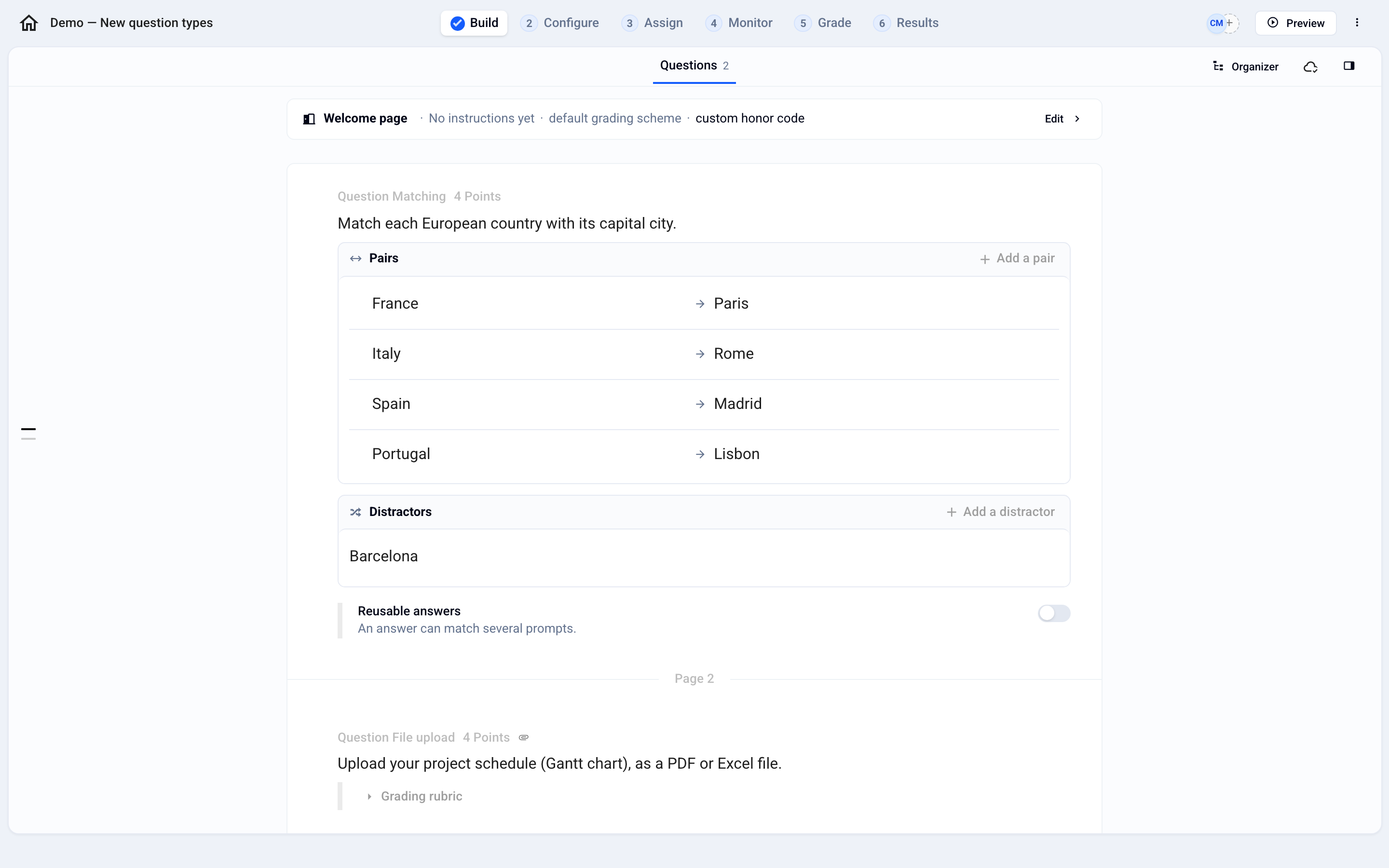
In the Build tab, find the Welcome page block at the top of the exam. It sums up what you have already customized.
Click Edit.
The menu on the left lists the steps your participants will see, in order. They depend on the exam settings: for example, the Conditions step only appears when an anti-cheating measure or proctoring is on. Steps followed by a pencil icon hold a text you can rewrite; the others follow the settings of the Configure tab.
Write the instructions and grading scheme
Click Welcome.
Click in the instructions area and type your instructions: allowed documents, equipment, who to contact if something goes wrong.
For the grading scheme, click Customize under the default text, then edit it.
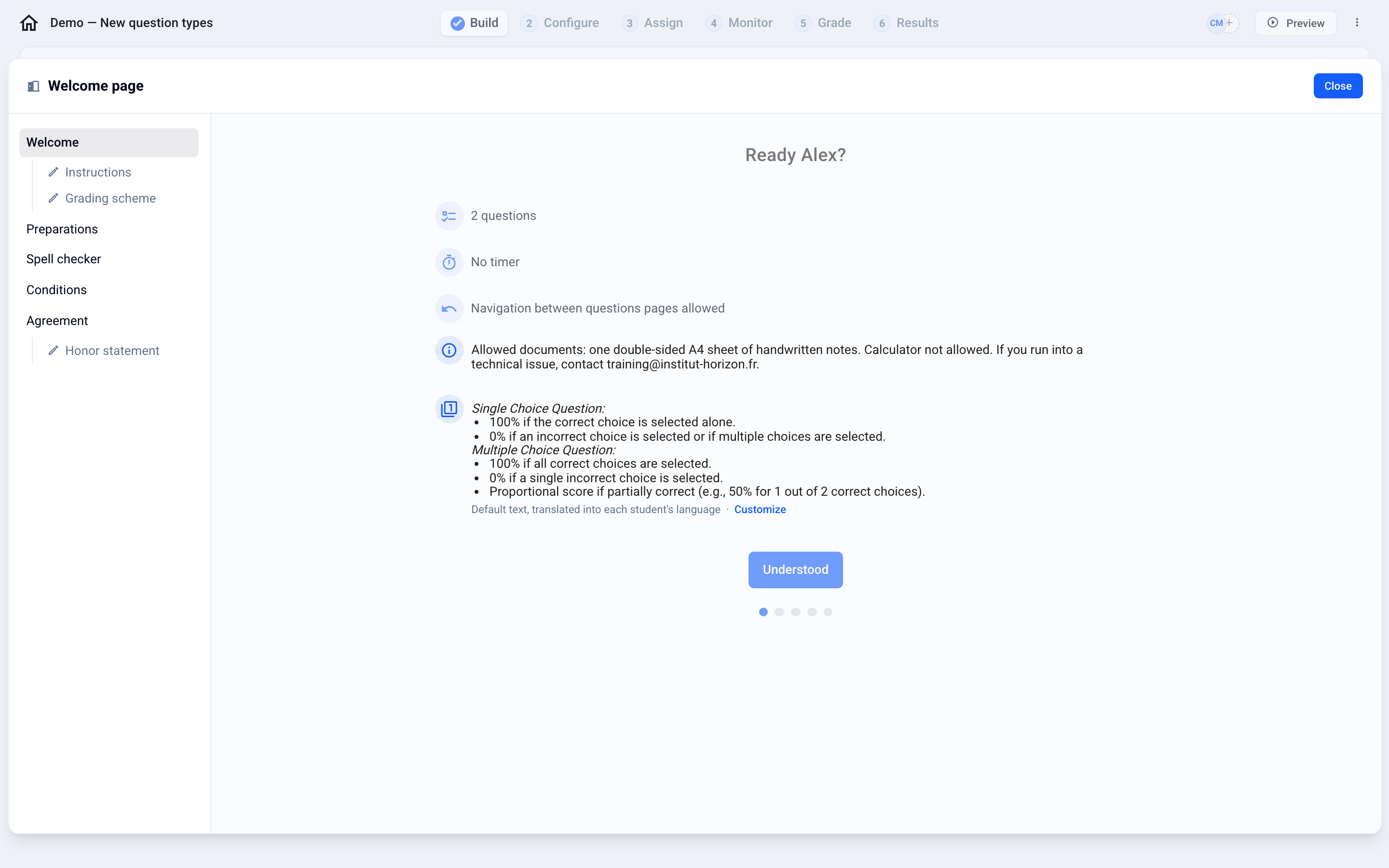
Your changes are saved automatically.
Rewrite the honor code
Click Agreement, then Honor statement.
Click Customize and replace the text with your own.

To go back to the original text, click Restore the default text.
💡 The default text is translated into each participant's language. A custom text is shown exactly as you wrote it, whatever the participant's language.
Click Close to go back to the exam. To see the welcome page as a participant, click Preview.
Was this helpful?
Still need help? Ask the team