Set up criteria-based assessment mode
Assess using the same assessment criteria shared by all questions
Written By Florian Barral
Last updated About 6 hours ago
Define the overall assessment criteria
Choose the assessment mode from the drop-down menu among the following options:
Global Assessment. Standard assessment where only an overall grade is calculated for the whole submission.
Criteria-based Assessment. Advanced assessment that adds, on top of the overall grade, a grade per assessment criterion, based on the criteria assessed across the different questions
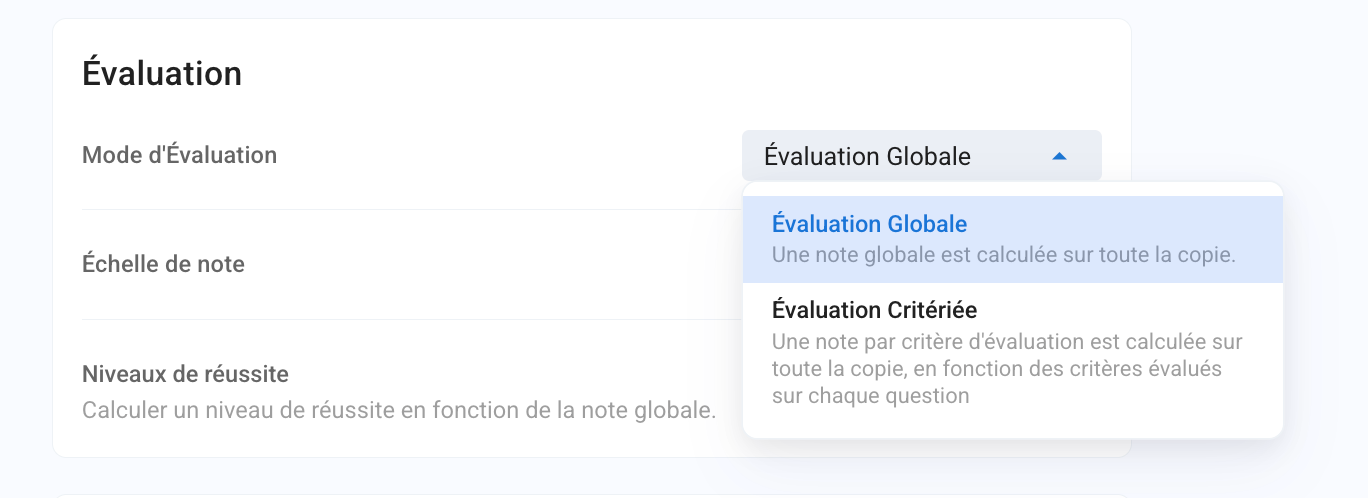
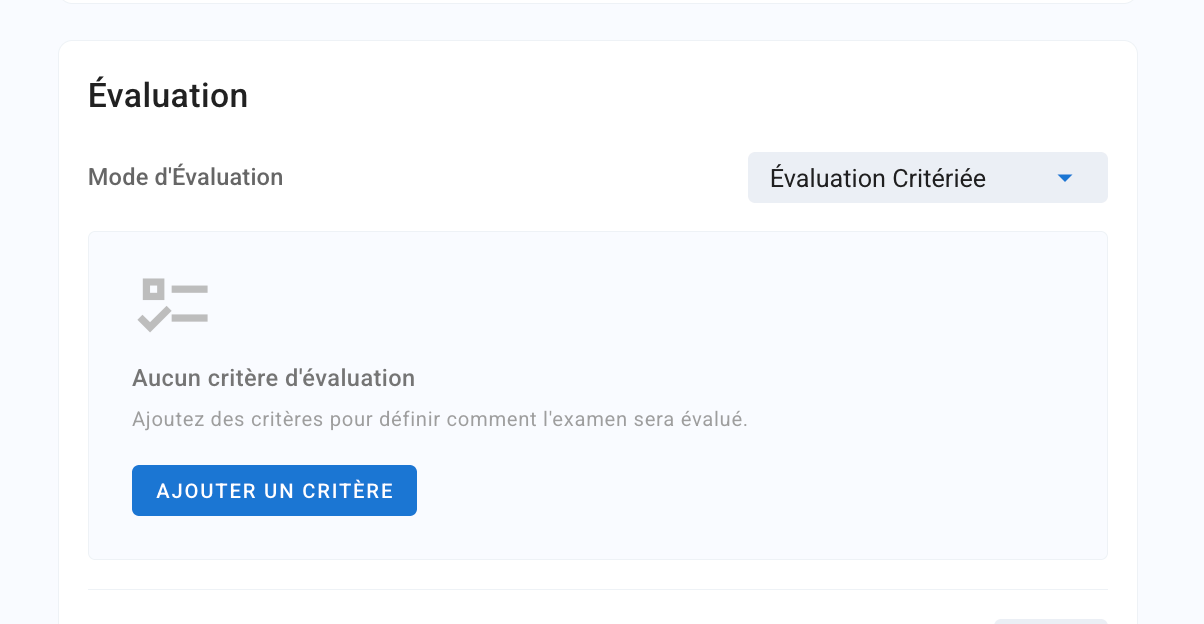
You can then enter several assessment criteria by adding them one by one.
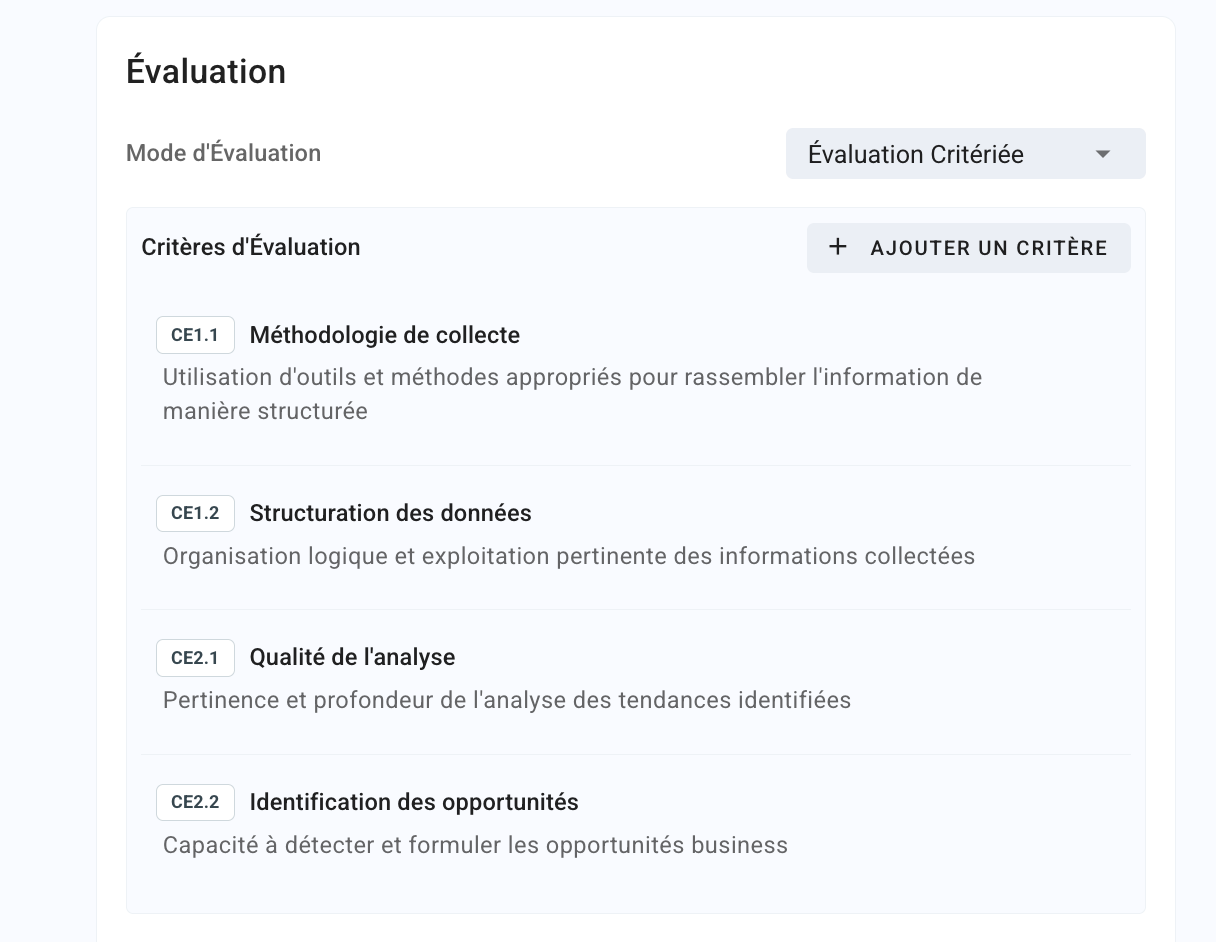
Once you have entered all the assessment criteria of the exam, you should see this:
Set up the grading rubrics on these criteria
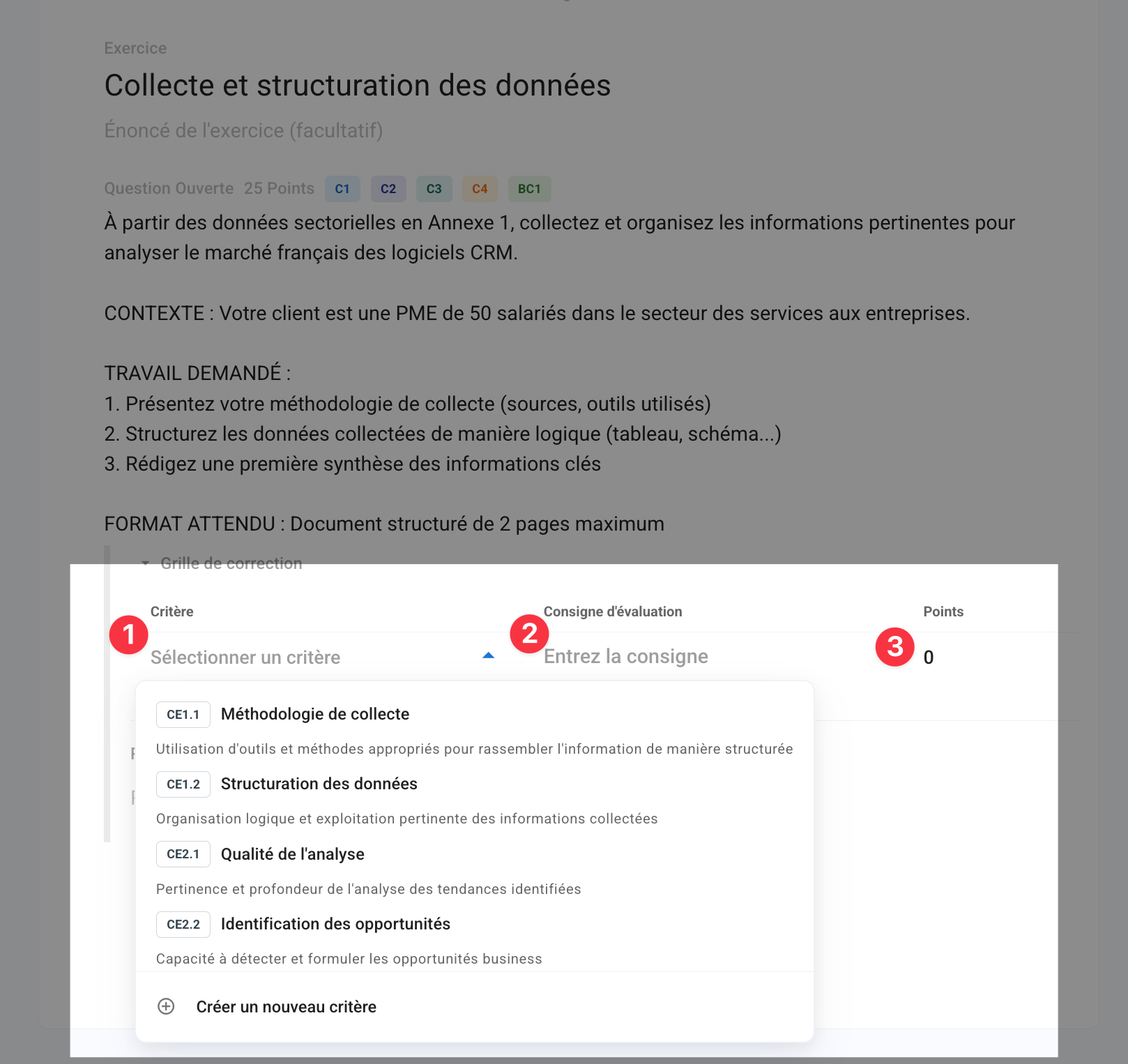
You can set up the grading rubric of each question based on these overall assessment criteria. This is what allows points to be assigned on the different criteria.

When you create a criterion in a question’s grading rubric, you can:
pick a criterion from the exam’s assessment criteria you have already entered
add the assessment instructions for the chosen criterion: these are grading instructions specific to the question
set the total number of points assessed by this criterion on the question
Grade & assign points by criterion
Go to the Open questions tab to grade answers question by question and lock each question’s grading rubric.
a/ Lock rubric 1 so you can fill in rubrics 2 on each answer
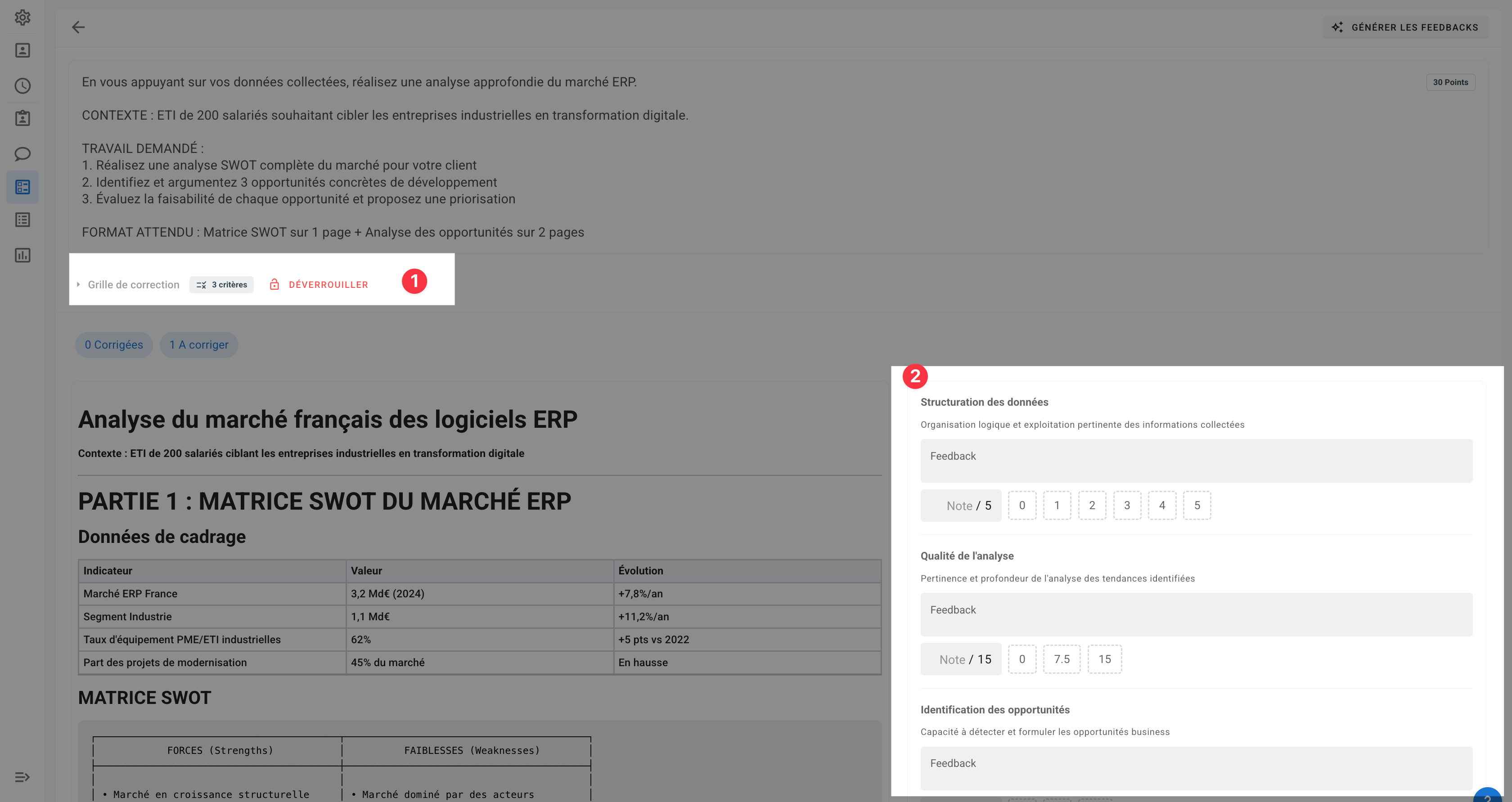
b/ Click Generate Feedbacks to generate point and feedback suggestions:
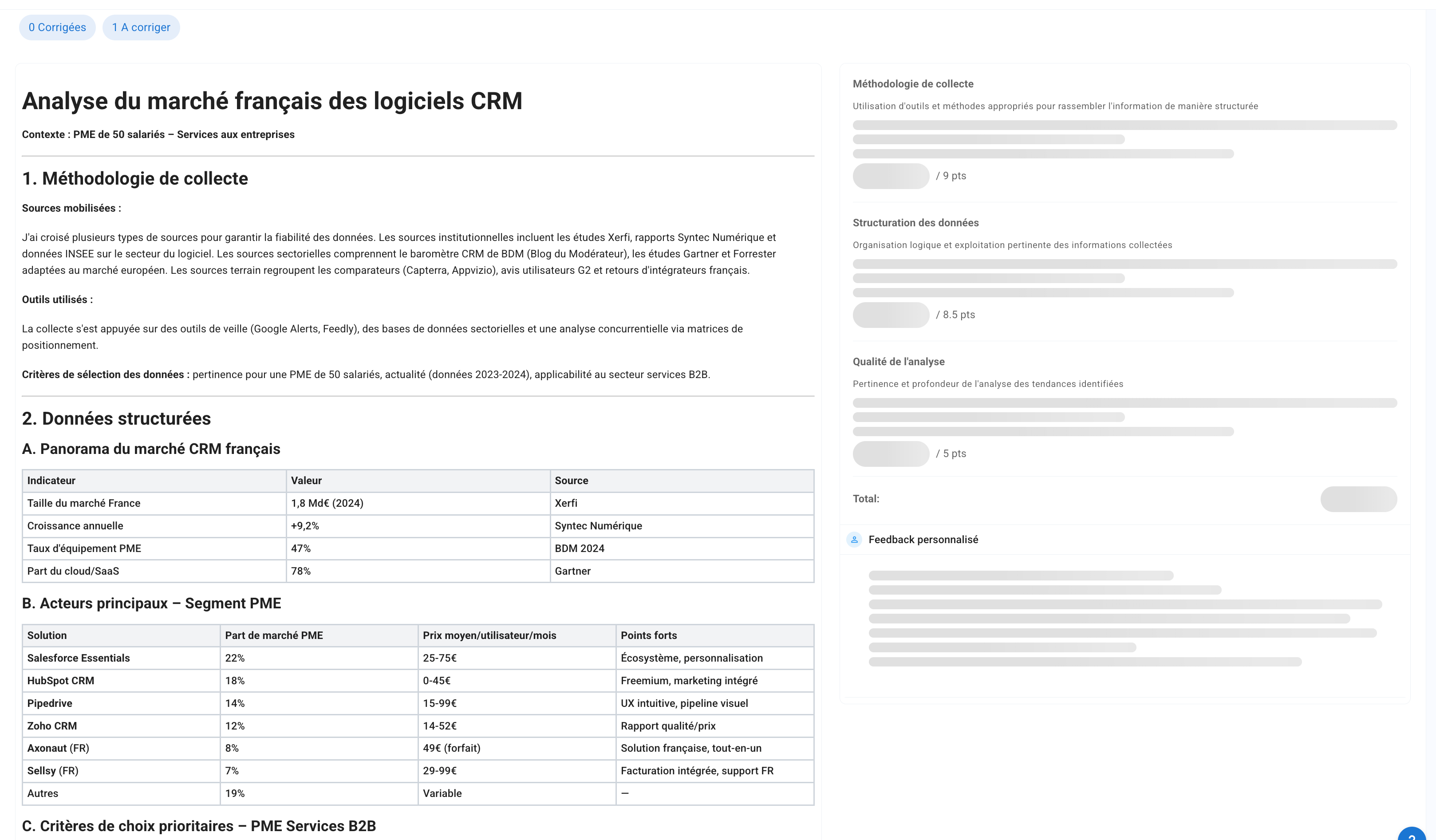
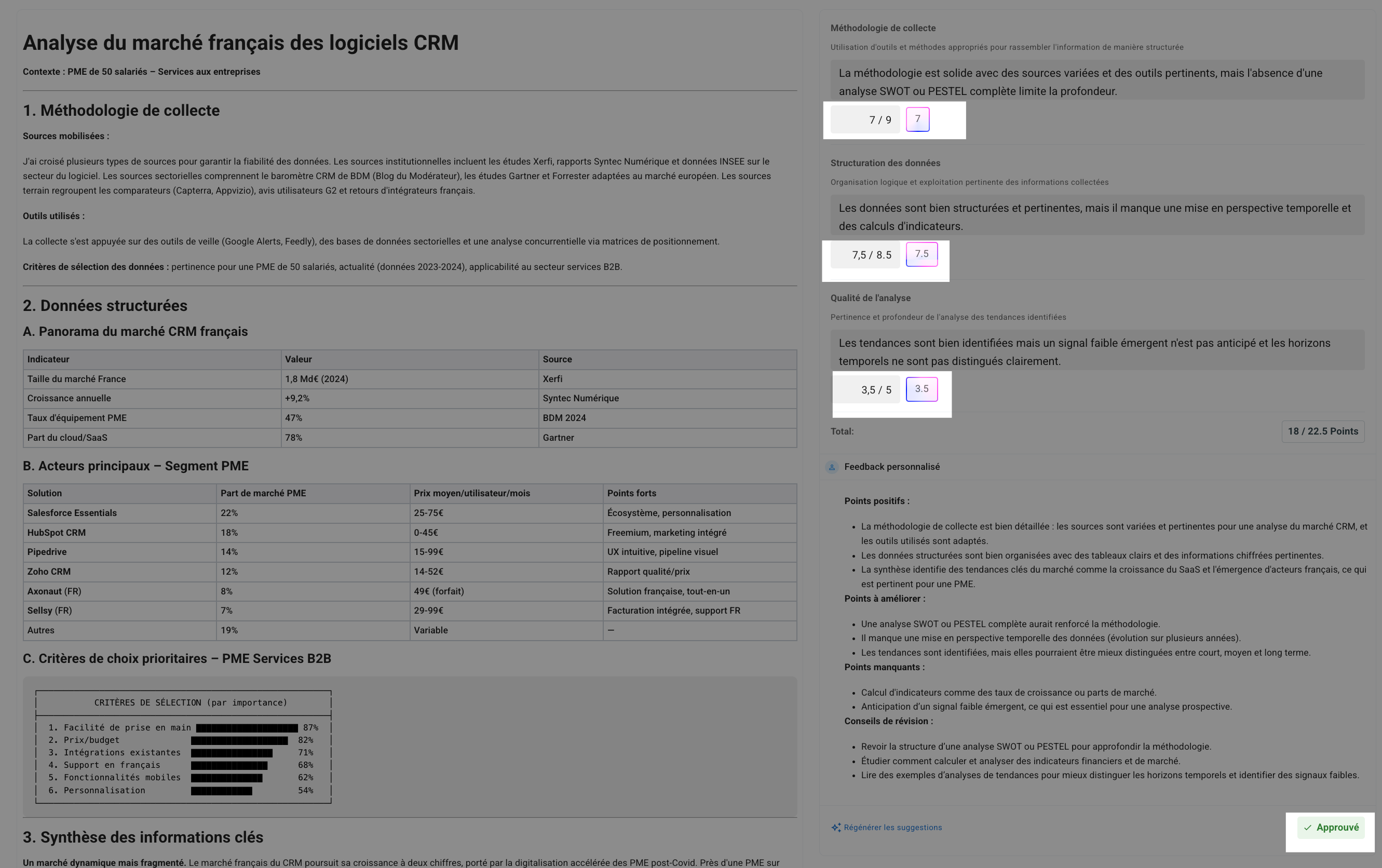
c/ Once the suggestions are generated, you will have:
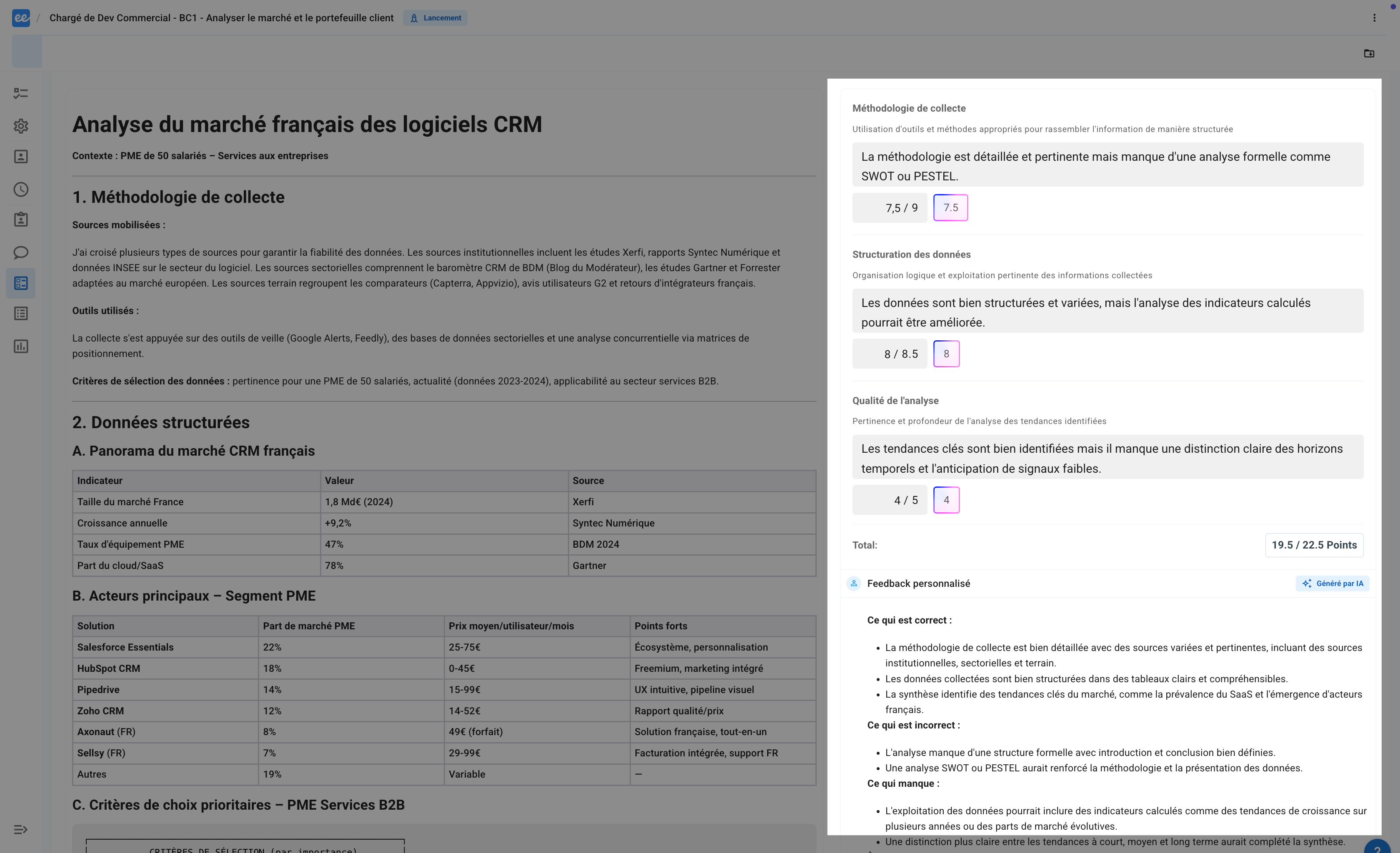
d/ Remember to click Approve to confirm the grading of the answer with the points assigned manually or by AI.
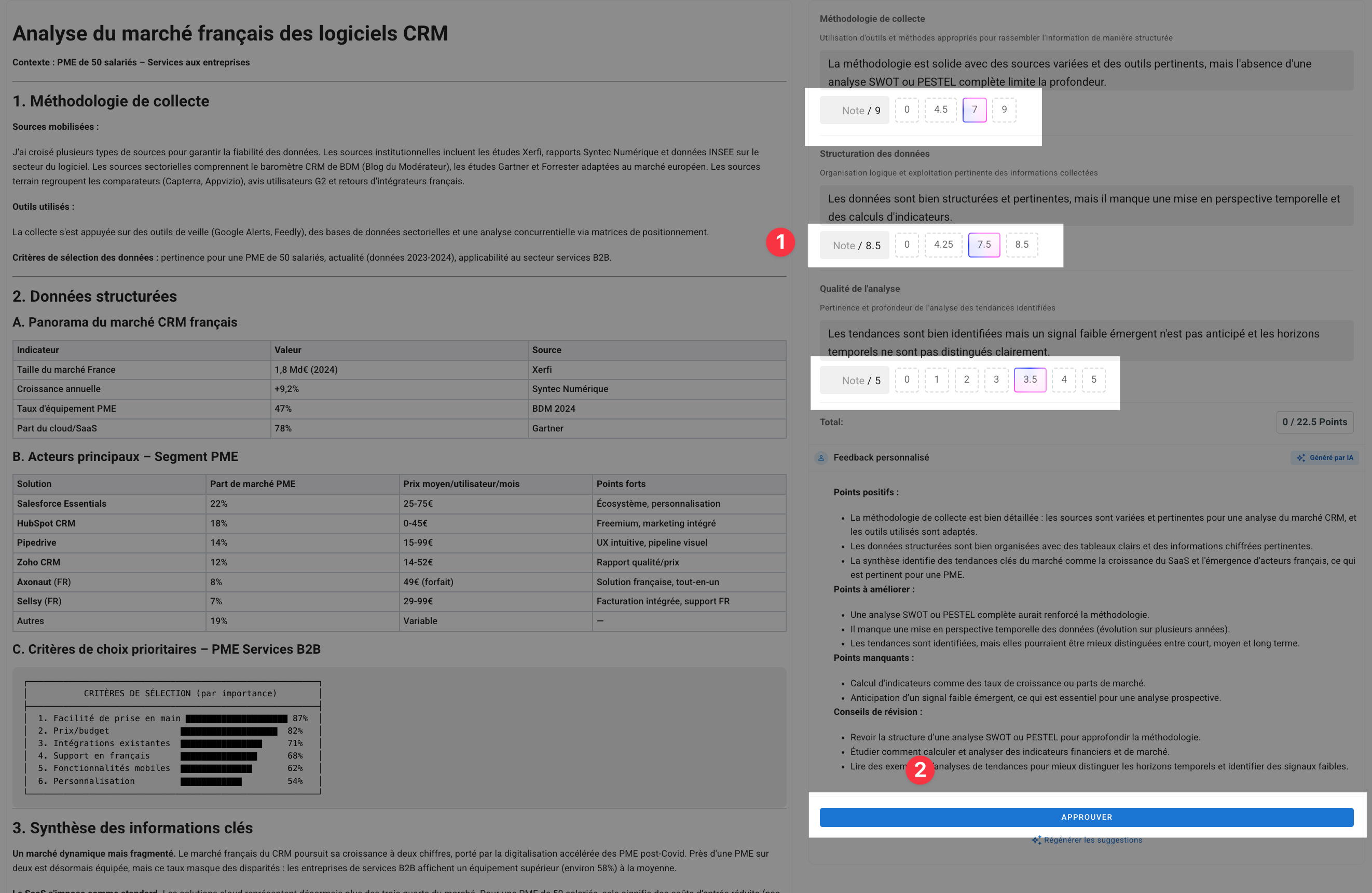
e/ You then get the final result on a graded answer:
Submissions & grades by criterion
When you open a participant’s submission from the Grades tab, you also get the detail of the criteria-based assessment with the grades per criterion, in addition to the global assessment with the overall grade

Frequently asked questions
How do I edit a criterion when questions are already graded
How do I edit a criterion when questions are already graded
If questions are already graded, you must unlock the grading rubric to edit a question’s criteria.
Note that, for grading fairness, if you unlock the grading rubric, the grading already done on the answers to this question will be reset.
How do I unlock a grading rubric
How do I unlock a grading rubric
Go to the “Grade” page, open a question, then click “Unlock”.
Note that, for grading fairness, if you unlock the grading rubric, the grading already done on the answers to this question will be reset.
Why does adding a criterion fail with “This code is already used by another criterion”?
Why does adding a criterion fail with “This code is already used by another criterion”?
Each assessment criterion of an exam has a code (for example CE1) that must be unique within that exam, with a maximum of 10 characters. If you enter a code already used by another criterion, the Code field displays “This code is already used by another criterion” and the criterion cannot be saved.
Choose another code, or keep the default one (CE1, CE2…). To reuse an existing criterion on a question, select it in the question’s grading rubric instead of creating a new one.
Was this helpful?
Still need help? Ask the team