Configure the criterion-based assessment mode
Evaluate based on the same evaluation criteria shared by all questions
Written By Florian Barral
Last updated About 1 hour ago
Define the overall evaluation criteria
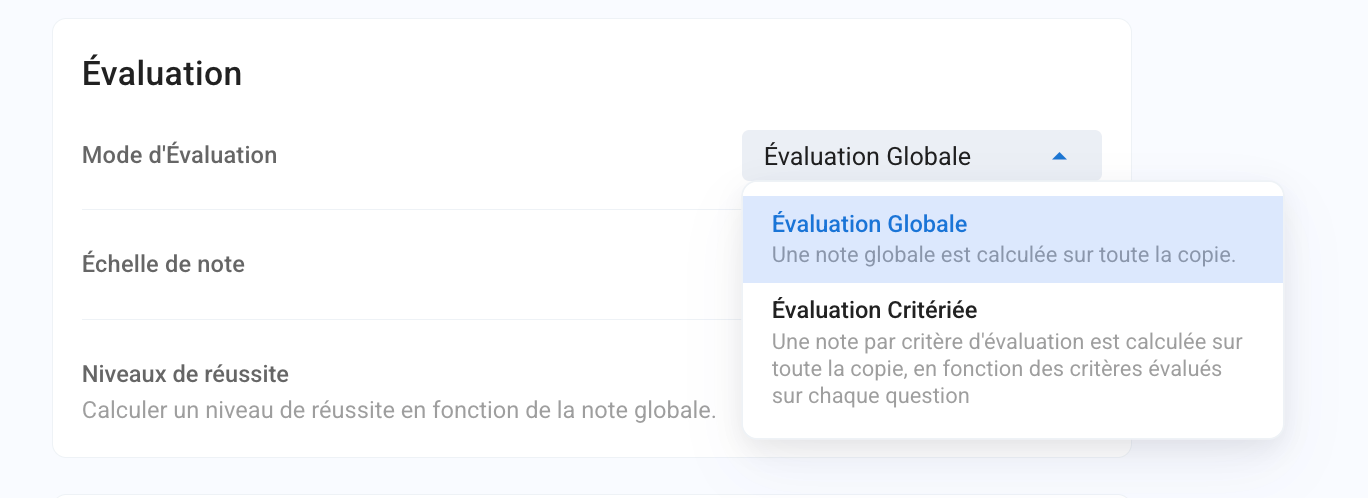
Select the grading method from the drop-down menu from among the following options:
Overall Evaluation. Traditional evaluation where only an overall grade is calculated based on the entire exam.
Criterion-Based Assessment. An advanced assessment method that, in addition to the overall grade, assigns a grade for each assessment criterion based on the criteria evaluated for the various questions.
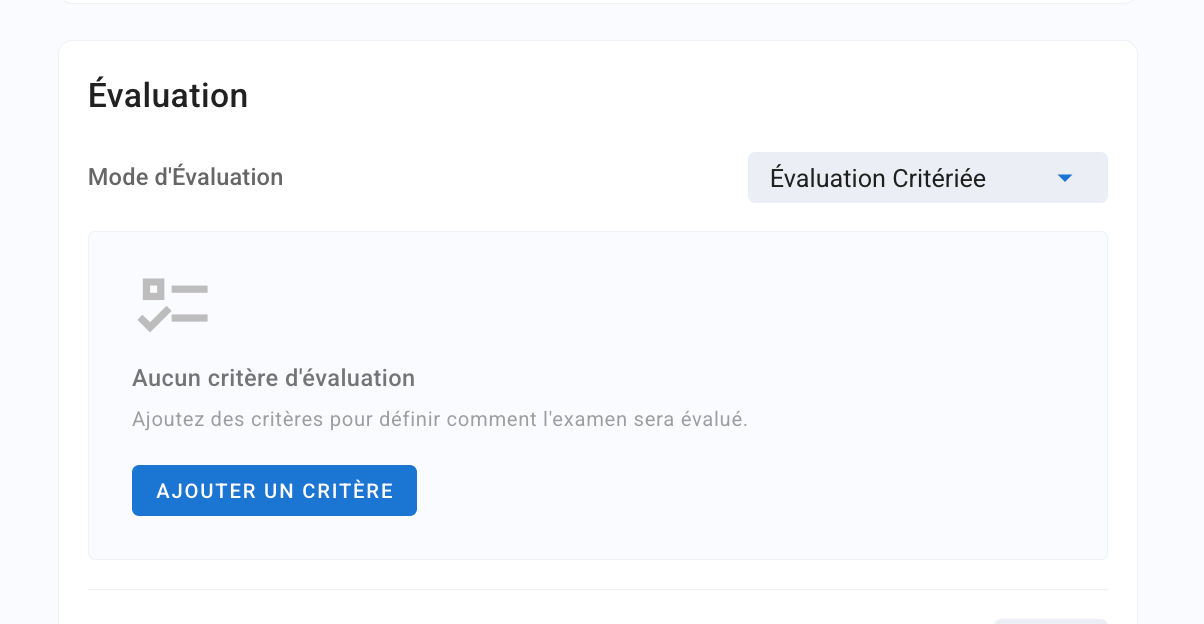
You can then enter multiple grading criteria by adding them one by one.
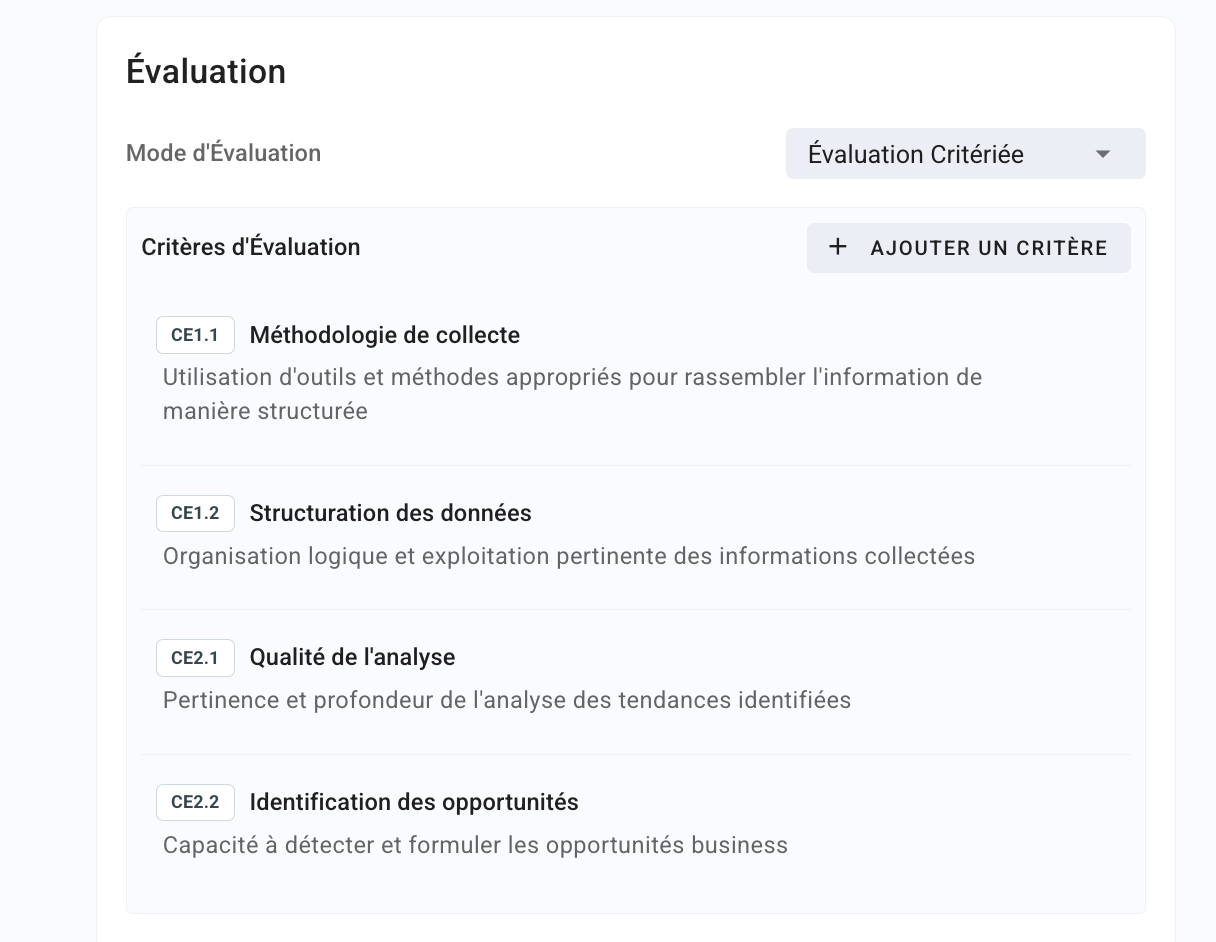
Once you have entered all your assessment criteria for the exam, you should see this:
Configure the grading rubrics based on these criteria
You can configure the grading rubric for each question based on these overall evaluation criteria. This is what will allow points to be assigned for the various criteria.

When you create a criterion in a question’s grading rubric, you can:
select a criterion from the exam’s assessment criteria you’ve already entered
add the assessment instructions for that criterion choose: these are marking instructions specific to the question
define the total number of points assigned to this criterion for the question

Grade & Assign Points by Criterion
Go to the “By Question” tab to grade answers question by question and lock the grading rubric for each question.
a/ Lock the “1” grid so you can fill out the “2” grids for each answer
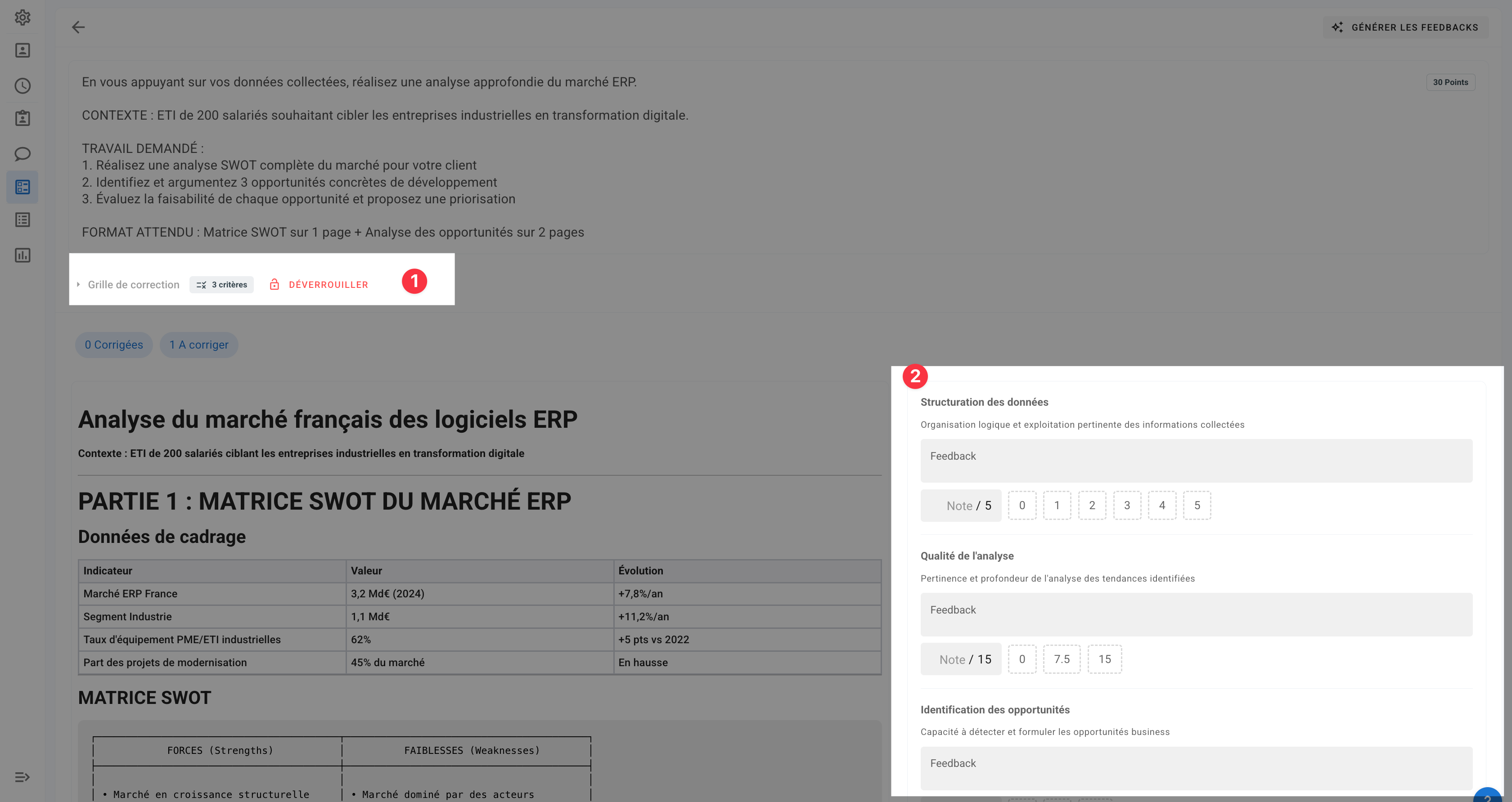
b/ Click “Générer les feedbacks” to generate scoring suggestions and feedback:
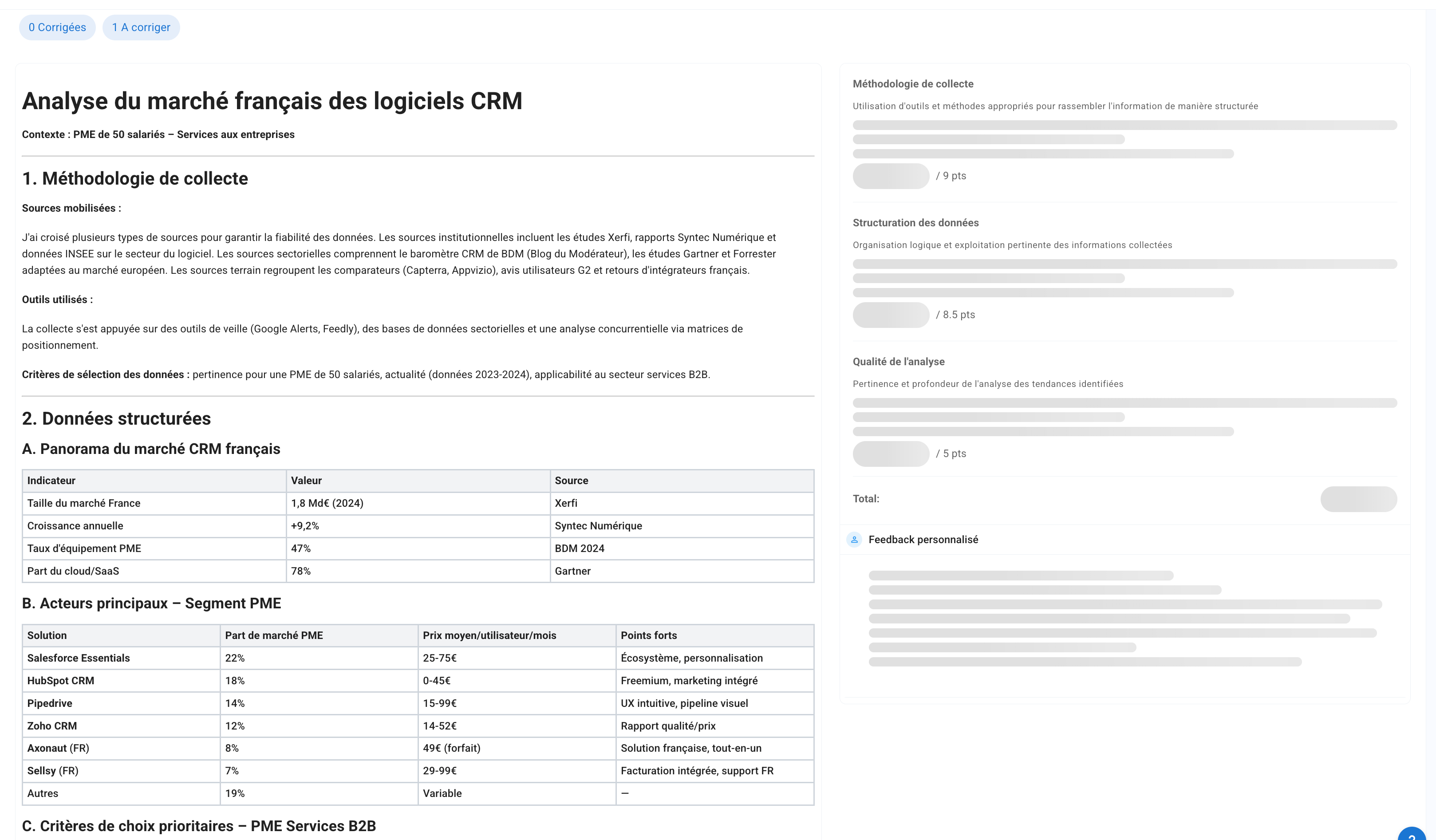
c/ Once the suggestions have been generated, you will have:
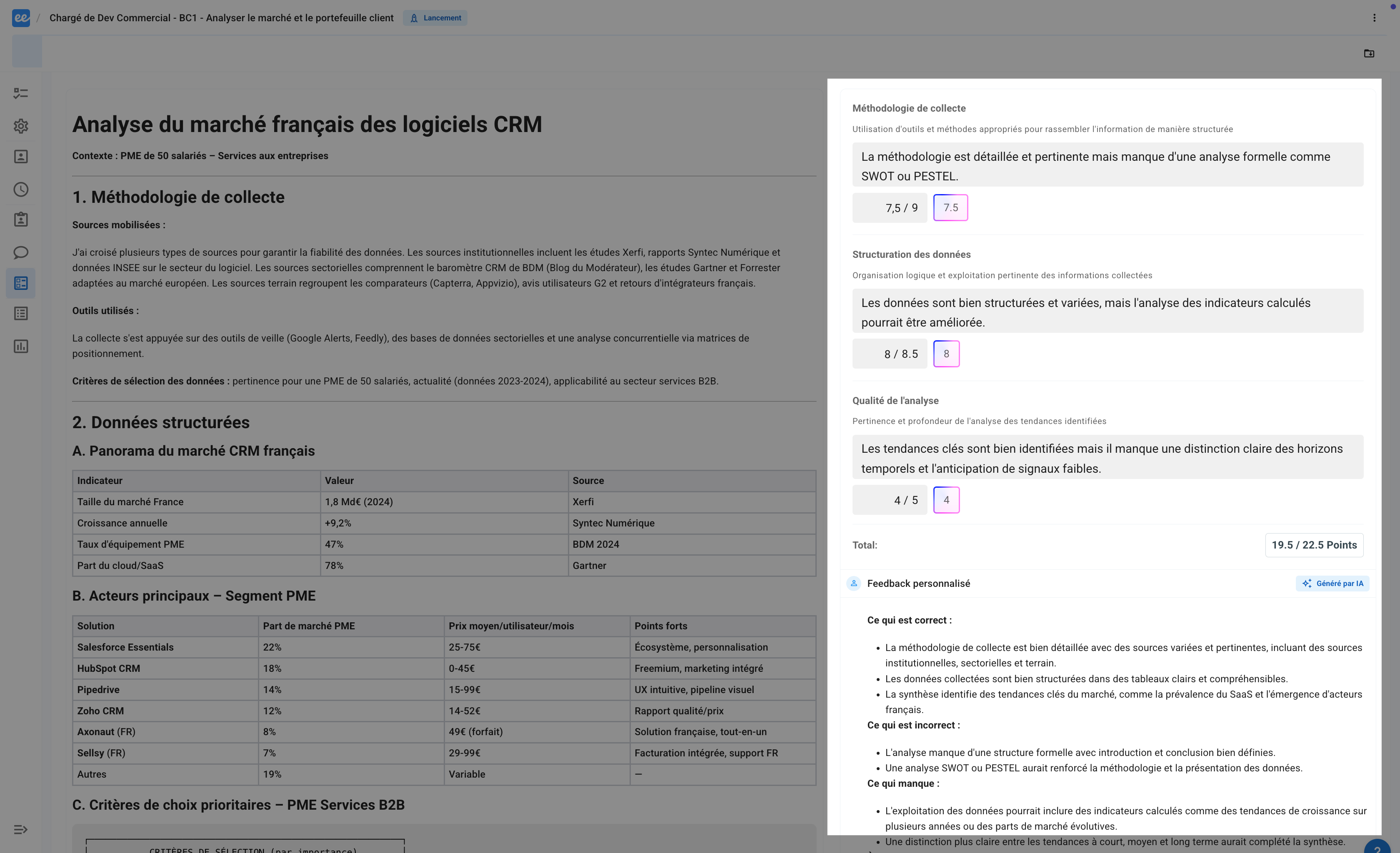
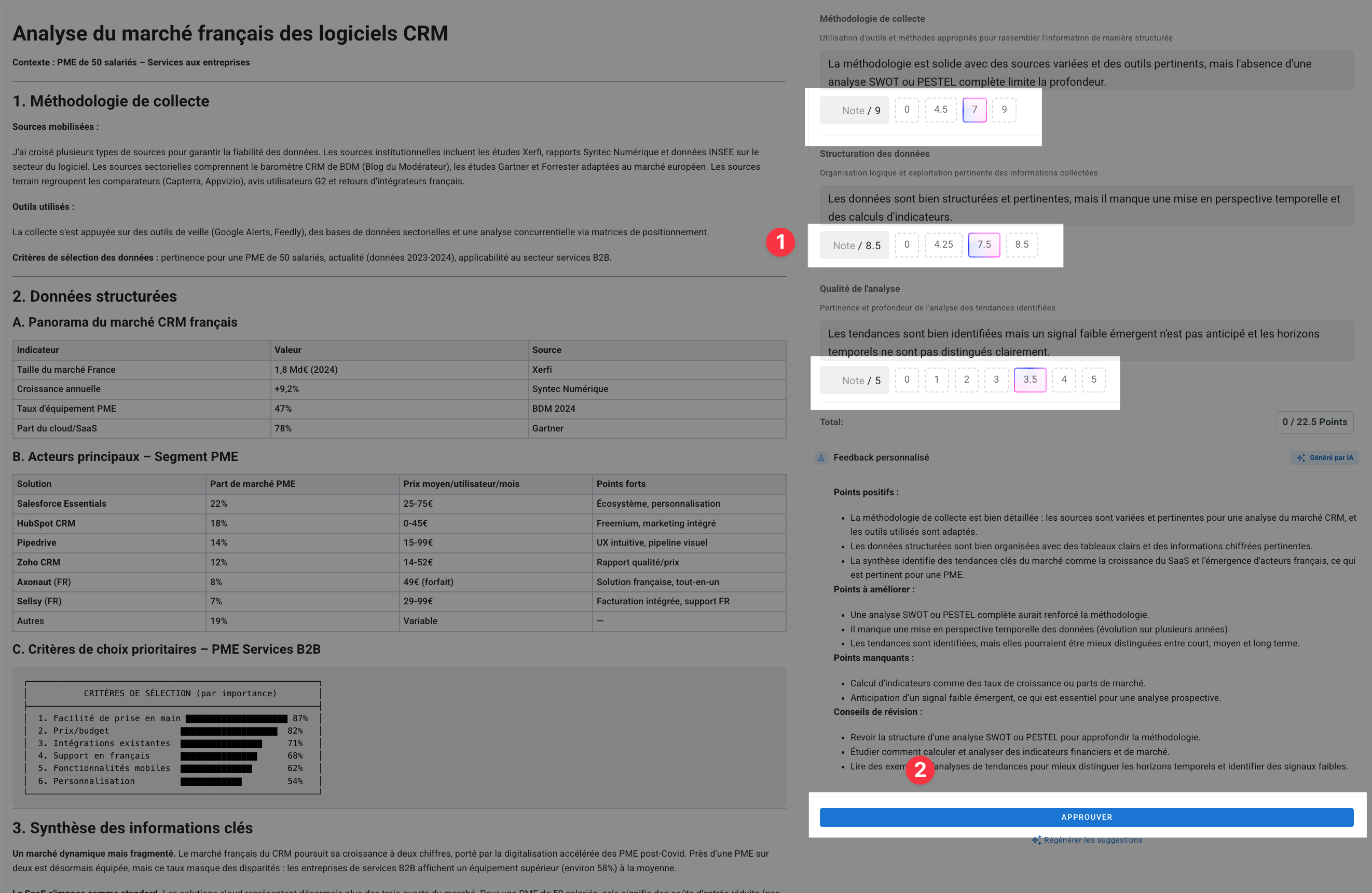
d/ Remember to click on Approuver to validate the answer’s grading with points assigned manually or by the AI.
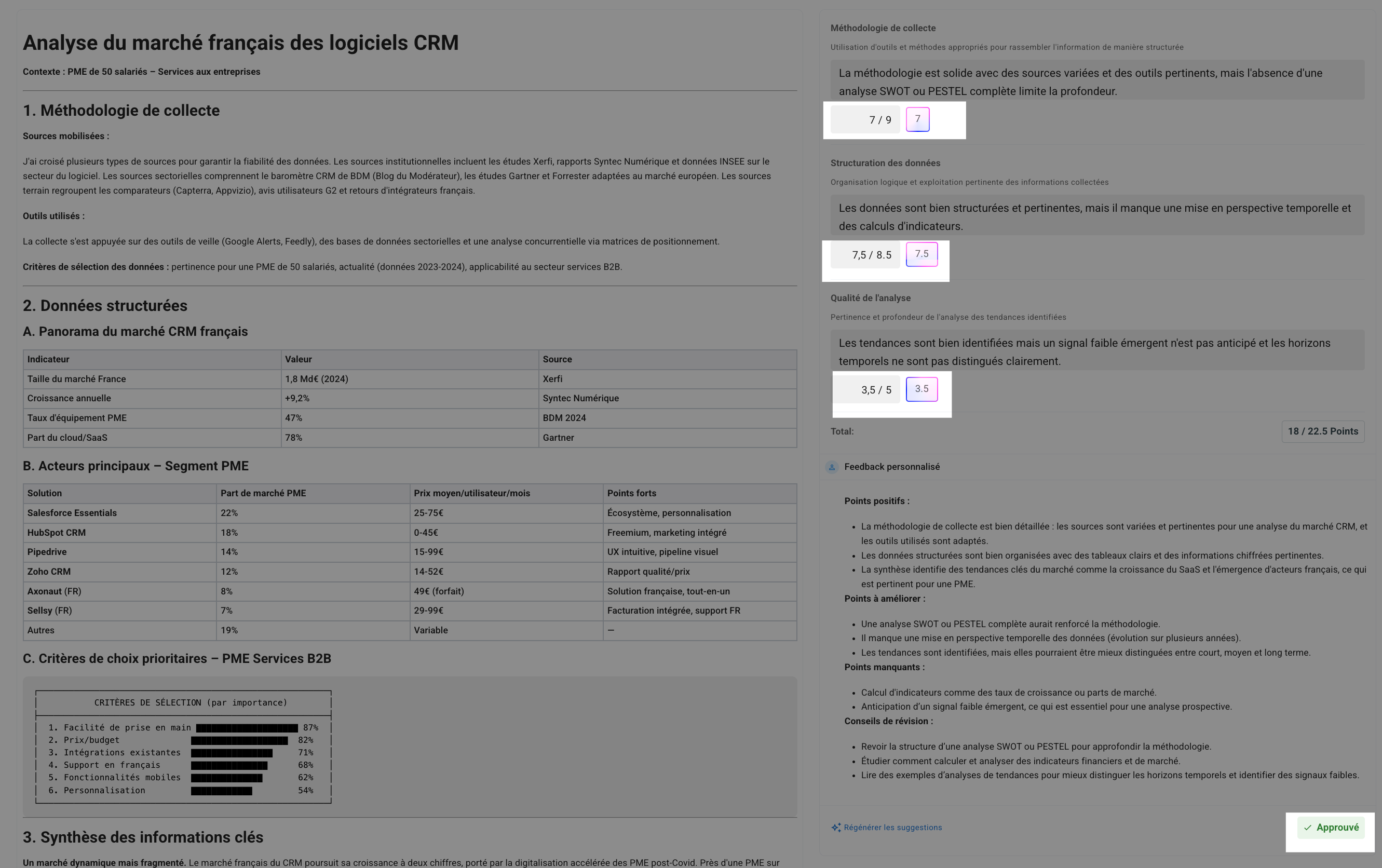
e/ You will then see the final result for a corrected answer:
Exams & Grades by Criteria
When you access a participant’s test from the Grades tab, you’ll also see the details of the criteria-based evaluation with scores by criterion, in addition to the overall evaluation with the final grade

Frequently Asked Questions
How to modify a criterion when questions have already been graded
How to modify a criterion when questions have already been graded
If questions have already been graded, you must unlock the grading rubric to modify a question’s criteria. Please
note: To ensure fairness in grading, if you unlock the grading rubric, any grades already assigned to the answers for that question will be reset.
How to unlock a grading grid
How to unlock a grading grid
Go to the “Grade” page, open a question, then click “Unlock.”
Please note: To ensure fairness in grading, if you unlock the grading grid, any grades already assigned to the answers for this question will be reset.
Why does adding a criterion fail with the error “This code is already used by another criterion”?
Why does adding a criterion fail with the error “This code is already used by another criterion”?
Each grading criterion in an exam has a code (for example, CE1) that must be unique within that exam and consist of no more than 10 characters. If you enter a code already used by another criterion, the Code field displays “This code is already used by another criterion,” and the criterion cannot be saved.
Choose a different code, or use the default one (CE1, CE2, etc.). To reuse an existing criterion for a question, select it from the question’s grading grid rather than creating a new one.
Was this helpful?
Still need help? Ask the team