View an exam's activity
Who edited the exam subject or the settings, or graded a submission, and when: an exam's history, with filters.
Last updated 9 days ago
An exam's activity is its log: who edited the exam subject, changed a setting, graded a submission or rescheduled a session, and when. It helps you find where a change came from, for example when several colleagues work on the same exam.
Available with the Organization plan only, and to people who can configure the exam. History is recorded on every plan: if you switch to the Organization plan, you also get the past activity.
Open the activity
Open the exam.
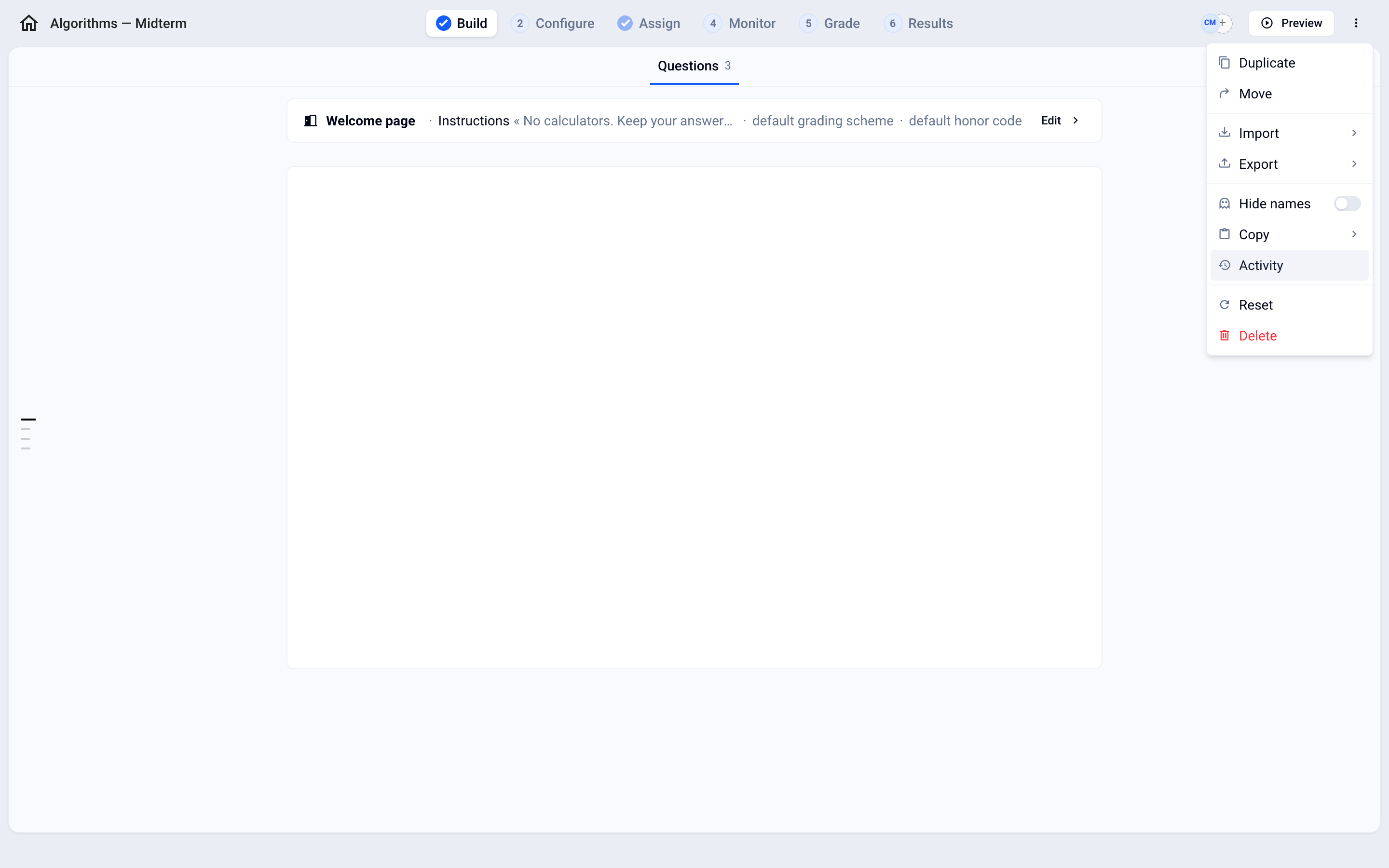
At the top of the exam, click ⁝ (Options) then Activity.
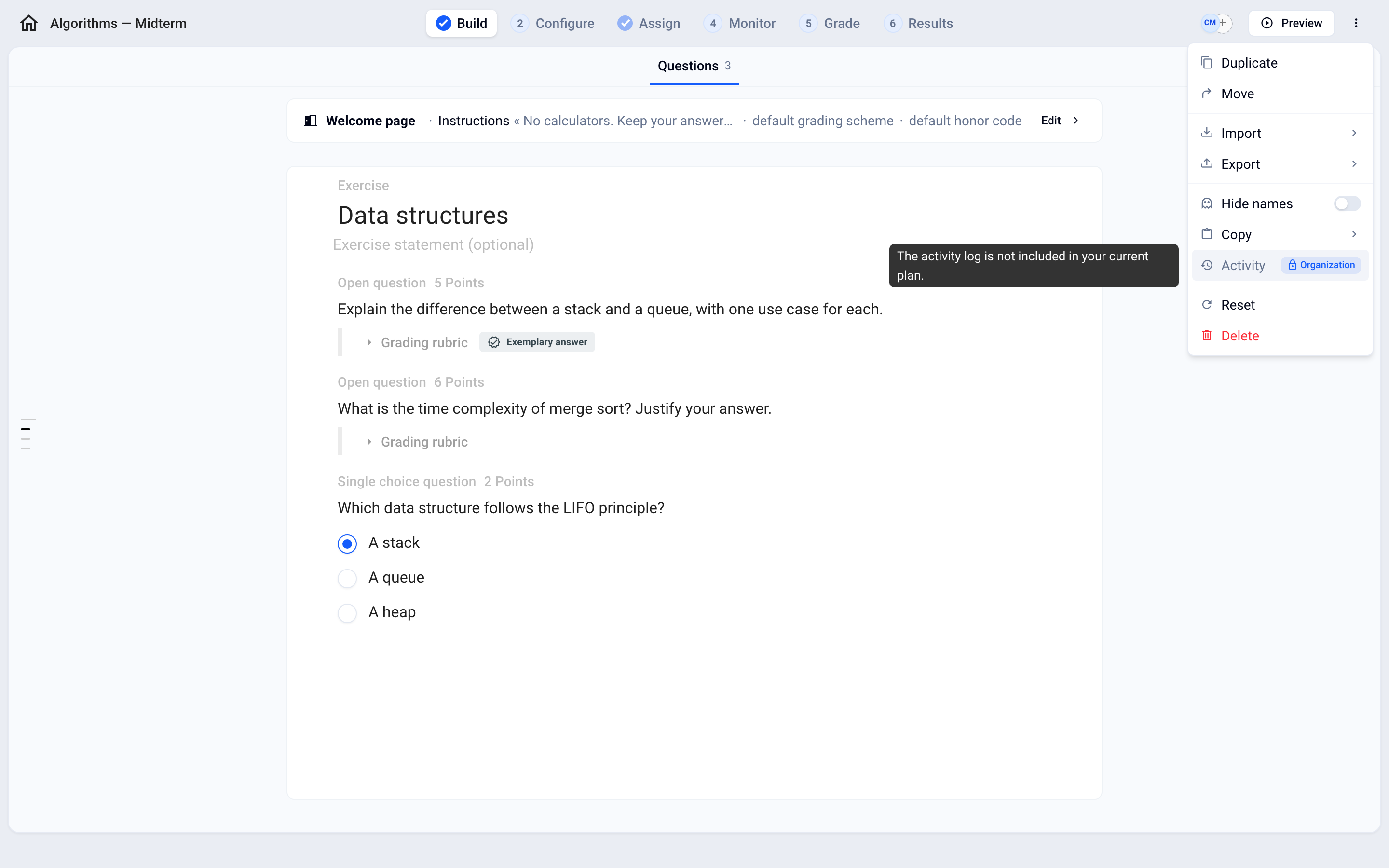
On another plan, the Activity entry is still visible but grayed out, with the Organization badge: clicking it takes you to the plans.
Read the log
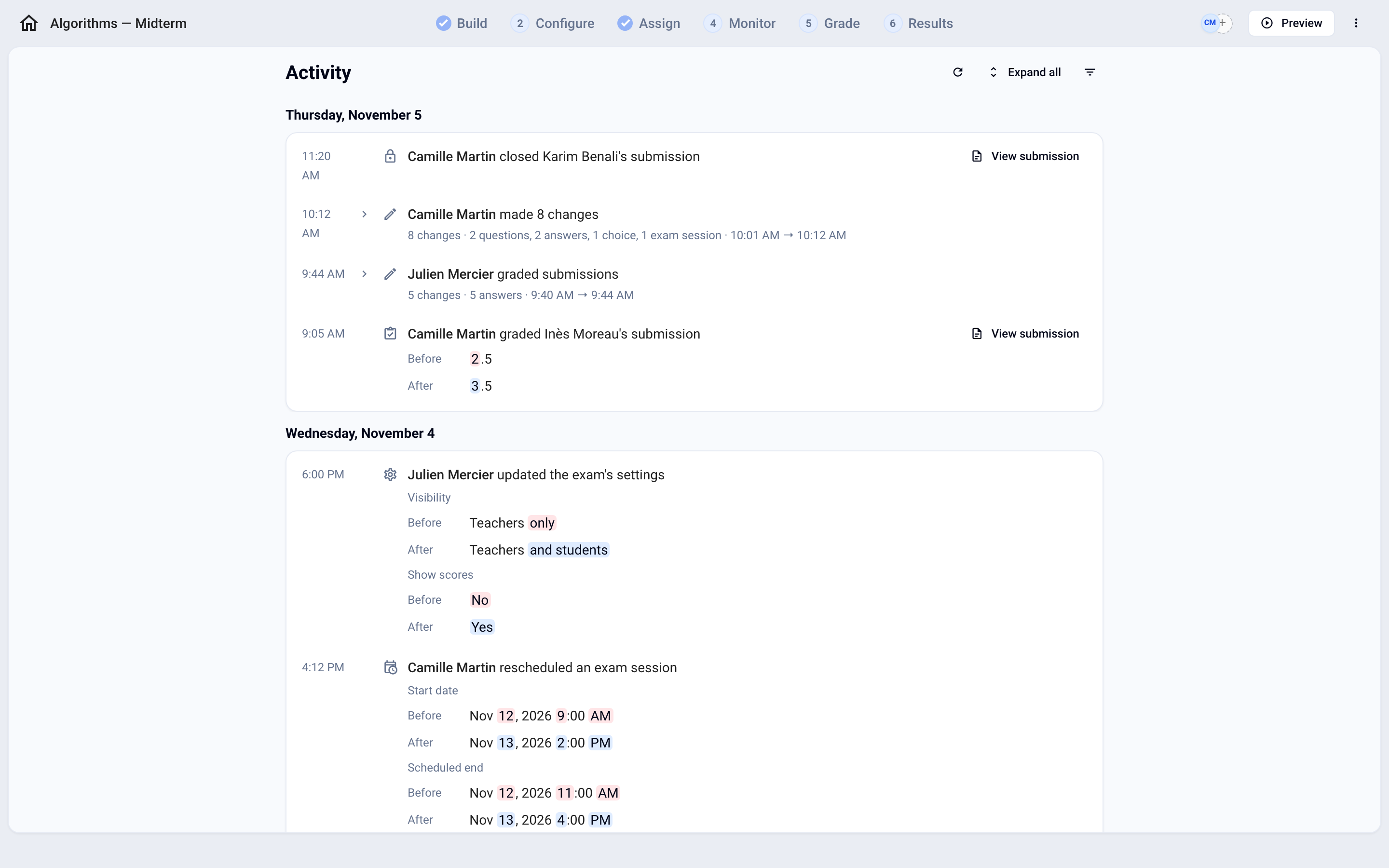
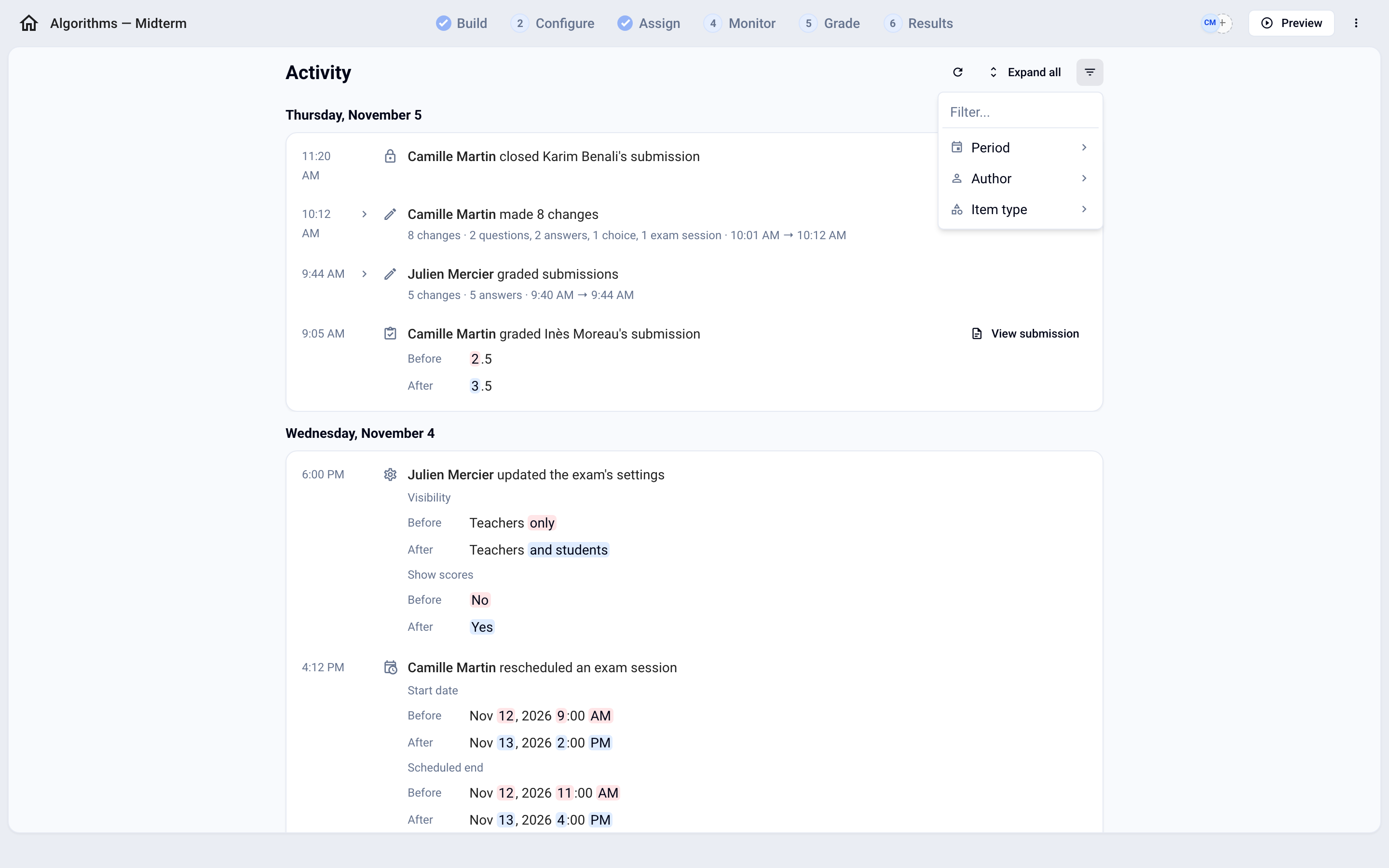
Activity is grouped by day (Today, Yesterday, then the date). Each row shows the author, what they did and the time. The most recent entries are at the top; scroll to load older ones, or click Load more. The Refresh button reloads the log, for example to see what your colleagues have just changed.
What is recorded
The exam: creation, name, status, duration, instructions, convocation and grade emails, email sender, grading scheme and settings.
The exam subject: creation, deletion and editing of sections, exercises, questions, choices, exercises pools and random exercises, along with grading criteria.
Exam sessions: creation, deletion, rescheduling and sending of convocations.
Participants: adding and removing participants, with View list to see who was added or removed.
Grading: grading a submission, review status, feedback (written, approved or AI-generated), time accommodation, a participant's proctoring settings, and a submission reset, closed or reopened.
Bulk operations: exam subject import, LTI sync, feedback generation. Their row shows the operation's status: In progress, Completed, Interrupted or Failed.
Answers entered by participants during the exam are not logged here.
Grouped changes
To keep things readable, a series of changes made by the same person is grouped into a single row, for example "edited the subject" or "graded submissions", with its number of changes. A new group starts after a break of about a quarter of an hour.
Click a row to expand it. Expand all and Collapse all act on every group at once.
For a longer group, click Open details.
Successive autosaves of the same field while typing are merged: the row says "saved N times".
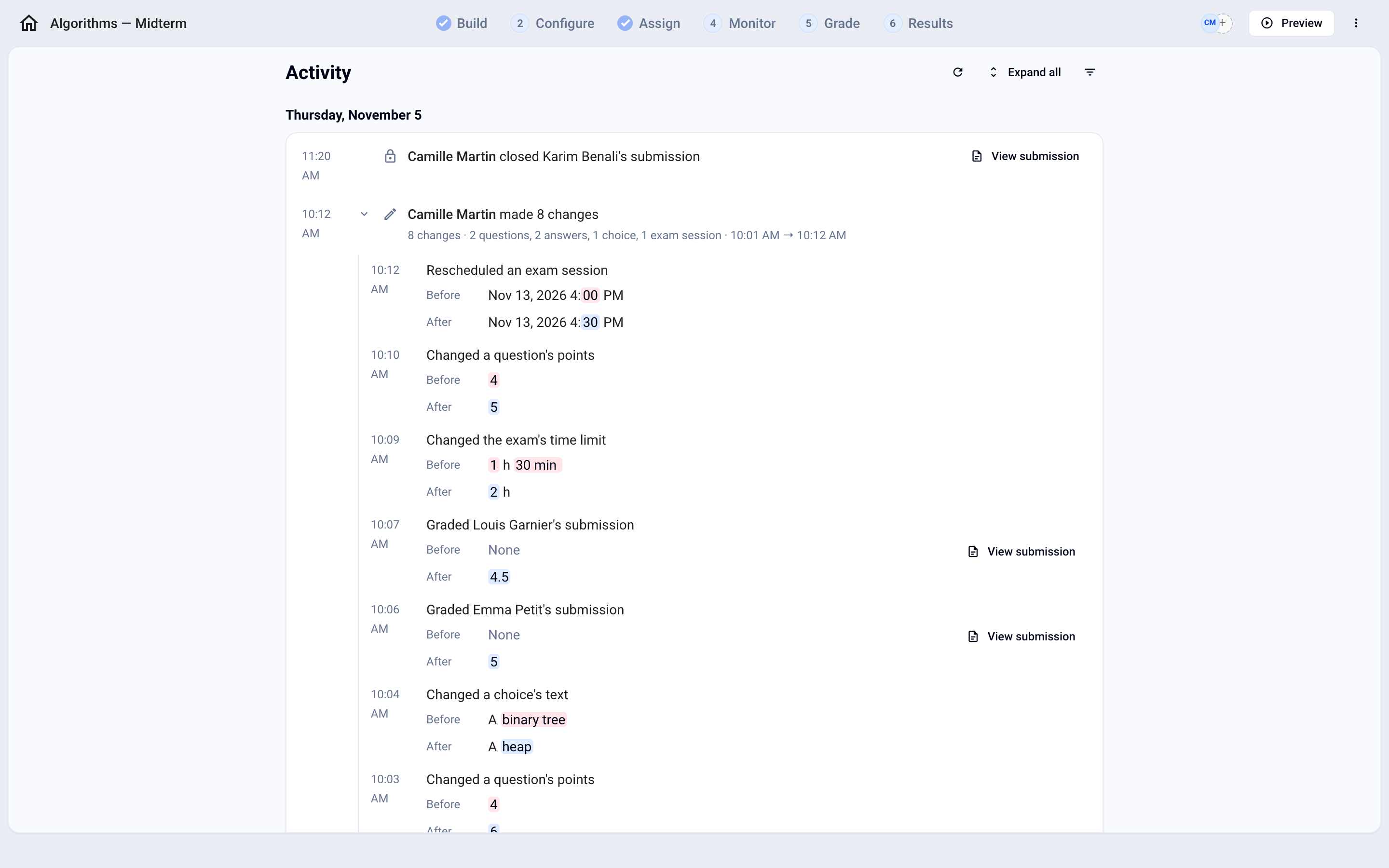
For a content change, the details show the Before and After states. For a long text, only the excerpt around the changes is shown, with the changed words highlighted.
Who acted, and by what means
On each row, the author is the member of your organization concerned. A badge shows the means used when they did not make the change directly:
Automatic process: an action performed by Evalmee with nobody behind it.
via the AI assistant, via AI generation, via MCP, via the public API (or via the API key followed by its name): the action comes from a tool launched by that person.
Support team and via support session: an intervention by our team at your request.
View the submission
On a row about a participant's submission (grading, feedback, submission reset…), click View submission to open it in the grading view.
Filter the activity
Click Filter and combine the criteria:
Period: Today, the last 7 or 30 days, or a specific month.
Author: one or more people.
Item type: Exam, Questions, Choices, Sections, Exercises, Exercises pools, Random exercises, Exam sessions, Answers, Feedback, Grading criteria or Other.
Filters are kept in the page address: you can reload it or share it with a colleague who has access to the exam. The Remove filter button removes a criterion.
History of a single question or item
In the Build tab, the ⁝ menu of a section, exercise, question or choice shows the date of the last change, the author ("by …") and the History entry. It opens the log of that item only, for example Question history, along with what it contains.
ℹ️ Without the Organization plan, an item's menu only shows the date of its last change.
Good to know
A change that was reverted to the original shows as "Changed, then restored as it was".
An operation marked Interrupted has shown no sign of activity for more than 30 minutes; Failed means it stopped before finishing: check the result before running it again.
Was this helpful?
Still need help? Ask the team