Import participants
Written By Florian Barral
Last updated About 1 hour ago
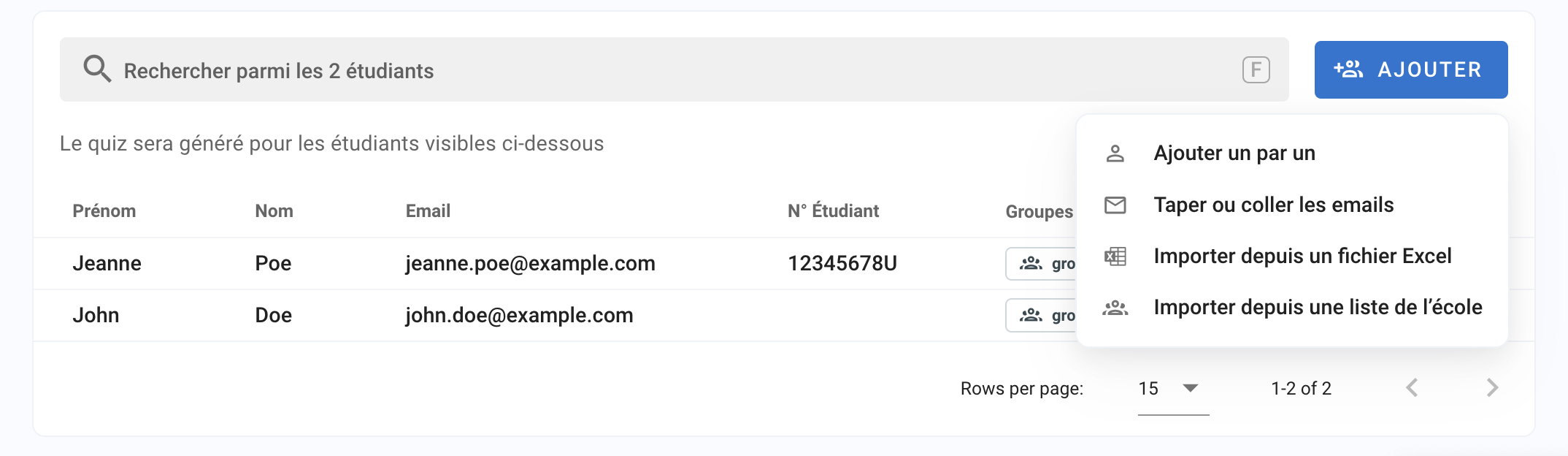
You can import participants in 4 different ways:
Add one by one. Directly in the interface, enter all the participants’ information: First name / Last name / Email / Student ID

Type or paste emails. Directly in the interface, just copy and paste the emails.

💡 If you have already imported the participants and they have an account, their First name / Last name / Student ID are retrieved automatically.
Import an Excel file. Fill in the Excel template on your computer and drag and drop the file to import everything in bulk.

Import a group of the organization. If your administration or you have already created participant groups, you can re-import them in 1 click.

Assign a group to participants
From the participant list
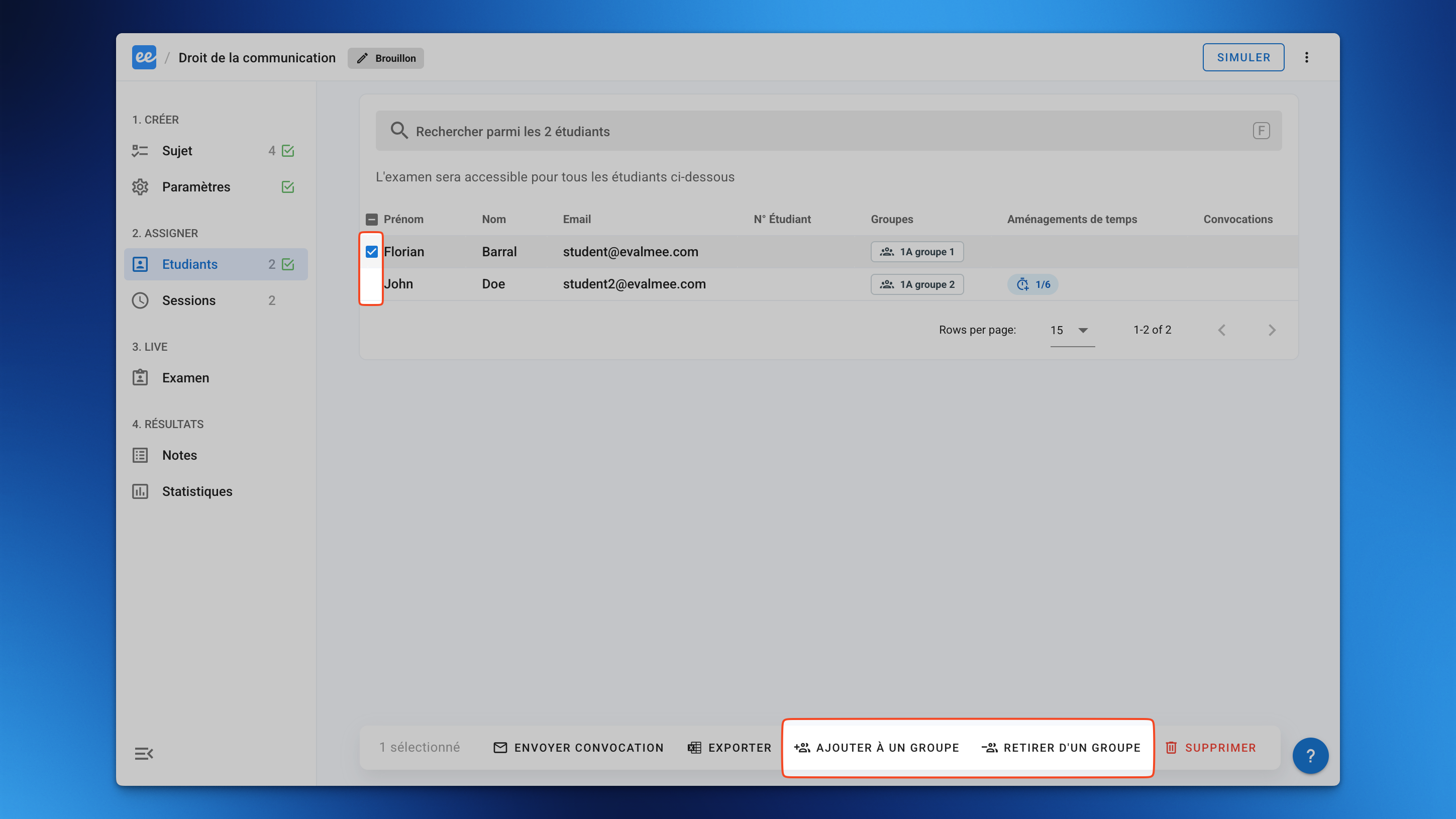
Select the participant or participants you want to assign a group to.
Click Add to group or Remove from group to change these participants’ groups.
From an Excel file
When importing participants from an Excel file, fill in the Groups column of your Excel file with the name of each participant’s group or groups
From an organization group
When importing participants from a participant group of the organization, a group with the same name is assigned to them in the exam.
Common errors
⚠️ Warning: you cannot import yourself: do not import a participant with the same email address as your account.
Your list of enrolled participants will not be updated.
Was this helpful?
Still need help? Ask the team