Add custom attributes to participants
Candidate number, room, title… add your own fields to each participant of an exam and insert them in your emails and graded submissions.
Last updated 5 minutes ago
Custom attributes are fields that you define for an exam and fill in for each participant: candidate number, room, title, sitting number… You can then insert them in your emails and in graded submissions, as variables replaced for each participant.
Attributes are specific to an exam: another exam does not have the same ones. They can be edited by anyone who can add participants to the exam.
Find the custom attributes
In the Assign › Students tab (or the term chosen by your organization, for example Learners), click the tag icon, to the left of the Add button. Each attribute then appears as a column in the participants table.
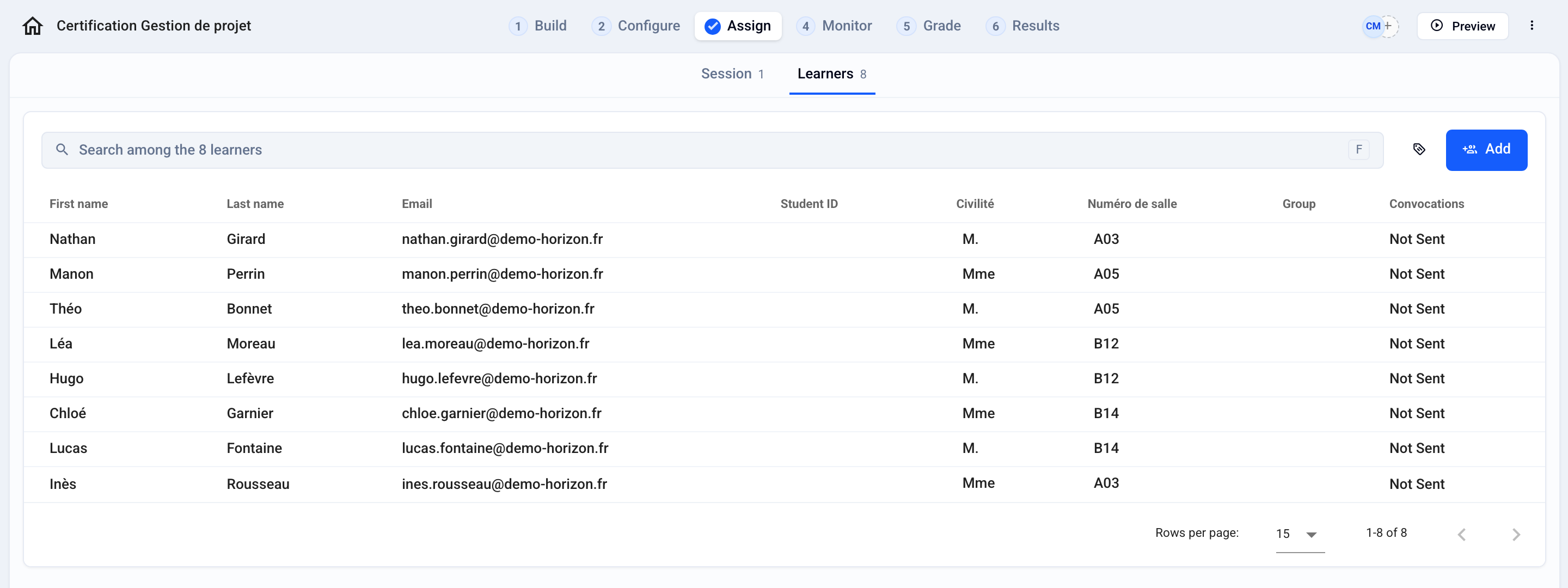
Create an attribute
Click the tag icon: the Custom attributes window opens.
Type the attribute name in the New attribute field, for example “Room number”, then click Add.
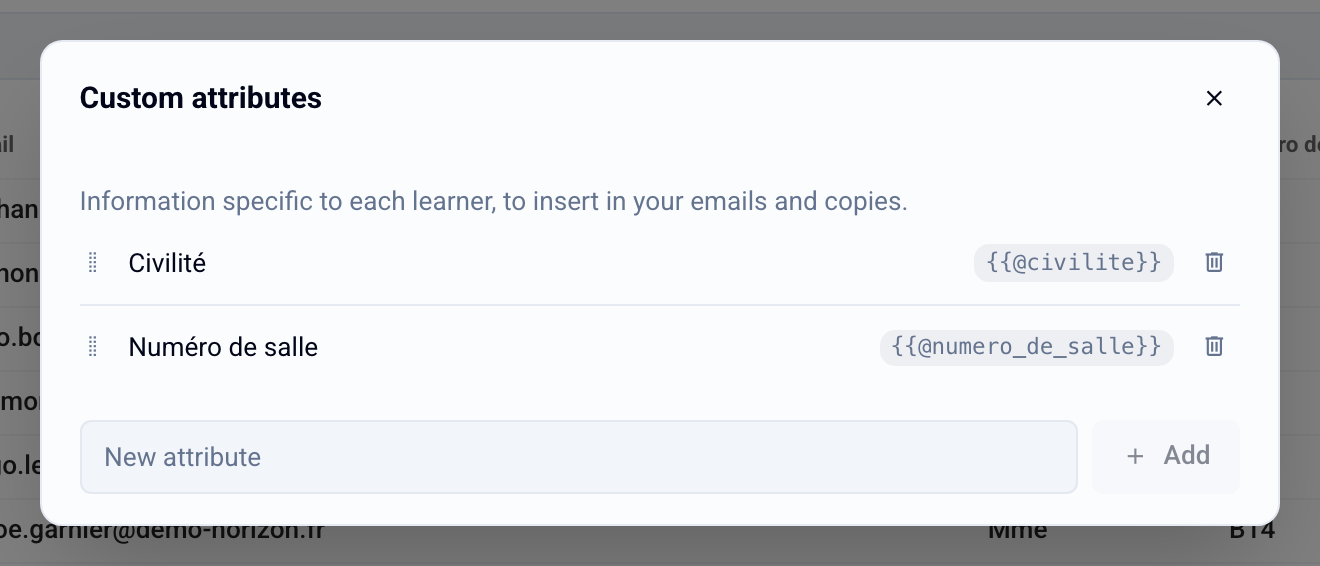
Each attribute’s variable is shown on its right, for example {{@numero_de_salle}}. Click it (Copy the variable) to copy it. In the same window, you can rename an attribute, drag and drop it to reorder the columns, or delete it.
ℹ️ Renaming an attribute does not change its variable: {{@numero_de_salle}} keeps working. Deleting an attribute clears its value for every participant of the exam, and this action cannot be undone.
Fill in the values
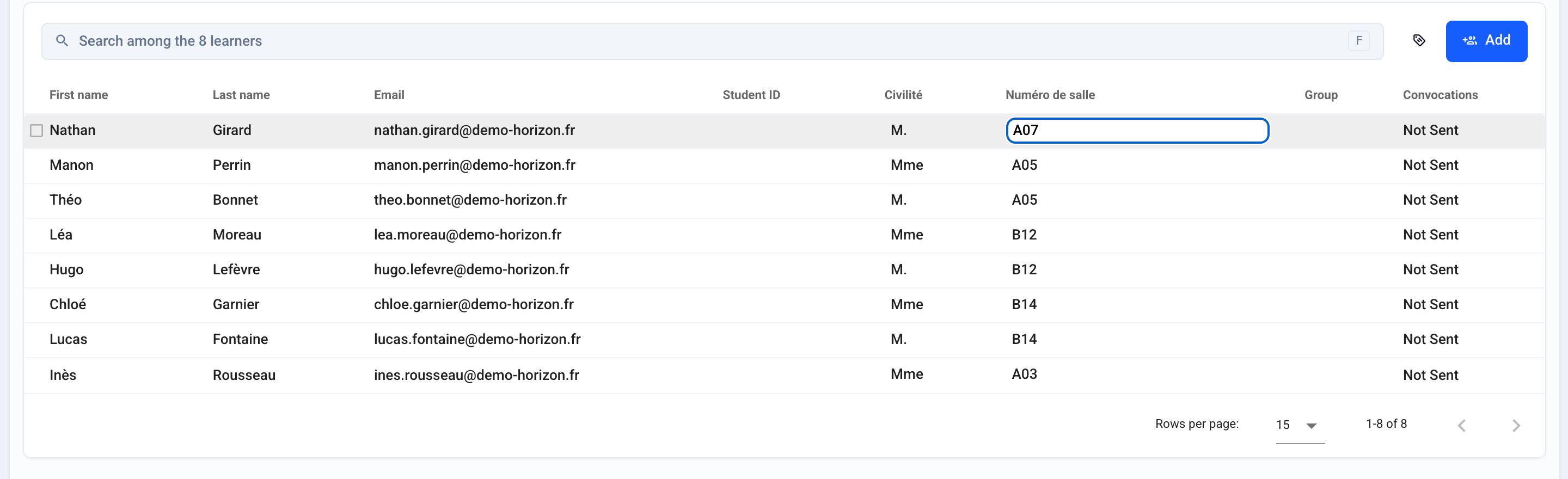
One by one, in the table
In the Assign › Students tab, click a participant’s cell in the attribute’s column, type the value, then confirm with the Enter key or by clicking elsewhere. The Esc key cancels the entry.
By importing an Excel file
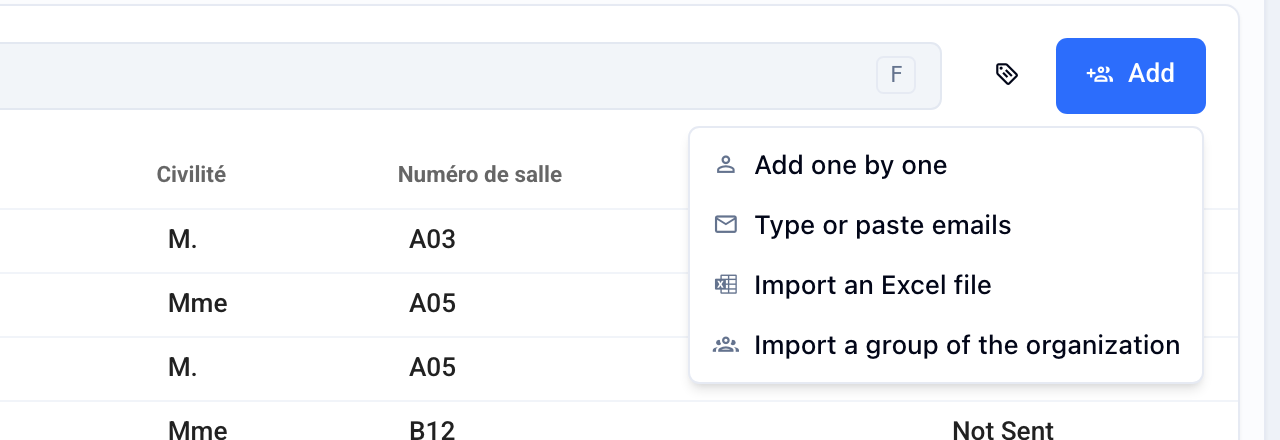
Add one column per attribute to the file, with the attribute name as its header (or its variable, for example
@numero_de_salle).Click Add, then Import an Excel file.
If the file contains columns that match no attribute, Evalmee asks what to do with them in the New columns in the file window: Create the attributes or Ignore these columns.
Use attributes in your messages
An attribute is inserted like any other variable, with the Insert a variable button. Its variables are listed under Custom attributes. The menu also offers Manage attributes… to create one without leaving the editor.
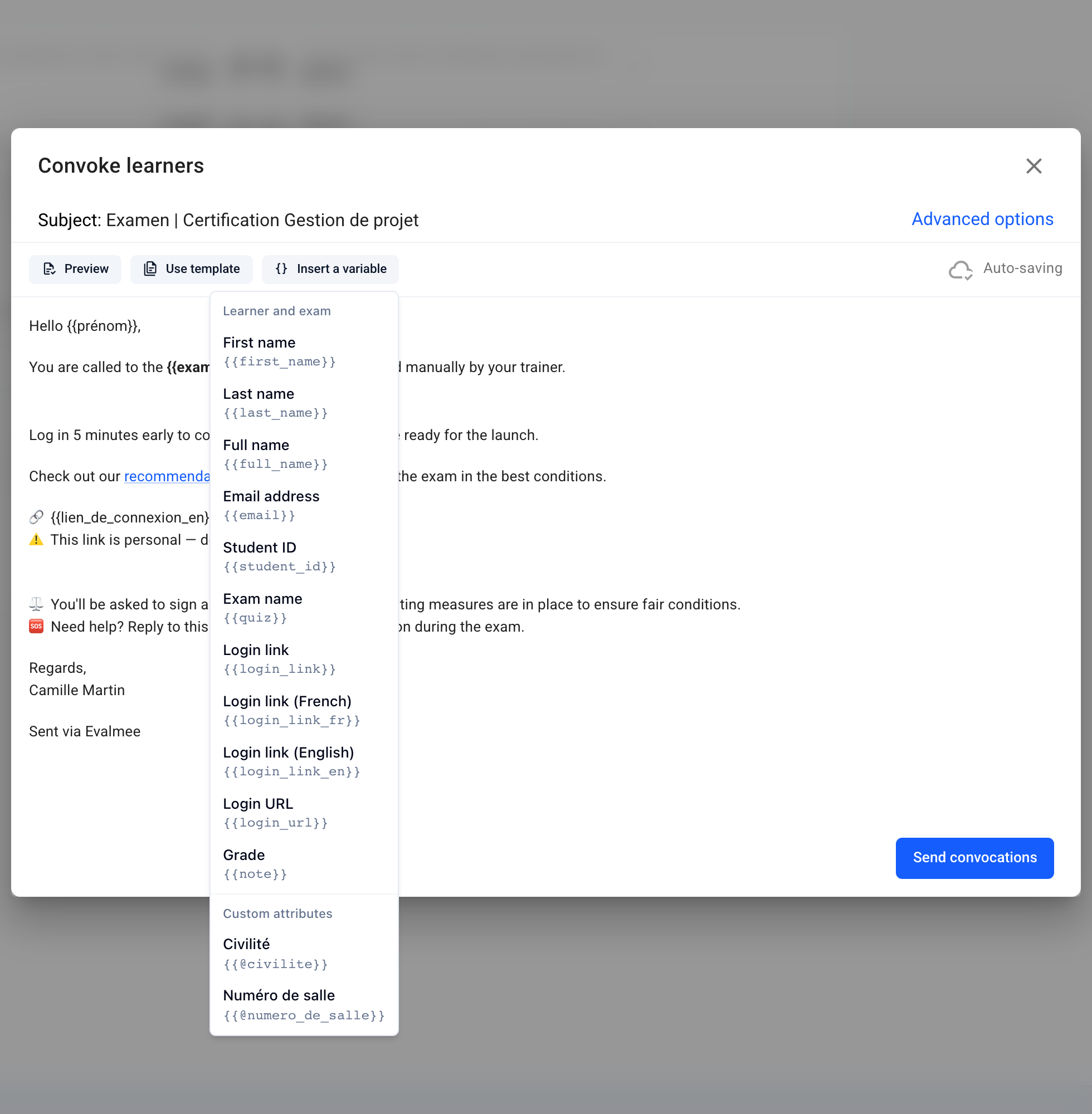
You can find this button in several places:
The convocation: in the Assign › Session tab, Convocations card, Configure. See the article Send convocations to participants by email.
The email sending grades to participants, in the Results › Share tab.
The custom block of graded submissions: in the Configure tab, Results section, turn on Custom block on corrected copies. The text is printed under the title of each graded submission.
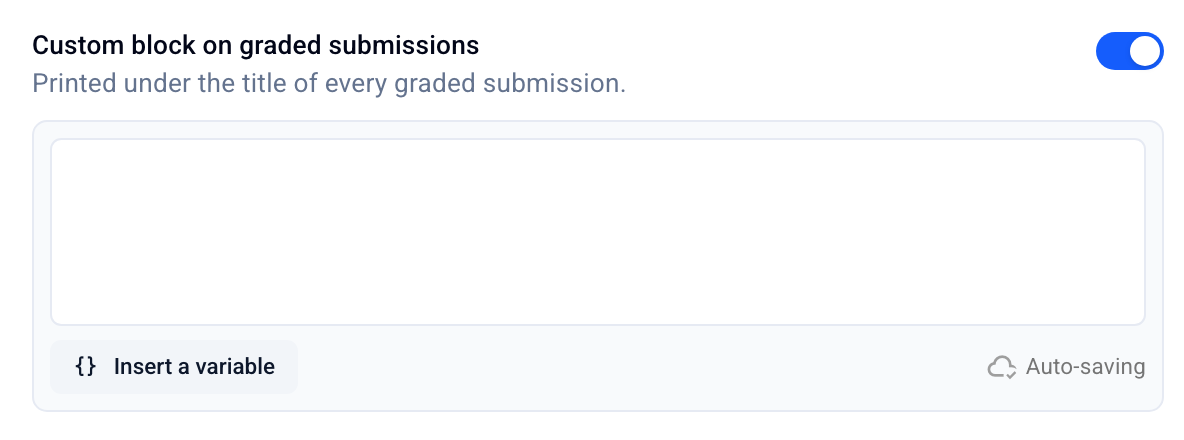
Before sending: missing values
When an email contains custom attribute variables, Evalmee checks the values before sending. If some participants have no value, the Missing values window shows, for each attribute, how many recipients are affected. You can cancel to fill in the values, or click Send anyway: the variable is then replaced by empty text. A variable that matches no attribute of the exam is flagged in the same way.
ℹ️ An exam can have at most 30 attributes. An attribute name is limited to 100 characters, and a value to 255 characters.
Was this helpful?
Still need help? Ask the team