Create & schedule multiple sessions
Sessions let you run the exam at different times by group, or offer several time slots to all participants.
Written By Dorian Becker
Last updated 15 days ago
Usage examples
1️⃣ Exam given to an entire cohort spread across several time slots
A cohort of 100 participants is split into 4 groups of 25 participants whose classes are at 8 a.m., 10 a.m., 2 p.m., and 4 p.m., respectively. All participants must take a short exam at the start of class.
In Evalmee:
Create the exam and import the 100 participants, assigned to their respective groups
Create 3 additional sessions on this exam for a total of 4 sessions
Assign each group to a session and set the schedule of each session
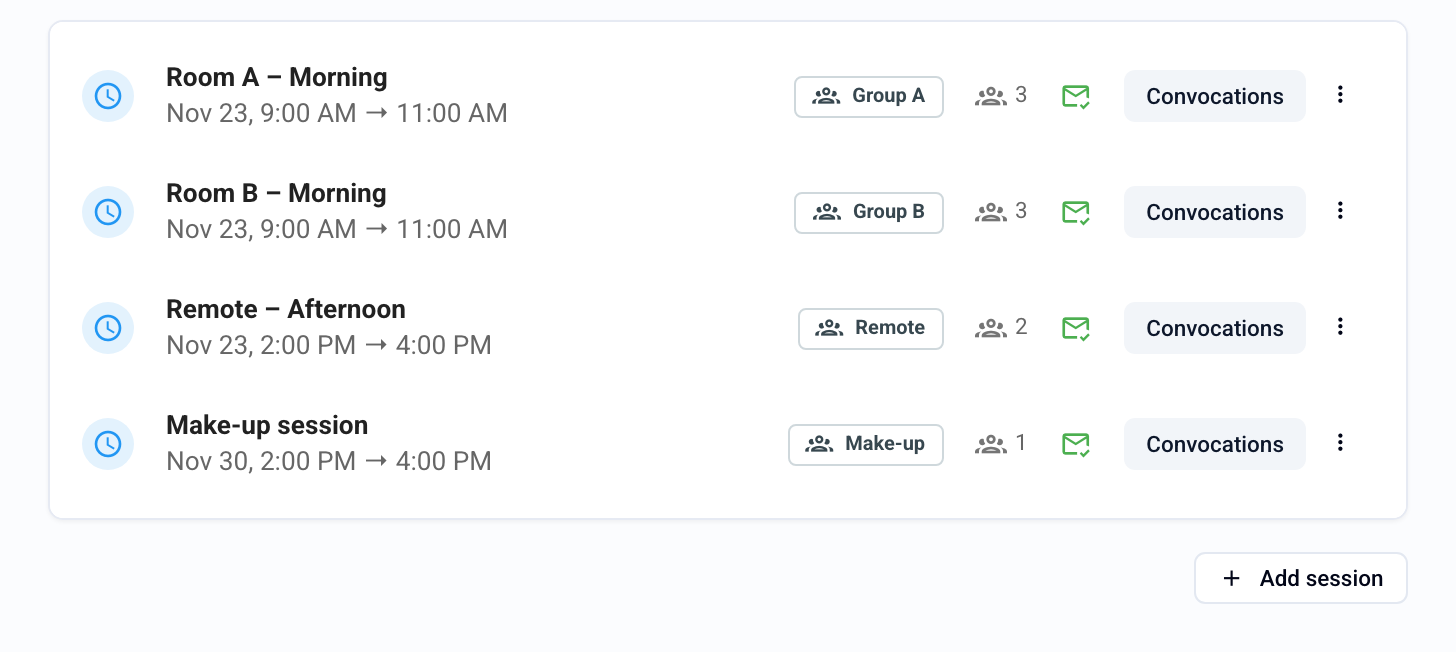
2️⃣ Exam with a choice of time slot
An exam where participants can choose between 3 different time slots. Participants can take the exam only once.
In Evalmee:
Create the exam and import the participants
Create 2 additional sessions on this exam for a total of 3 sessions
Set the schedule of each session
Create one session per group of participants, step by step
Import your participants, splitting them into groups (one group per time slot). Groups must exist before they can be chosen in a session.
In the Assign › Session tab, click Add session.
Give the session a Name (for example, “8 a.m.”).
Choose the Opening mode: Manual (you open the session from the Monitor tab) or Scheduled (opens and closes on the dates you set).
Under Access, choose who is enrolled: All enrolled (general session) or Specific groups (restricted session), then select the groups under Restrict to groups. Only participants in those groups are enrolled in the session.
Click Create, then repeat for each group.
On each session row, click Convocations to send convocations only to the participants enrolled in that session. The row shows the number of enrolled participants and the sending status of the convocations. See Send convocations to participants by email
💡 A participant who does not belong to any of the selected groups is not enrolled in any restricted session. Multiple sessions are included starting with the Pro plan.
Assign participants to a session
When you create a session, all participants are enrolled in it by default.
You can restrict access to a session to one or more groups of participants.
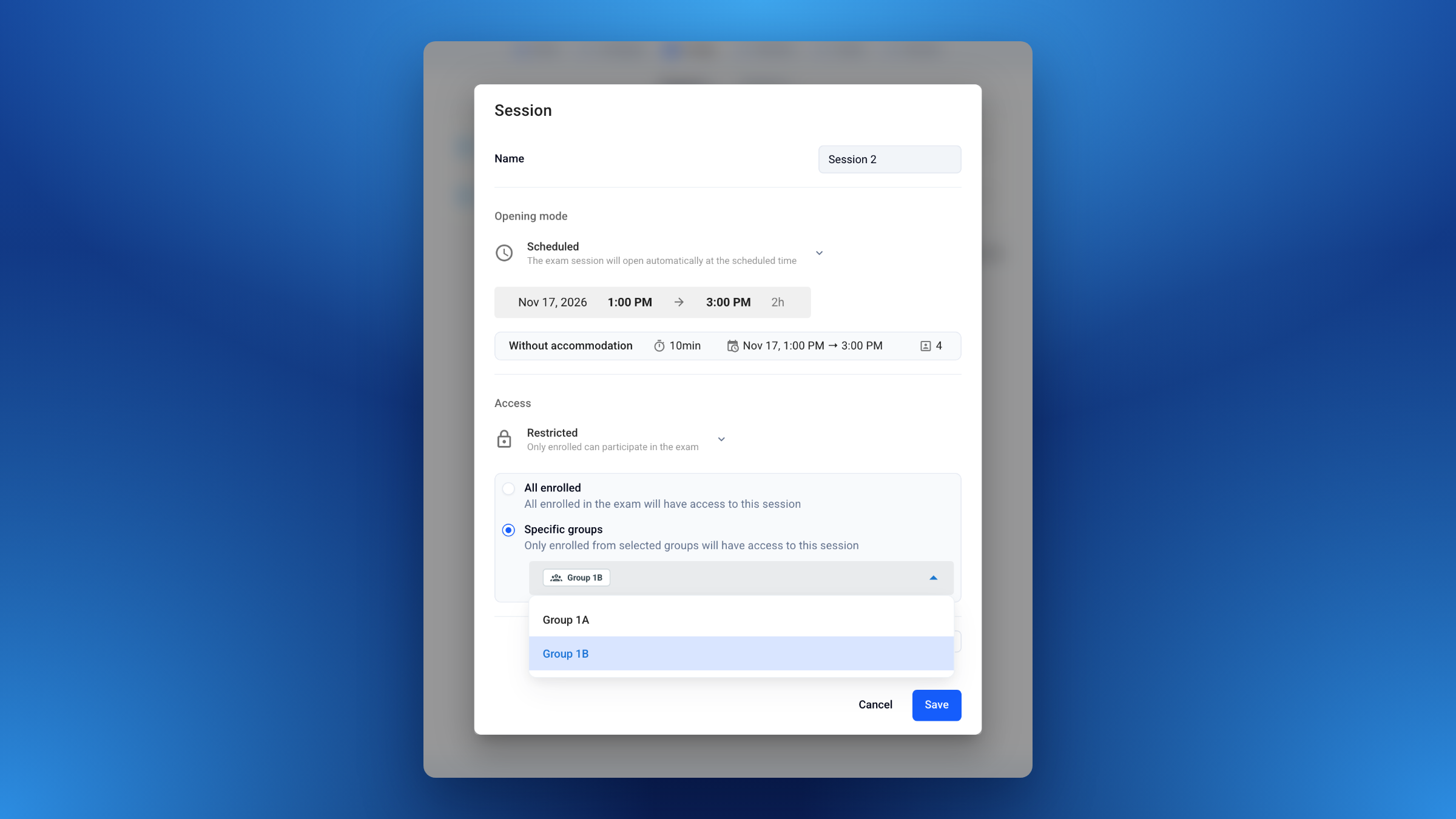
To find out how to assign participants to a group, go to Import participants.
Scheduling
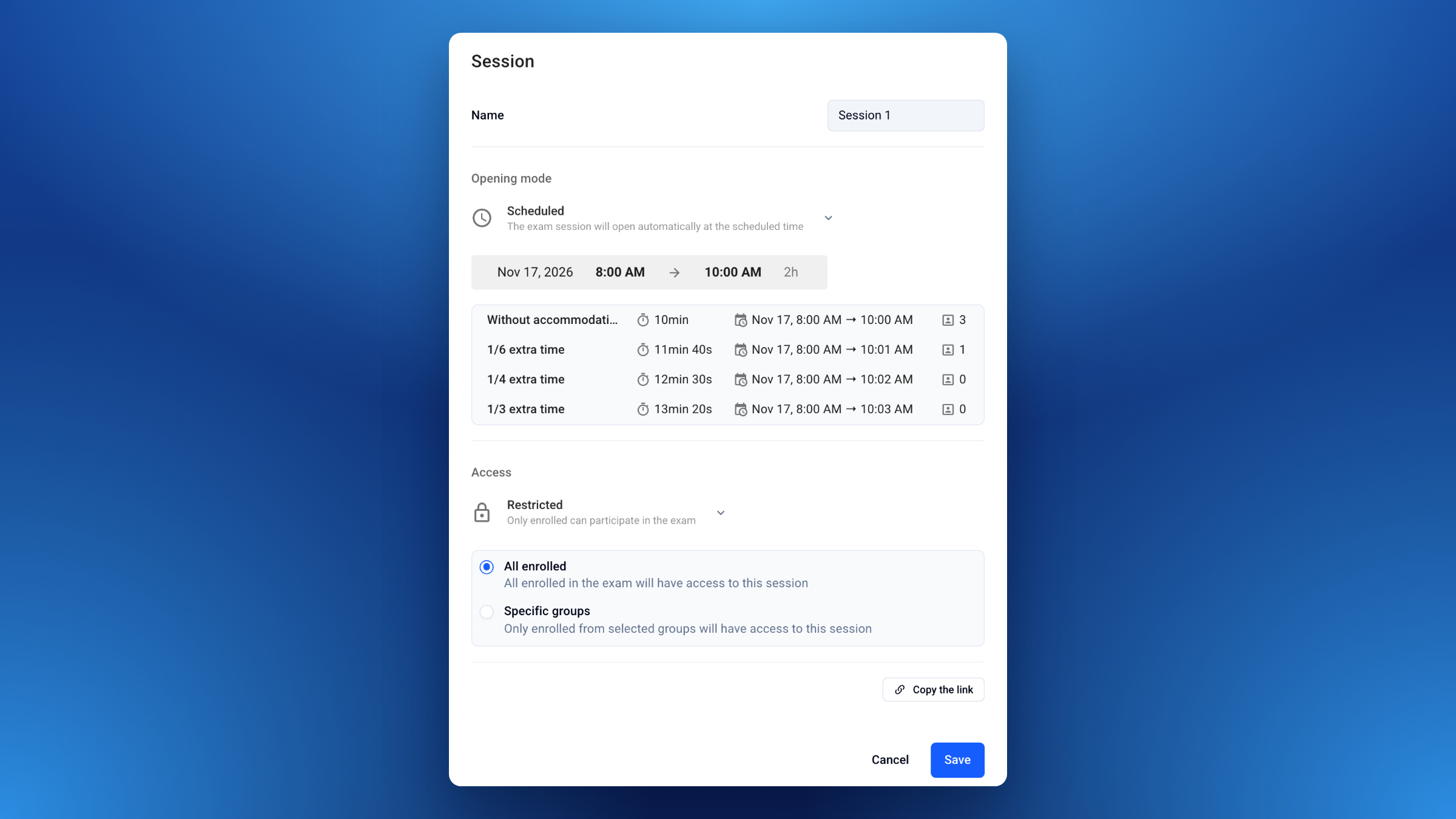
Each session can be scheduled with its own opening and closing times.
The closing time takes into account any time accommodations of the participants enrolled in the session.
Convocations
You can send the convocation emails session by session.
If a participant is enrolled in several sessions, they will receive one convocation per session.
If a participant is enrolled in several sessions, the list of sessions is shown when they click the link in the email. If you enroll all participants in several sessions to let them choose their time slot, you can send them a single convocation email explaining that they can choose between different time slots.
Participant side
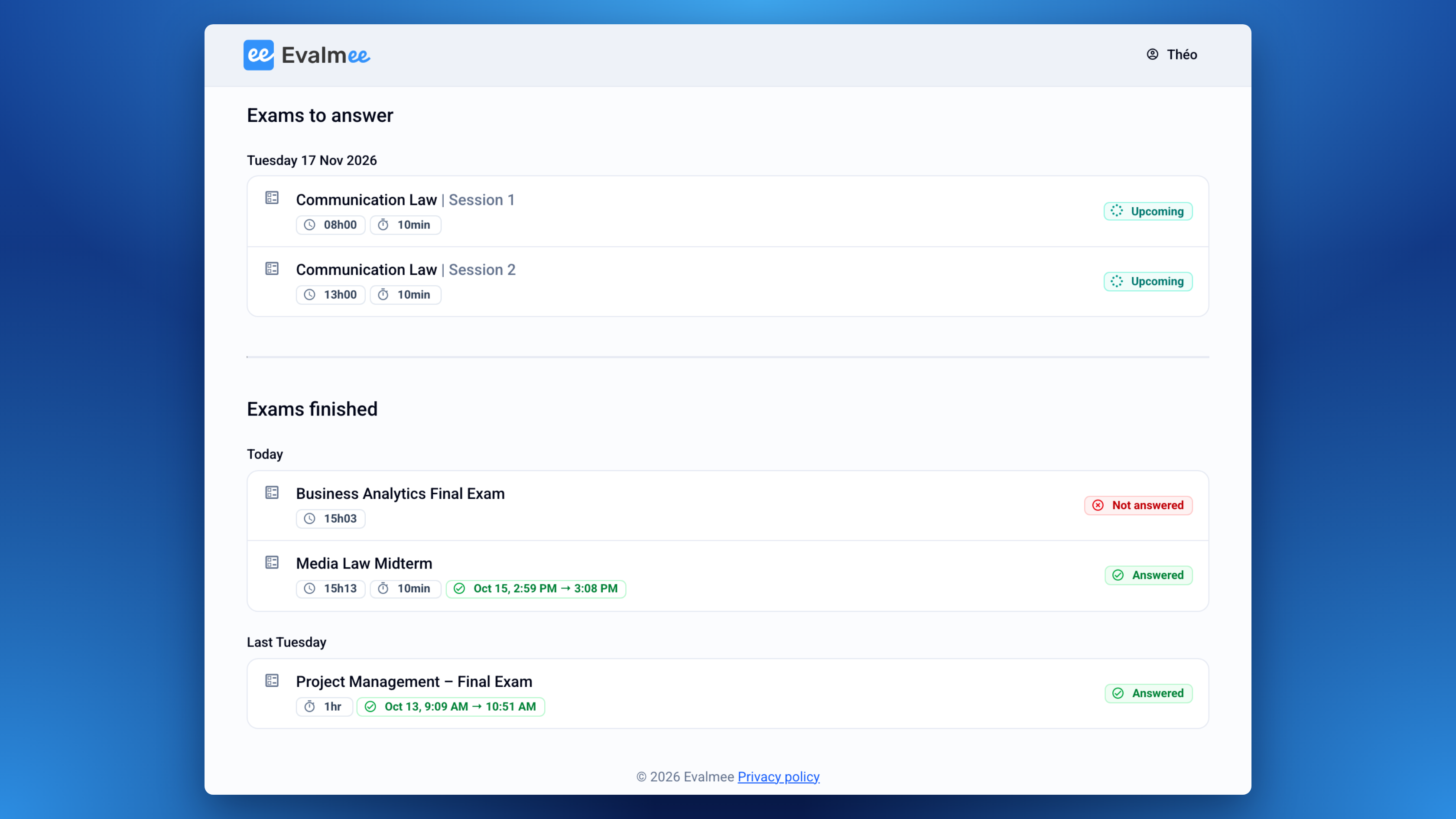
The exam is visible on the participant’s home page:
As soon as they receive their convocation, or,
As soon as the session is opened, for a manually opened session
15 minutes before opening, for a scheduled session
The participant can view the exam subject and answer it only when a session they are enrolled in is open.
If a participant is enrolled in several sessions of the same exam, they can answer in only one session.
Track results across several sessions
In Monitor › Live, a Session column appears as soon as the exam has several sessions.
The Grades tab lists the participants of all sessions together. You can filter by group, not by session: if your groups match your sessions, filtering by group is the same as filtering by session.
The Excel export covers the entire exam. It has no “session” column, but you can add the groups column to your export template.
In the PDF export of submissions (zip), each file name contains the session name as soon as the exam has several sessions.
FAQ
How do I add sessions to an existing exam?
How do I add sessions to an existing exam?
Currently, you can add sessions to an existing exam only if it meets all of the following conditions:
it is a draft
convocations must not have been sent
it must not have a scheduled opening
Where are the old Publish and Launch buttons?
Where are the old Publish and Launch buttons?
The Publish button no longer exists; publishing is now automatic:
when convocations are sent
15 minutes before the opening time for sessions with a scheduled opening (if convocations have not been sent)
Publishing used to “list” the exam on the participant’s home page without giving them access to the exam subject or letting them answer.
The Launch button is now the Open button.
Was this helpful?
Still need help? Ask the team