Brightspace integration
Add Evalmee to your Brightspace courses with the LTI 1.3 integration.
Written By Florian Barral
Last updated 11 days ago
Evalmee connects to Brightspace via LTI 1.3. Our team sets up the integration with your Brightspace administrator: contact us to install it.
Add an Evalmee activity
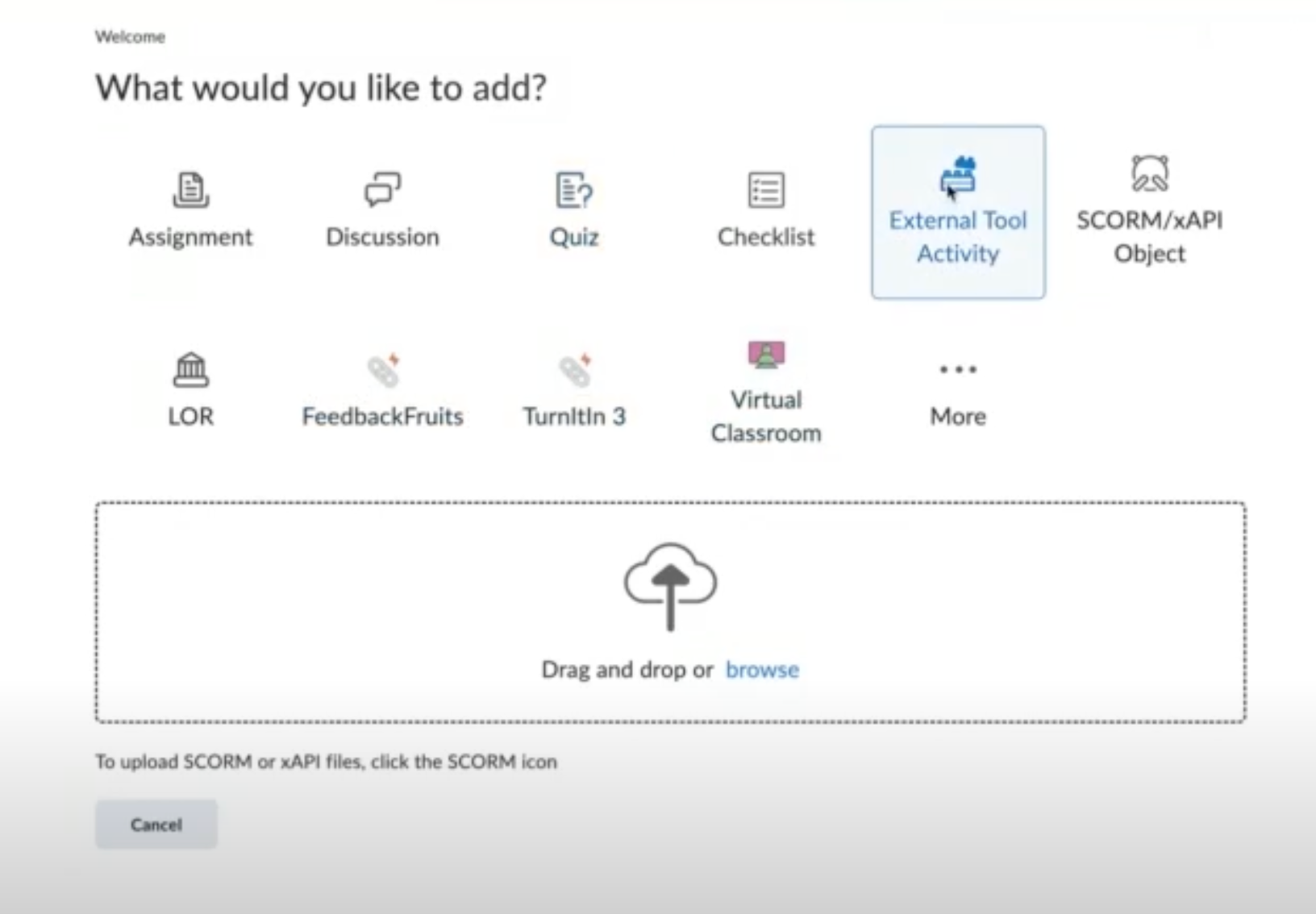
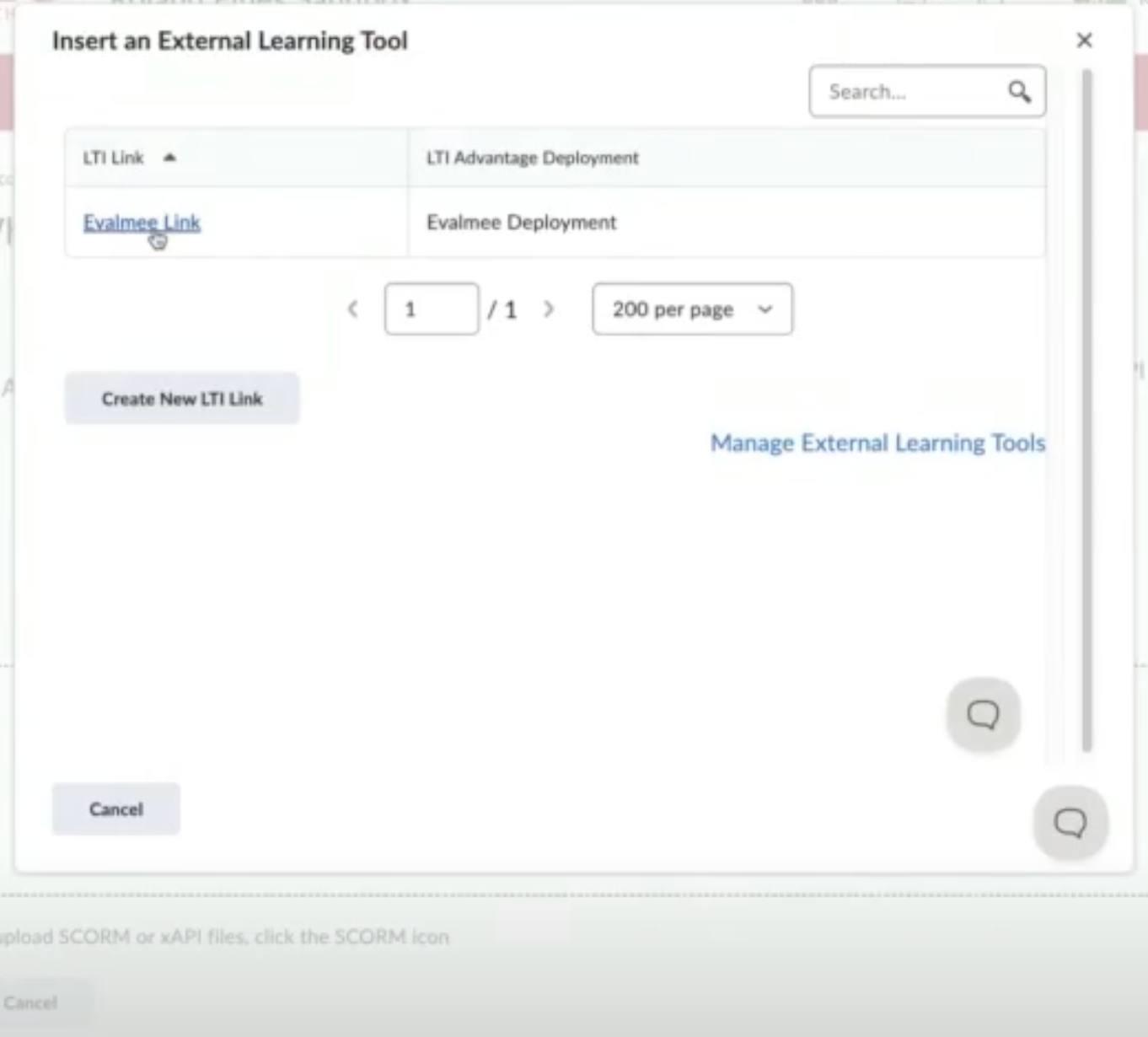
In your course, add Evalmee as an external tool activity:
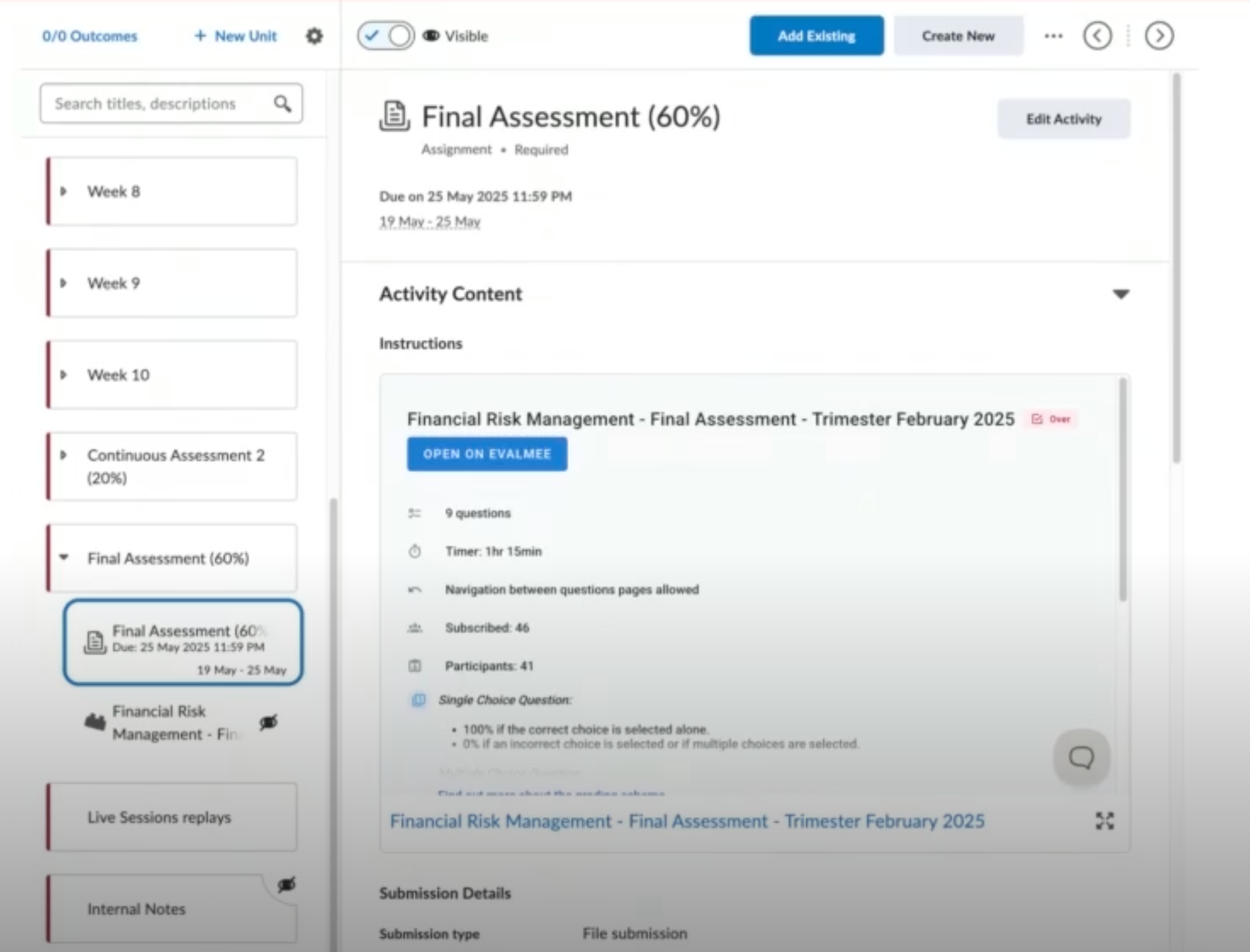
View of the Evalmee activity in Brightspace
Send grades to Brightspace
Once grading is complete, send the grades to Brightspace:
In the exam, go to Results › Grades.
Click Send to Brightspace, above the table.
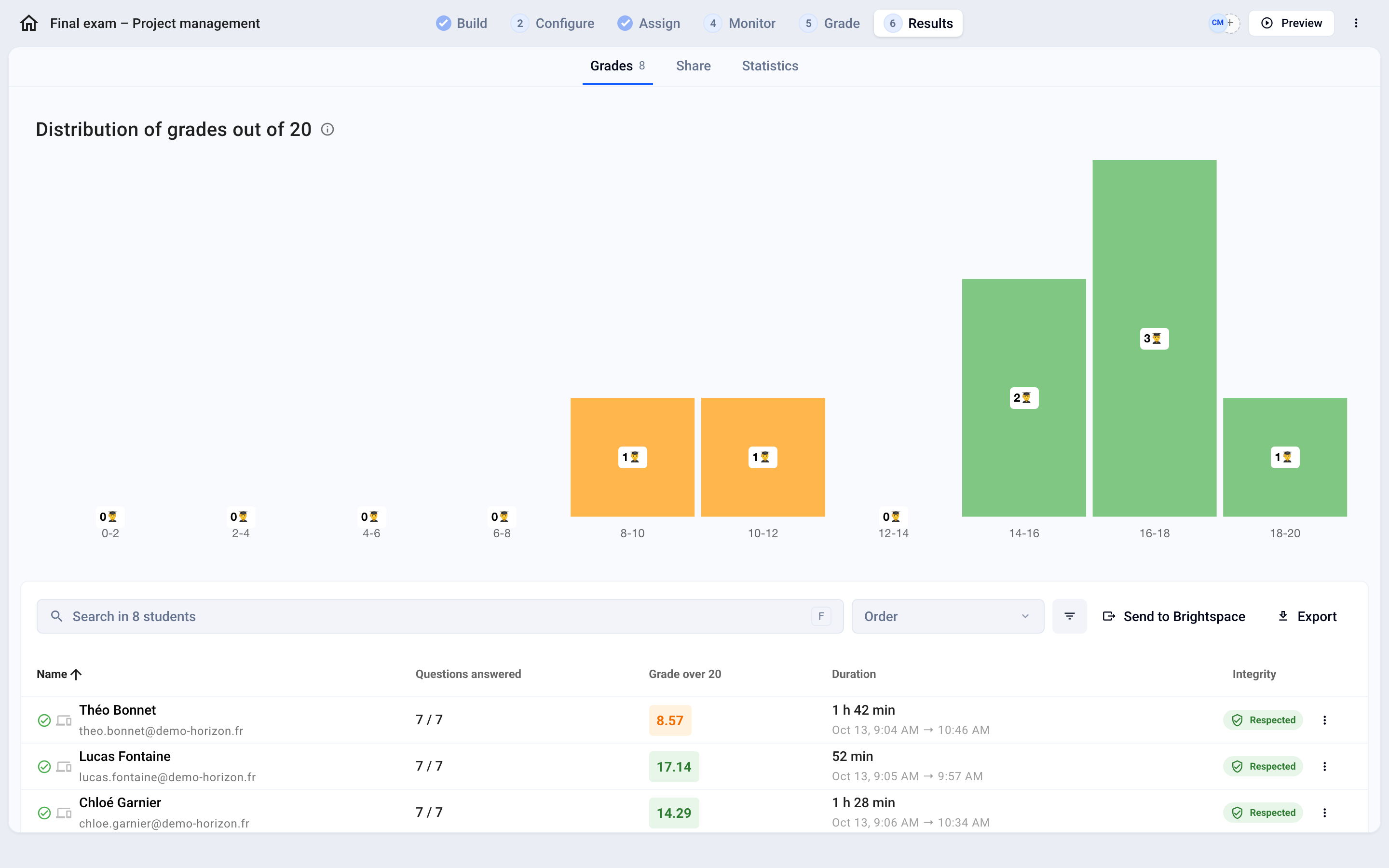
The button shows the name given to your Brightspace during installation: it may differ from “Brightspace”.
Only the grades of participants who have finished the exam are sent. An icon then appears next to each participant whose grade is synced. Hover over it to see the date of the last send.
If the button is grayed out, Brightspace has not provided a grade column for this activity: Evalmee does not know where to send the grades. Contact us to check the activity’s configuration. In the meantime, you can email the grades to participants or export them: see Share results with participants.
Was this helpful?
Still need help? Ask the team