Canvas Integration
Written By Florian Barral
Last updated Almost 2 years ago
Add Evalmee as an external app to your course
❗ Depending on the configuration chosen by your organization, Evalmee might not be available for all the courses of your organization.
It’s usually the case when your organization is experimenting Evalmee.
Consequently, you will have to add manually the Evalmee App in every single course.
👇 Voici une démo :
👇 Detailed steps
👇 Detailed steps
From Canvas, open the course where you want to create the exam
Go to your course
Settings>Apps>+ App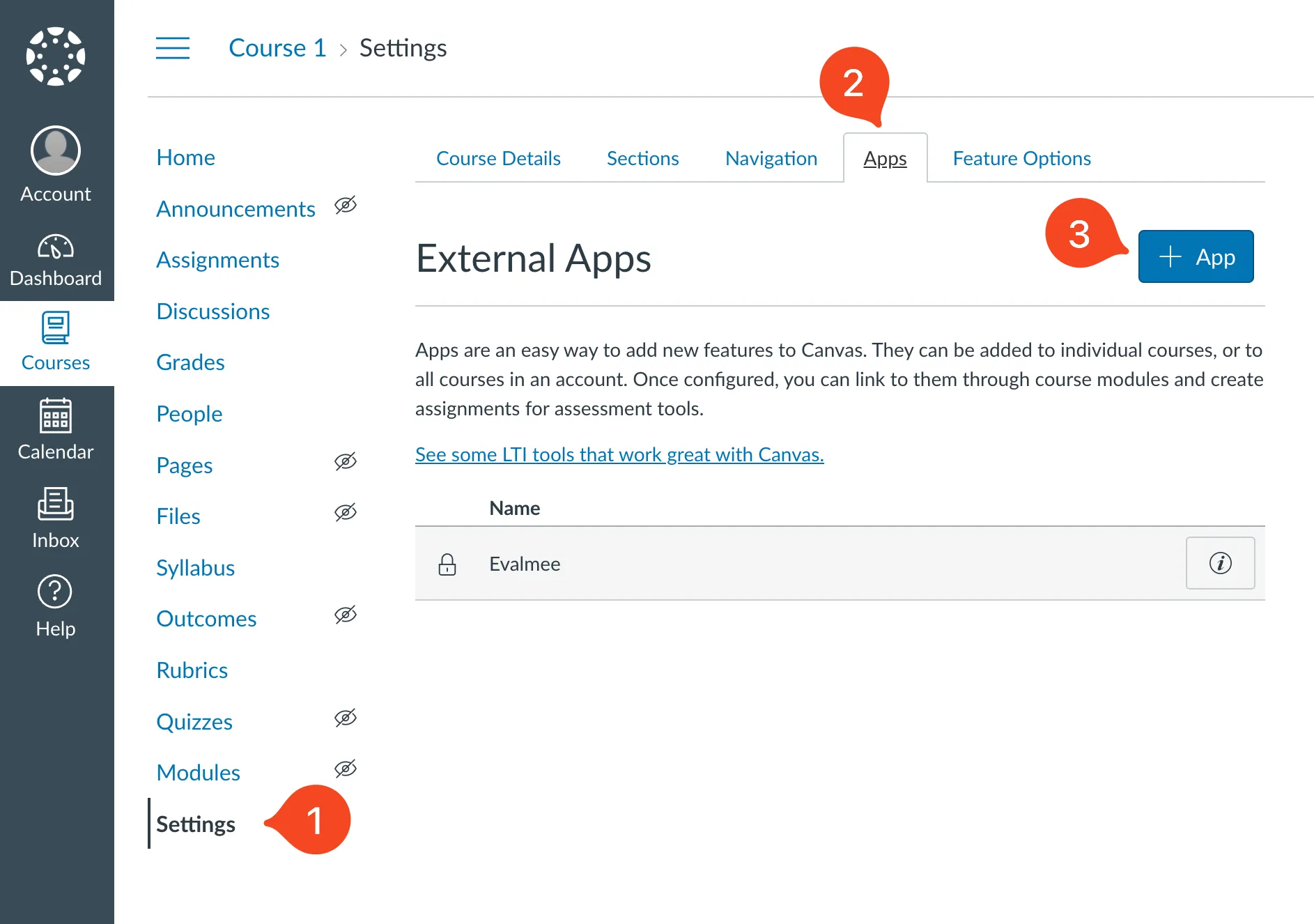
Configure the app :
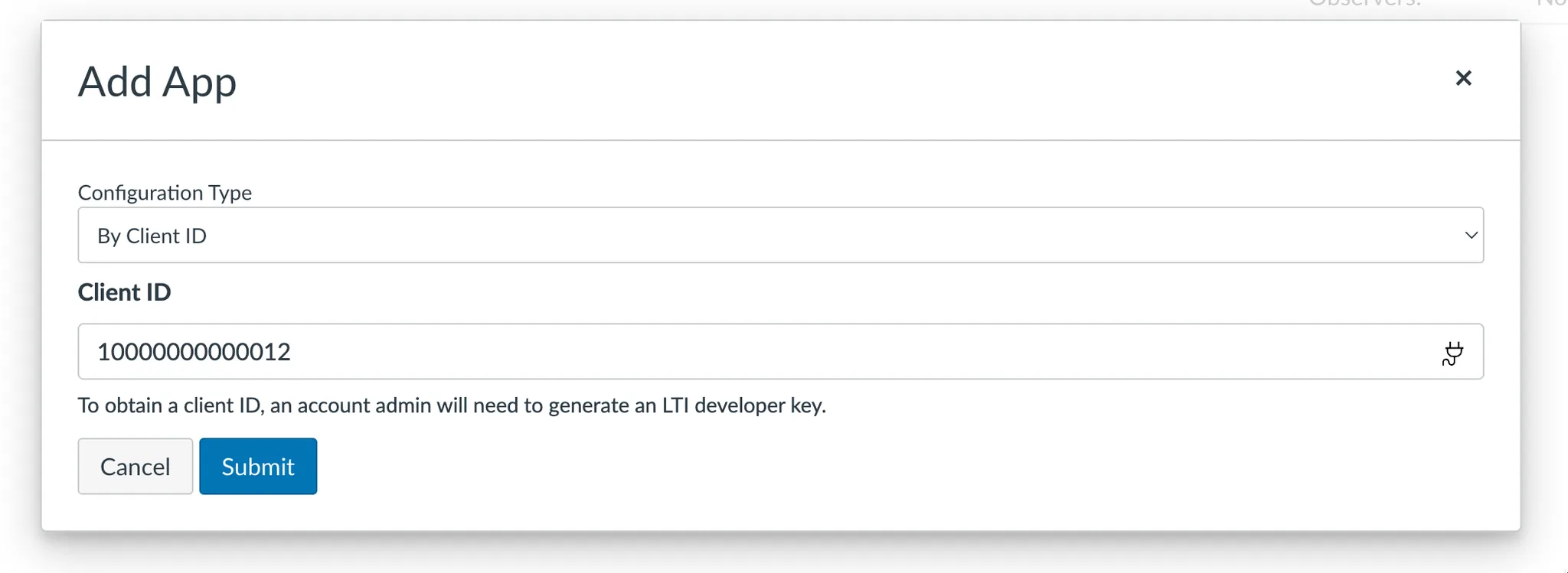
Configuration Type:
By Client IDClient ID: paste here the client ID given by your administrator
Click on
SubmitOn the next confirm dialog, click on
Install
Create & assign Evalmee exam
👇 Voici une démo :
👇 Detailed steps
👇 Detailed steps
Go to
Assignments>+ Assignment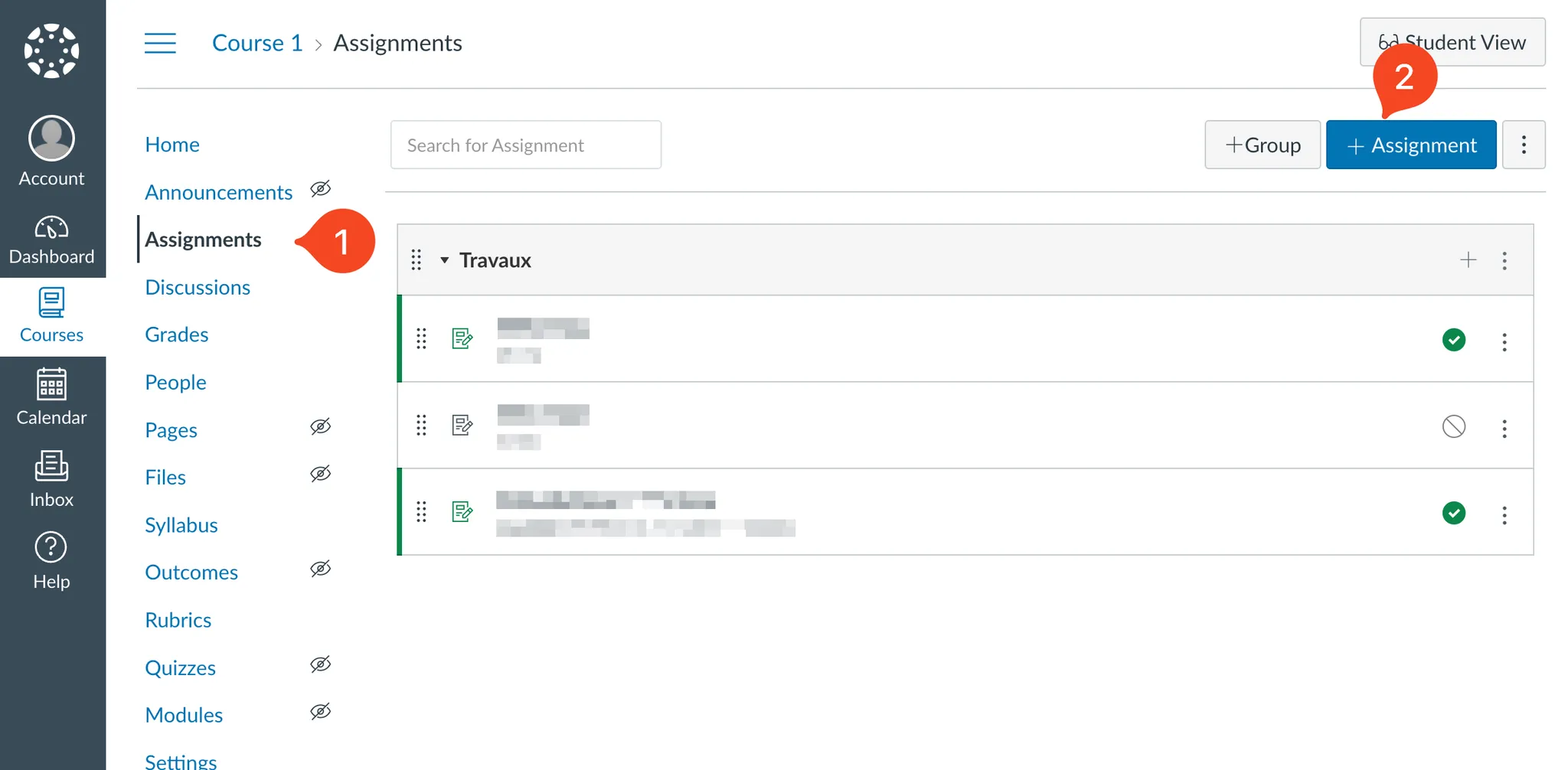
Fill your assignment
Name
Points (mandatory, should be > 0)
Submission Type
Select
External Tool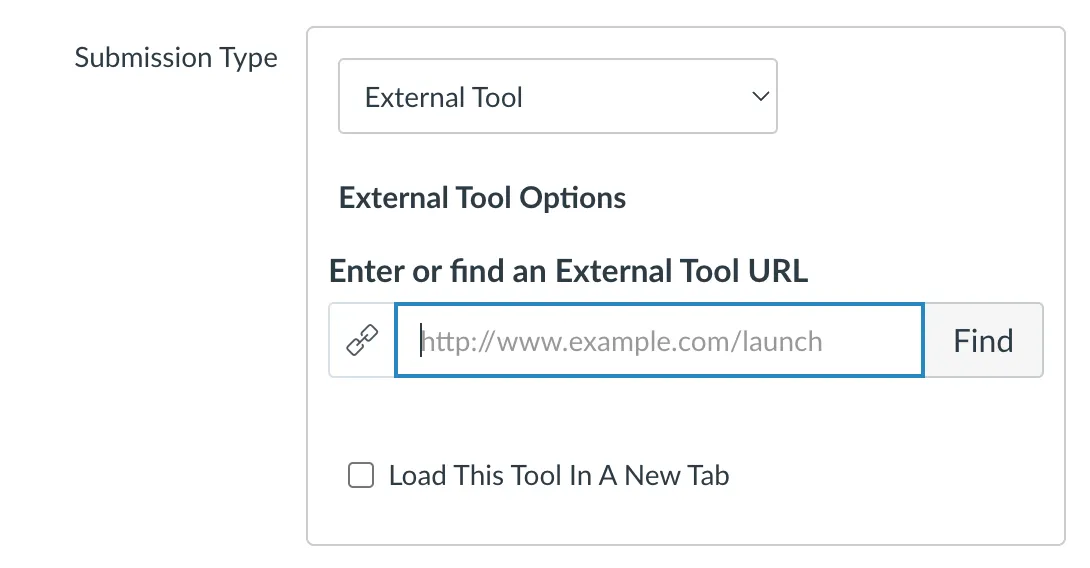
Click on
FindClick on
EvalmeethenSelect
Click on
SaveThe exam is now created on Evalmee and will be displayed in Canvas. If it is the first time you use Evalmee, you will have to answer a few questions to setup your account
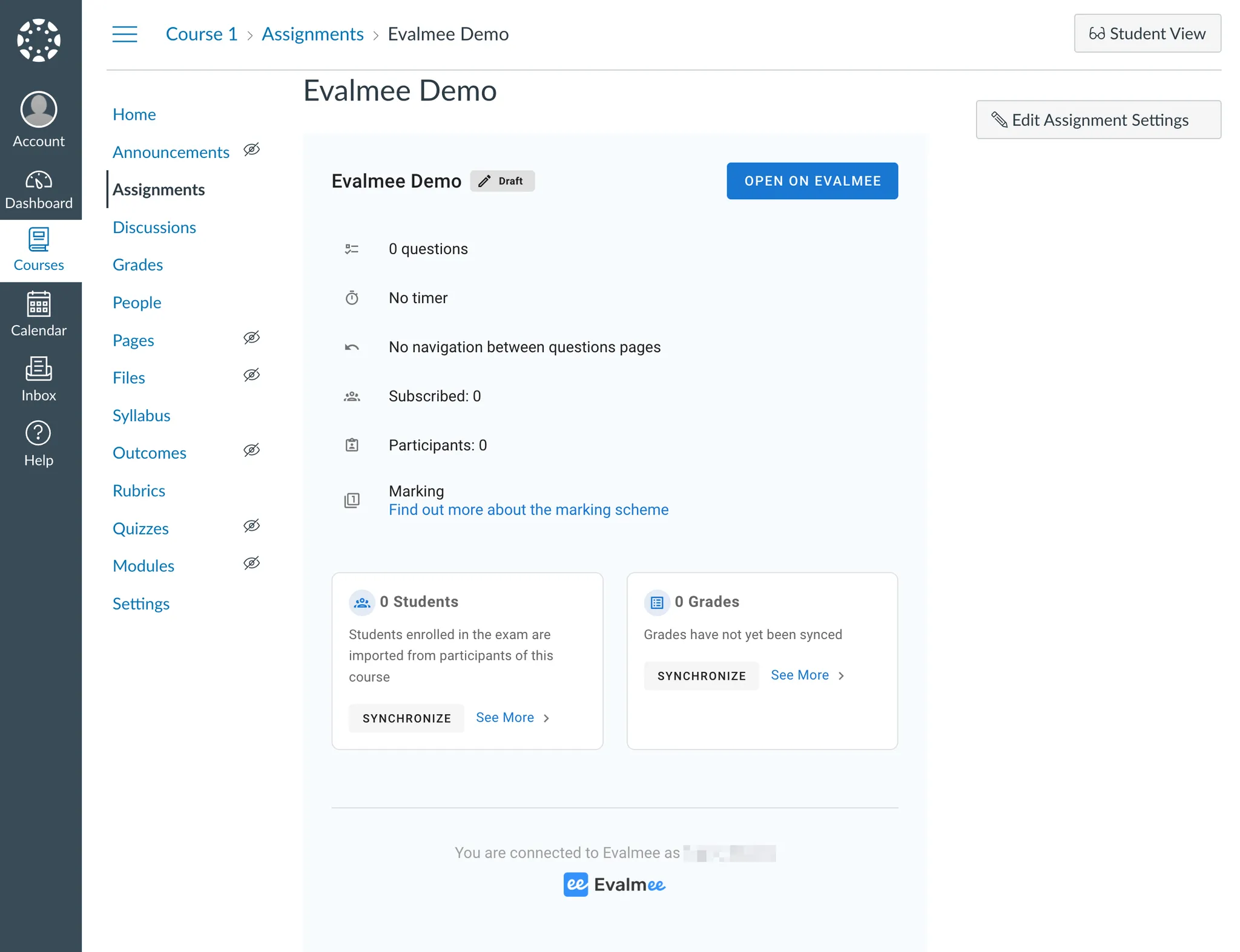
❗ The following parameters in Canvas will not be synchronised with Evalmee with the current integration:
Display Grade as
Assignment Group
Submission Attempts
Assign
Assigning an exam to students
Previously, you should have assigned to the exam all the students taking it by leaving
Everyone. See above demo.If not, make sure of it after clicking on
Edit Assignment Settings.You should have something like that:
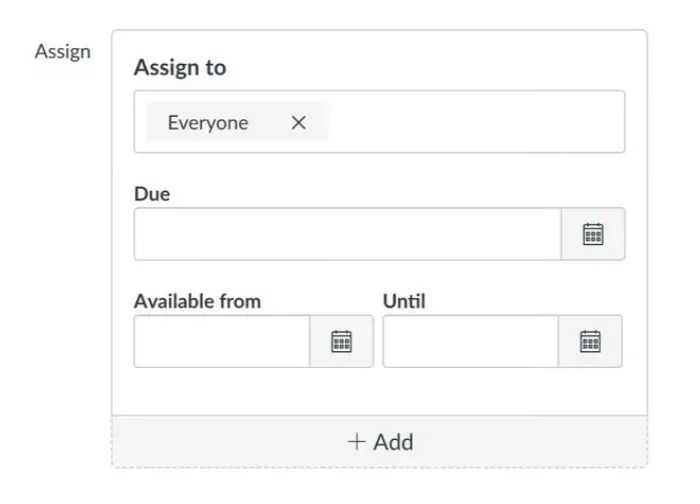
Note that the assignment is visible on Canvas to all the students assigned but the Evalmee exam can be taken only by students synchronized on Evalmee.
❗ By default, all the students from the Canvas course will be synchronized on Evalmee.
So you cannot (yet) assign the Evalmee exam to specific Groups of students of your Canvas. (Coming soon)
❗ The scheduling that matters is the one on Evalmee.
Sync Gradebook to Canvas
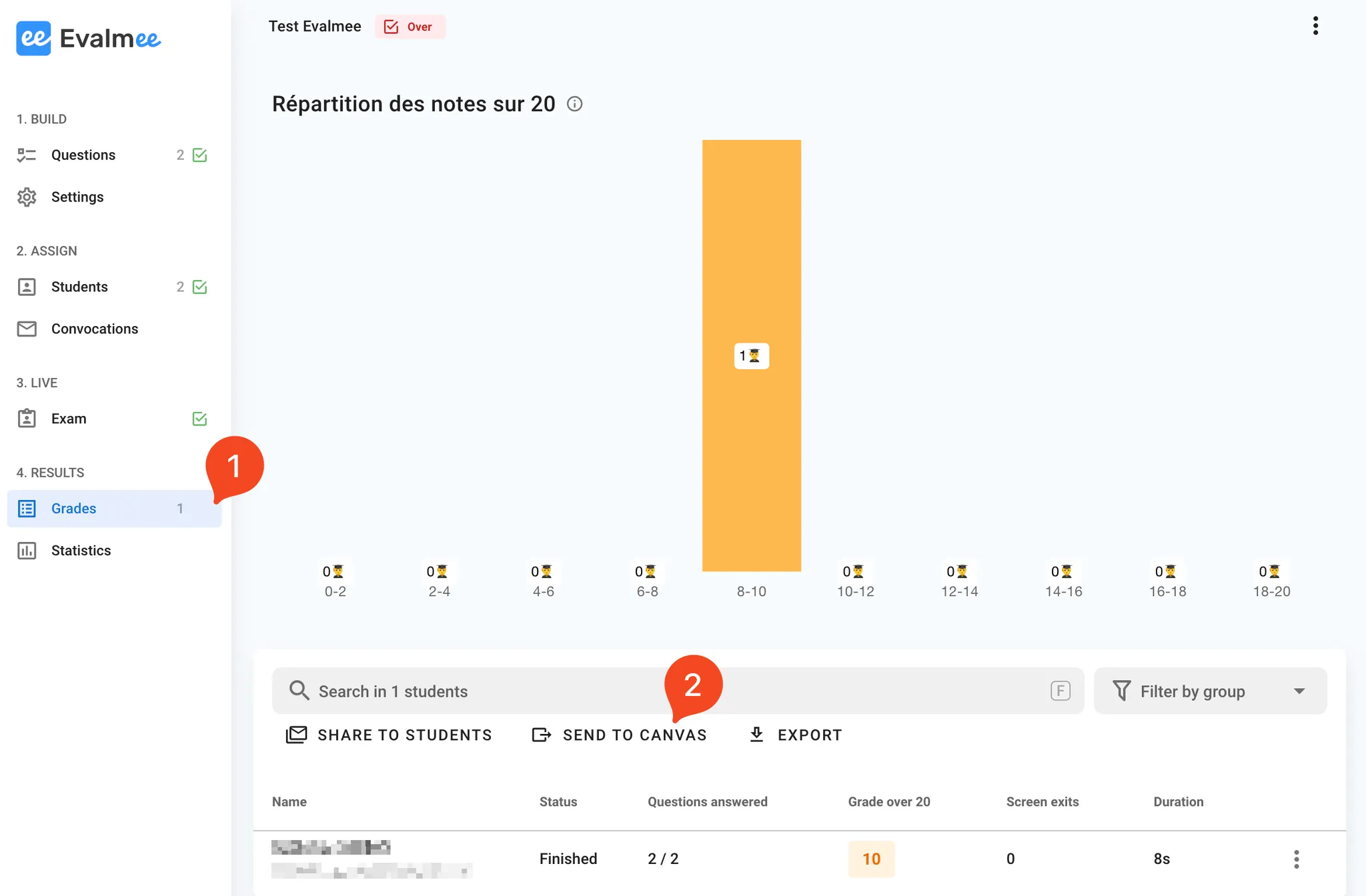
You can sync students grades from Evalmee to Canvas.
On Evalmee :
Go to
GradesClick on
Send to Canvas
Was this helpful?
Still need help? Ask the team