Blackboard integration
Written By Florian Barral
Last updated 4 days ago
Create an exam from Blackboard
Go to the Blackboard course where you want to create the exam
Add the Evalmee activity to your course
Depending on the theme your organization uses on Blackboard, Evalmee may appear under “Build Content” or “Content Market”Example with “Content Market”
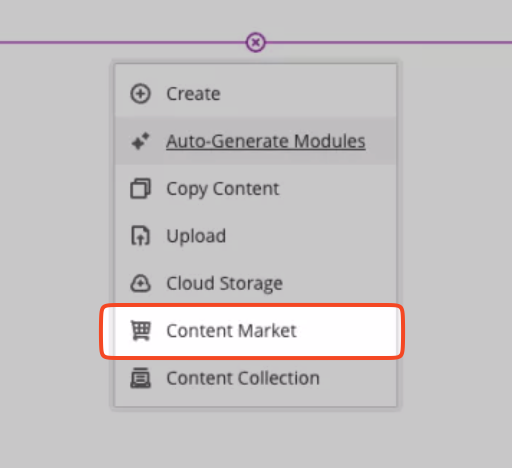
Important: Click the “
+” button to create the exam. If you click “Evalmee” or the logo, Blackboard does not start the exam creation.
The activity looks like this (with the Evalmee logo and the Evalmee description):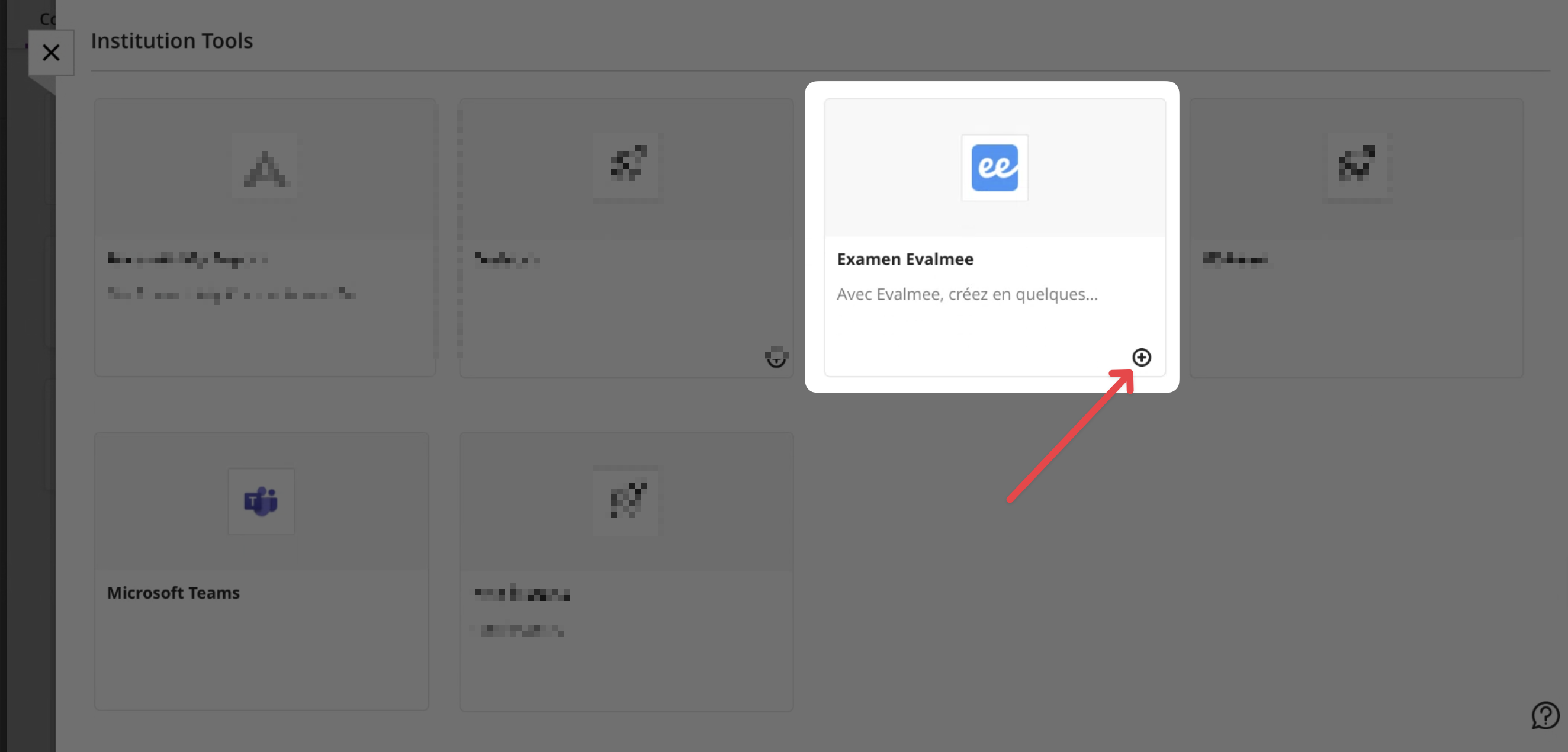
Give your exam a name and save
The exam now appears on the course page in Blackboard
Click the exam to open it in Evalmee
Invite a colleague to collaborate
Your colleagues enrolled in the course on Blackboard are not automatically added as collaborators on the Evalmee exam, so that you can manage access rights more precisely.
You can invite colleagues the same way as for an exam not managed by Blackboard: Share exams with colleagues .
Synchronize participants from Blackboard to Evalmee
From your Evalmee exam, go to the “Participants” page and click Synchronize.
This synchronization is (re)triggered automatically when:
convocation emails are sent
an exam session is opened, manually or on a schedule
grades are synchronized to Blackboard
❗ All participants in the Blackboard course who have an email address are enrolled in the exam. At each synchronization, those no longer enrolled in the course are removed. Course groups are not imported: to reserve a session for certain participants, select them, click Add to group, then choose Specific groups in the session.
Synchronize grades from Evalmee to Blackboard
From your Evalmee exam, go to Results › Grades, then click Send to Blackboard (the button shows the name of your LMS). Only finished submissions are sent, for participants synchronized from Blackboard.
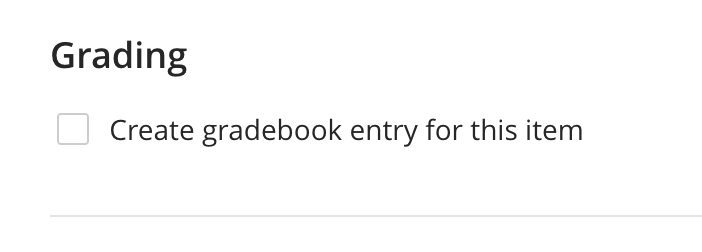
If the grade synchronization fails, check that you have enabled grading for the activity in Blackboard:
Was this helpful?
Still need help? Ask the team