Share a self-enrollment link
Enable and share the self-enrollment link so participants can enroll on their own, without you having to import them and invite them by email
Written By Florian Barral
Last updated 19 days ago
When should you use it?
This feature is ideal:
during a class in a classroom or lecture hall (in person)
during a remote class (Zoom, Teams, etc.)
for a practice session open to everyone
during an asynchronous onboarding or trial session
when you don’t have the email list in advance
How do I enable self-enrollment via a link?
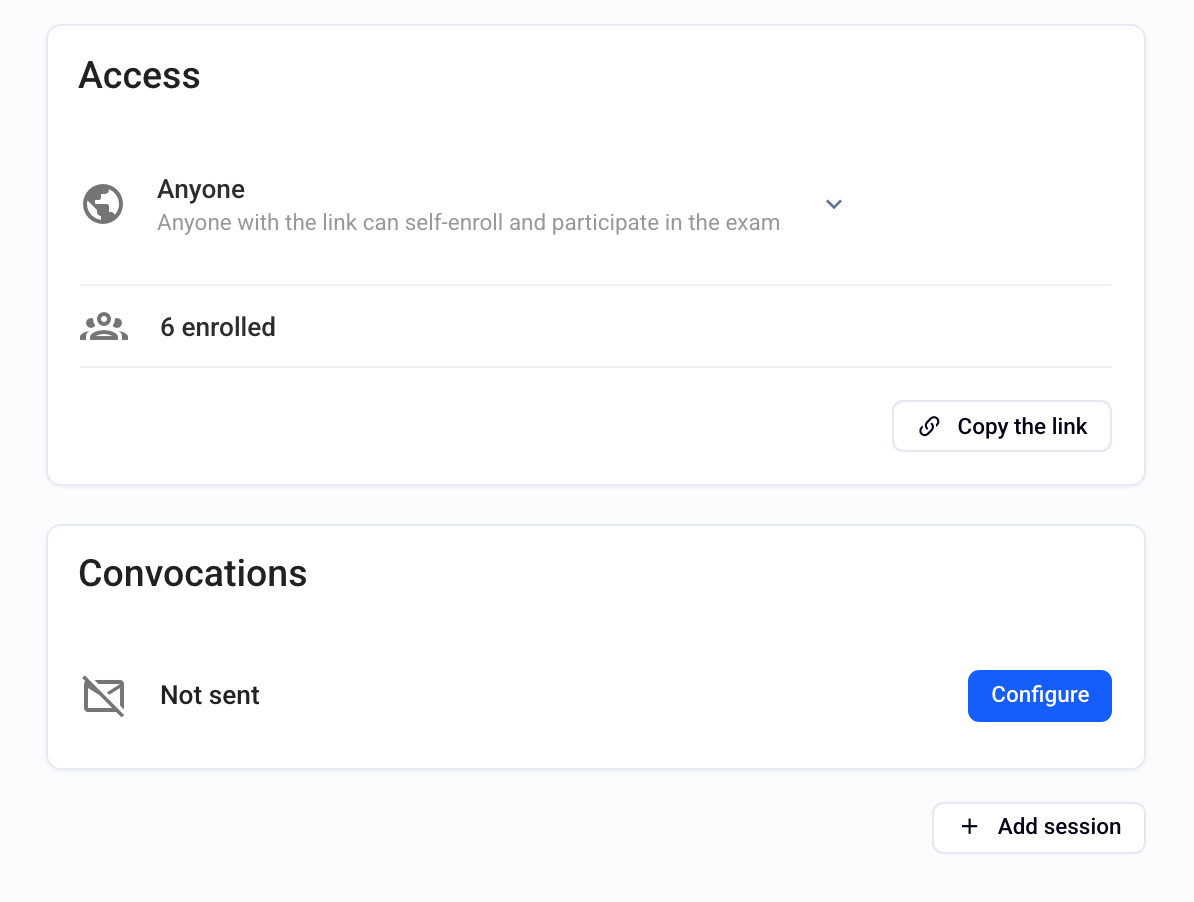
Go to the relevant exam
Go to the Assign › Session tab (if the exam has several sessions, open the session of your choice)
Find the Access card
In the drop-down menu, choose who can enroll with this link:
Restricted (default): only enrolled participants can take the exam, and the link cannot be used to enroll
Anyone (public link): anyone with the link can enroll and access the session
Your organization’s name: only members of your organization can enroll with the link and access the session
Click Copy link and share it with participants (chat, email, QR code, in-room display, etc.)
📸 Example link:
What participants see
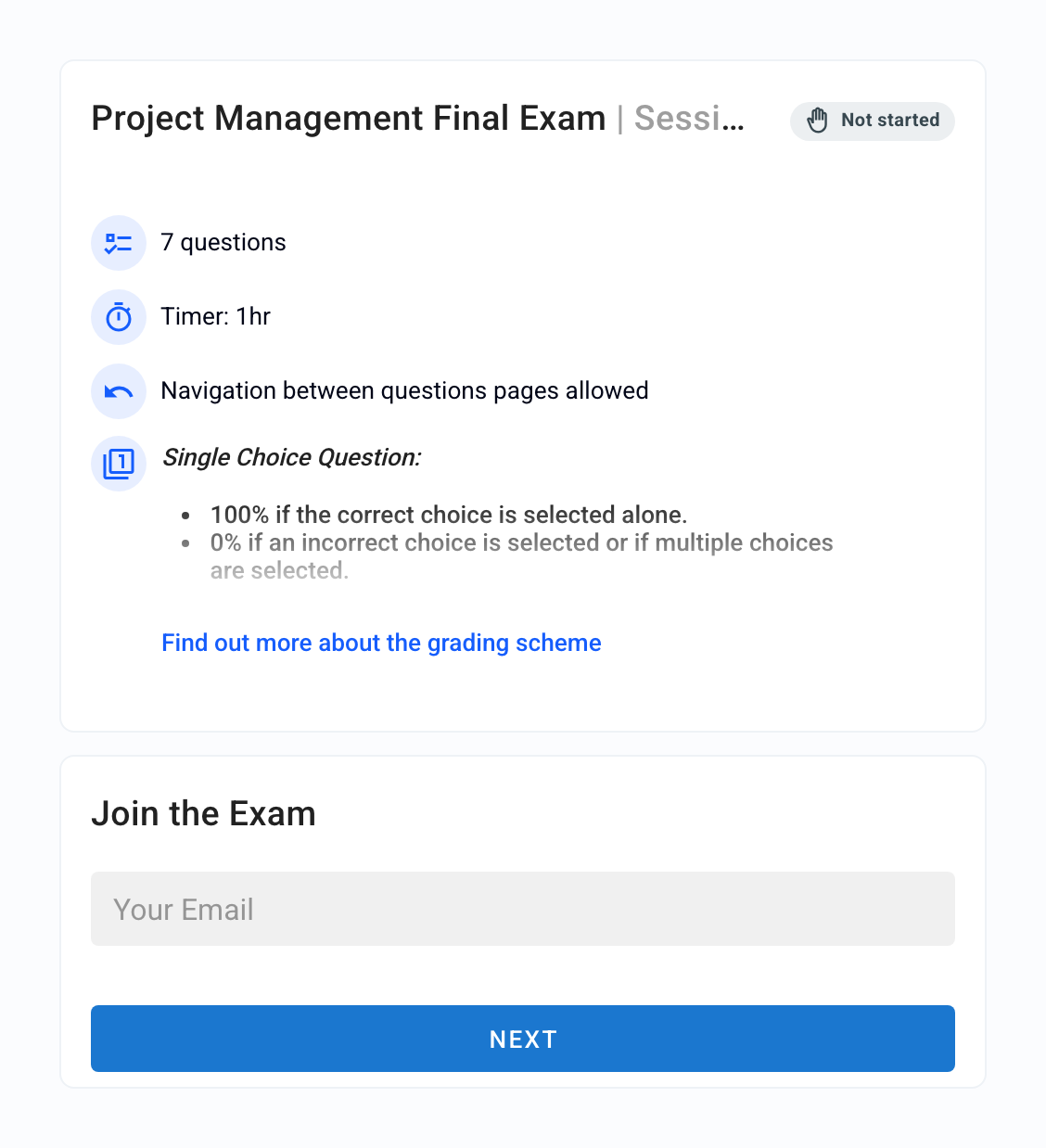
When a participant clicks the link:
They land on an enrollment page where they enter their email
They are then automatically enrolled in the session
They can then take the exam at the scheduled times
Good to know
The link can be enabled or disabled at any time
You can see self-enrolled participants in Assign › Students
A participant enrolled via the link is treated like any other enrolled participant
Best practices
Share the link just before the exam if you want to limit access
If the exam is open practice, you can display it on your intranet or embed it in an external website
For more advanced uses (pre-enrollment form, automatic session generation…), consider using the Evalmee API
FAQ
Is the link reusable?
Is the link reusable?
Yes, as long as it is active, it can be used multiple times by different participants.
Can I restrict access through this link?
Can I restrict access through this link?
Yes, by setting access back to Restricted to temporarily disable the link, or by choosing your organization’s name to reserve it for its members.
Can I track who has enrolled?
Can I track who has enrolled?
Yes, each enrollment is recorded with the information provided by the participant, and you can find all enrolled participants in the relevant session
Was this helpful?
Still need help? Ask the team