Manage time accommodations
Written By Florian Barral
Last updated 20 days ago
Time accommodations (for example, one-third extra time) automatically give additional time to the relevant participants, on every exam that takes them into account.
In short
An organization administrator creates the accommodations (once and for all).
An administrator assigns an accommodation to each relevant participant.
On each timed exam, you check that Time Accommodations are taken into account.
❗ Only organization administrators can create and assign time accommodations.
1. Create an accommodation (administrator)
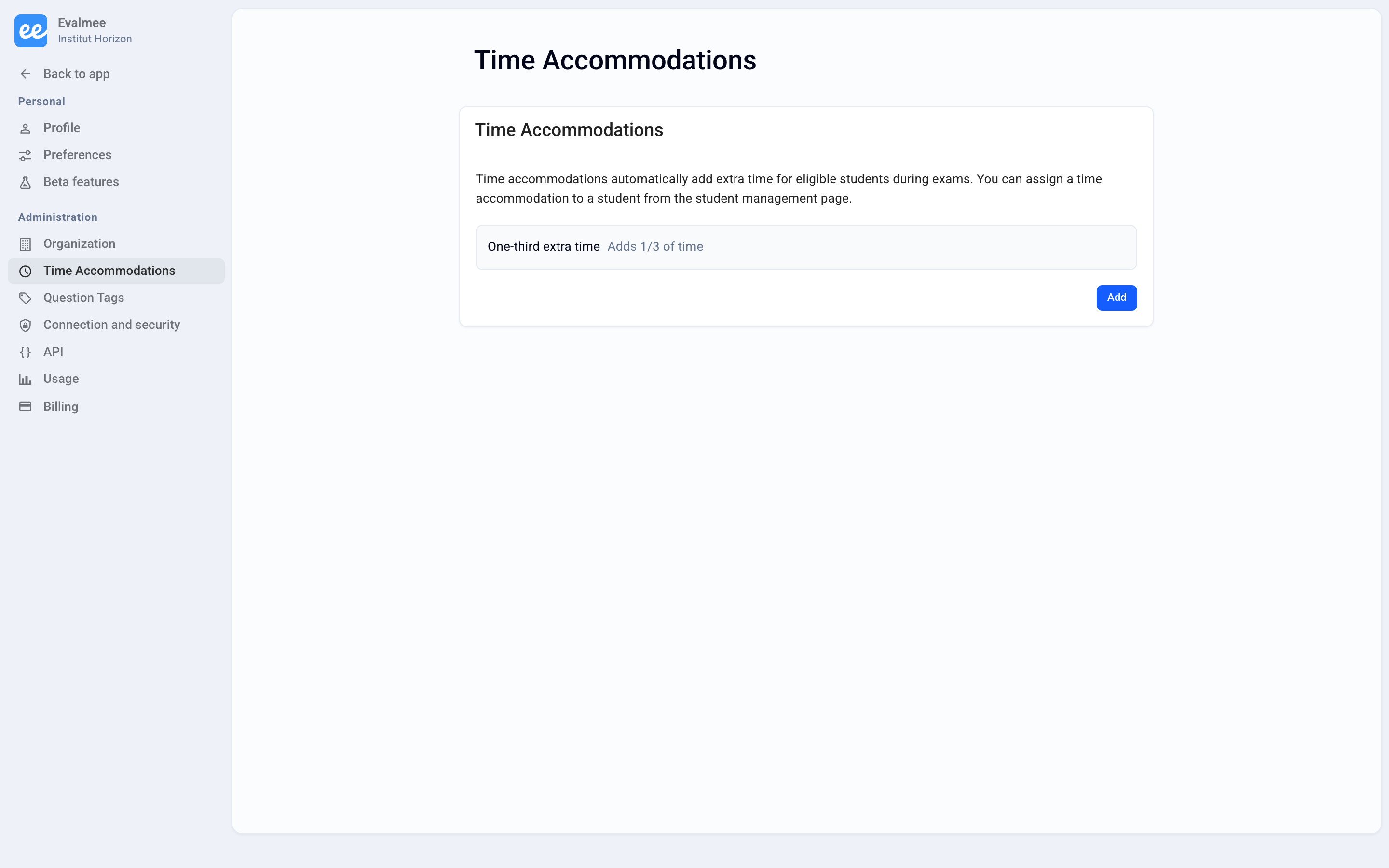
Open your settings, go to the Time Accommodations section, then click Add.
Enter the Accommodation name (it will be shown to the relevant participants), then the Fraction of additional time: for example 1 / 3 for one-third extra time.
Click Add.
2. Assign an accommodation to a participant (administrator)
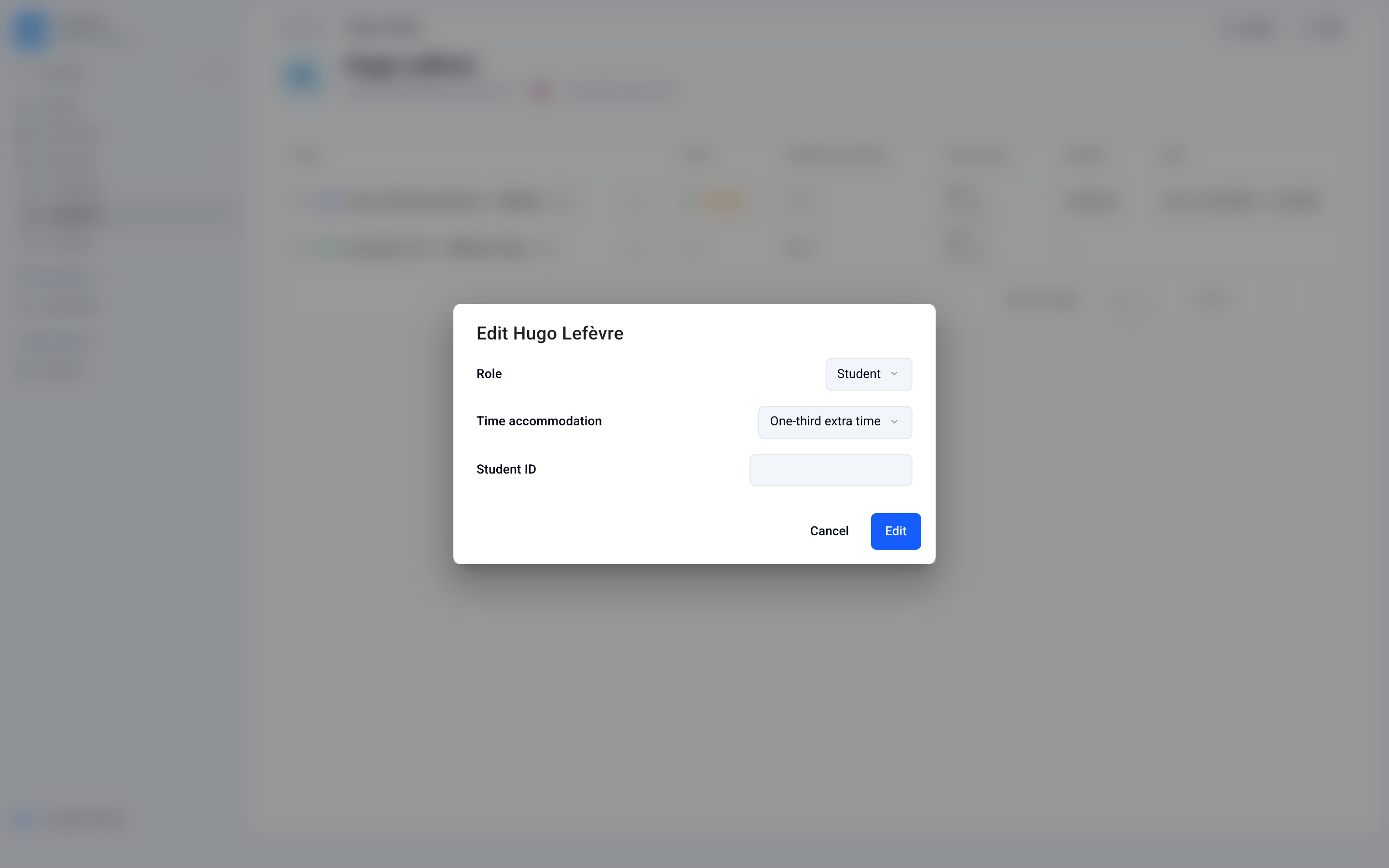
In the left menu, open Directory › Students and click the participant.
Click Edit, choose the Time accommodation, then click Edit to save.
You can also assign accommodations in bulk when importing an Excel file of participants, using the dedicated column of the template file. See Import participants
3. Apply accommodations to an exam
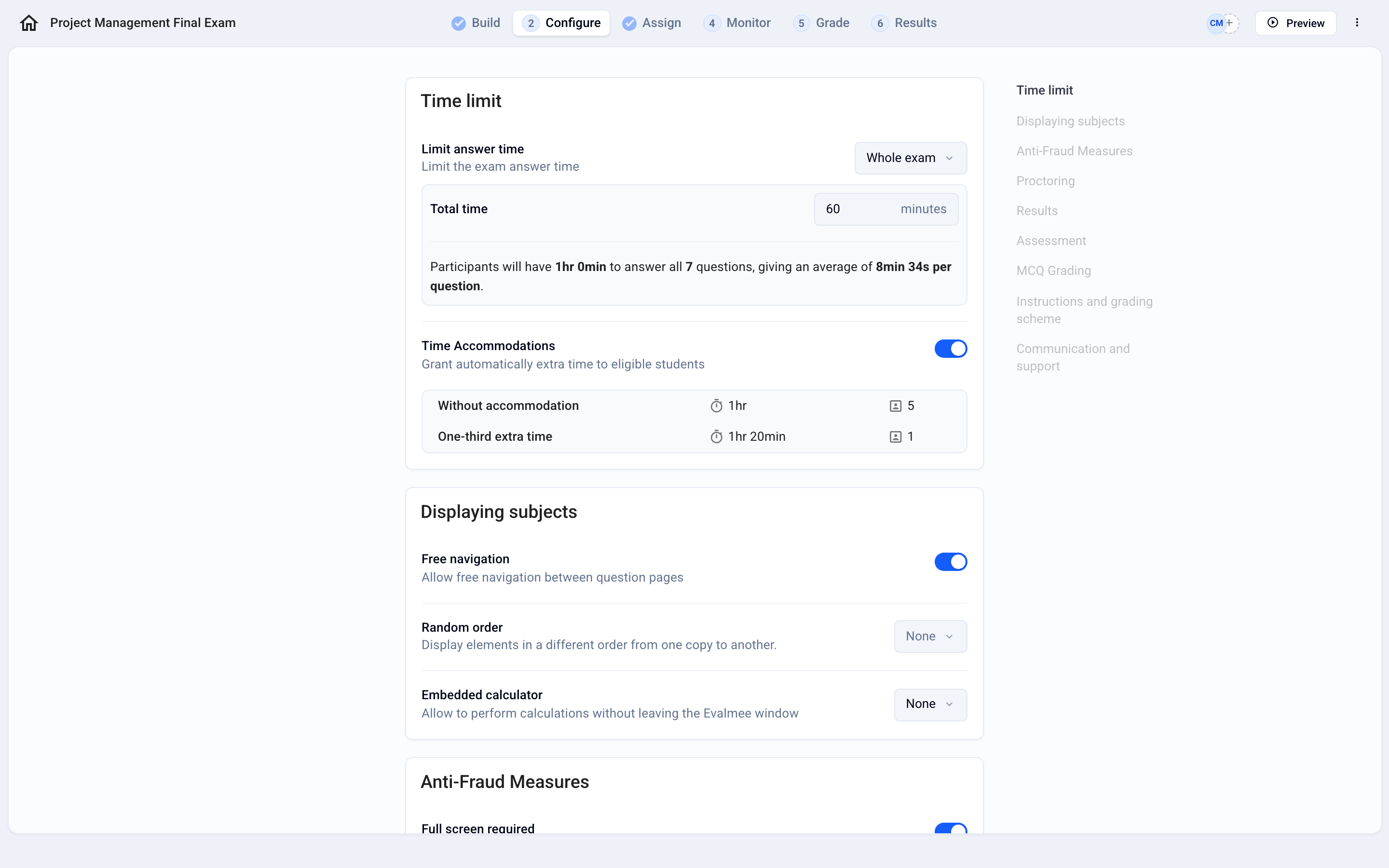
In the Configure tab, Time limit section, set Limit answer time to Whole exam and enter the Total time.
The Time Accommodations row appears and summarizes the duration of each accommodation (for example, 1h for Without accommodation, 1h 20min for one-third extra time).
Good to know
Without a time limit, an accommodation does not add time: it is calculated on the exam duration.
The extra time also pushes back the session end time for the relevant participant, unless you close the session manually.
The participant sees their accommodation before starting, and the countdown takes it into account.
To give a participant extra time during the exam, without a planned accommodation, see Add extra time
Was this helpful?
Still need help? Ask the team