Create & schedule multiple sessions
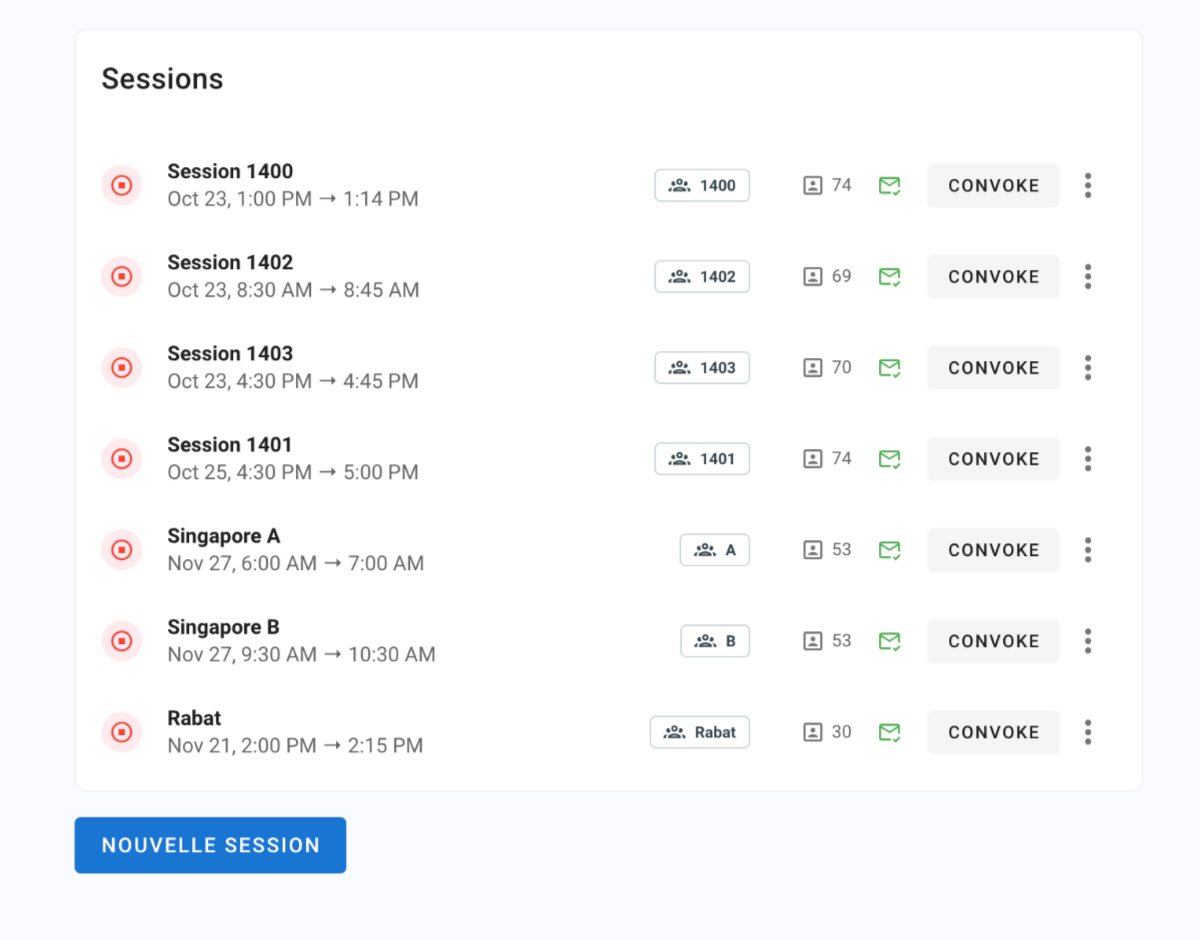
Sessions allow you to organize the exam at different times for each group, or to offer several time slots for all students.
Written By Dorian Becker
Last updated 11 months ago
Usage Examples
1️⃣ Exam for an Entire Class Split Across Multiple Time Slots
A cohort of 100 students is divided into 4 groups of 25 students, each attending class at 8 AM, 10 AM, 2 PM, and 4 PM. Every student must take a short exam at the beginning of their class.
In Evalmee:
Create the exam and import all 100 students, assigning them to their respective groups.
Create 3 additional sessions within this exam, for a total of 4 sessions.
Assign each group to a session and set the specific time slots for each session.
2️⃣ Exam with Flexible Scheduling
An exam where students can choose from three different time slots. Each student is allowed to take the exam only once.
In Evalmee:
Create the exam and import all students.
Create 2 additional sessions, for a total of 3 sessions.
Define the opening and closing times for each session.
Assigning Students to a Session
When creating a session, all students are automatically enrolled by default.
You can restrict access to a session for specific student groups.
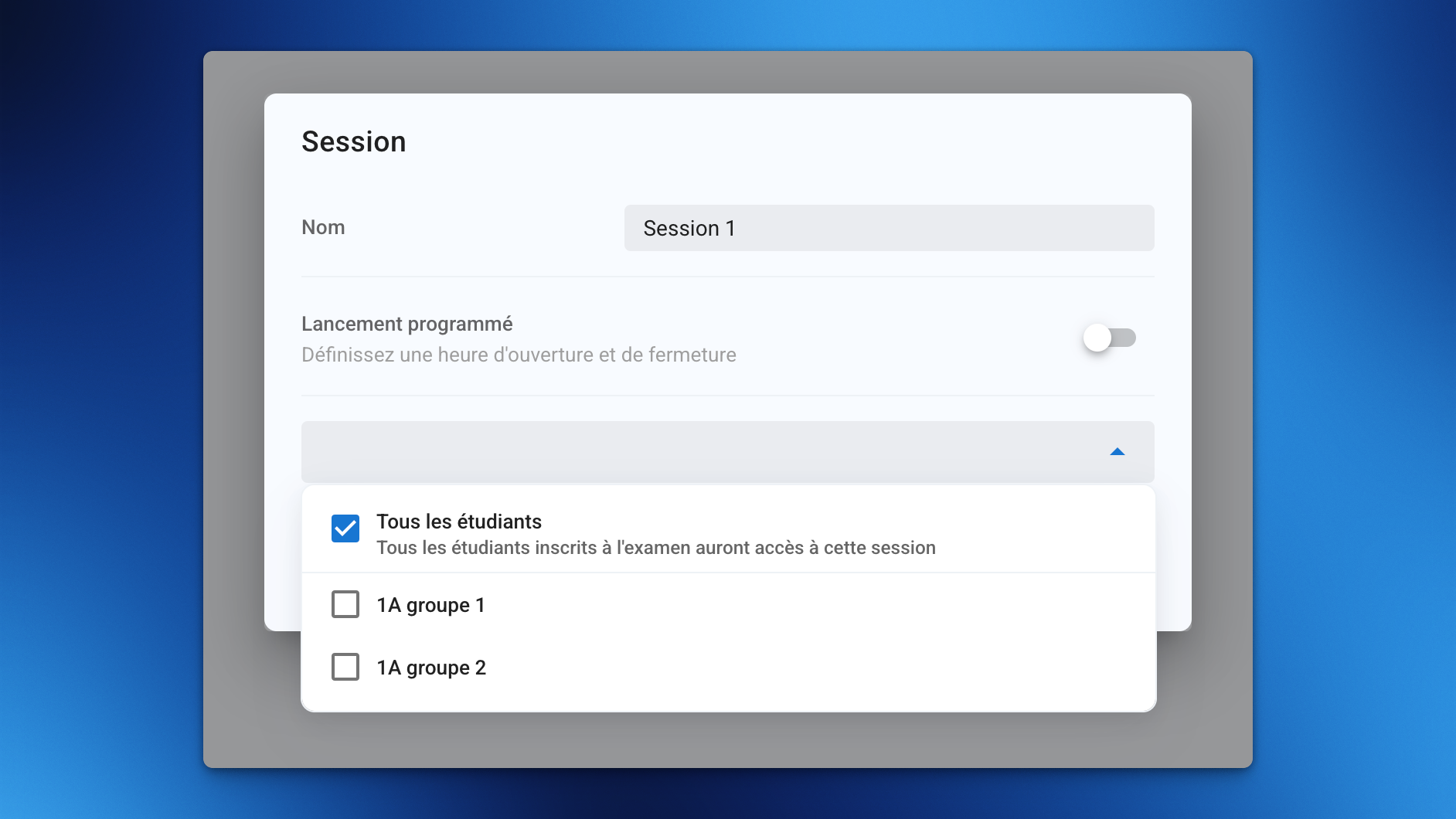
Learn how to assign students to a group → Import participants
Session Scheduling
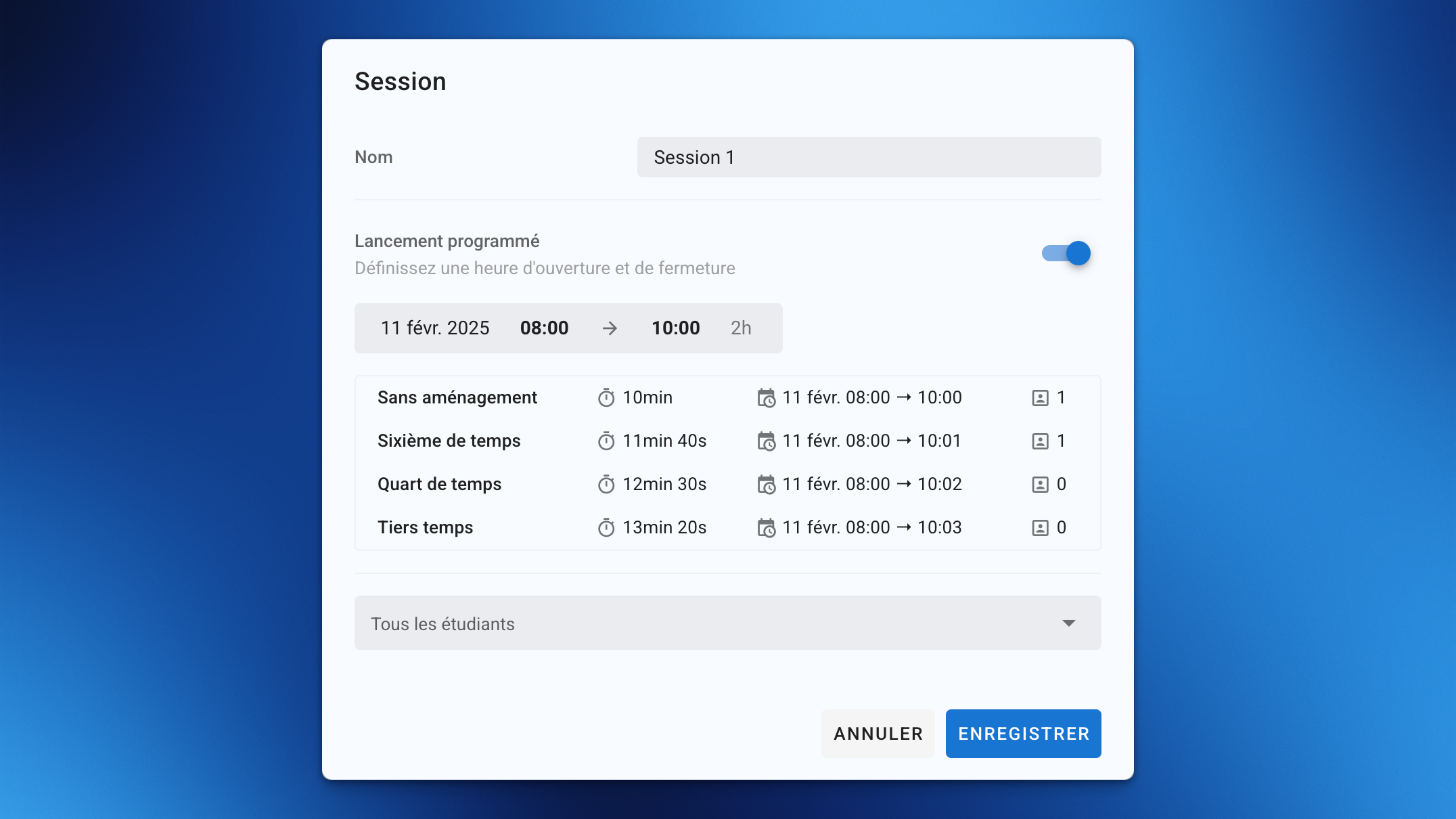
Each session can be scheduled with its own opening and closing times.
The closing time automatically adjusts to accommodate students with extended time accommodations.
Invitations & Notifications
Session-specific invitations: Emails can be sent per session, ensuring students receive the correct information.
If a student is enrolled in multiple sessions, they will receive one invitation per session.
If students have the option to choose their session, the invitation email will provide a list of available time slots upon clicking the exam link.
In cases where all students are enrolled in multiple sessions, you can send a single email explaining their ability to choose their preferred time.
Student Experience
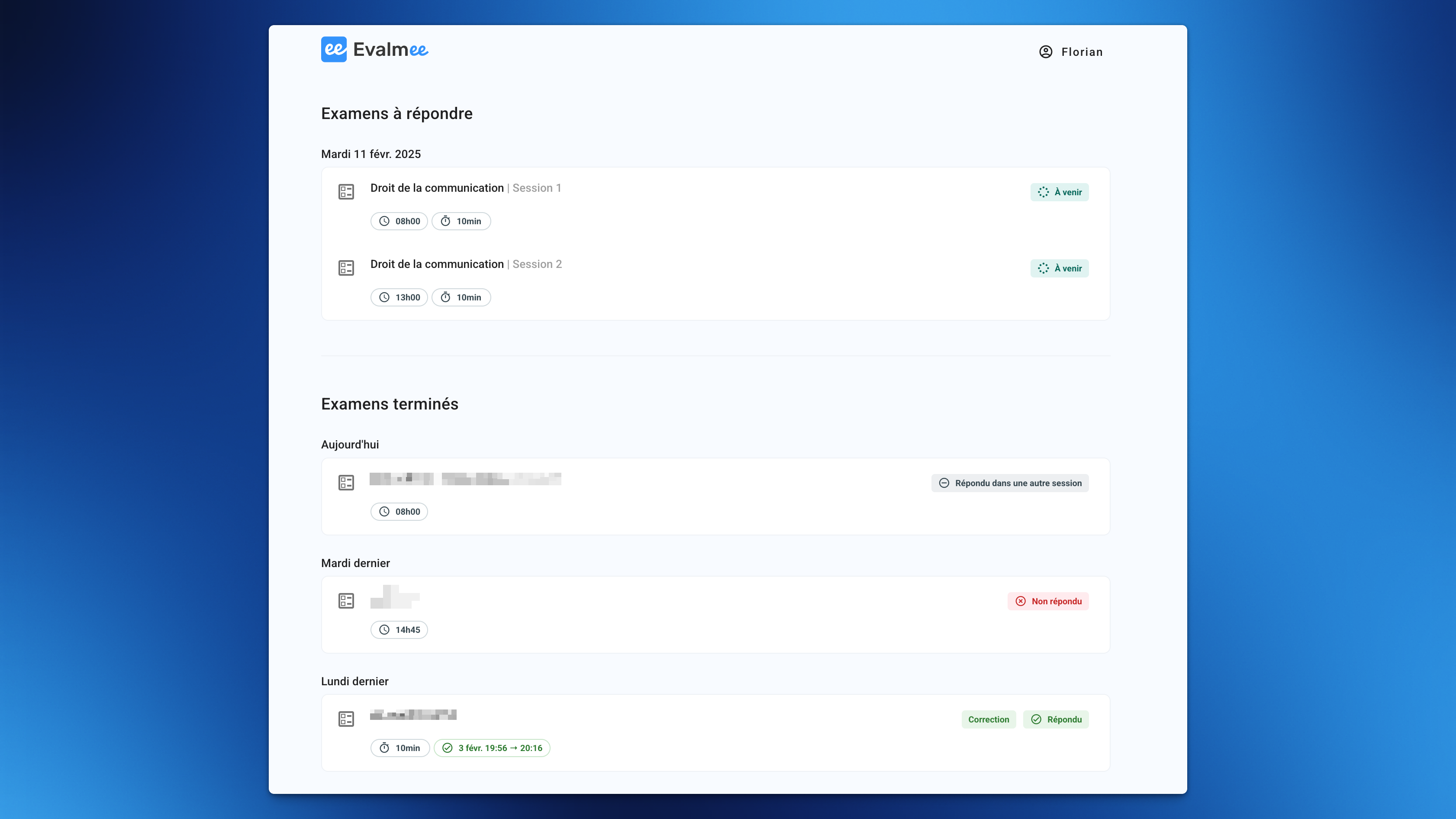
The exam appears on the student’s homepage:
As soon as they receive their invitation,
Or as soon as the session opens for a manually opened session
Or 15 minutes before the opening for a scheduled session
Students can view and take the exam only when their assigned session is open.
If a student is enrolled in multiple sessions for the same exam, they can only submit answers for one session.