A participant does not receive their login code via email
Connection code not received, rejected, or expired: causes, solutions for participants, and what you can do.
Written By Florian Barral
Last updated 13 minutes ago
To access the exam, a participant logs in using their email address. Evalmee sends them a temporary login code. This article explains what to do if the code doesn't arrive or isn't accepted.
How the login works
The participant enters their email address and clicks “Continue with Email.”
Evalmee sends them an email containing a login link and an 8-digit code (in the format 1234-5678).
On the “Verify Your Email” screen, they enter the code in the “Enter Code” field and click “Continue with Code.” They can also click directly on the link in the email.
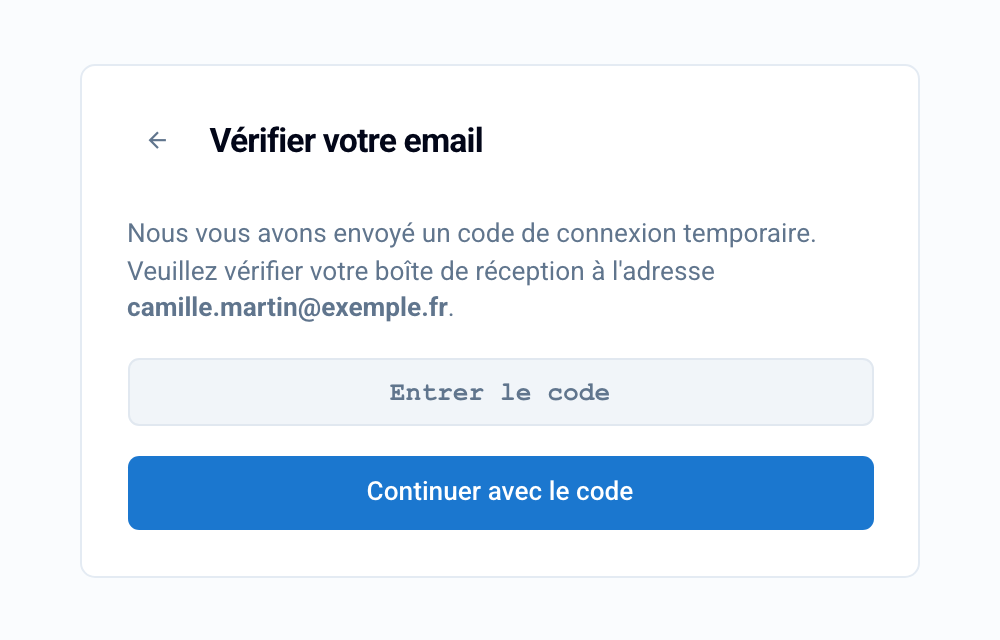
💡 The code is valid for 15 minutes and can only be used once. It only works in the browser where the participant requested it: if they open the email on their phone, they must enter the code on the page that’s still open on their computer, or click the link.
The participant does not receive the email
What the participant should check:
The spam or junk mail folder, and the “Promotions” or “Notifications” tabs in their email account.
The email address entered: a typo, or an address other than the one used to register for the exam.
That their inbox isn’t full and that no filtering rules are blocking emails fromEvalmee. For a work or school email address, the IT department may have blocked the sender.
To receive a new code, return to the login screen, re-enter your email address, and click “Continue with email” again. Only the most recent code received should be used.
The code is rejected
“Invalid login code. Please try again.”: The code is incorrect, has already been used, has expired (more than 15 minutes ago), or was requested from another browser. The participant should request a new code and enter it on the same page.
“Too many attempts. Please try again in 1 minute.”: The participant must wait one minute before trying again.
The link in the email has expired
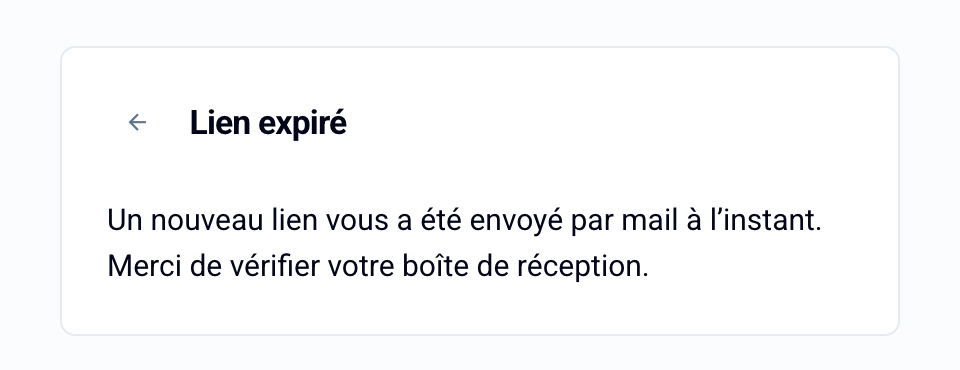
When a participant clicks on an expired link, Evalmee displays “Link expired” and automatically sends them a new email: “A new link has just been sent to you via email.” They simply need to open this new email.
“Unauthorized domain”
If the participant sees “Your email address … is not authorized to log in,” the domain of their email address is not accepted by your organization. They must use the email address provided by your institution, or you must contact support to have the domain authorized.
What you can do
Resend the invitation: In Monitor > Live, click ⁝ at the end of the participant’s row, then click Send Invitation. They will receive a new email with their personal link. See Inviting Participants via Email
Check the participant’s email address in the Students tab of your exam.
Compensate for lost time: If the participant started late due to this issue, add extra time for them. See Add extra time
Best Practices
Send invitations well in advance of the exam and ask participants to test their connection beforehand.
Encourage them to check their spam folder and add the sender to their contacts.
Allow 10 to 15 minutes before the exam starts so everyone has time to log in.
If the problem persists, contact support: Support: live chat, hotline, and on-call upport, specifying the email address in question, the time the problem occurred, and the error message displayed.
Was this helpful?
Still need help? Ask the team