A participant is stuck at the start of the exam
“Next” button missing, screen sharing denied, camera not detected, work computer, iPad, blocking extension: causes and solutions.
Written By Florian Barral
Last updated 10 days ago
Before starting, each participant goes through several setup screens. If one of them does not unlock, the participant cannot start. This article lists the most common blockers, what the participant should do, and what you can do on your end.
💡 In Monitor › Live, hover over a participant's status icon: “Opened the exam's landing page on …” means they opened the exam without starting it. This is the best way to spot who is stuck. See Live tracking
Help a stuck participant
In Monitor › Live, click ⁝ at the end of the participant's row. Depending on your exam settings, you may find:
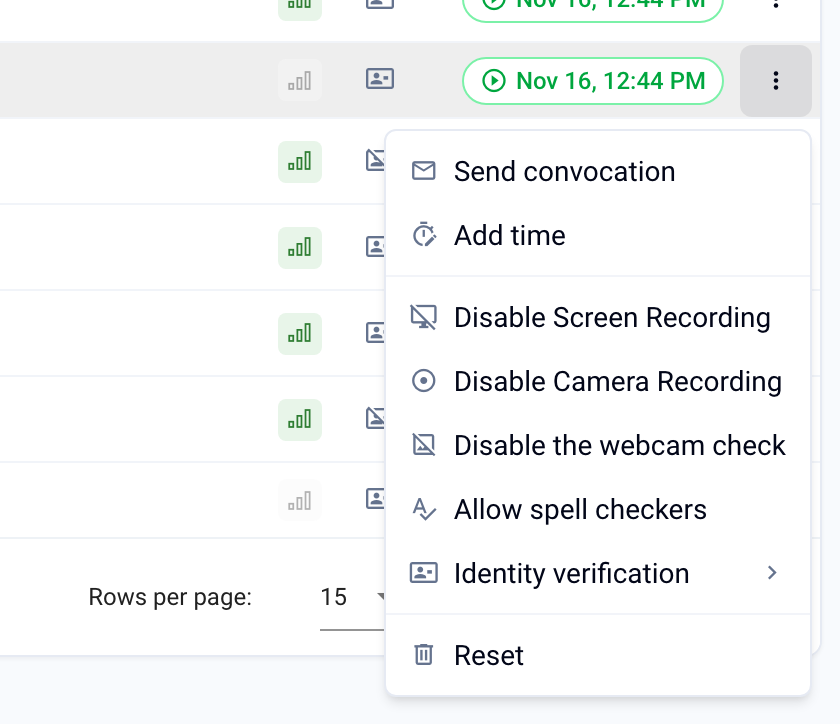
Disable Screen Recording: the participant can access the exam without sharing their screen.
Allow spell checkers: the participant no longer has to disable their extensions.
Disable Evalmee app requirement: the Evalmee app is no longer required for this participant.
Disable the webcam check: the participant gets in without their image quality being checked (exams with camera analysis or a manual identity check).
Identity verification › Exempt from identity verification: the participant starts without verifying their identity. With automatic verification, the same submenu also offers Switch to the manual check. These actions are only possible before the participant starts.
The action applies immediately; the participant does not need to reload the page.
The camera is an exception: you cannot exempt a single participant from camera proctoring. Disable Camera Recording only stops the recording, not the setup steps. This action only exists in Continuous video mode. The only solution is to disable camera proctoring for the whole exam. See “The camera is not detected” below.
The “Next” button does not appear or stays grayed out
The button waits for the current screen to be completed. Depending on the screen displayed:
That's it for now!: the exam is not yet accessible. The next steps open 15 minutes before the scheduled opening time, or as soon as you open the session. Just wait. If nothing changes, the participant reloads the page.
Exam conditions: Understood stays grayed out until the “I certify that I consent to the processing by Evalmee of my personal data…” checkbox is checked (exams with camera proctoring or identity verification). If the exam uses a plagiarism detection tool, the checkbox accepting its license agreement must also be checked.
Set up your equipment: the My equipment is ready button only appears when the camera and microphone are working and the recording test has succeeded. With camera analysis or a manual identity check, the Image check must also pass: the whole face in the frame and well enough lit. See “The camera is not detected”.
Identity verification (automatic verification): Next only appears once the identity is verified.
Identity validation (manual check): the participant photographs their required document (Take the photo, then Confirm), then records a video selfie, which starts on its own when their face is in the frame. The step moves on by itself after the last upload. On exams created up to early October 2026, Next appears after the photo of the document.
Your reference photos: Next appears once the three photos (facing forward, head turned left, head turned right; only on exams created up to early October 2026) are saved with Take the photo then Confirm photo.
Screen sharing: Next only appears once the entire screen is shared. If there is an error, only the Update screen sharing button is displayed. See “Screen sharing is denied or not possible”.
Spell checker tools check: no button as long as a forbidden extension is active. See “An extension is blocking access”.
Honor code: Start stays grayed out until the “I have read the above and agree to comply and not cheat.” checkbox is checked, or until the exam is open. The button turns blue when the exam opens.
Screen sharing is denied or not possible
What the participant sees: a red error message above the Update screen sharing button. The possible messages:
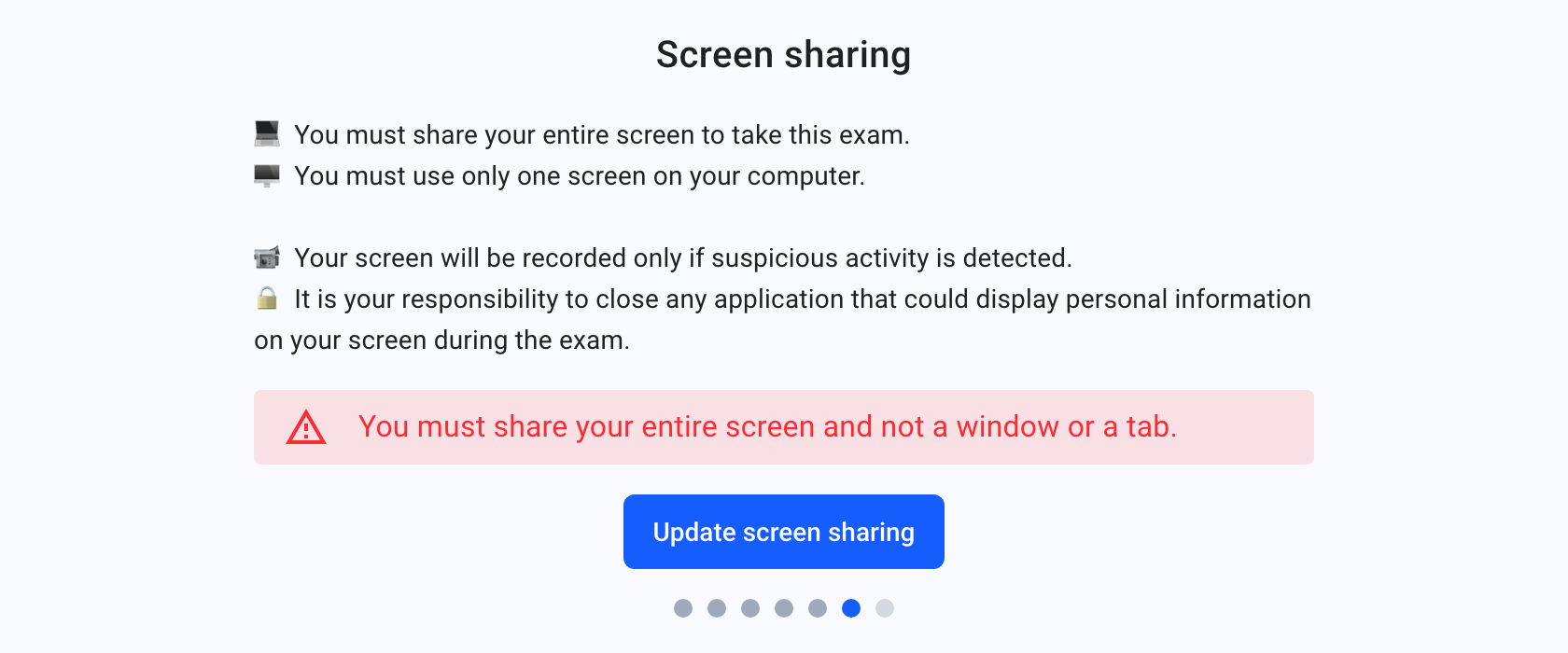
“You must share your entire screen and not a window or a tab.”: in the browser window, the participant must choose the entire screen, not a window or a tab. The Update screen sharing button restarts the selection.
“You must use only one screen on your computer to take this exam.”: the participant must unplug or disable any additional screens.
“Please ensure that you have accepted screen sharing.”: the participant declined or closed the sharing window. On Chrome, they must also allow the “Window Management” permission requested by the browser.
“You must enable screen sharing in your computer settings.”: on a Mac, the browser does not have permission to record the screen. The participant opens System Settings › Privacy & Security › Screen & System Audio Recording, checks their browser, then restarts the browser if needed.
After the third failed attempt, the “You can't share your screen?” link appears and opens a help page.
What you can do: Disable Screen Recording for this participant.
The camera is not detected
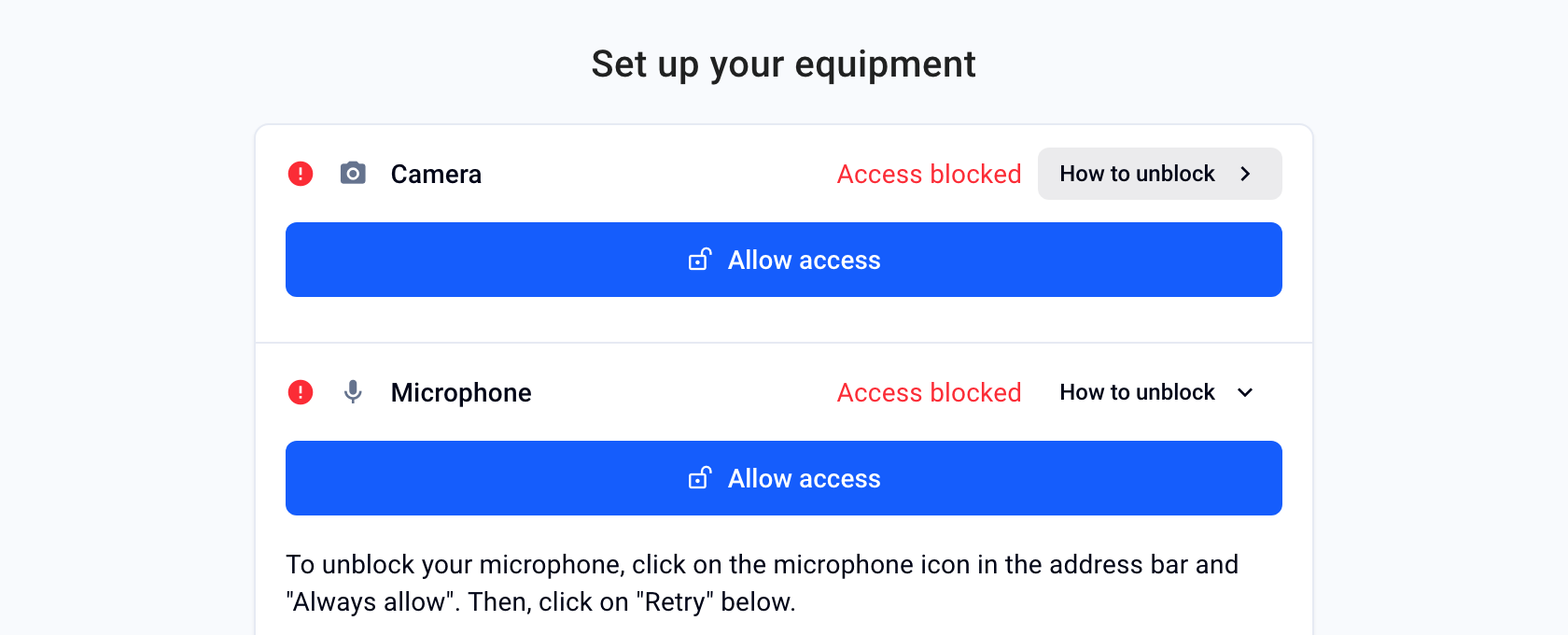
What the participant sees: at the Set up your equipment step, the Camera (or Microphone) row shows Access blocked, with the Allow access and How to unblock buttons. How to unblock shows the steps to follow for their browser. On the photo screens, the message is “Your camera seems to be blocked”.
What they need to do:
Click Allow access, then accept the browser's request.
If access stays blocked: on Chrome, click the crossed-out camera icon in the address bar, then “Always allow…”. On Firefox, remove the temporary block. On Safari, open Settings › Websites › Camera and choose Allow for Evalmee. Then click Retry.
Check that the camera is not covered by a physical cover and that no other application (video conferencing…) is using it.
What you can do: suggest another browser or another computer. The camera cannot be skipped for a single participant, with two exceptions. If only the Image check is blocking (face, lighting), use Disable the webcam check. If the camera is only required for the manual identity check, use Exempt from identity verification. Disable Camera Recording only stops the recording.
As a last resort, disable camera proctoring for the whole exam: Configure tab, Proctoring section, set Camera proctoring to Off. You can do this during the exam, but you will not be able to turn it back on before the exam ends, and it stops for all participants.
If you need help, contact support: Support: live chat, hotline, and on-call hours
The participant is using a work computer
Work or institution computers are often locked down by their administrator: mandatory extensions, blocked camera or screen sharing, network filtering. Evalmee cannot bypass these rules.
When the exam opens, a Device compatibility check card is displayed if the device fails any of these tests: Browser compatibility, Storage space, Graphics acceleration, Background processing. Each failing row explains the problem. The card does not prevent the participant from continuing, but the exam may not work properly on this device.
The simplest option is to take the exam on a personal computer, or to ask the IT department to allow Evalmee.
Have the computer tested in advance with Recommended hardware setup for participants
The participant is on an iPad, tablet, or smartphone
What the participant sees: “You must use a computer to take this exam.” at the Screen sharing step. Screen recording is not supported on tablets or smartphones.
What you can do: Disable Screen Recording for this participant, from Monitor › Live. They can then take the exam from their device. See Disable screen recording for a participant
An extension is blocking access
When the Block spell checkers option is on, the participant sees the Spell checker tools check step. It blocks access if a spelling, grammar, or translation extension (Grammarly, DeepL…) is active.
What the participant sees: the Forbidden Extensions list and the message “Disable these extensions and reload the page to continue”.
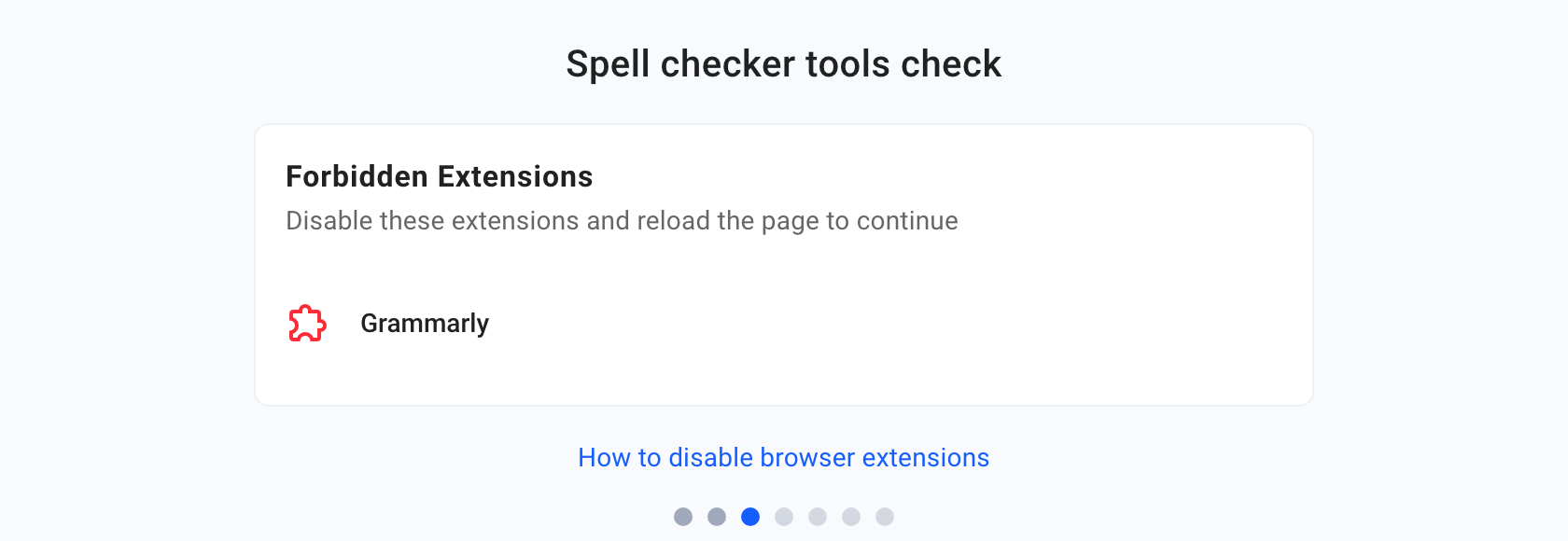
What they need to do: disable the listed extensions, then reload the page. The “How to disable browser extensions” link details the steps for Chrome, Firefox, and Edge. On Chrome, it is the ⋮ menu › More tools › Extensions.
What you can do: Allow spell checkers for this participant.
The Evalmee app is required
If the exam requires the Evalmee app, the participant sees Evalmee app required. They must download the app, log in, and open the exam from the app. To exempt them, use Disable Evalmee app requirement in the ⁝ menu.
The browser is not compatible
The message “Evalmee is not compatible with your current browser version” asks the participant to update the browser or use Chrome or Firefox. Recommend these two browsers to your participants.
The participant's computer clock is wrong
What the participant sees: a window titled “It seems that your computer is not on the correct time”, with the Check again and Ignore buttons. It appears when the computer's time differs by more than 30 seconds from the Evalmee server's time.
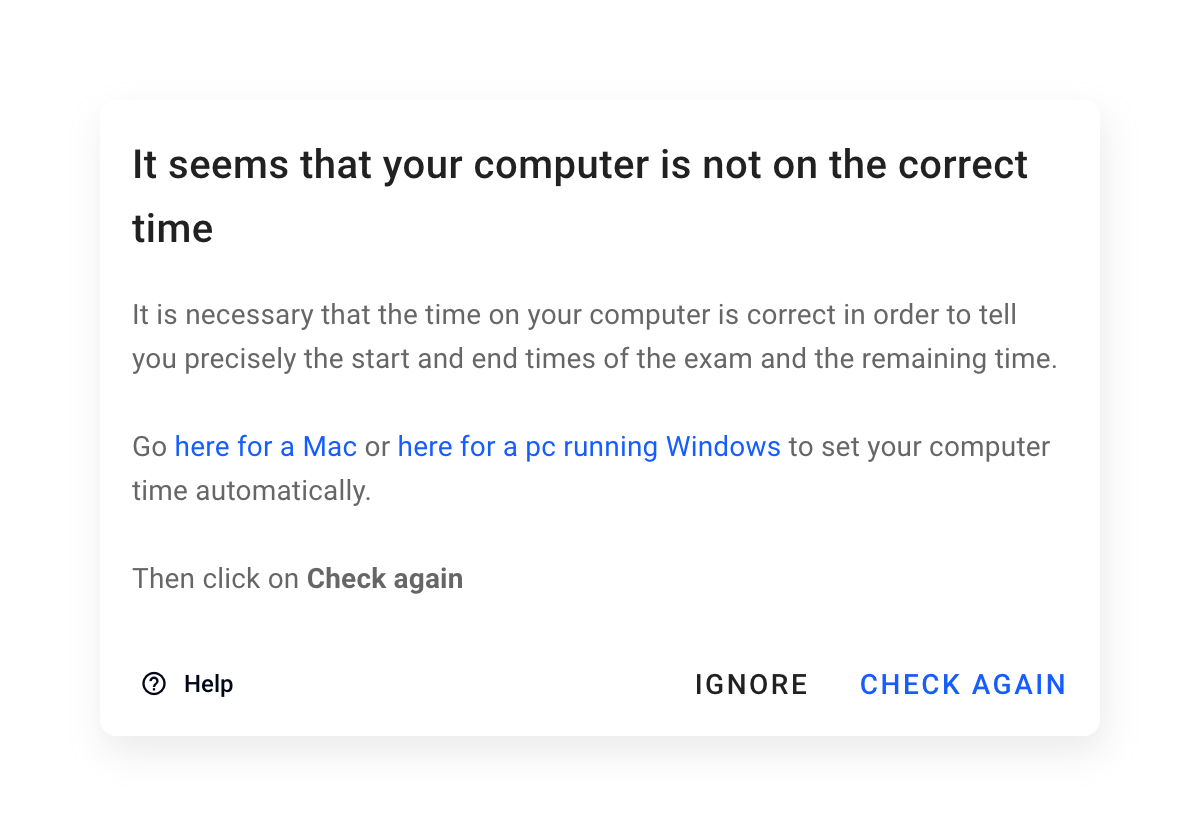
The participant can close this window with Ignore, but an incorrect time can block them from entering the exam or make them lose time: they should fix the time before going on. The window also ensures that the start and end times and the remaining time shown are accurate.
What they need to do:
Set the computer's date, time, and time zone to automatic in the system settings.
Click Check again.
Reload the Evalmee page if the exam still does not open.
What you can do: if a participant cannot log in or open the exam, ask them to check their computer's time first. The login code they receive by email is temporary: see A participant does not receive their email login code.
The exam page does not load, or loads very slowly
What the participant sees: the page stays on the Evalmee logo or takes a very long time to appear, even after a reload. The cause is almost always the network: overloaded or unstable wifi (many participants on the same connection), the institution's proxy or firewall, an ad blocker, or a filtering extension.
What they need to do:
Reload the page.
Move closer to the wifi access point and close the tabs and apps that use the connection.
Turn off ad blockers and filtering extensions, or try another browser.
Switch network, for example with their phone's hotspot.
What you can do:
If several participants are affected at the same time, the problem comes from the room's network. Test the speed on site, for example with fast.com.
Ask the IT department not to filter or throttle Evalmee's addresses (evalmee.com).
Plan a backup connection (hotspot) and have the network tested in advance.
FAQ
Can I take an exam on a smartphone or tablet?
Can I take an exam on a smartphone or tablet?
Yes, as long as you lift the computer-related blockers: screen recording is not supported on mobile (“You must use a computer to take this exam.”), and the Evalmee app, if required, cannot be used. For this participant, use Disable Screen Recording and, if needed, Disable Evalmee app requirement from Monitor › Live. The procedure is detailed in the “The participant is on an iPad, tablet, or smartphone” section above. The browser must also be up to date (Chrome or Firefox recommended) and pass the Device compatibility check.
Was this helpful?
Still need help? Ask the team