Live tracking
Written By Florian Barral
Last updated 22 minutes ago
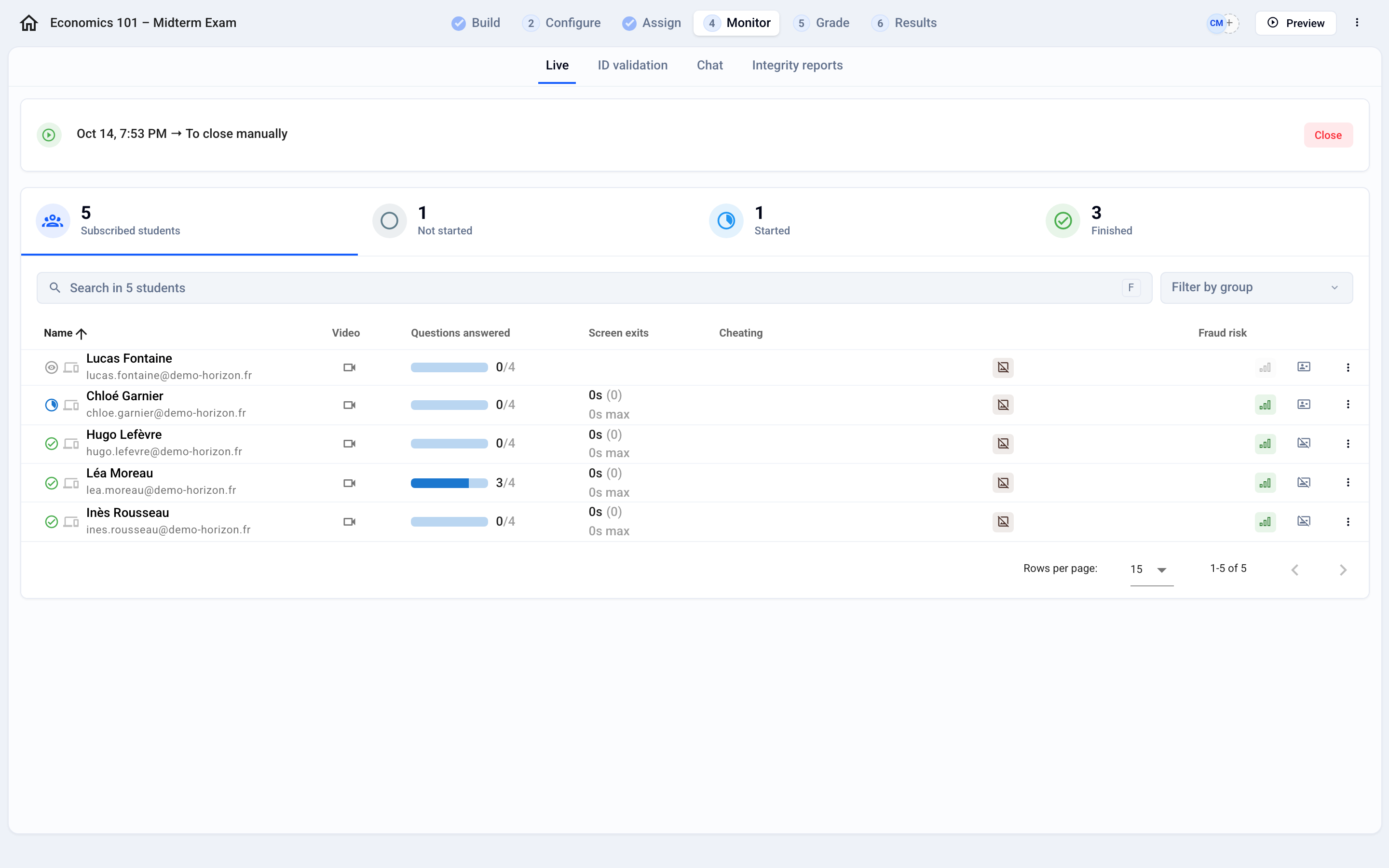
During the exam, the Monitor › Live tab shows each participant’s progress in real time.
Reading the table
At the top, the Subscribed students, Not started, Started, and Finished counters. Click Filter under a counter to show only those participants.
For each participant: Questions answered, Screen exits (count and duration), cheating indicators, and Fraud risk. The Video column appears when camera proctoring is on.
Filter by group limits the list to one group of participants.
A participant who opened the exam without starting it shows “Opened the exam’s landing page on …”, with the date they first opened it: useful for spotting someone who is having trouble getting started.
Taking action on a participant
Click ⁝ at the end of the row. The available actions depend on the participant’s status:
Send convocation: resends the convocation email.
Close (participant in progress) or Reopen (finished participant). See Close or reopen a participant's exam
Add time, on a timed exam. See Add extra time
Disable Camera Recording, Disable spell checker verification: in case of a technical problem for this participant.
Reset: clears the attempt so the participant starts over. See Reset a participant's exam

The other Monitor tabs
Chat: answer participants’ questions. See Chat between you and participants
ID validation: shown if you use the manual check. See Verify participant identity
Integrity reports: after the exam, analyze suspicious behavior. See Identify fraud
Was this helpful?
Still need help? Ask the team