Add extra time
Add extra time for a participant before or during the exam
Written By Florian Barral
Last updated 10 days ago
In the
Monitor›Livetab, find the participant and click⁝at the end of the rowClick
Add time. This action only appears if the exam hasLimit answer timeset toWhole exam(Configuretab,Time limitsection)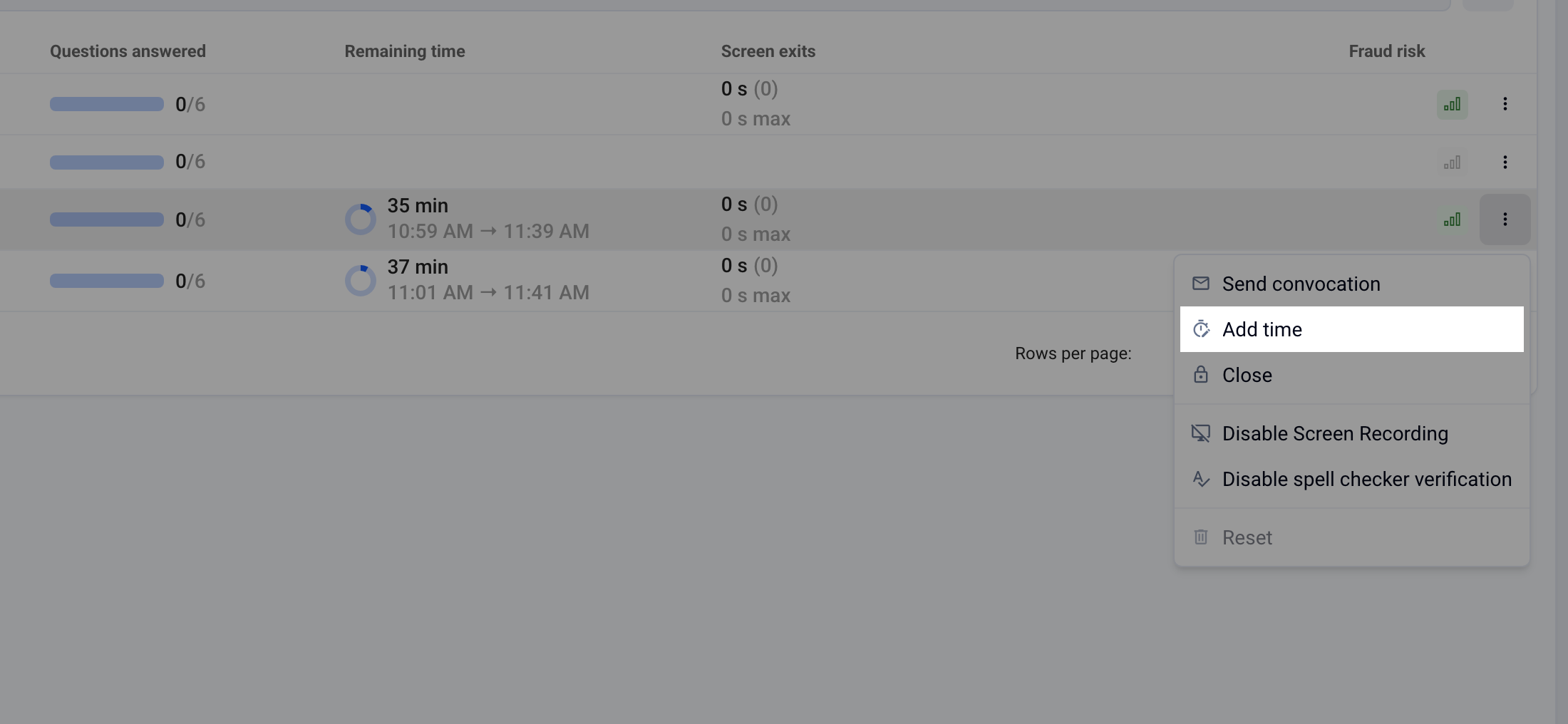
Set the extra time to add, in minutes. It is added to the configured time limit. A negative value removes time already added. For several participants at once, select them, then choose
Add timein the bar at the bottom of the page.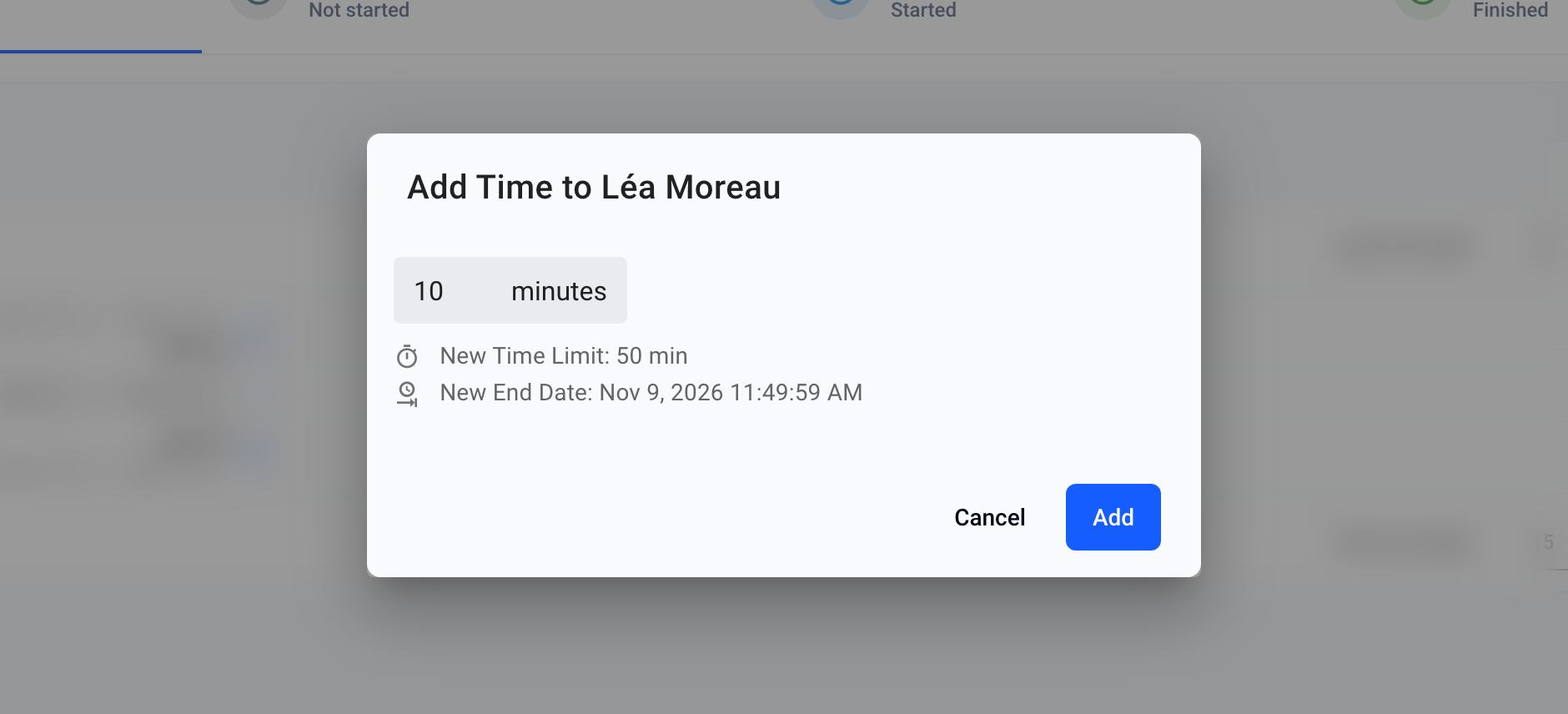
💡 If you are adding time to a participant whose exam you want to reopen (see Close or reopen a participant's exam ), add the extra time while taking the New End Date into account, and check that it matches what you want. For security reasons, time is actually added relative to the planned end date.
FAQ
Does the added time still count after the session closing time?
Does the added time still count after the session closing time?
Yes: the added time also pushes the participant’s end time past the session’s planned closing. The only exception: if you close the session manually, all participants are stopped, added time included.
How do I let a participant retake the exam?
How do I let a participant retake the exam?
Use Reset in the participant’s ⁝ menu (Monitor › Live tab): their attempt is erased and they can start over as long as the session is open.
Was this helpful?
Still need help? Ask the team